
Coinsnap Balance Explained: Free Credit, Referral Codes and Payment Fees
Have you just registered with Coinsnap and noticed a separate prepaid balance in your merchant account? Are you wondering what this balance is used for, why it is displayed in Satoshis, or how to redeem a referral code for additional free credit?
This guide explains everything you need to know about your Coinsnap prepaid balance, how it differs from your Bitcoin wallet, where you can check your processing fees, and how you can start accepting Bitcoin payments with up to €10 in free credit.
1. What Is the Coinsnap Prepaid Balance?
Coinsnap works differently from traditional payment processors. When a customer pays you with Bitcoin, the payment is sent directly to your connected Bitcoin wallet. Coinsnap does not take custody of your Bitcoin payments.
Instead of deducting a service fee from each incoming payment, Coinsnap charges its fees separately through your merchant’s prepaid balance.
Example: Receiving a €100 Bitcoin Payment
- Your customer pays €100 in Bitcoin.
- The Bitcoin payment is sent directly to your connected wallet.
- You receive the full Bitcoin payment amount.
- Coinsnap charges a 1% payment processing fee, equivalent to €1.
- The €1 fee is deducted from your Coinsnap prepaid balance.
This means your incoming Bitcoin payments and your payment processing fees are managed separately.
Coinsnap processing fee: €1 (1%) → deducted separately from prepaid fee balance
Why Does Coinsnap Use a Separate Prepaid Balance?
Because Coinsnap does not hold your Bitcoin payments, it cannot simply deduct its fees from funds held on your behalf. Instead, Coinsnap uses a prepaid credit system. Your Coinsnap prepaid balance works like a prepaid account that automatically covers the processing fees associated with your Bitcoin payments.
This approach offers several advantages:
- Your Bitcoin payments go directly to your wallet.
- Coinsnap does not need to custody your Bitcoin to collect service fees.
- Payment revenue and processing fees remain separate.
- You can easily track your payment processing costs.
- You can start testing Coinsnap using free promotional credit.
Depending on the payment method, additional network fees may apply.
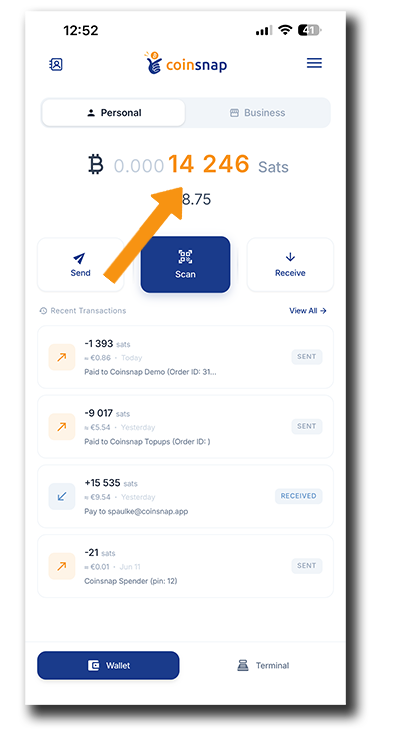
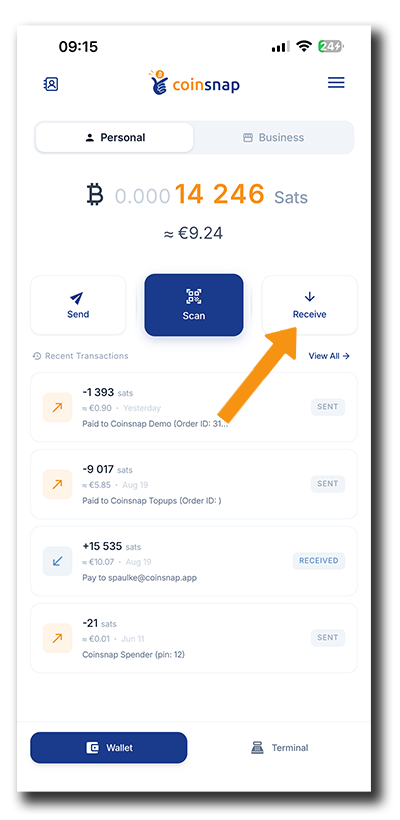
2. Coinsnap Wallet vs. Coinsnap Prepaid Balance: What’s the Difference?
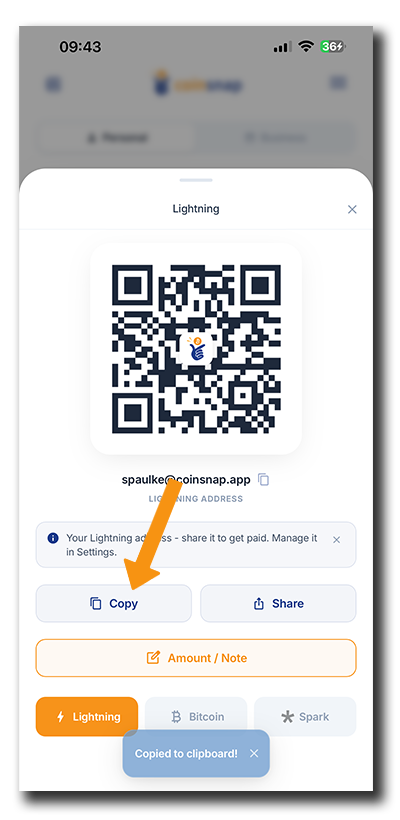
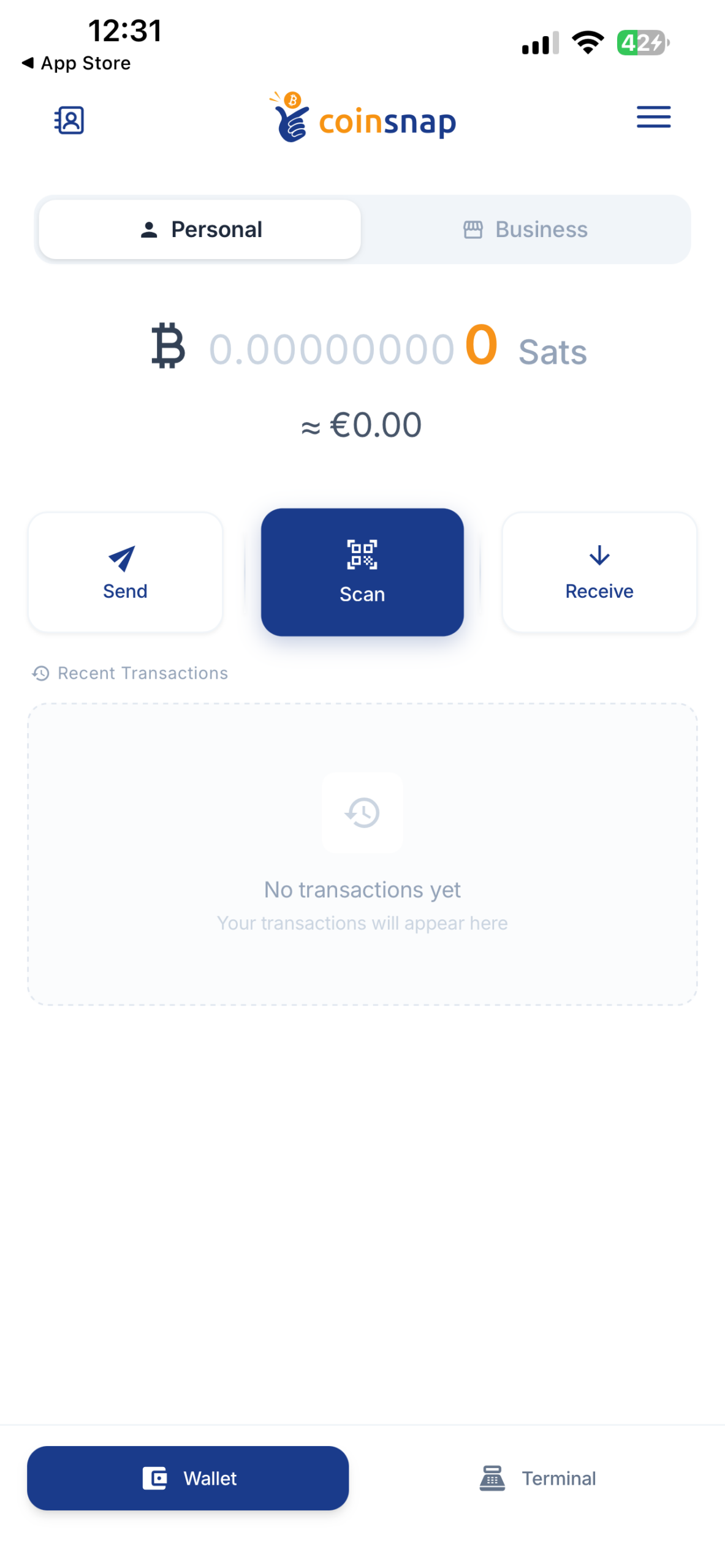
One of the most common questions from new users is why Coinsnap displays two different balances. The reason is simple: Your Bitcoin wallet and your Coinsnap prepaid balance serve different purposes.
| Coinsnap Wallet | Coinsnap Prepaid Balance |
|---|---|
| Receives Bitcoin payments from customers | Pays Coinsnap processing fees |
| Holds your Bitcoin | Holds prepaid fee credit |
| Supports sending and receiving Bitcoin | Covers service fees automatically |
| Self-custodial Bitcoin wallet | Managed within your Coinsnap merchant account |
| Your Bitcoin is under your control | Credit is used for Coinsnap services |
Think of your Coinsnap Wallet as your personal Bitcoin wallet and your Coinsnap prepaid balance as a separate account for payment processing fees.
3. How to Get €5 in Free Coinsnap Starting Credit
To help new merchants get started, Coinsnap provides €5 in free credit when you register a new merchant account. This starting credit is automatically added to your Coinsnap prepaid balance.
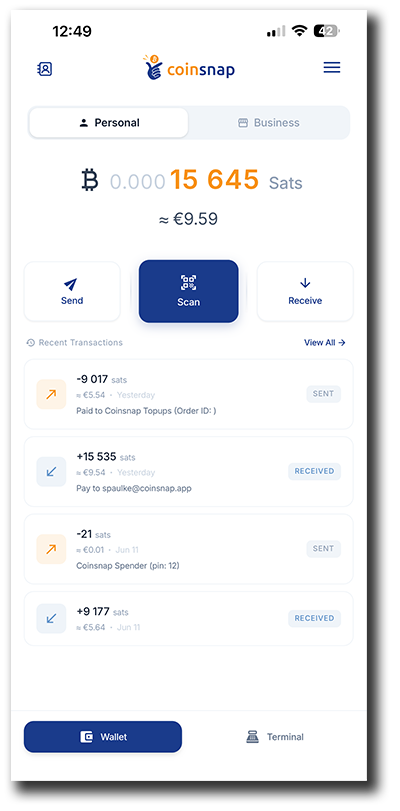
The balance is displayed in Satoshis (sats), the smallest unit of Bitcoin. One Bitcoin equals 100,000,000 Satoshis.
What Can You Do with €5 in Free Credit?
With Coinsnap’s standard processing fee of 1%, €5 in fee credit can cover fees for up to €500 in Bitcoin payments, assuming no additional fees apply.
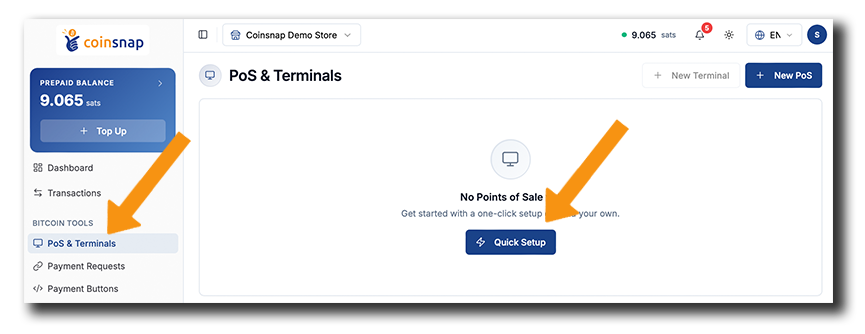
- Accept your first Bitcoin payment using Coinsnap POS.
- Test Bitcoin payments in your online store.
- Verify that payments arrive in your Bitcoin wallet.
- Explore the Coinsnap merchant dashboard.
- Review your payment history and processing fees.
- Learn how Bitcoin payment processing works.
You can start experimenting without initially having to top up your prepaid balance.
4. Get Another €5 with a Coinsnap Referral Code
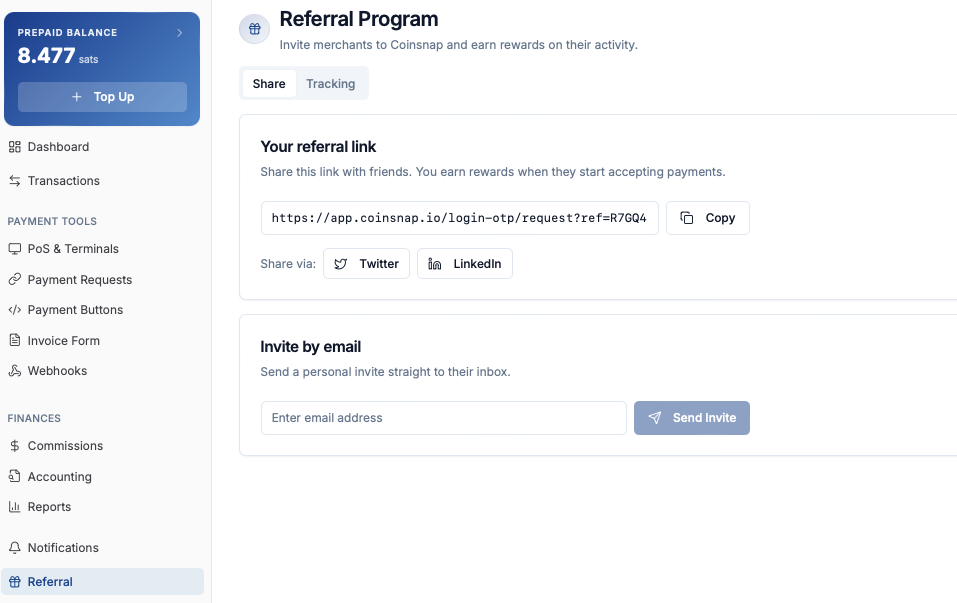
Did a friend, colleague, business partner or another Coinsnap merchant introduce you to Coinsnap? If they shared a Coinsnap referral link or referral code with you, you can receive an additional €5 in free fee credit. Combined with your regular €5 starting credit, this gives you €10 in total free Coinsnap fee credit.
There are two ways to use a referral.
Option A: Register Through a Referral Link
The easiest method is to use a personal Coinsnap referral link. A referral link may look like this: https://coinsnap.io/?ref=YOUR-REFERRAL-CODE. This is an example; replace it with a valid referral code.
- Open the referral link you received.
- Start the Coinsnap merchant registration process.
- Complete your registration.
- Log in to your new Coinsnap merchant account.
- Check your Coinsnap prepaid balance.
When you register through a valid referral link, the referral code is automatically associated with your registration. After successful registration, you receive €5 regular starting credit and €5 additional referral credit — €10 total free Coinsnap fee credit.
Option B: Register Using a Referral Code
Sometimes you may receive only a referral code rather than a complete referral link. You can also use this code during registration.
- Visit coinsnap.io.
- Start registration for a new Coinsnap merchant account.
- Enter your referral code in the designated referral field.
- Complete your registration.
- Log in and check your available prepaid balance.
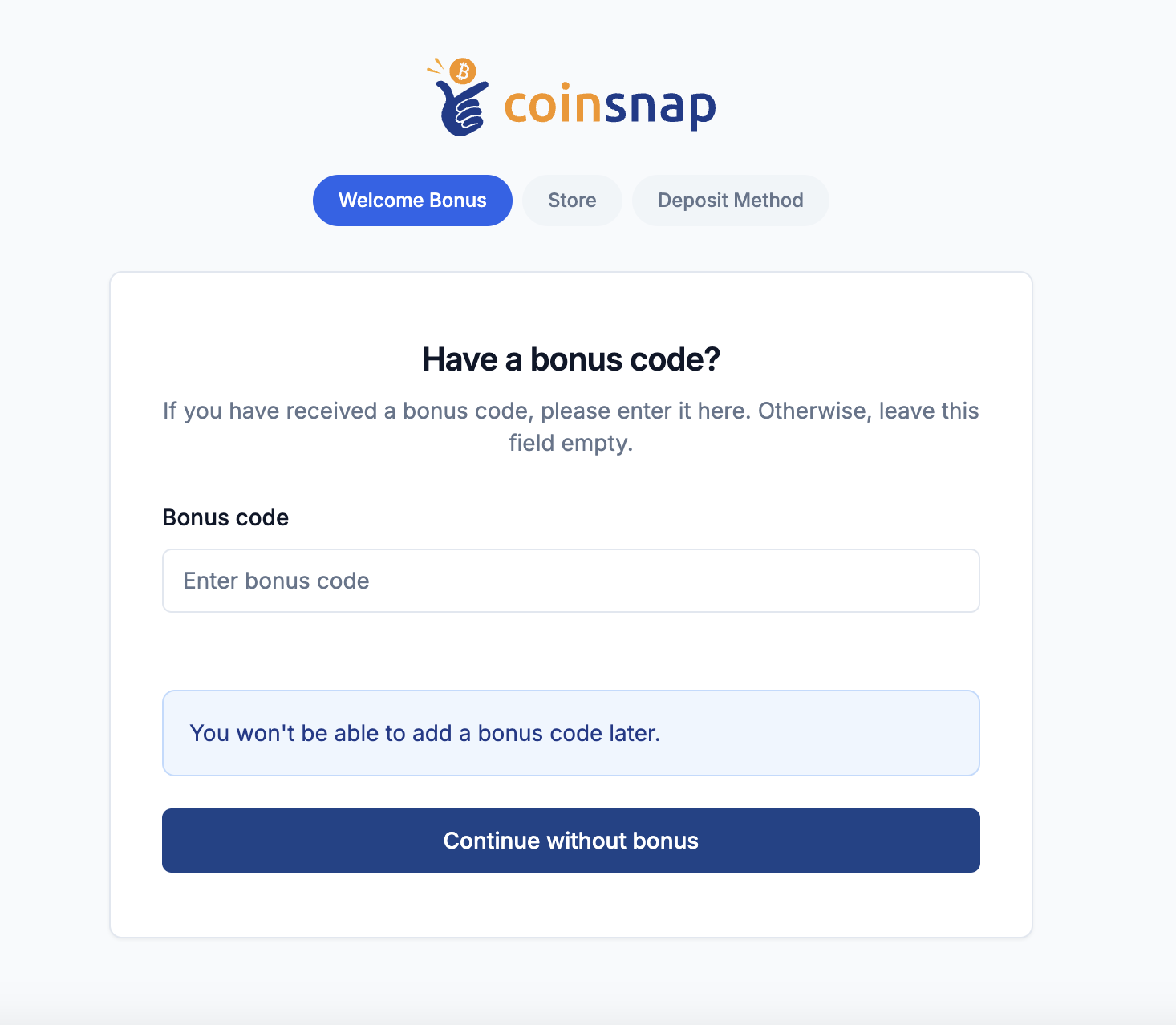
Your additional referral credit will be applied if the code is valid and successfully associated with your registration.
Tip: Make sure to use your referral link or enter your referral code during registration. If you have already registered and forgotten to use your referral code, contact Coinsnap support to ask whether it can still be applied.
For more information, see the Coinsnap Referral Program.
5. How Much Can You Process with €10 in Free Credit?
With €10 in free fee credit, you can already accept a significant amount of Bitcoin payments. At Coinsnap’s standard 1% processing fee, €10 can cover the service fees for up to €1,000 in Bitcoin payment volume, assuming no additional fees apply.
Examples of Coinsnap Processing Fees
| Bitcoin Payment Amount | Coinsnap Fee (1%) |
|---|---|
| €10 | €0.10 |
| €50 | €0.50 |
| €100 | €1.00 |
| €250 | €2.50 |
| €500 | €5.00 |
| €1,000 | €10.00 |
These calculations illustrate the standard 1% processing fee and exclude any additional applicable network fees. Your free credit allows you to test Coinsnap in real business situations, including accepting Bitcoin payments at a physical point of sale or through your online store.
6. Where Can I Find My Coinsnap Prepaid Balance?
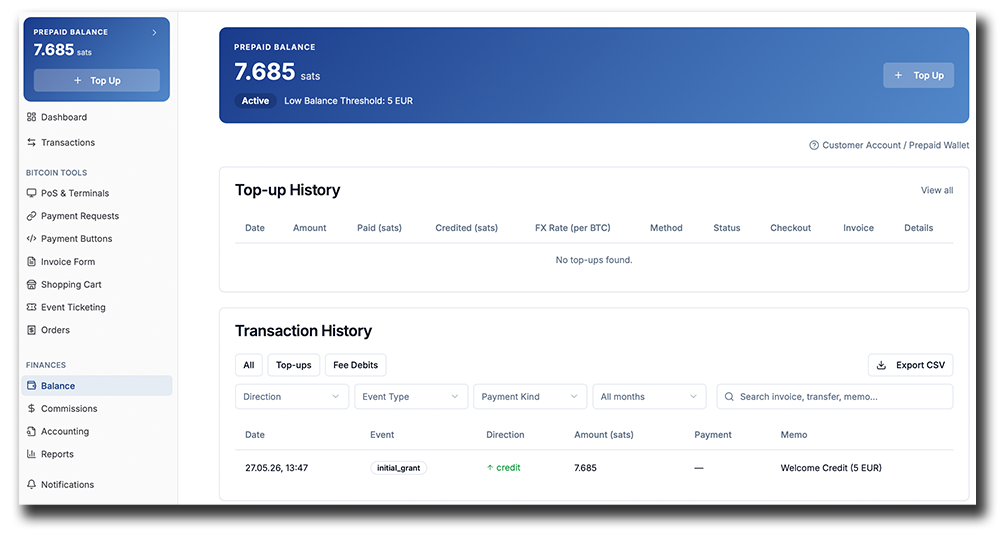
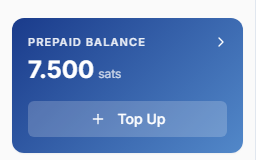
You can check your current Coinsnap prepaid balance at any time in your merchant dashboard.
- Log in to your Coinsnap merchant account at app.coinsnap.io.
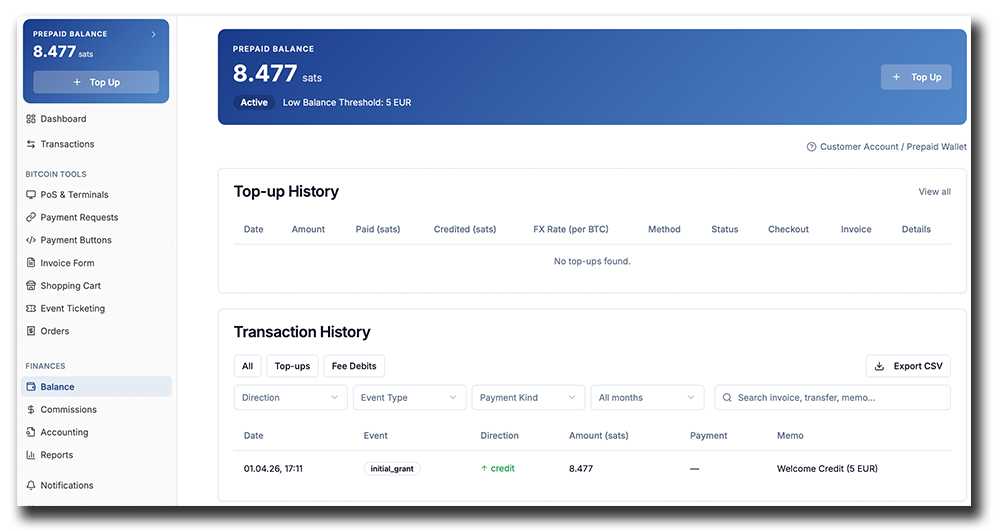
- Click Prepaid Balance in the left sidebar.
- Alternatively, open app.coinsnap.io/balance directly.
- Your current prepaid balance will be displayed in Satoshis.
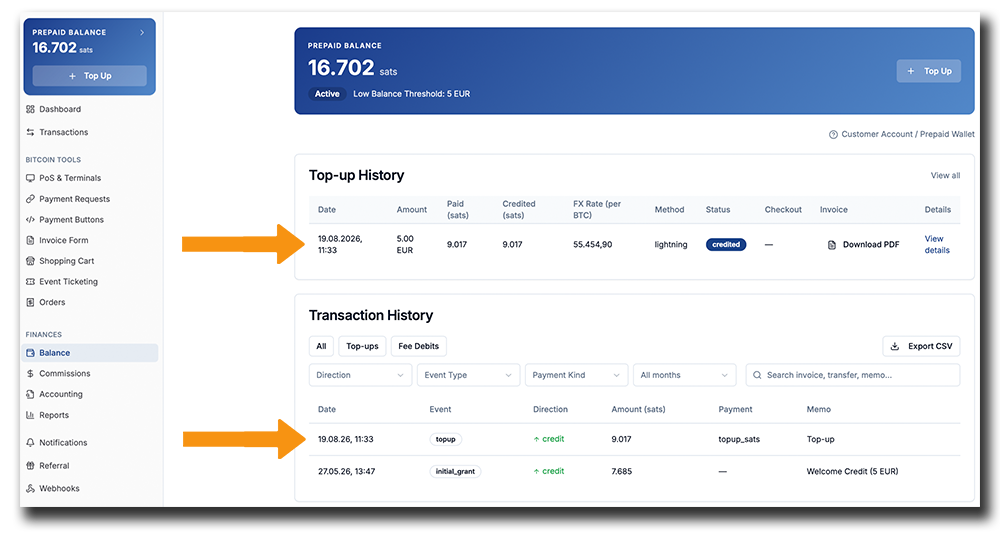
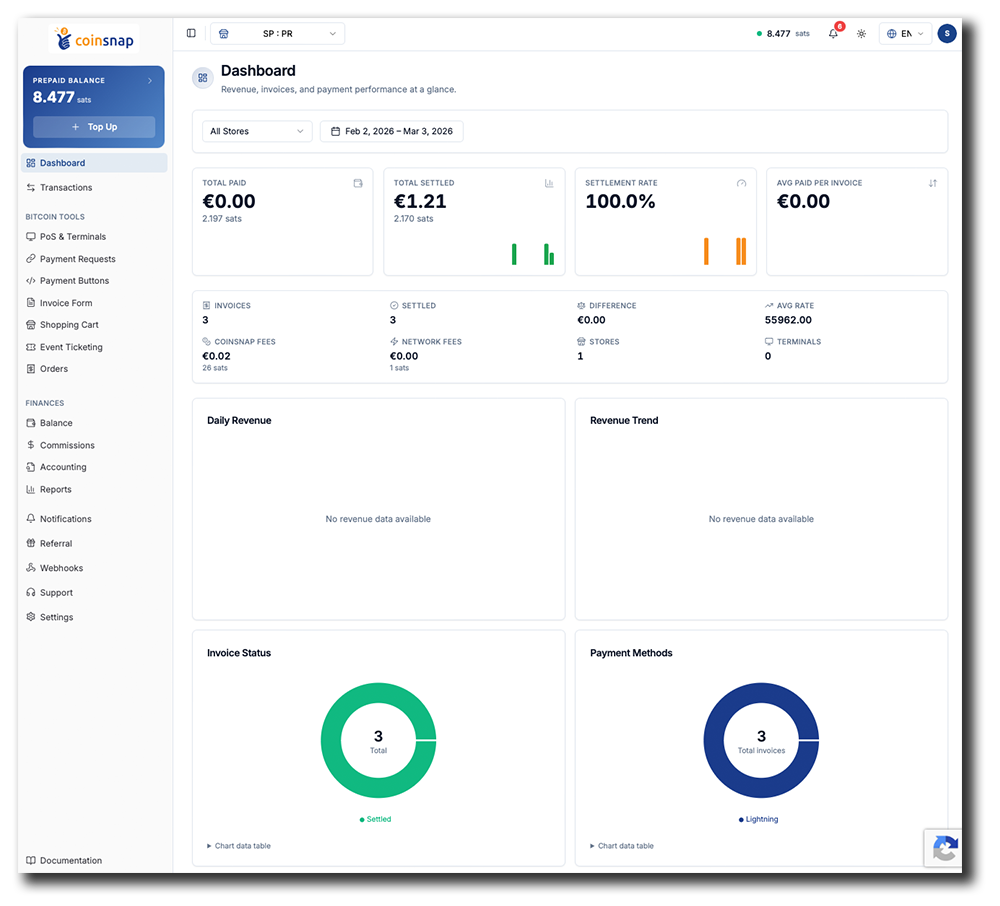
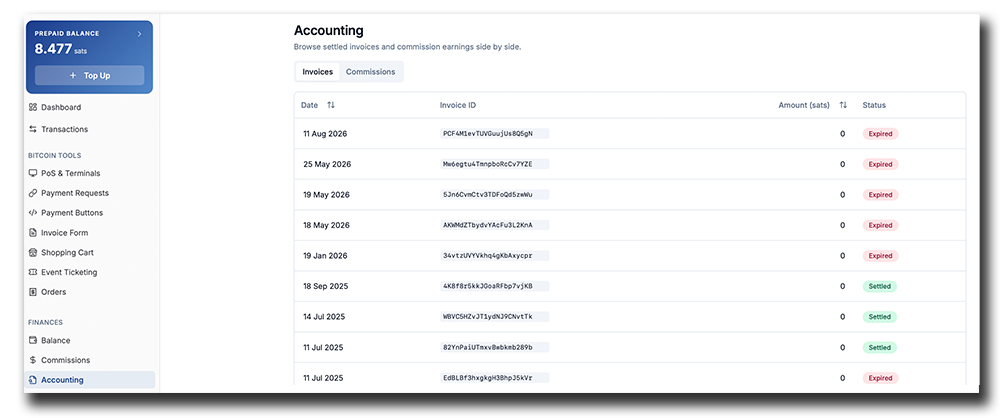
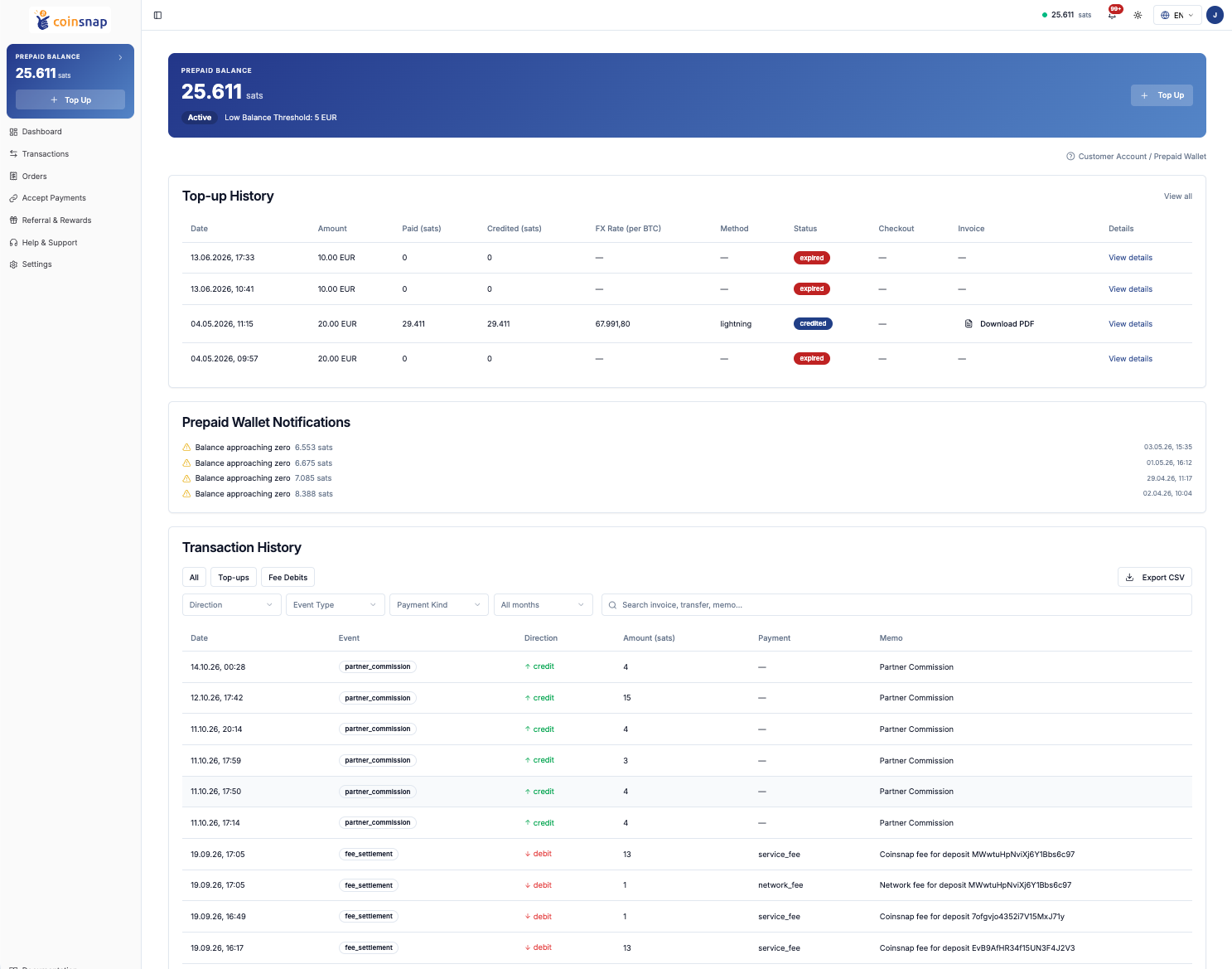
The prepaid balance is also displayed in the left sidebar of your Coinsnap dashboard. On the Prepaid Balance page, you can view your current balance, low-balance notifications, complete transaction history, deducted fees, credits and top-ups, and the option to add more credit.
7. How Can I See What Coinsnap Charges Me For?
Coinsnap provides a transparent overview of all fees charged to your merchant account. The standard Coinsnap processing fee is 1% of your Bitcoin payment volume. Depending on the payment method, additional network fees may apply.
Every fee deduction is recorded in your Coinsnap transaction history, allowing you to see exactly when and why your prepaid balance was charged.
How to Check Your Coinsnap Fees
- Log in to your Coinsnap merchant account.
- Open Prepaid Balance.
- Scroll down to Transaction History.
- Select Fee Debits to display your fee deductions.
The Transaction History table provides the following information:
| Column | Description |
|---|---|
| Date | Date and time of the transaction |
| Event | Transaction type, such as fee_settlement |
| Direction | Credit or debit |
| Amount (sats) | Amount credited or deducted in Satoshis |
| Payment | Fee category, such as service_fee or network_fee |
| Memo | Description of the transaction, including the associated payment reference |
You can also filter the transaction history by event type, payment category, date range and other available criteria.
What Is the Difference Between Service Fees and Network Fees?
Service Fee (service_fee): This is the regular Coinsnap payment processing fee of 1%. For example, if you receive a Bitcoin payment worth €100, the Coinsnap service fee is €1. The corresponding amount in Satoshis is deducted from your prepaid balance.
Network Fee (network_fee): Depending on the payment method and the underlying Bitcoin infrastructure, additional network fees may apply. These fees are recorded separately from the Coinsnap service fee. You can see both fee types as individual entries in your transaction history.
Can I See Which Payment a Fee Belongs To?
Yes. The Memo column contains a description of the fee and typically includes the reference of the associated Bitcoin payment. For example: Coinsnap fee for deposit [payment reference]. This makes it easier to reconcile your Bitcoin payments with the fees charged by Coinsnap.
Can I Download My Coinsnap Fee Transactions?
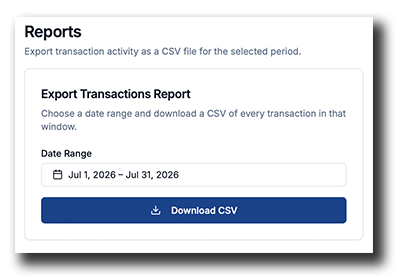
Yes. Coinsnap allows you to export your transaction history as a CSV file.
- Open Prepaid Balance.
- Navigate to Transaction History.
- Use the available filters if needed.
- Click Export CSV.
The CSV export allows you to review your transaction records outside Coinsnap and use them for accounting and reconciliation.
Can I Also See Credits and Referral Commissions?
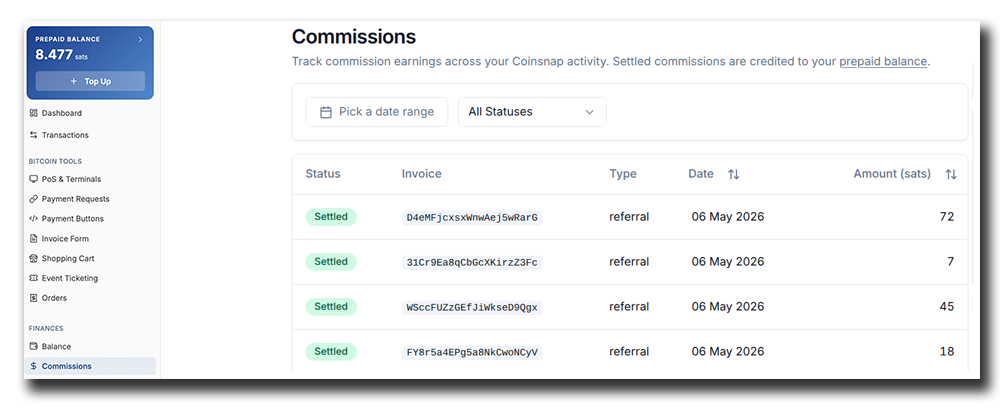
Yes. The Transaction History includes both debits and credits. In addition to fee deductions, you may see top-ups (credit added to your prepaid balance), partner commissions (rewards credited through the Coinsnap referral program), and fee settlements (processing fees deducted from your balance).
You can select All, Top-ups or Fee Debits to find the relevant transactions more easily.
8. Why Does Coinsnap Show a Negative Balance?
Sometimes you may see an orange warning in your Coinsnap dashboard saying Low Balance, or a negative value such as –4,037 sats.
A negative Coinsnap prepaid balance does not mean that your personal Bitcoin wallet has a negative Bitcoin balance. The displayed amount refers to your separate merchant fee account. A negative balance indicates that the fees recorded against your account exceed the currently available fee credit. This may happen when processing fees are recorded while your prepaid balance is insufficient.
How Can I Check Why My Balance Is Negative?
- Open Prepaid Balance.
- Scroll to Transaction History.
- Select Fee Debits.
- Review the service fees and network fees that were deducted.
Each entry shows the amount charged and the associated payment reference. Your personal Bitcoin wallet remains separate from the prepaid account.
What Should I Do if My Balance Is Negative?
If your prepaid balance becomes low or negative, you should top it up. This ensures that sufficient fee credit is available for future payment processing. Coinsnap provides a simple way to add credit using Bitcoin.
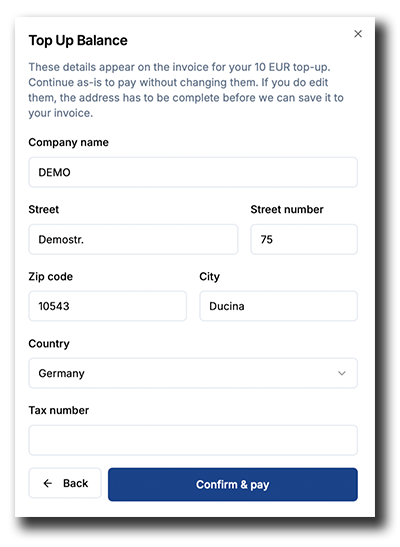
9. How to Top Up Your Coinsnap Prepaid Balance
Once your free starting credit has been used, you can add more credit to your Coinsnap merchant account. Coinsnap supports prepaid balance top-ups using Bitcoin Lightning and Bitcoin On-Chain payments.
Step 1: Open Your Prepaid Balance
Log in to your Coinsnap merchant account and navigate to Prepaid Balance.
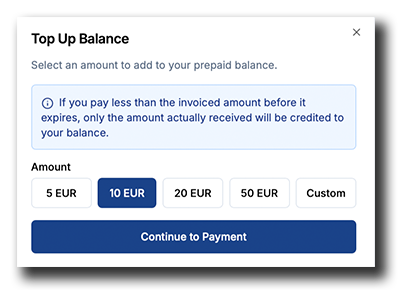
Step 2: Select Top Up
Click the Top Up button displayed below your prepaid balance in the left sidebar.
Step 3: Choose an Amount
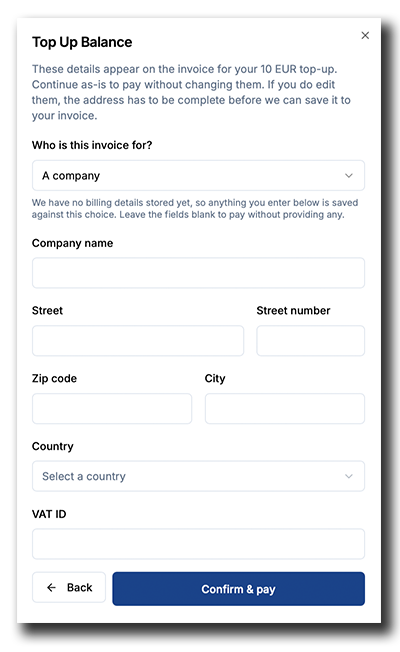
Select a suggested amount such as €5, €10, €20 or €50, or enter a custom amount starting from €5.
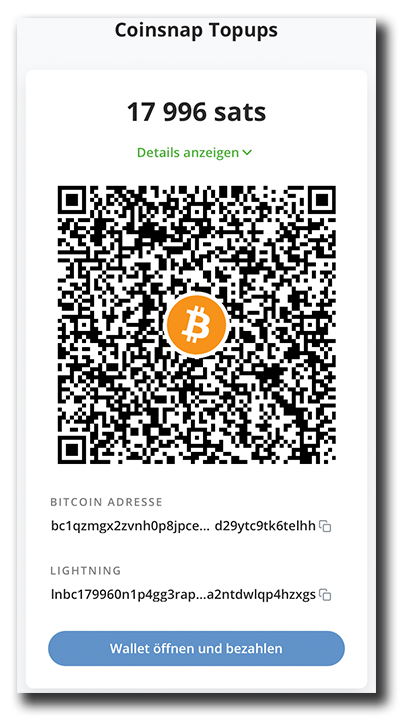
Step 4: Pay with Bitcoin
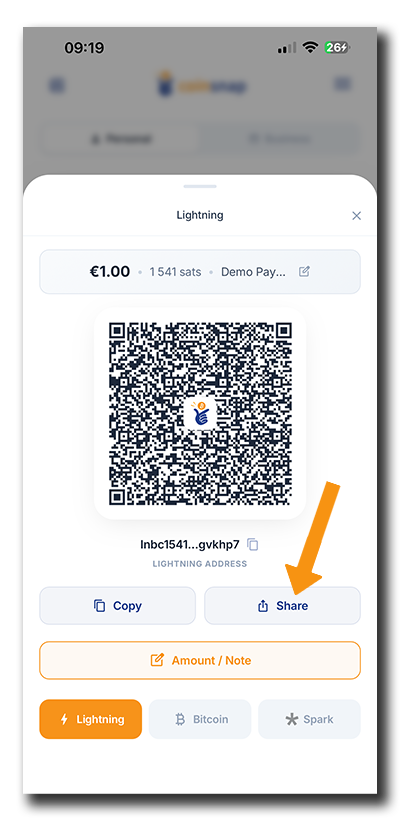
Coinsnap generates a Bitcoin payment request for the selected top-up amount. You can pay using a compatible Bitcoin wallet through Lightning or On-Chain.
Step 5: Your Credit Is Added
Once your payment has been successfully processed, your prepaid balance is credited. Coinsnap automatically deducts future processing fees from this balance.
Low Balance Notifications
If your Coinsnap prepaid balance falls below the equivalent of €5, Coinsnap sends you an email notification. The notification includes a payment link that allows you to conveniently top up your balance by €20. Alternatively, you can log in to your merchant dashboard and choose another top-up amount.
For detailed instructions, read How to Top Up Your Coinsnap Credit.
10. Why Is This Fee Model Useful for Bitcoin Merchants?
The main advantage of Coinsnap’s prepaid fee model is that your Bitcoin payments remain separate from the costs of processing them. When customers pay you in Bitcoin, the payment goes directly to your connected Bitcoin wallet. Coinsnap collects its fees separately through your merchant’s prepaid balance.
- Direct Bitcoin payments: Your Bitcoin payments are delivered directly to your wallet without Coinsnap first taking custody of them.
- Self-custody: You maintain control of your Bitcoin through your own wallet.
- Transparent fees: Your payment processing fees are recorded separately from your Bitcoin revenue.
- Detailed transaction history: You can review every fee debit, credit and top-up in your Coinsnap dashboard.
- Easy testing: New merchants receive €5 in free credit, with another €5 available through a valid referral code.
- Simple account management: You can check your prepaid balance and add credit whenever needed.
Frequently Asked Questions (FAQ)
What is the Coinsnap prepaid balance?
The Coinsnap prepaid balance is a credit account used to pay Coinsnap’s payment processing fees and any additional applicable charges. It is separate from your personal Bitcoin wallet.
Why do I need a Coinsnap fee wallet?
Coinsnap sends customer Bitcoin payments directly to your connected wallet instead of taking custody of them. Therefore, processing fees are charged separately through your Coinsnap prepaid balance.
Do I receive free starting credit when registering with Coinsnap?
Yes. New Coinsnap merchants receive €5 in free starting credit when registering a merchant account. This credit is automatically added to their prepaid balance.
How can I receive an additional €5 Coinsnap credit?
Register using a valid Coinsnap referral link or enter a referral code during registration. This provides an additional €5 in free fee credit, bringing your total starting credit to €10.
Where do I enter my Coinsnap referral code?
You can enter your referral code during the Coinsnap merchant registration process. If you register through a valid referral link, the code is automatically associated with your registration.
Can I add a referral code after registration?
Referral codes are intended to be used during registration. If you forgot to enter your code, contact Coinsnap support to ask whether it can be added afterward.
Is the €5 or €10 starting credit real Bitcoin?
The starting credit is recorded in Satoshis, but it is promotional credit intended to cover Coinsnap fees. It is not freely spendable Bitcoin in your personal Coinsnap Wallet.
Can I withdraw my free Coinsnap bonus credit?
No. Promotional starting and referral credit is intended to cover Coinsnap service fees and is not designed to be withdrawn as Bitcoin.
How much does Coinsnap charge per payment?
Coinsnap’s standard merchant processing fee is 1% per successfully processed payment. Additional network fees may apply depending on the payment method.
Where can I see which fees Coinsnap has charged me?
Log in to your Coinsnap merchant account and open Prepaid Balance. Under Transaction History, select Fee Debits to see all fee deductions, including service fees and network fees.
Can I see which Bitcoin payment a fee belongs to?
Yes. Each fee transaction includes details such as the date, amount, fee category and a memo containing the associated payment reference.
What is the difference between a service fee and a network fee?
The service fee is Coinsnap’s standard 1% payment processing fee. A network fee is an additional charge that may apply depending on the underlying Bitcoin payment network. Both are displayed separately in your transaction history.
Can I export my Coinsnap fee history?
Yes. Open Prepaid Balance and click Export CSV in the Transaction History section. You can download your transaction records for accounting and reconciliation.
Where can I see my referral commissions?
Referral commissions credited to your prepaid account appear in the Transaction History under Prepaid Balance. They can be identified by entries such as partner_commission.
How many payments can I accept with €10 free credit?
At a standard processing fee of 1%, €10 can cover the fees for up to €1,000 in Bitcoin payment volume, assuming no additional fees apply. The number of individual payments depends on their amounts.
Why does my Coinsnap balance show a negative amount?
A negative amount means your merchant prepaid account has a negative balance. It does not mean your personal Bitcoin wallet has a negative Bitcoin balance. Check your fee deductions under Prepaid Balance → Transaction History to understand the charges.
What does “Low Balance” mean in Coinsnap?
The warning indicates that your available prepaid credit is low. You should top up your Coinsnap merchant account to ensure sufficient credit for upcoming processing fees.
How do I top up my Coinsnap balance?
Log in to your Coinsnap dashboard, open Prepaid Balance, click Top Up, choose an amount starting from €5, and pay using Bitcoin Lightning or On-Chain.
Can I top up my Coinsnap balance with Lightning?
Yes. Coinsnap supports prepaid balance top-ups through both Bitcoin Lightning and Bitcoin On-Chain payments.
Does Coinsnap deduct fees from my Bitcoin payments?
Coinsnap does not deduct its merchant processing fees directly from your incoming Bitcoin payments. The fees are charged separately through your prepaid balance.
Do I need prepaid credit if I only use the Coinsnap Wallet?
No. The 1% Coinsnap merchant processing fee does not apply when using the Coinsnap Wallet exclusively as a standalone Bitcoin wallet. Normal Bitcoin network or transaction fees may still apply.
Conclusion: Start Accepting Bitcoin with Up to €10 in Free Credit
Coinsnap makes it easy to accept Bitcoin payments while keeping your Bitcoin revenue separate from your processing fees. Your customers pay Bitcoin directly to your connected wallet, and Coinsnap charges the processing fees through a separate prepaid account.
As a new merchant, you receive €5 in free starting credit. Register with a valid referral link or referral code to receive another €5, giving you a total of €10 in free fee credit. At Coinsnap’s standard 1% processing fee, this can cover the service fees for up to €1,000 in Bitcoin payments, assuming no additional fees apply.
You can track every fee deduction and account credit through the Prepaid Balance page, giving you complete transparency over your payment processing costs. Once your free credit has been used, you can top up your prepaid balance whenever needed.
Start accepting Bitcoin payments today and put your free Coinsnap credit to work.
Create Your Free Coinsnap Account


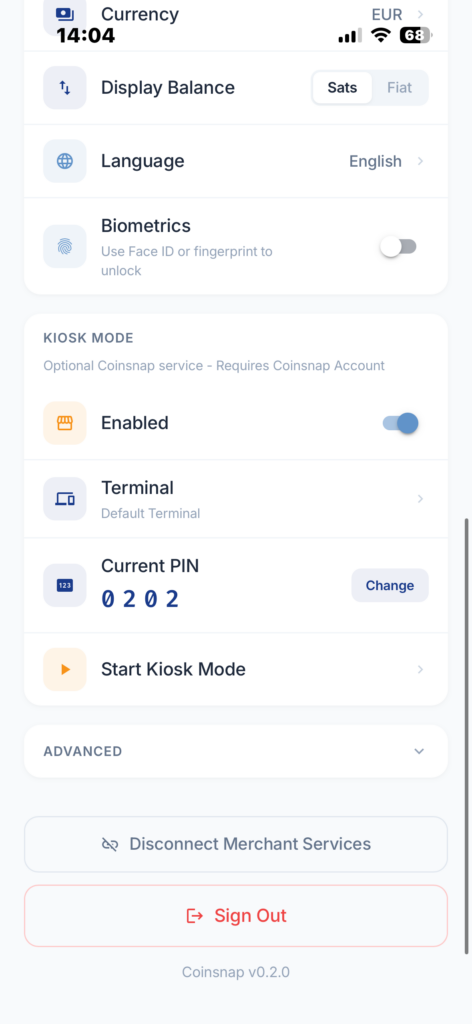

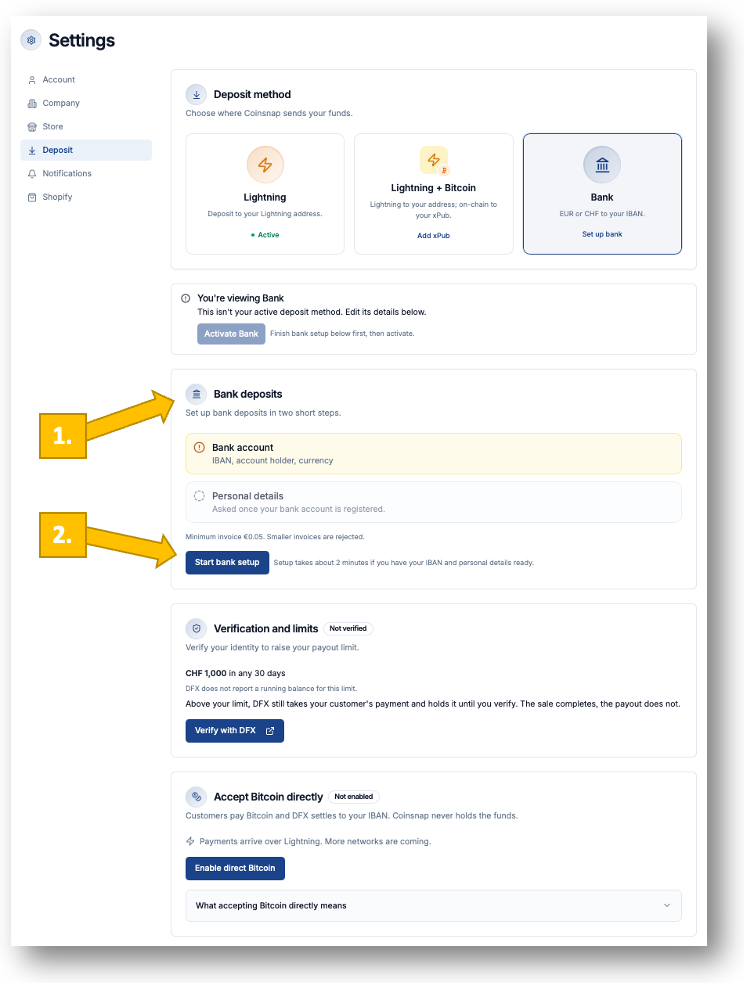
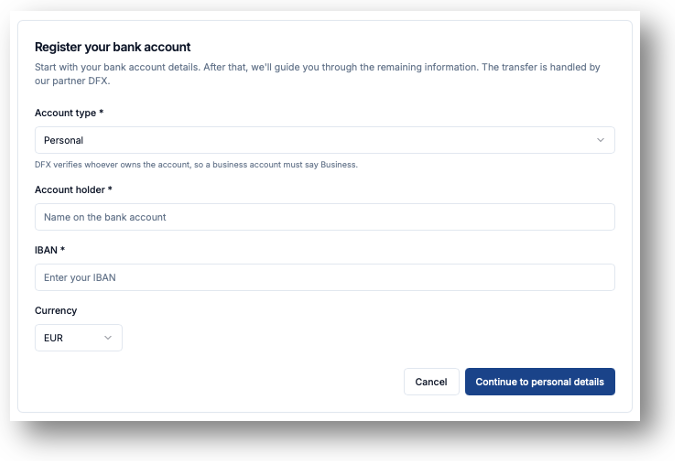
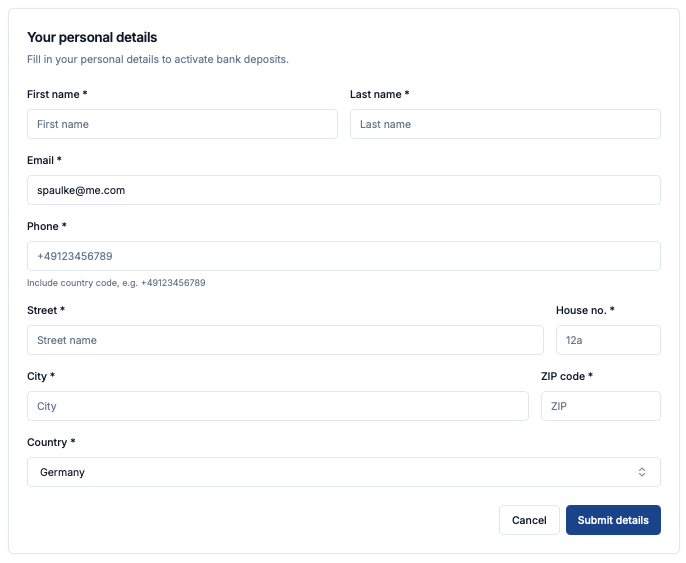
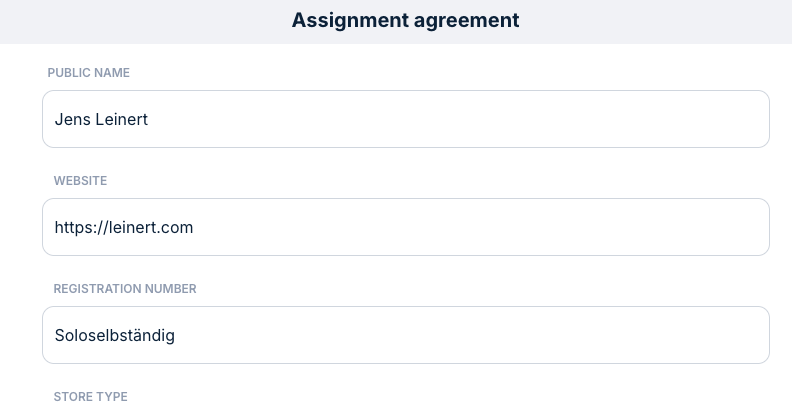
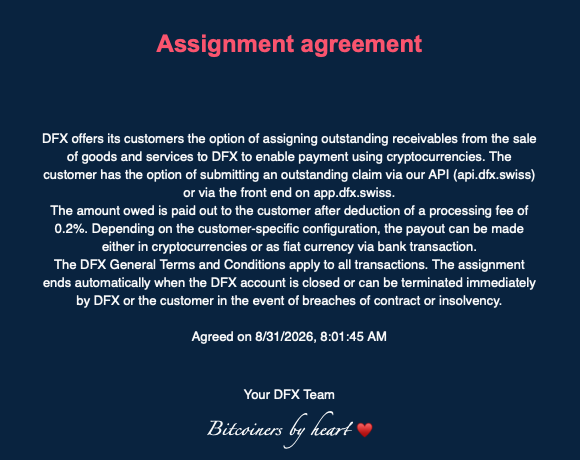
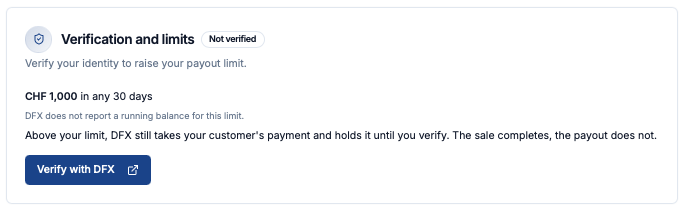
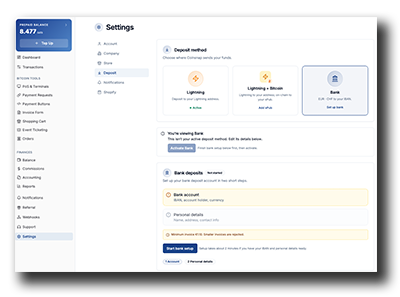
 Connect DFX to Coinsnap if you want to accept Bitcoin payments without keeping your sales revenue in Bitcoin. Your Bitcoin and Lightning sales are automatically converted into euros or Swiss francs and paid directly into your bank account. (