


Coinsnap’s free Shopify integration service
With the Shopify Integration Service, we integrate Bitcoin and Lightning payments into your Shopify store free of charge.
To be able to accept Bitcoin and Lightning payments in your Shopify store, the Shopify store must be connected to Coinsnap.
You have 2 options to establish this connection:
1. Create the connection yourself.
We’ll show you how to do this step by step in the Coinsnap for Shopify user guide.
2. Request the free Shopify installation service from Coinsnap
If you don’t want to go to the trouble of connecting Coinsnap for Shopify with your Shopify store, we’ll be happy to do it for you – free of charge and reliably.
To take advantage of this free Shopify integration service, just complete these two small tasks:
- Create a new admin-user as an administrator in Shopify
- instruct us to install Coinsnap for Shopify in your Shopify store for free
Create shopify@coinsnap.io as administrator of your Shopify store
To install Coinsnap Bitcoin-Lightning payment in your Shopify store, we need access to the backend of your store.
To do this, please set up a new user shopify@coinsnap.io. (After successfully setting up Coinsnap in your Shopify store, the employee is no longer needed and should be deleted).
Creating shopify@coinsnap.io as the administrator of your Shopify store works like this:
Click on Users in the left sidebar of your Shopify backend. Then enter our email address shopify@coinsnap.io at the top.
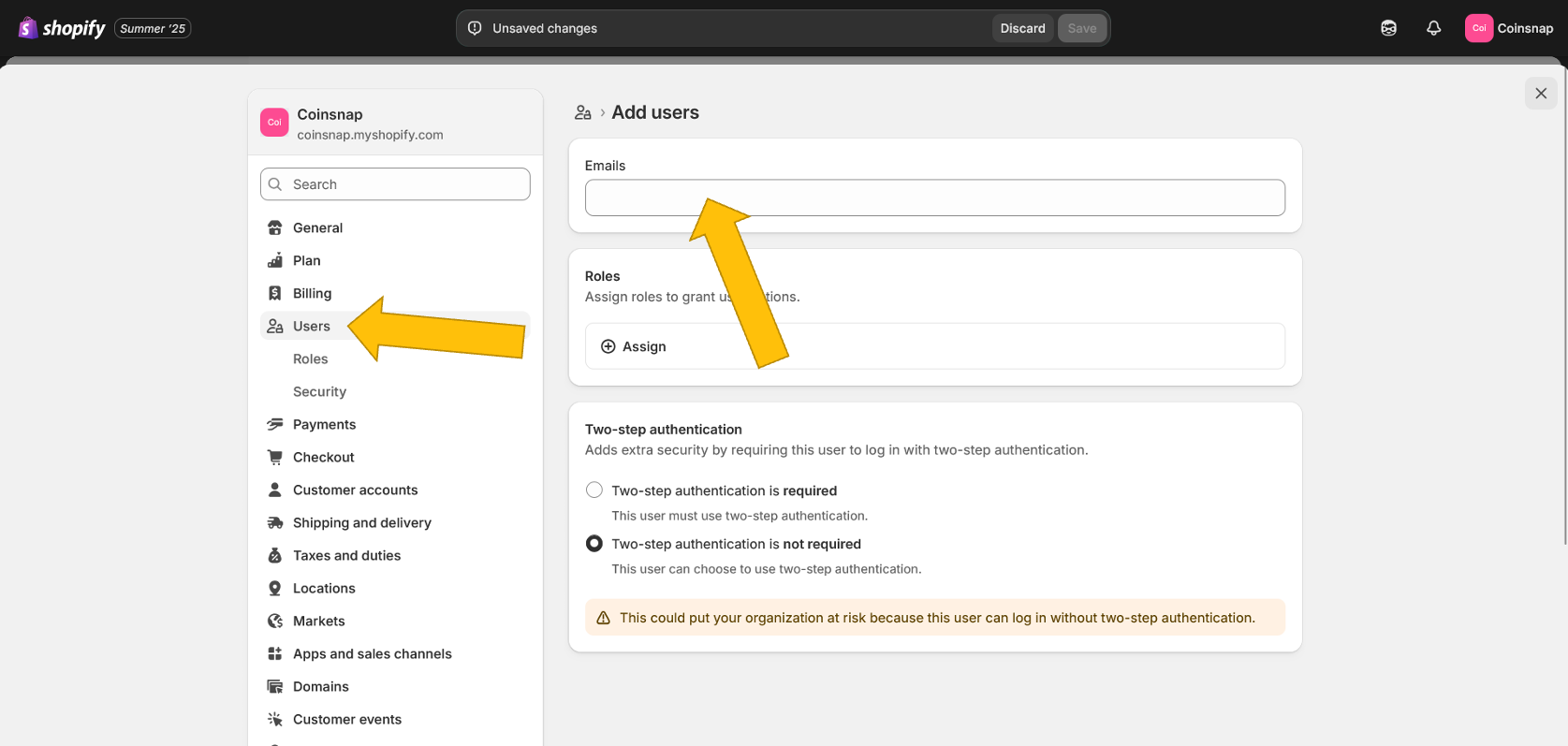
Now you need to give the new Coinsnap user admin rights so that we can make the necessary settings in your system. To do this, click on (+) Assign in the second field.
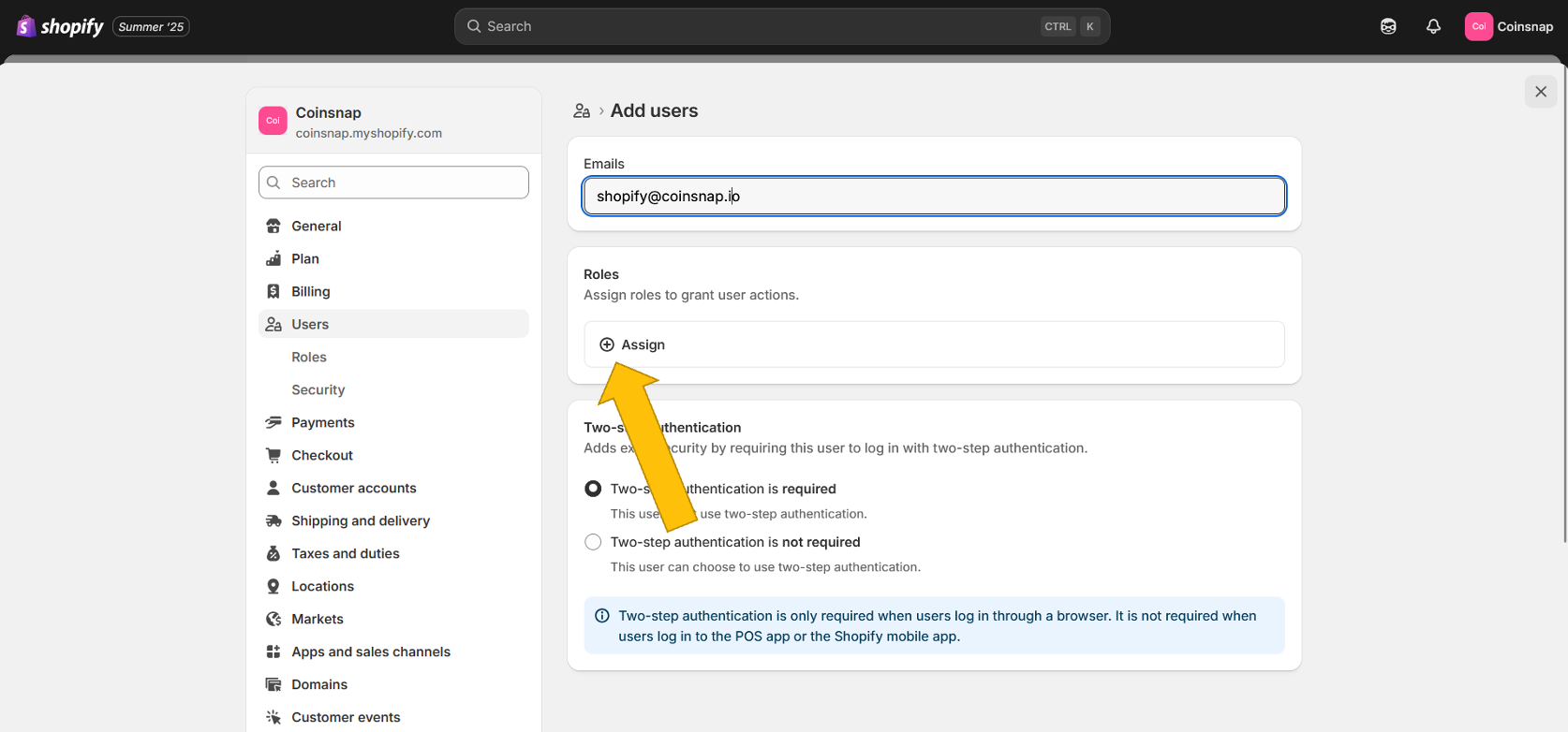
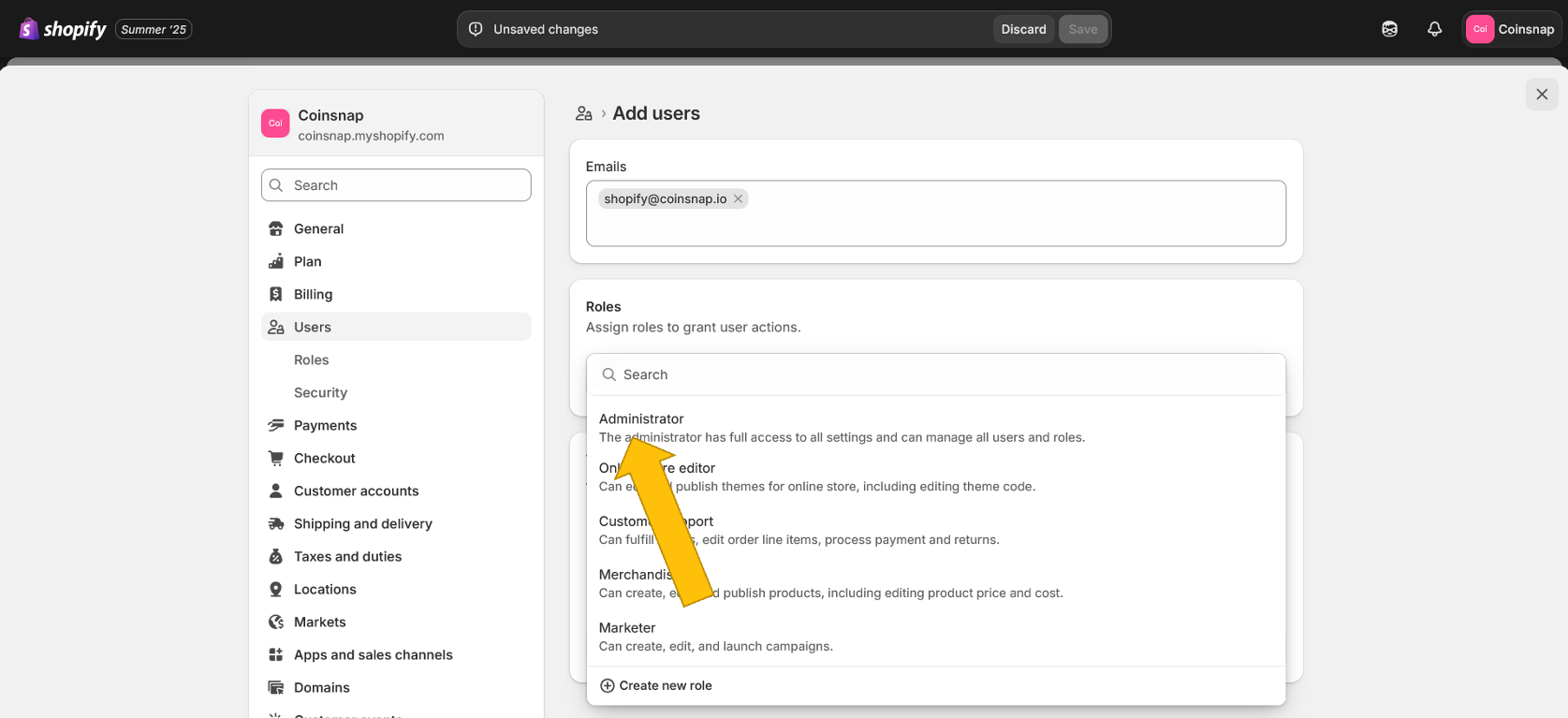
In the pop-up window that now appears, please click on Administrator.
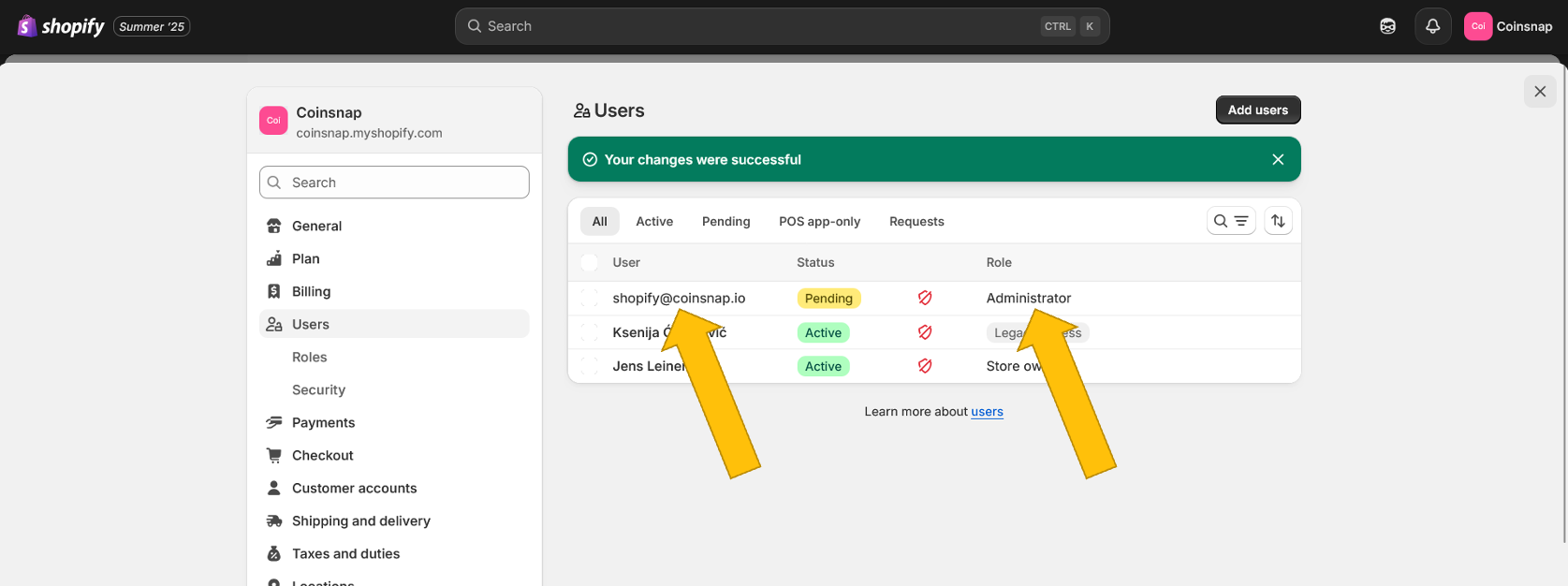
Then you will see this screen – shopify@coinsnap.io is now set up as an administrator and will receive an email that our technicians can use to log into your Shopify to link Coinsnap for Shopify to your store! (As soon as we log in, the yellow Pending field will change to green Active).
Order the free Shopify Integration Service
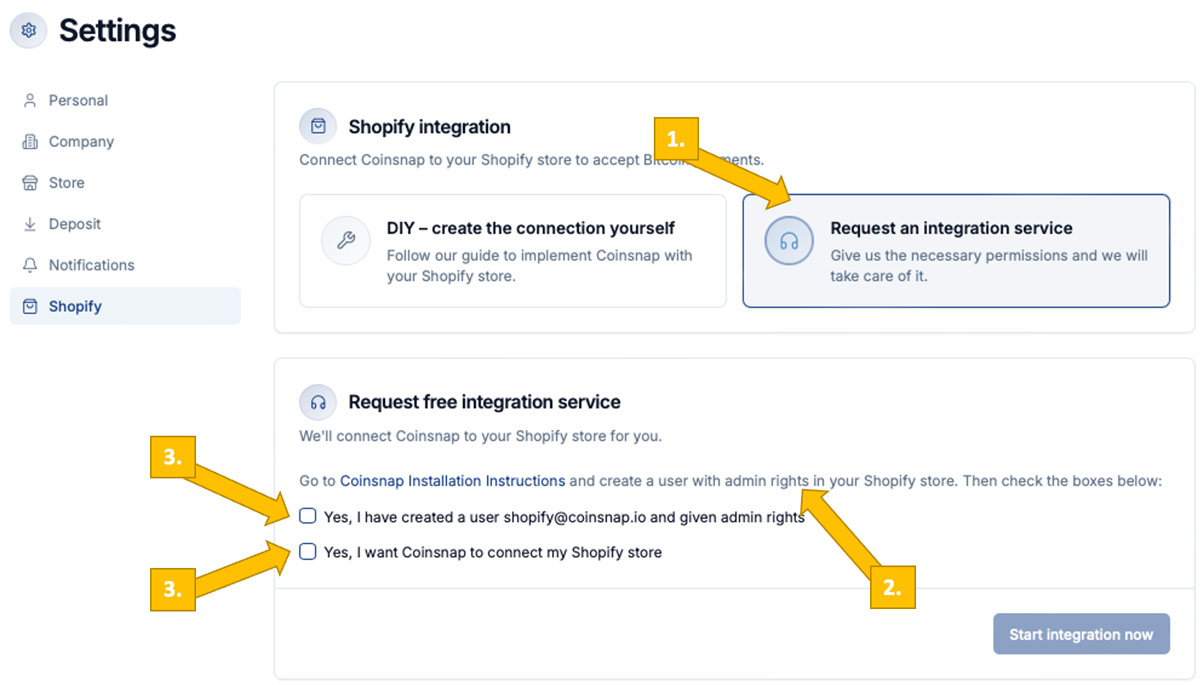
In your Coinsnap dashboard, go to Finances → Settings → Shopify and click “Request an integration service” [1].
Since you already created the admin user with the email address shopify@coinsnap.io in your Shopify store [2], you can now confirm that the admin user for Coinsnap has been created [3] and formally request the free integration service [4].
We will take care of everything else – and inform you immediately when Coinsnap for Shopify is installed and you can delete the administrator shopify@coinsnap.io from your Shopify system!