
Introduction
Want to accept Bitcoin payments in your online store, on your website, or at your physical business?
With Coinsnap, you can accept Bitcoin and Lightning payments without any technical knowledge.
Setting up a Coinsnap account is simple and takes just a few minutes.
You only need a valid email address to get started. You don’t need to create a password, and you don’t need a Bitcoin wallet to register your account.
When setting up your payment settlement, you can choose to receive Bitcoin in your own Lightning wallet, in a Bitcoin on-chain wallet, or receive the equivalent value in your bank account.
This guide explains every step, from creating your account to connecting your payment destination.
What Do You Need to Open a Coinsnap Account?
To register a Coinsnap account, you only need:
- A valid email address
- Access to your email inbox to receive a verification code
That’s all you need to create your account.
To receive payments later, you can choose one of the following settlement methods:
- Lightning Wallet: Receive Bitcoin payments directly in your Lightning wallet.
- Lightning + Bitcoin: Receive Lightning payments in your Lightning wallet and on-chain Bitcoin payments in your Bitcoin wallet.
- Bank Deposit: Receive the equivalent value of your Bitcoin payments in your bank account.
You don’t have to make a final decision during registration. You can change your settlement method later.
For beginners, we recommend starting with a Lightning wallet, such as the Coinsnap Wallet.
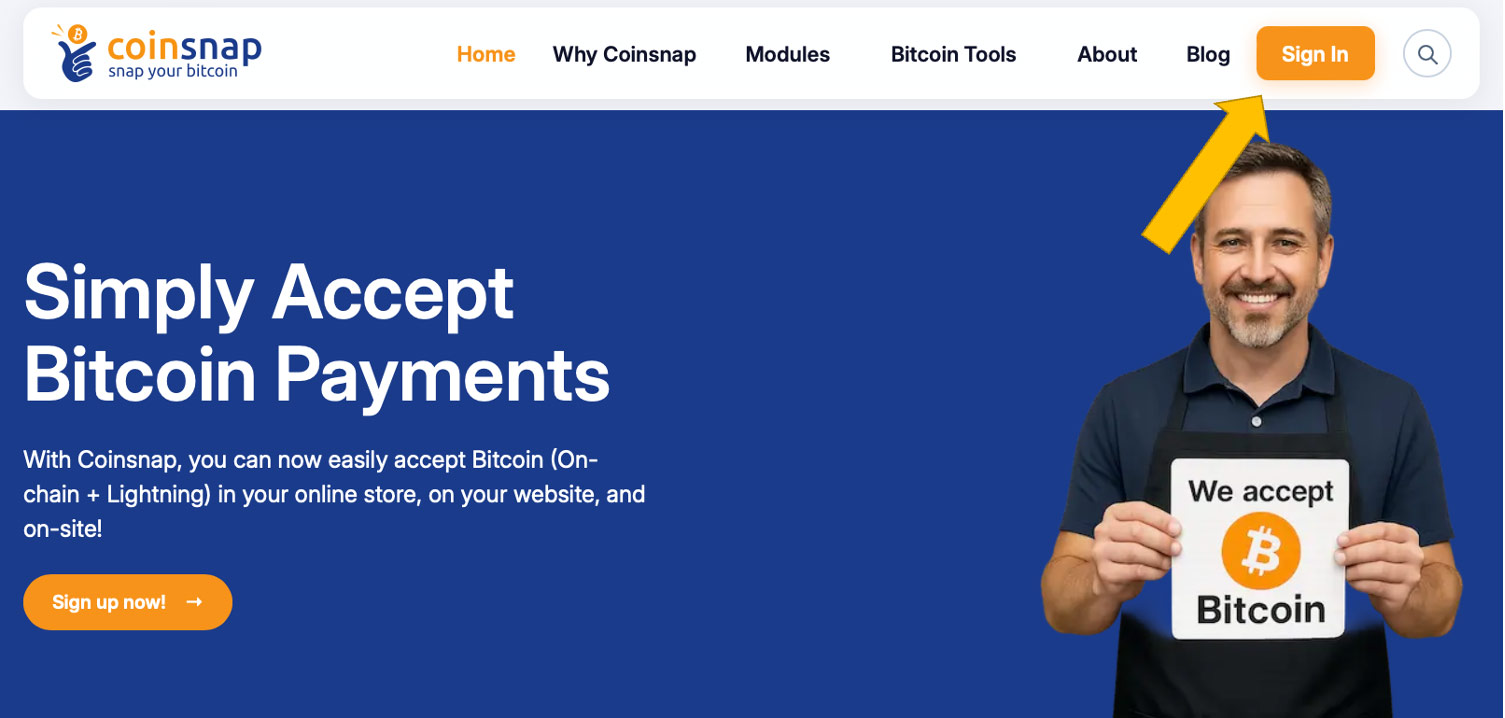
Step 1: Open the Coinsnap Website
Visit the official Coinsnap website:
In the top-right corner of the website, click Sign In.
The Sign In button is used both by existing Coinsnap users and by new users who want to create an account.
You don’t need to look for a separate registration form.
Step 2: Enter Your Email Address
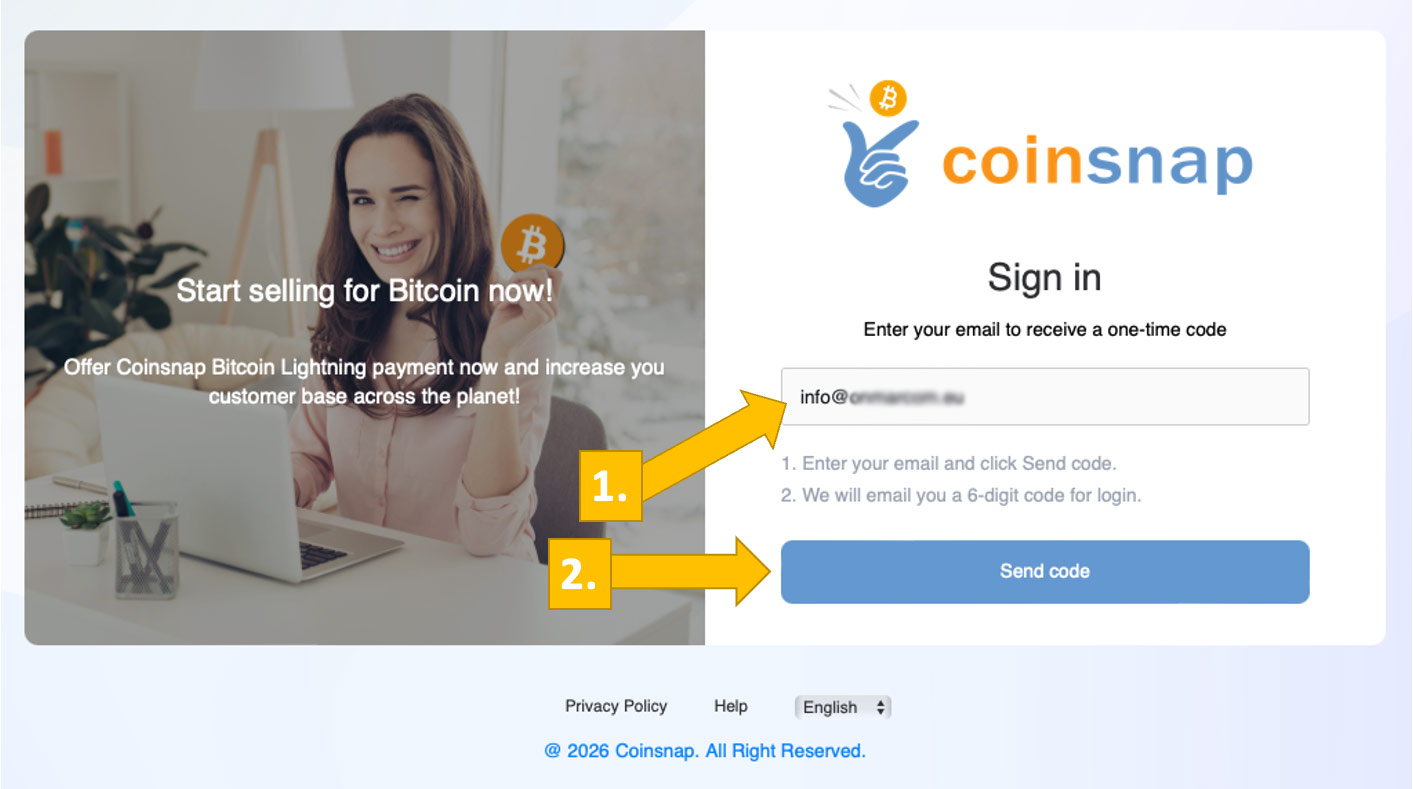
After clicking Sign In, you will see a page titled:
Sign in or create an account
Enter your email address in the field labeled Email.
Then click Continue.
If this email address has not been used with Coinsnap before, the registration process for a new account will begin.
If you already have a Coinsnap account, the same process will sign you in.
Important: Coinsnap uses passwordless authentication. You don’t need to create or remember a password.
Instead, Coinsnap sends a one-time verification code to your email address whenever authentication is required.
Step 3: Check Your Email for the Verification Code
Coinsnap will now send an email to the address you provided.
The email contains a six-digit verification code.
Open your email inbox and look for a message from Coinsnap.
The email will contain a code similar to this example:
828854
This is a one-time login code.
The code is valid for 10 minutes and should never be shared with anyone.
What If You Don’t Receive the Email?
If you don’t receive the verification email:
- Check your spam or junk folder.
- Make sure you entered the correct email address.
- Return to the Coinsnap registration page and click Resend code.
You can also select Use a different email if you need to correct your email address.
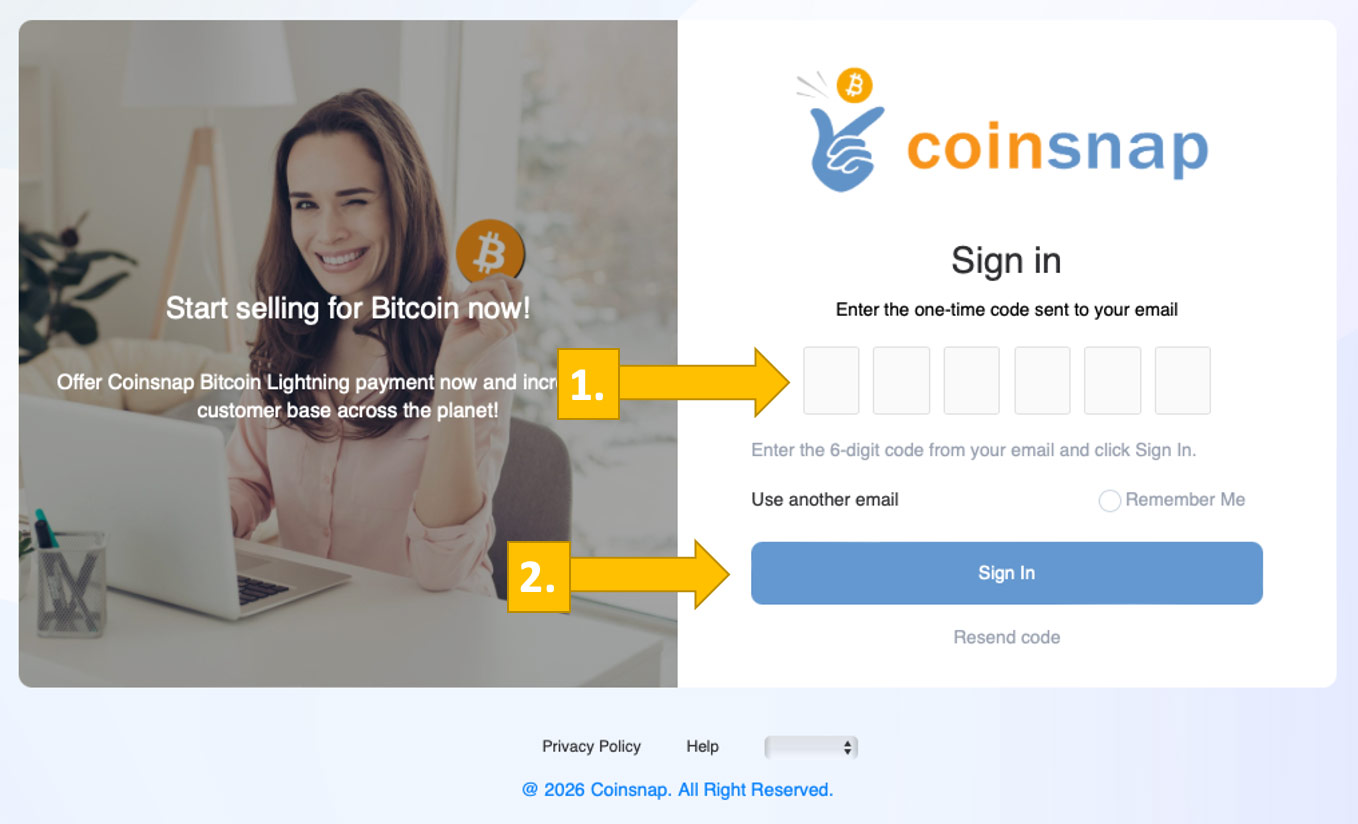
Step 4: Verify Your Email Address
Return to the Coinsnap registration page.
Enter the six-digit verification code from your email into the verification fields.
Then click Verify and continue.
Alternatively, you can use the login link provided in the Coinsnap email to authenticate directly.
You may also see an option called Remember me on this device.
If you select this option, Coinsnap can remember your device for future sign-ins.
Only enable this option on a device you own or trust.
Once your email has been verified, Coinsnap will guide you through the initial account setup.
Step 5: Claim Your Coinsnap Welcome Bonus
New Coinsnap users receive a welcome bonus worth €5.
This bonus allows you to try Coinsnap and process your first payments.
During registration, Coinsnap will ask whether you have a Bonus Code.
What Is a Coinsnap Bonus Code?
A Bonus Code is a referral code that an existing Coinsnap user can share with you.
If you received a valid Bonus Code, enter it into the corresponding field.
You will receive:
- €5 welcome bonus for opening your Coinsnap account.
- An additional €5 bonus when using a valid referral code.
That means you can start with a total bonus balance worth €10.
What If You Don’t Have a Bonus Code?
No problem.
Leave the Bonus Code field empty and click Continue without Bonus.
You can open your Coinsnap account without a referral code and still receive the standard welcome bonus.
Important: The welcome bonus is a promotional credit for using Coinsnap. It is not a Bitcoin payment received from a customer.
Step 6: Choose a Name for Your Store
Next, Coinsnap asks you to choose a name for your Store.
What Is a Store in Coinsnap?
A Store is the payment environment within your Coinsnap account that is used to manage and identify your Bitcoin payments.
You can use the name of your:
- Company
- Online shop
- Restaurant
- Physical store
- Website
- Project
For example:
Miller Bakery
or
Miller Online Store
Enter your preferred Store name and continue to the next step.
Don’t worry: You can change your Store name later in your Coinsnap account.
Step 7: Choose How You Want to Receive Payments
Now Coinsnap asks:
How do you want to receive payments?
This is where you select your preferred settlement method.
What Does Settlement Mean?
Settlement describes how the payments you receive from your customers are forwarded or paid out to you.
With Coinsnap, customers can pay using Bitcoin or Lightning. You decide where the received funds should go.
During registration, Coinsnap offers three settlement options:
- Lightning
- Lightning + Bitcoin
- Bank Deposit
You can change your settlement settings later.
Let’s look at each option.
Option 1: Lightning – Receive Payments in Your Lightning Wallet
Choose Lightning if you want to receive your Bitcoin payments through the Lightning Network.
The Lightning Network enables fast Bitcoin payments, making it especially convenient for everyday transactions and smaller purchases.
To receive Lightning payments, you need a wallet that supports a Lightning Address.
What Is a Lightning Address?
A Lightning Address is a simple, human-readable address used to receive Bitcoin through the Lightning Network.
It looks similar to an email address.
For example:
name@coinsnap.app
However, a Lightning Address is not an email address. It is used for receiving Bitcoin payments.
If you already have a Lightning wallet with a Lightning Address, you can use that address with Coinsnap.
Don’t Have a Lightning Wallet Yet?
We recommend the Coinsnap Wallet.
The Coinsnap Wallet is a mobile application that allows you to send and receive Bitcoin using Lightning.
You can install it on your smartphone and create your personal Lightning Address.
Learn more:
For most beginners, Lightning is the easiest settlement option.
Option 2: Lightning + Bitcoin – Receive Payments in Two Wallets
Choose Lightning + Bitcoin if you want to receive Lightning and on-chain Bitcoin payments in separate wallets.
With this option:
- Lightning payments → Your Lightning wallet
- On-chain Bitcoin payments → Your Bitcoin on-chain wallet
For Lightning payments, you provide your Lightning Address.
For on-chain Bitcoin payments, you provide your wallet’s xPub key.
What Is an xPub Key?
An xPub (extended public key) is a public key associated with your Bitcoin wallet.
It allows Coinsnap to generate Bitcoin receiving addresses for your wallet without accessing your private keys.
This means your on-chain Bitcoin payments can be sent directly to addresses belonging to your own wallet.
You can use compatible Bitcoin wallets, including hardware wallets such as:
- BitBox
- Trezor
- Ledger
Important: Never enter your recovery phrase, seed phrase, or private keys into Coinsnap.
Coinsnap only requires the appropriate public wallet information.
Learn more:
What Is an xPub Key and How Do You Find It?
Option 3: Bank Deposit – Receive Payments in Your Bank Account
Choose Bank Deposit if you prefer to receive the value of your Bitcoin payments in traditional currency rather than keeping the Bitcoin yourself.
With bank settlement, Bitcoin payments are converted into fiat currency and paid out to your connected bank account.
The registration process currently describes bank deposits in:
- EUR (Euro)
- CHF (Swiss Franc)
Bank settlement requires additional setup and may depend on supported countries and banking requirements.
Learn more:
Accept Bitcoin and Get Paid to Your Bank Account
This option is particularly suitable for merchants who want to accept Bitcoin without holding Bitcoin on their own wallet.
Can I Change My Settlement Method Later?
Yes.
Your settlement method is not permanent.
You can start by receiving payments in a Lightning wallet and later configure additional on-chain settlement or switch to a supported bank settlement option.
If you are not ready to configure settlement during registration, you can use Skip for now, where available.
However, you must configure a valid settlement destination before payments can be paid out to you.
Step 8: Connect Your Lightning Wallet
If you selected Lightning, Coinsnap displays a page titled:
Connect your Lightning Wallet
You will see a field labeled:
Lightning Address
Enter the Lightning Address of the wallet where you want to receive payments.
For example:
name@coinsnap.app
Make sure the Lightning Address is correct and belongs to a wallet you control.
How to Get a Lightning Address With Coinsnap Wallet
If you don’t already have a Lightning wallet, the registration screen offers a convenient way to install Coinsnap Wallet.
You will see a QR code on the page.
Follow these steps:
- Open the camera on your smartphone.
- Scan the QR code displayed on the Coinsnap registration page.
- Follow the link to install Coinsnap Wallet.
- Open the wallet and complete its initial setup.
- Create or configure your personal Lightning Address in the wallet settings.
- Copy your Lightning Address.
- Return to the Coinsnap registration page.
- Paste your Lightning Address into the field.
You can also find the Coinsnap Wallet directly here:
Download and Set Up Coinsnap Wallet
Important: The Coinsnap Wallet and the Coinsnap merchant account are separate products.
The Coinsnap Wallet holds and receives your Bitcoin.
The Coinsnap merchant account manages the Bitcoin payments you accept from your customers.
You can use Coinsnap Wallet independently of a merchant account, and you can use a compatible third-party Lightning wallet with your Coinsnap merchant account.
Step 9: Complete Your Coinsnap Account Setup
Once you have entered your settlement details, click:
Finish
Congratulations!
Your Coinsnap account has now been created, and your initial setup is complete.
You can sign in to your Coinsnap dashboard and continue configuring how you want to accept Bitcoin payments.
If you skipped the settlement configuration, remember to complete it before accepting live customer payments.
What Can You Do After Creating Your Coinsnap Account?
Once your Coinsnap account is ready, you can start configuring Bitcoin payments for your business.
Coinsnap supports a variety of payment methods and use cases.
Accept Bitcoin in Your Online Store
Connect Coinsnap to your e-commerce platform using a supported integration, such as WooCommerce, Shopify, Shopware, PrestaShop, Magento, or another supported shop system.
Explore the available integrations:
Accept Bitcoin Payments in Person
Use Coinsnap’s web-based Point of Sale (POS) solution to accept Bitcoin payments in a shop, restaurant, or at an event.
Your customer scans a payment QR code and pays with a compatible Bitcoin wallet.
Send Bitcoin Payment Links
Create payment links that you can send to customers by email, messaging apps, or other communication channels.
Customers can open the link and make their Bitcoin payment.
Accept Bitcoin Invoice Payments
Use the Coinsnap Invoice Payment Form to let customers pay invoices with Bitcoin.
Customers can enter the relevant invoice information and complete their payments online.
Learn more:
Coinsnap Bitcoin Invoice Payment Form
Accept Donations and Other Website Payments
Coinsnap also offers tools for donations, website payments, and other use cases.
You can choose which tools to use after creating your merchant account.
Frequently Asked Questions About Opening a Coinsnap Account
Is it free to open a Coinsnap account?
Yes. You can register a Coinsnap account without an account opening fee.
Coinsnap charges processing fees when you use its payment services. Applicable fees depend on the service.
Do I need a Bitcoin wallet to open a Coinsnap account?
No. You only need a valid email address to register.
A Bitcoin wallet is required if you want to receive your settlement directly in Bitcoin.
Alternatively, you can choose a supported bank settlement option.
You can also configure your settlement destination after registration.
Do I need a Lightning wallet?
Not to register an account.
If you choose Lightning settlement, you need a compatible Lightning wallet with a Lightning Address.
Can I use Coinsnap Wallet with my Coinsnap merchant account?
Yes.
You can use the Lightning Address of your Coinsnap Wallet as the settlement destination for your Coinsnap merchant account.
Can I use a different Lightning wallet?
Yes.
You can use any compatible Lightning wallet that provides a supported Lightning Address.
What is the difference between Coinsnap Wallet and a Coinsnap account?
Coinsnap Wallet is a mobile Bitcoin wallet for sending and receiving payments.
A Coinsnap account is a merchant account used to configure, process, and manage Bitcoin payments for your business.
You can use Coinsnap Wallet without opening a Coinsnap merchant account.
Do I need to create a password?
No.
Coinsnap uses passwordless sign-in with an email verification code.
What if I don’t receive my login code?
Check your spam folder, verify that you entered the correct email address, and request a new code using the Resend code option.
Can I change my Store name?
Yes.
Your Store name can be changed after registration.
Can I change my settlement method?
Yes.
You can update your settlement settings later in your Coinsnap account.
What is a Coinsnap Bonus Code?
A Bonus Code is a referral code that may provide additional promotional credit when creating a new Coinsnap account.
Do I need a Bonus Code to register?
No.
You can skip the Bonus Code field and continue with registration.
What is an xPub key?
An xPub is an extended public key from your Bitcoin wallet that allows Coinsnap to derive on-chain Bitcoin receiving addresses.
It does not give Coinsnap access to your private keys.
Can I receive payments directly in my bank account?
Yes, if bank settlement is supported for your situation and you complete the required bank settlement setup.
How long does it take to open a Coinsnap account?
Registration usually takes only a few minutes.
If you already have a Lightning Address, setup can be completed particularly quickly.
Setting up a new wallet or bank settlement may take additional time.
Ready to Accept Bitcoin?
Opening a Coinsnap account is the first step toward accepting Bitcoin payments in your business.
You don’t need technical experience, a password, or even a Bitcoin wallet to get started.
Create your account, choose how you want to receive payments, and connect the Coinsnap tools that fit your business.