

Getting Started
Download the Coinsnap Wallet
Coinsnap Wallet is available for:
- iPhone and iPad through the Apple App Store
- Android smartphones and tablets through Google Play
- Android devices as an APK
Also available: Android APK · iOS beta on TestFlight
Create Your First Wallet
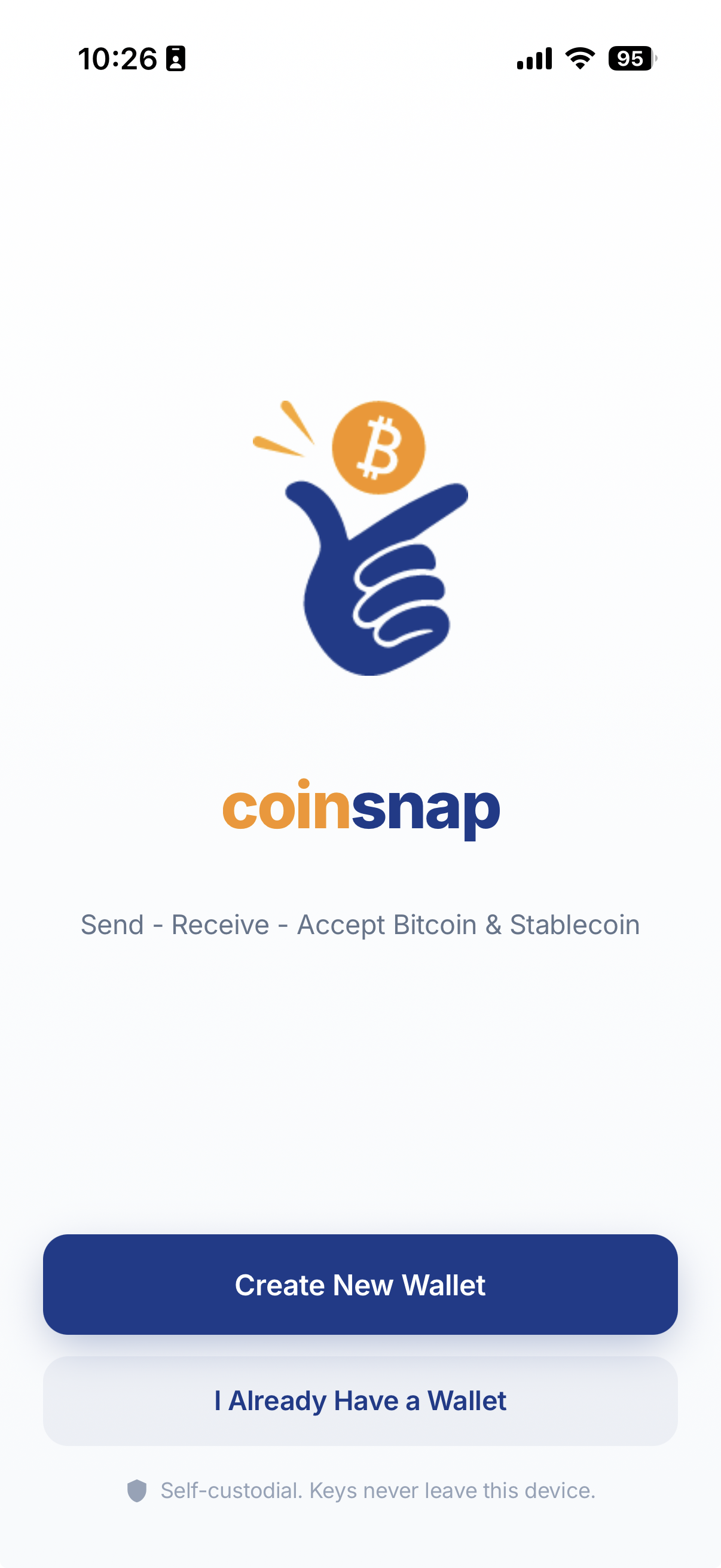
After installing and opening Coinsnap Wallet, you will see two options:
- Create New Wallet
- Choose this if you are setting up Coinsnap Wallet for the first time.
- I Already Have a Wallet
- Choose this if you already have a Coinsnap Wallet and want to restore it.
If you are a new user, tap Create New Wallet.
Name Your Wallet
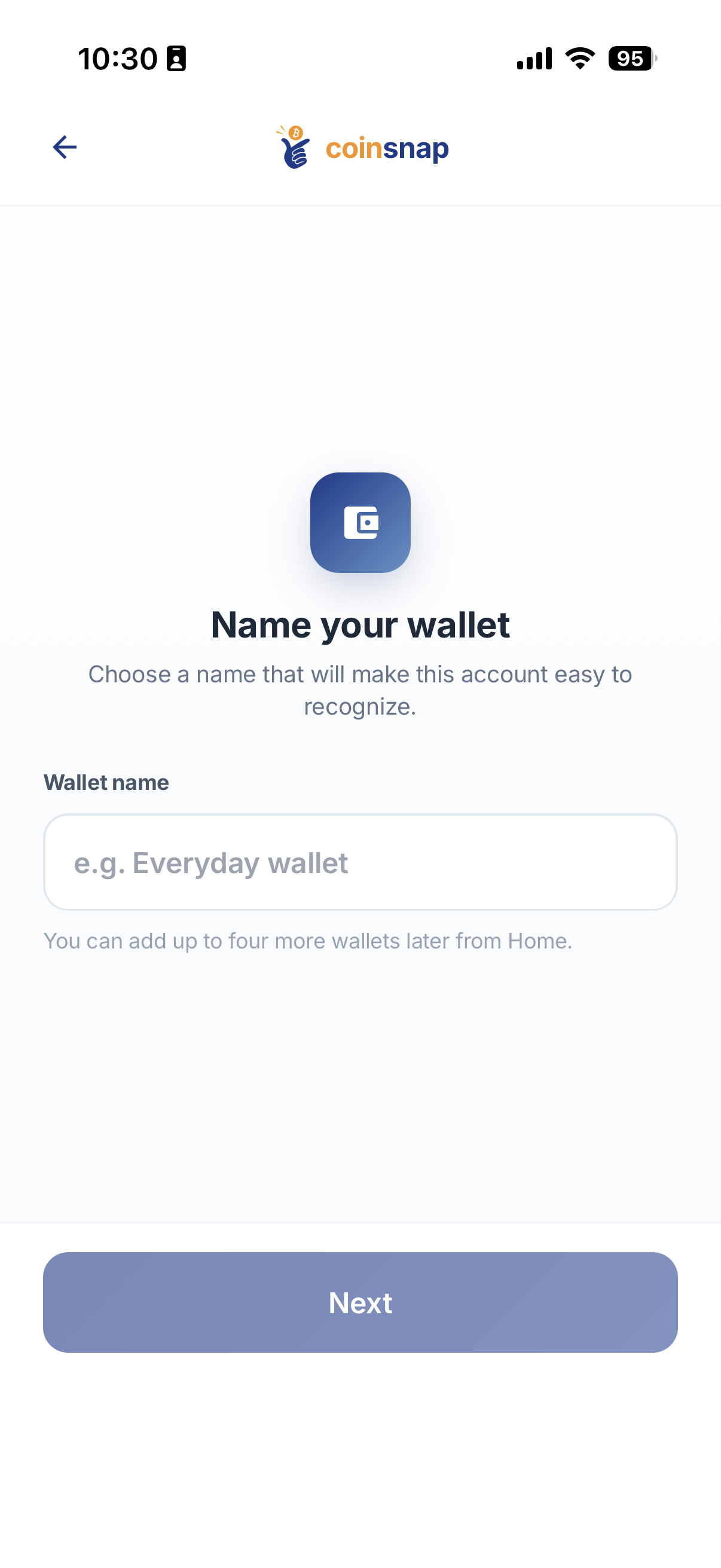
The next step is to give your wallet a name. Choose a name that makes the wallet easy to recognize. For example, you could use your first name for everyday payments, or names such as:
The name is for your own organization. You can create up to five wallets in the Coinsnap app, so different wallets can be used for different purposes.
For this guide, we will call our first wallet Joe.
Using Your Wallet
Your Wallet Home Screen
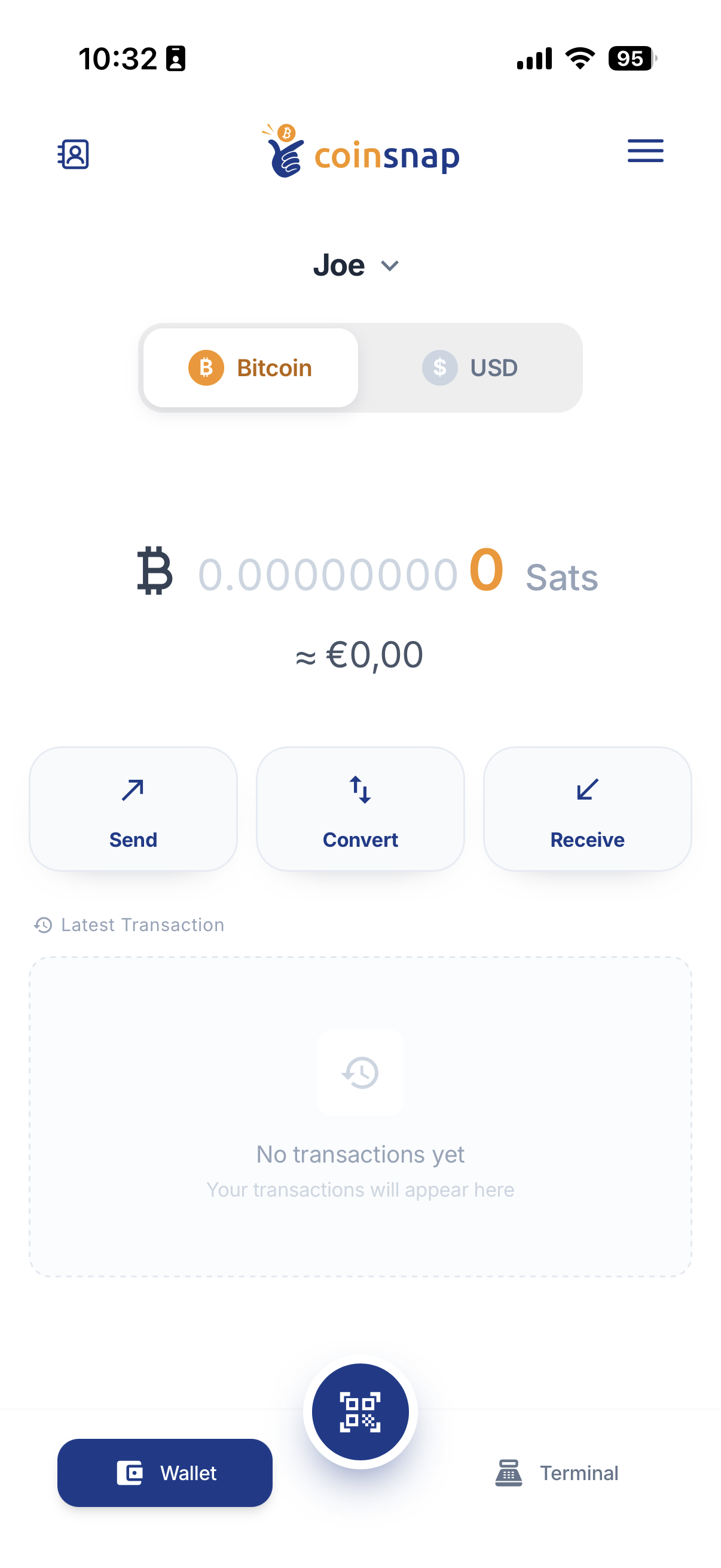
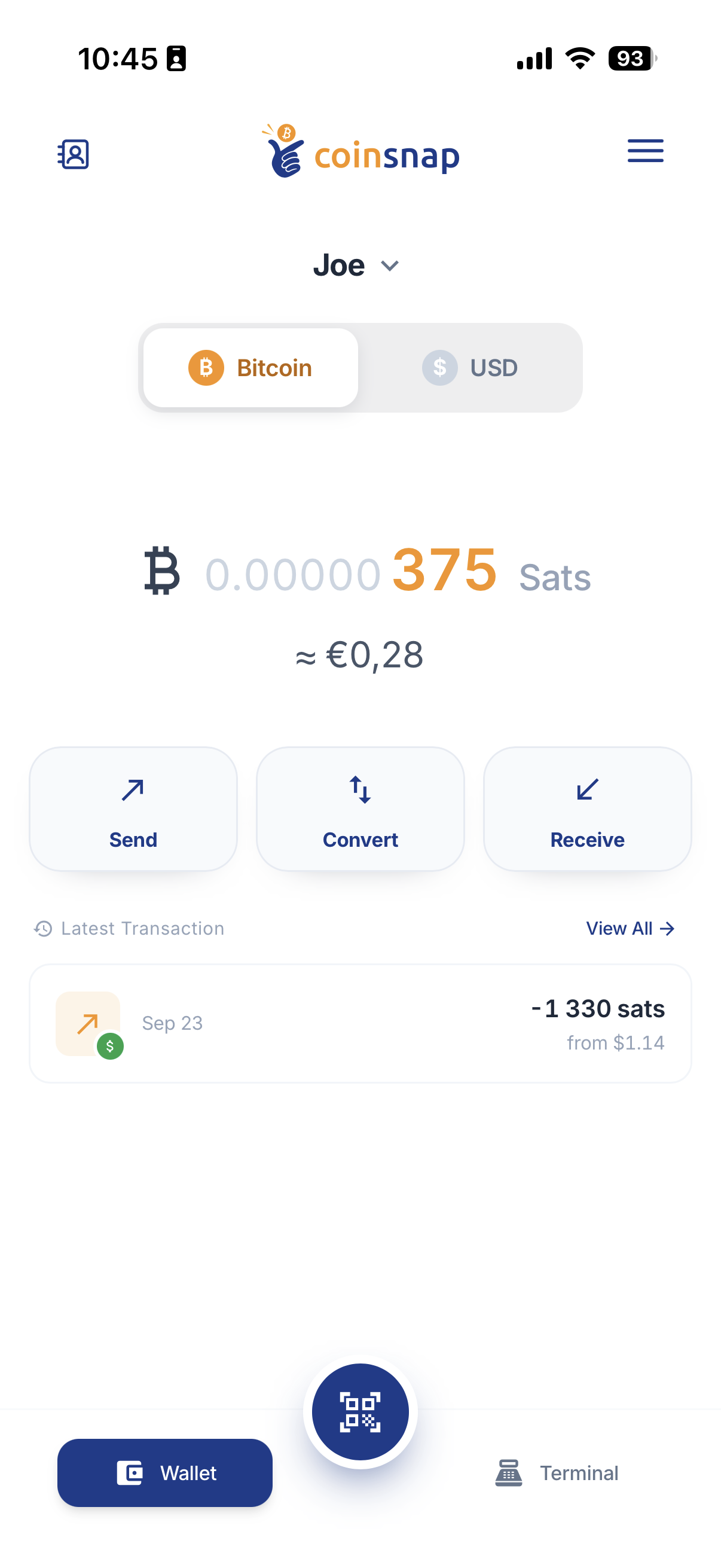
After creating your first wallet, Coinsnap opens the Wallet Home Screen. At the top, you can see the name of the currently selected wallet. In our example, this is Joe.
Every Coinsnap wallet can contain both:
- Bitcoin
- Your Bitcoin balance, displayed in sats or your preferred display format.
- Digital Dollars
- Your USD balance held as supported USD stablecoins.
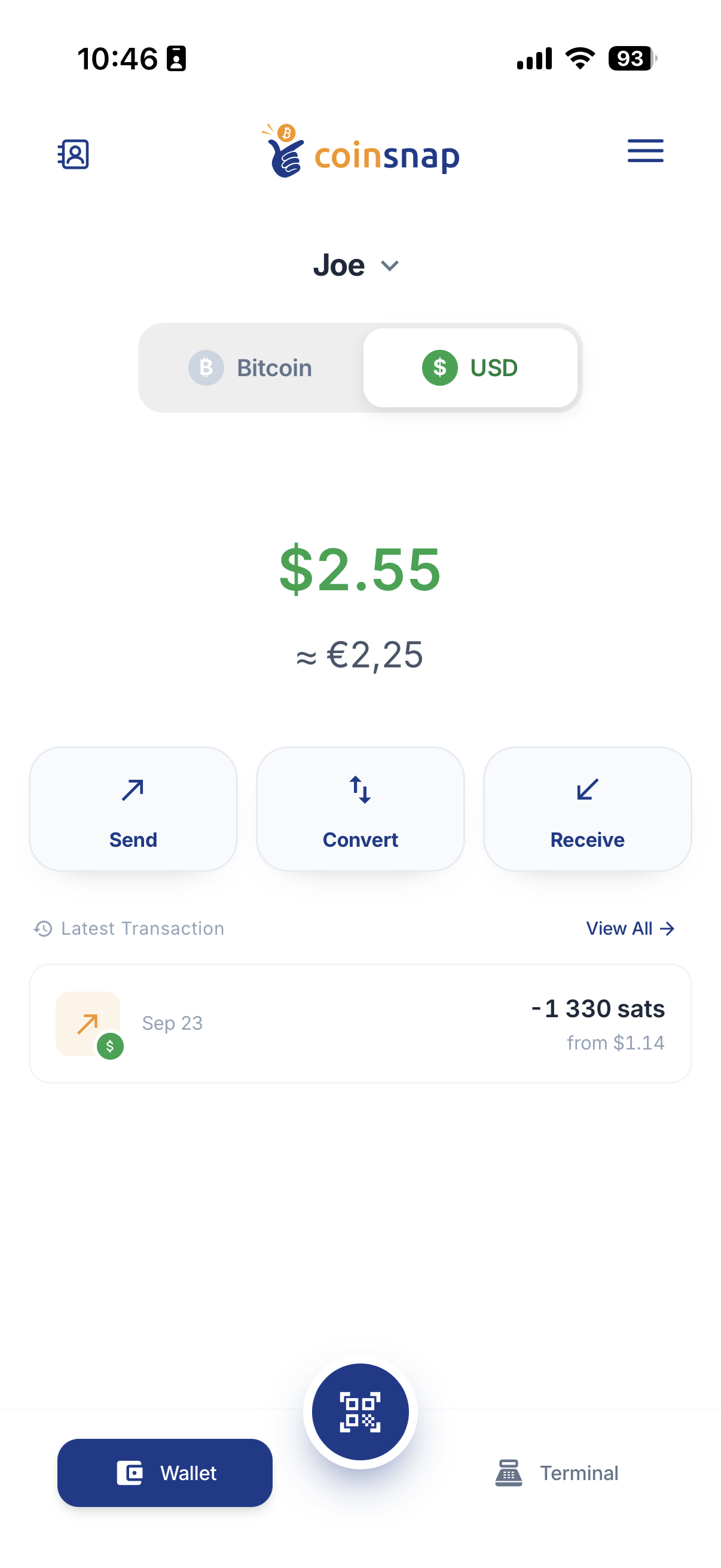
Use the Bitcoin / USD selector to switch between the two balances. The main wallet functions are:
- Send — send Bitcoin or Digital Dollars.
- Convert — convert between Bitcoin and Digital Dollars.
- Receive — receive Bitcoin or Digital Dollars.
Your most recent transaction is displayed directly on the Wallet Home Screen. Select View All to see your transaction history. The QR button at the bottom can be used to scan a payment QR code.
Create and Manage Up to Five Wallets
Coinsnap Wallet lets you create up to five separate wallets in the same app. Each wallet can have its own:
- name
- Lightning Address
- Bitcoin balance
- Digital Dollar balance
- Stable Balance setting
This allows you to separate funds for different purposes. For example:
- Joe
- everyday payments
- Shop
- customer payments
- Savings
- Bitcoin you want to keep
- Event
- payments received at an event
These are only examples. You decide how to organize your wallets.
Switch between wallets
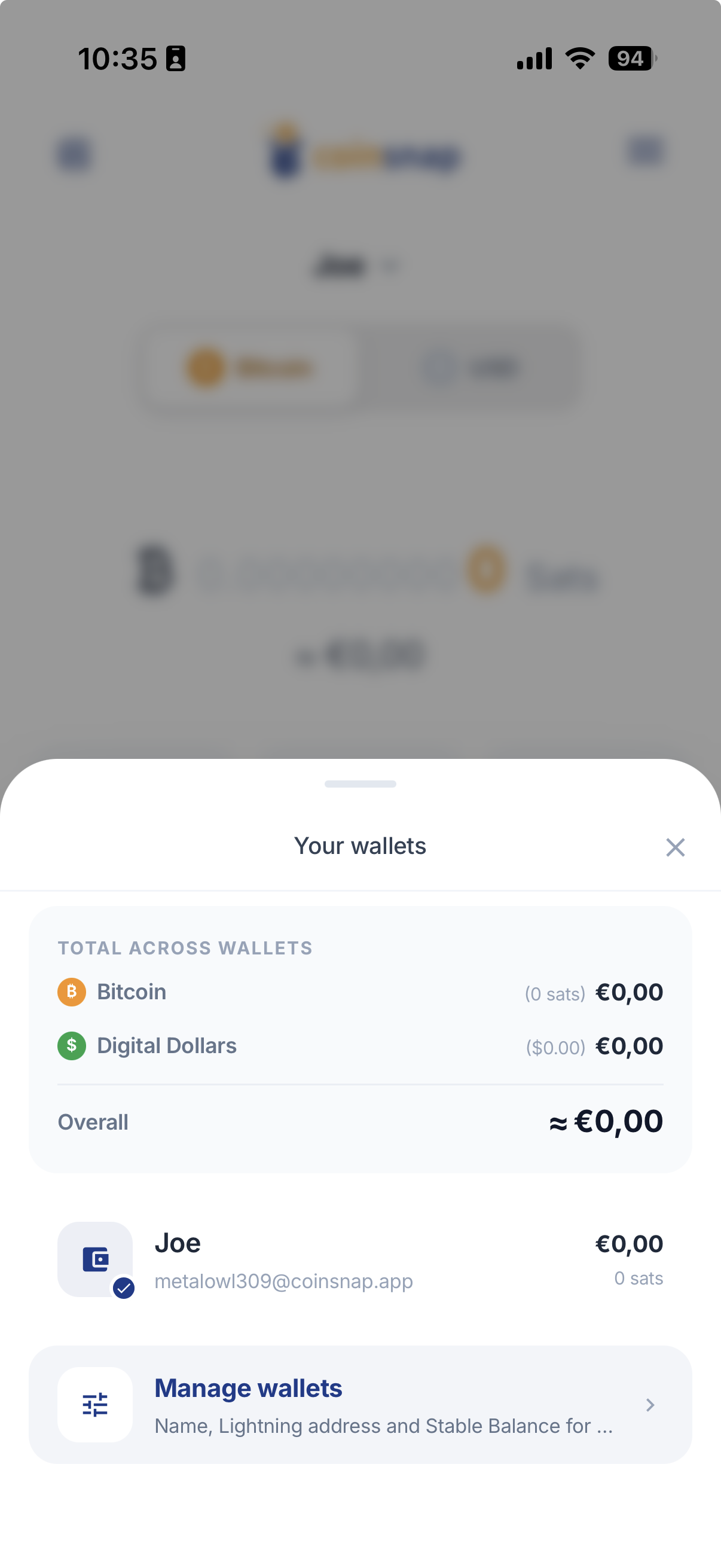
Tap the wallet name at the top of the Wallet Home Screen to open Your wallets. The wallet overview shows your combined Bitcoin and Digital Dollar balances as well as your individual wallets.
Add another wallet
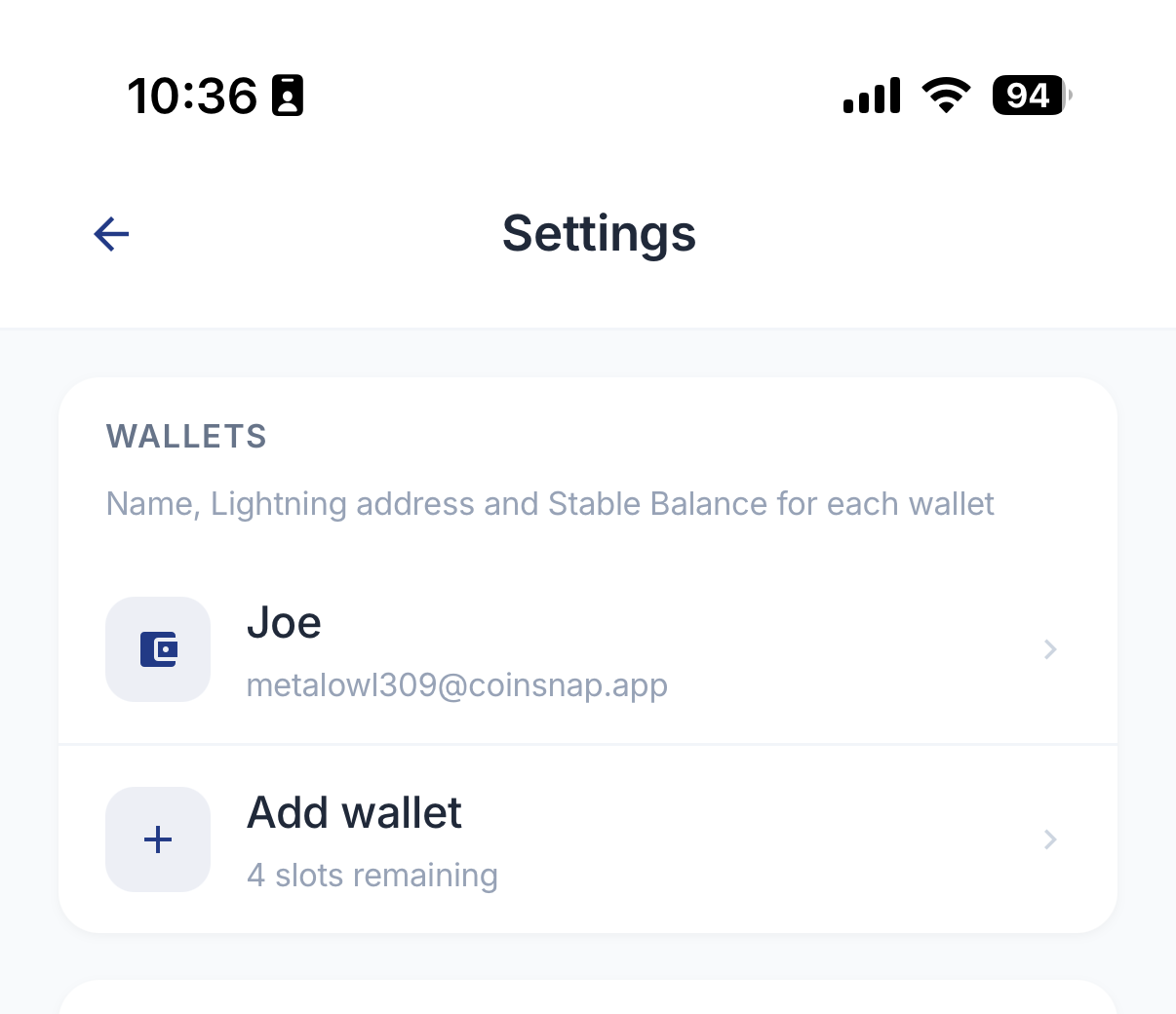
Select Manage wallets, or open Settings → Wallets → Add wallet. The app shows how many of your five wallet slots are still available.
Manage an Individual Wallet
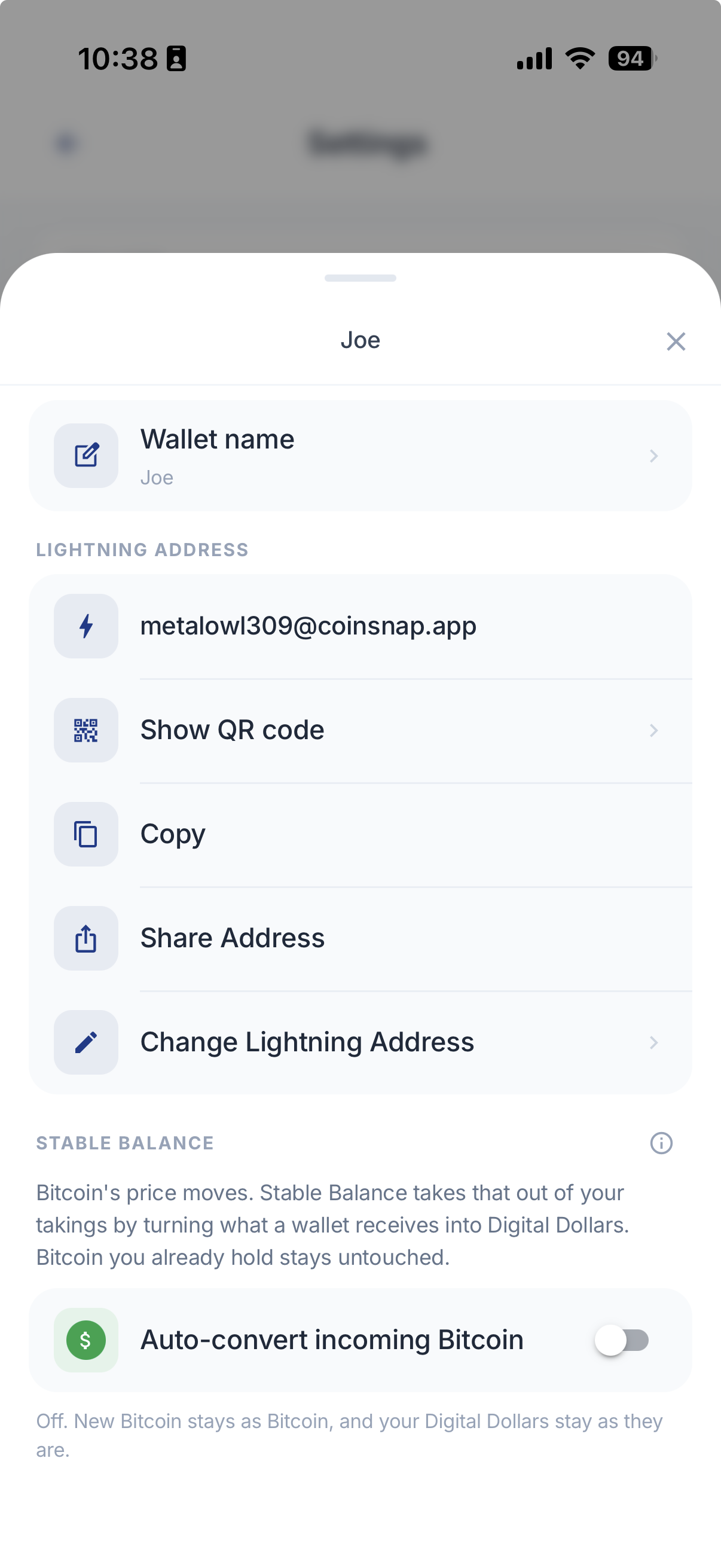
Each wallet has its own settings. Open Manage wallets and select the wallet you want to manage.
Wallet name
Change the name used to identify the wallet inside the app.
Lightning Address
Each wallet has its own Lightning Address. You can:
- display its QR code
- copy the address
- share the address
- change the Lightning Address
Stable Balance and Automatic Conversion
Stable Balance lets you decide what happens to new Bitcoin received by this particular wallet.
- Auto-convert incoming Bitcoin disabled
- Incoming Bitcoin remains Bitcoin.
- Auto-convert incoming Bitcoin enabled
- Newly received Bitcoin is automatically converted into Digital Dollars.
Bitcoin that you already hold remains unchanged.
The Stable Balance setting can be configured separately for each wallet. For example, one wallet can keep incoming payments in Bitcoin while another wallet automatically converts incoming payments into Digital Dollars.
Bitcoin and Digital Dollars
Every wallet in Coinsnap can contain both Bitcoin and Digital Dollars. You do not need separate apps or separate wallets for Bitcoin and USD. Both balances are available within the same wallet.
Your Bitcoin balance
Select Bitcoin at the top of the Wallet Home Screen to see your Bitcoin balance. In this example, the Joe wallet contains 375 sats. The approximate value in your selected local currency is displayed underneath.
Your Digital Dollar balance
Select USD to see the Digital Dollar balance of the same wallet. In this example, the Joe wallet contains $2.55. The approximate value in your selected local currency is displayed underneath.
Convert Between Bitcoin and Digital Dollars
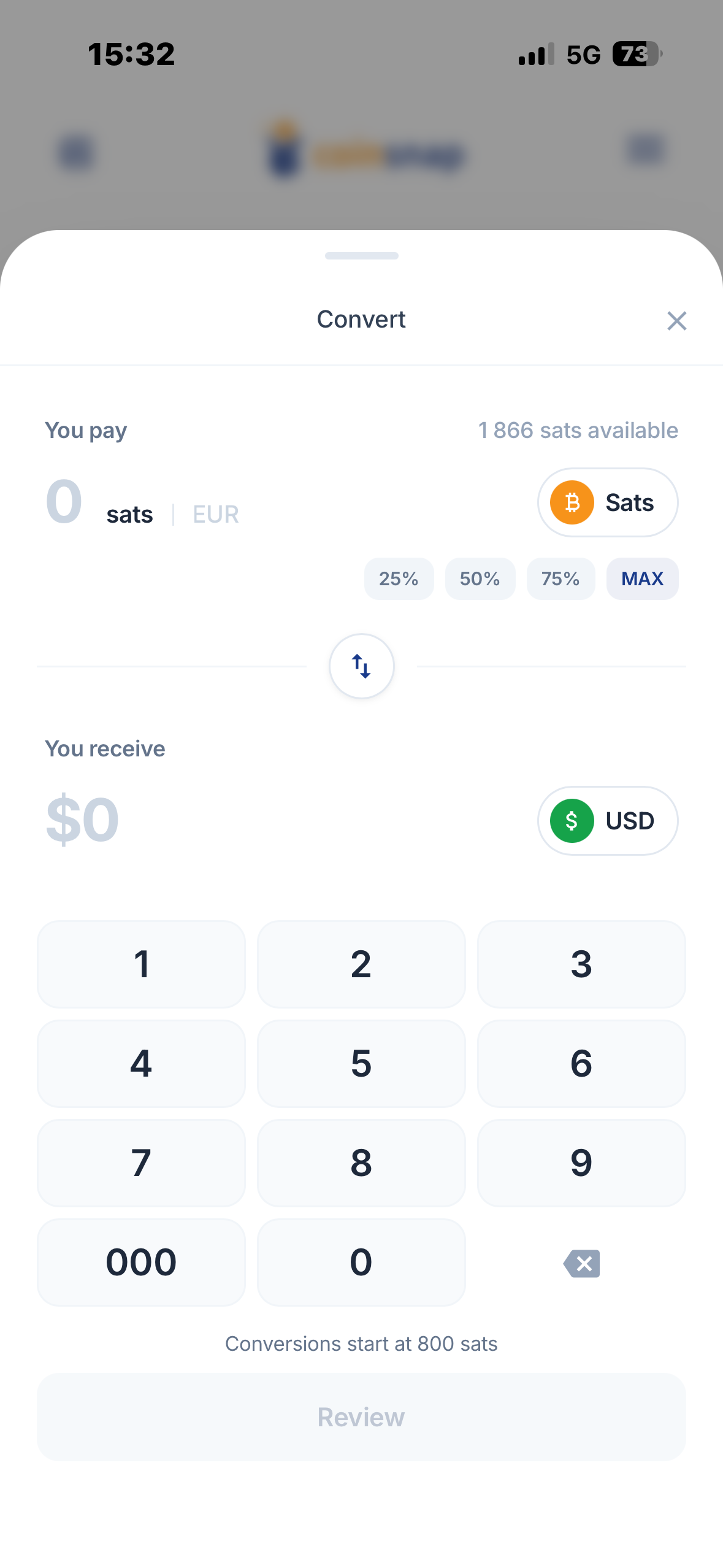
Select Convert from the Wallet Home Screen to convert between Bitcoin and Digital Dollars. You can convert:
- Bitcoin → Digital Dollars
- Digital Dollars → Bitcoin
This allows you to decide how much of your balance you want to hold in Bitcoin and how much you want to hold in USD.
For merchants, this can reduce exposure to Bitcoin price volatility. Customer payments can be received in Bitcoin and converted into Digital Dollars instead of remaining exposed to changes in the Bitcoin exchange rate.
Coinsnap also supports automatic conversion through the Stable Balance setting of an individual wallet.
Receive Bitcoin
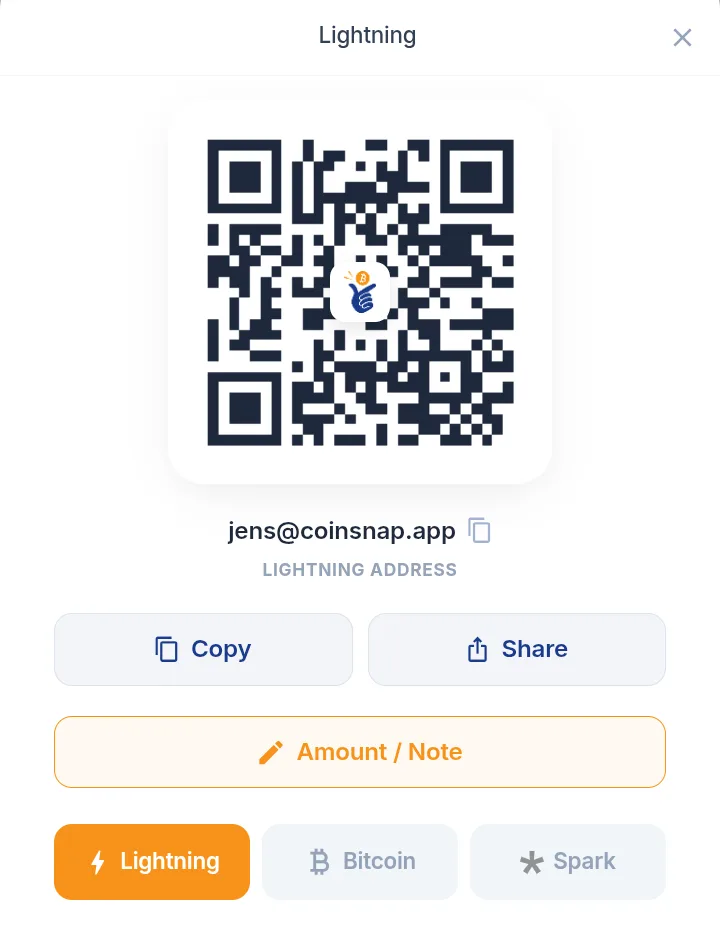
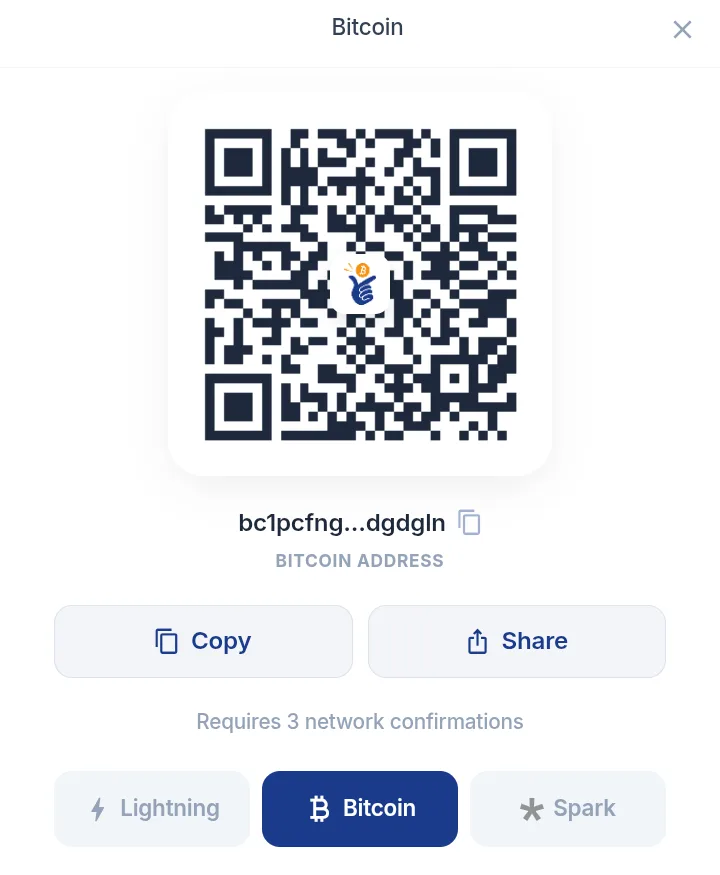
Select Receive to receive Bitcoin. Coinsnap supports Bitcoin payments through different payment methods.
- Lightning
- Use your Lightning Address or QR code to receive Bitcoin quickly. You can also create a Lightning invoice for a specific amount and optionally add a note.
- Bitcoin On-chain
- Use your Bitcoin on-chain address when receiving Bitcoin through the Bitcoin blockchain. This can be useful when transferring Bitcoin from an exchange, hardware wallet or another Bitcoin wallet.
- Spark
- Coinsnap Wallet also supports Bitcoin payments through Spark.
Receive Digital Dollars
Coinsnap Wallet can receive supported USD stablecoins through Spark. Digital Dollars received by a wallet are shown under its USD balance.
Send Bitcoin or Digital Dollars
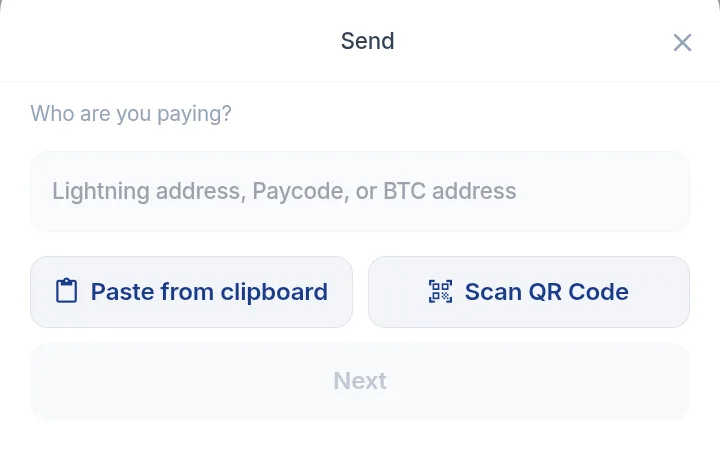
Select Send from the Wallet Home Screen to make a payment. You can enter or paste a payment address or scan a QR code.
Coinsnap automatically recognizes supported payment formats and routes the payment accordingly. Payments can be made from your Bitcoin balance or your Digital Dollar balance.
Security & Backup
Back Up Your Wallet
Coinsnap Wallet is self-custodial. You control your wallet and your recovery phrase. Coinsnap does not hold your funds for you.
For this reason, backing up your wallet is essential. If your phone is lost, damaged or replaced, your backup allows you to restore access to your wallet.

Recovery Phrase
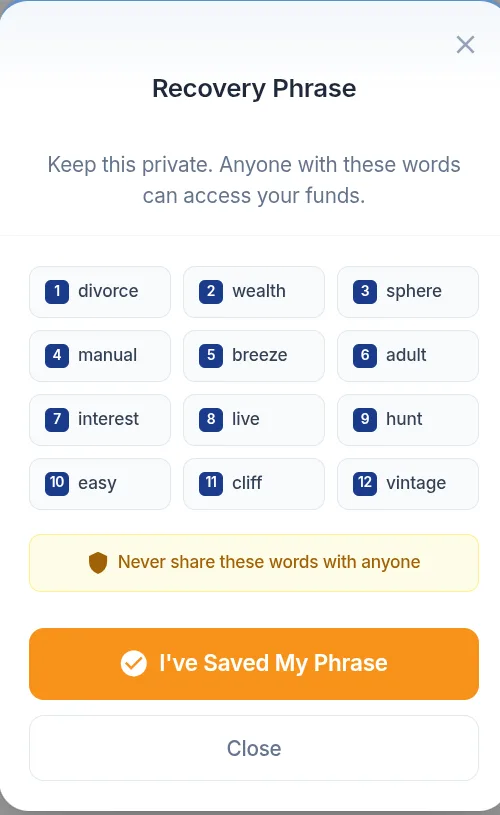
Your recovery phrase consists of 12 words. Write the words down in the correct order and store them somewhere safe.
Cloud Backup and Biometrics
Cloud Backup
Coinsnap Wallet also provides an encrypted Cloud Backup option on supported devices. Backup options can be found under Settings → Security.
Biometrics
On supported devices, biometric protection such as Face ID or fingerprint authentication can be enabled to protect access to the app.
Wallet Settings
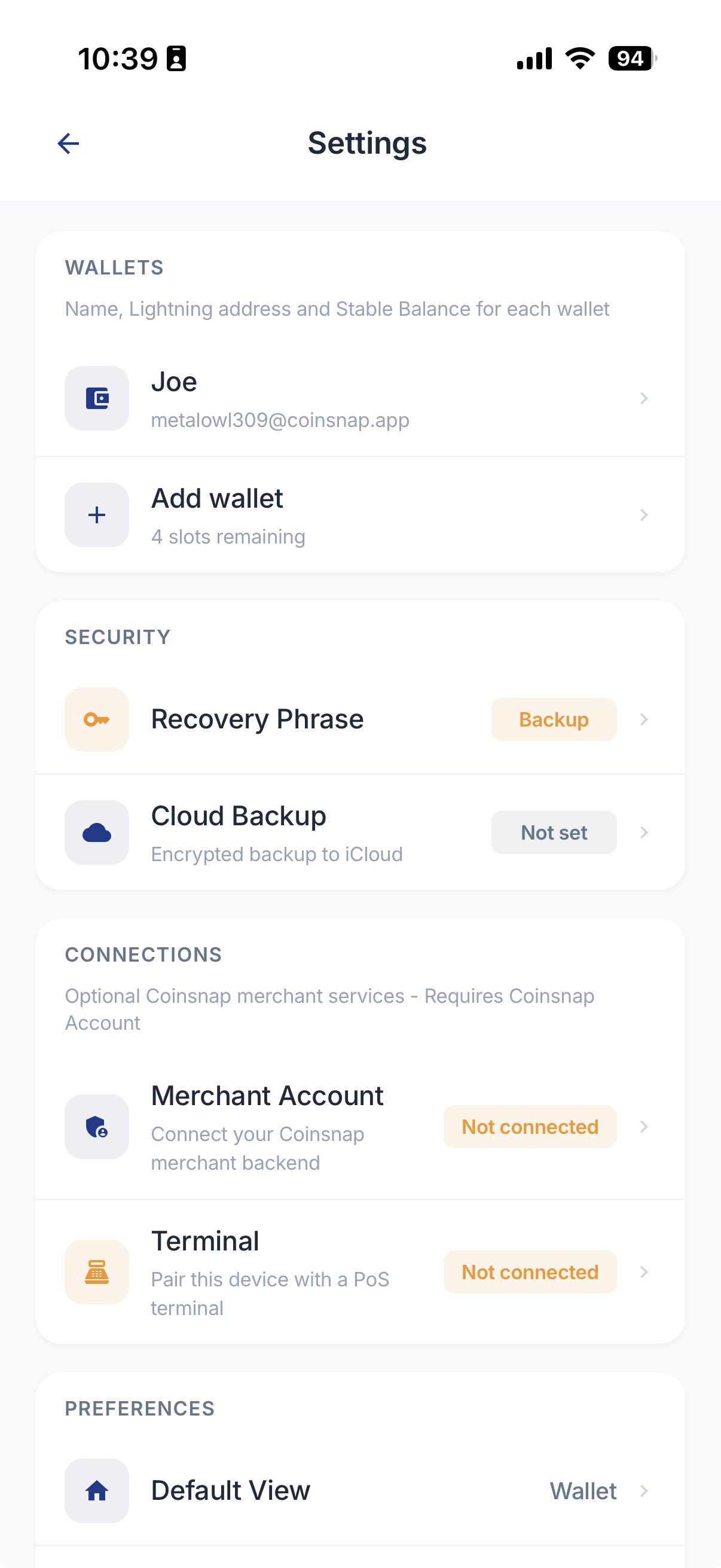
Open Settings from the menu to manage Coinsnap Wallet. The Settings page is divided into several areas.
- Wallets
- Manage the wallets stored in your app: add wallets, rename wallets, manage Lightning Addresses and configure Stable Balance individually for each wallet.
- Security
- Manage your Recovery Phrase and Cloud Backup.
- Connections
- Connect the app to Coinsnap merchant services. Merchant Account: connect your Coinsnap Merchant Account. Terminal: pair this device with a Point of Sale terminal.
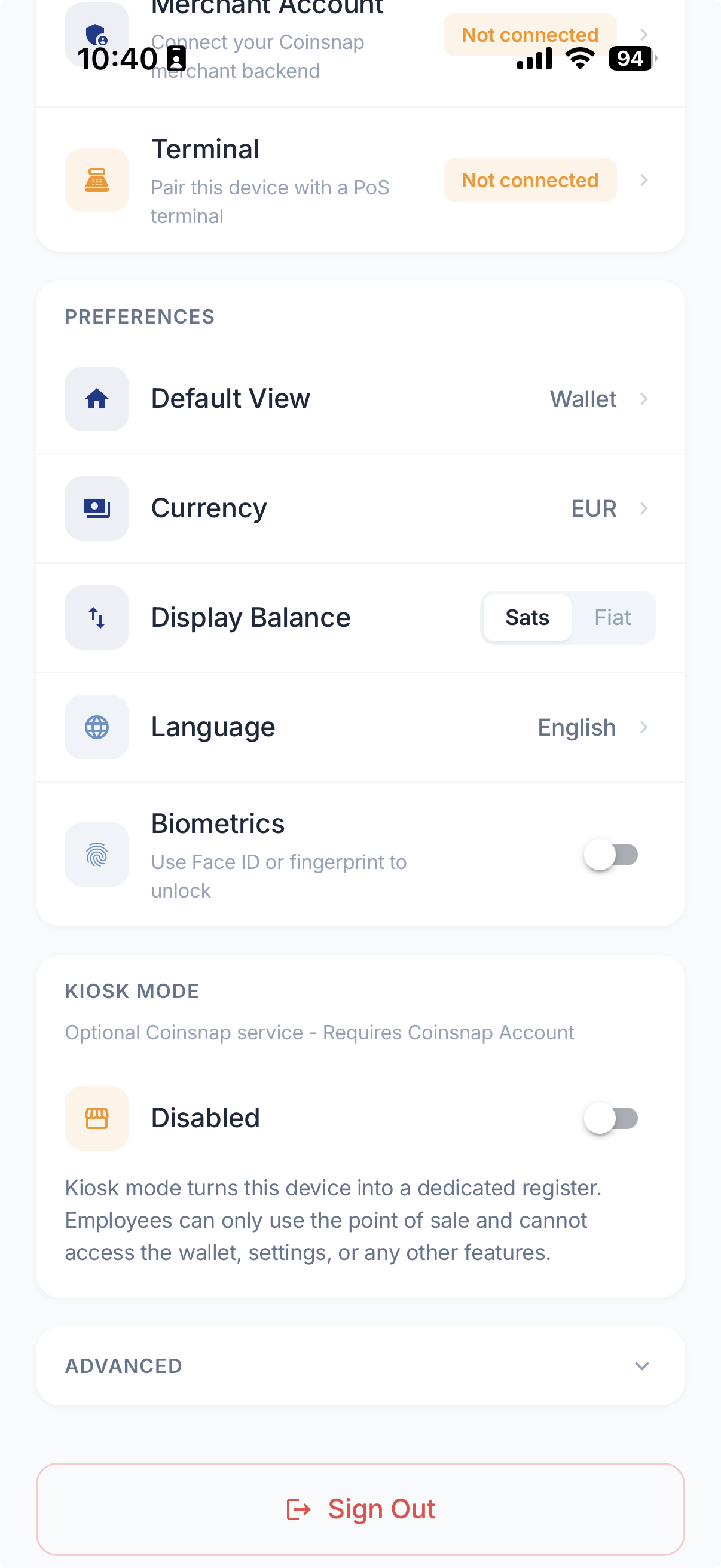
- Preferences
- Configure Default View, Currency, Display Balance, Language and Biometrics.
- Kiosk Mode
- Turn the device into a restricted Point of Sale terminal for employees. See Kiosk Mode.
Accept Payments
Accept Bitcoin Payments with Coinsnap Point of Sale
Coinsnap Wallet includes an integrated Point of Sale for merchants. It can be used by:
You do not need a separate Point of Sale app. Your smartphone, tablet or compatible POS device can become your Bitcoin payment terminal.
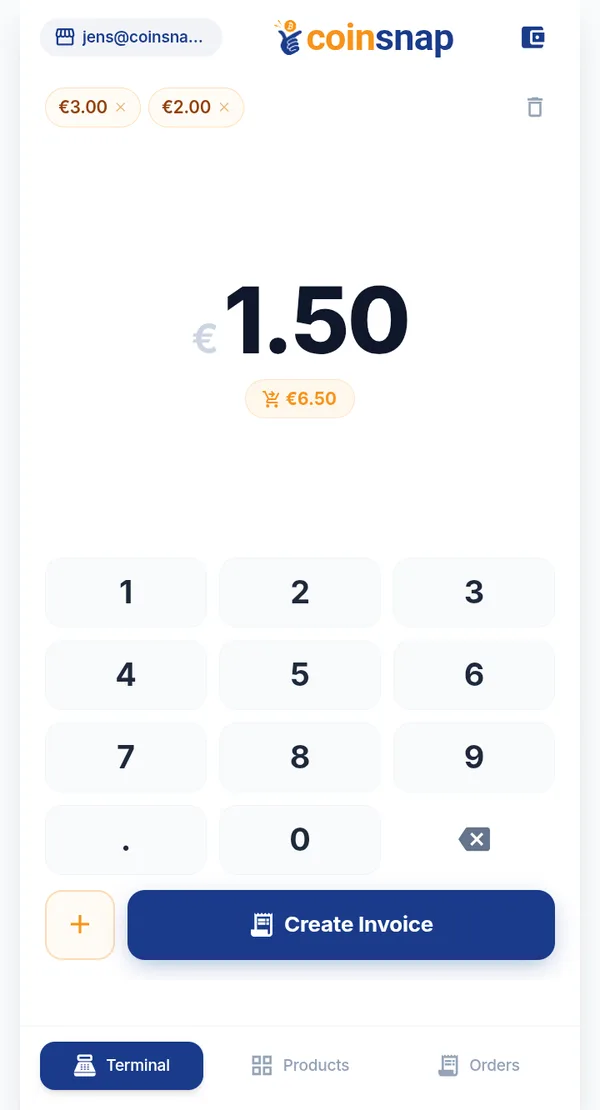
Accept a simple payment
Enter the amount at the Point of Sale and show the generated payment QR code to the customer. The customer scans the QR code and completes the payment.
Connect Your Coinsnap Merchant Account
Additional Point of Sale functions are available when the app is connected to a Coinsnap Merchant Account. Open Settings → Connections → Merchant Account and connect the app to your Coinsnap Merchant Account.
A Merchant Account enables you to manage your business environment, Point of Sale locations, terminals, orders and reporting.
If you already use Coinsnap for an online shop, payment links or other Coinsnap payment solutions, Coinsnap Wallet can also be used as a settlement destination for your Coinsnap payments.
Product Catalog
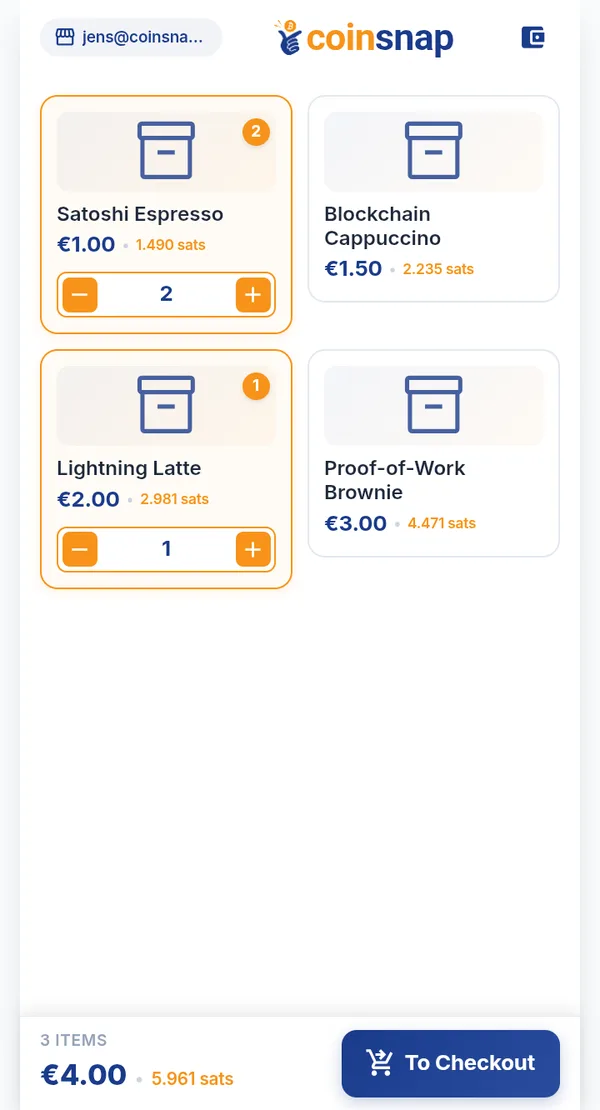
Create products with predefined names and prices for faster checkout. Instead of manually entering the amount for every sale, employees can select products from the catalog and add them to the customer's basket.
This is particularly useful for cafés, restaurants, shops and events.
Bitcoin Discounts
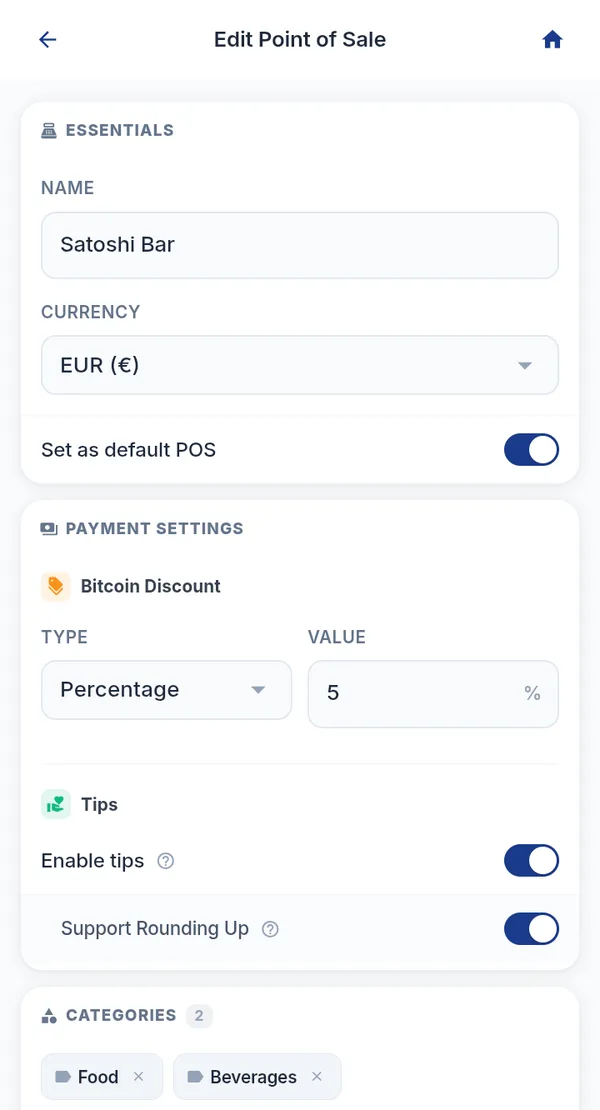
Coinsnap Point of Sale lets merchants offer customers a discount for paying with Bitcoin. Configure the Bitcoin discount for your Point of Sale. When applicable, the discount is included directly in the checkout process.
Tips
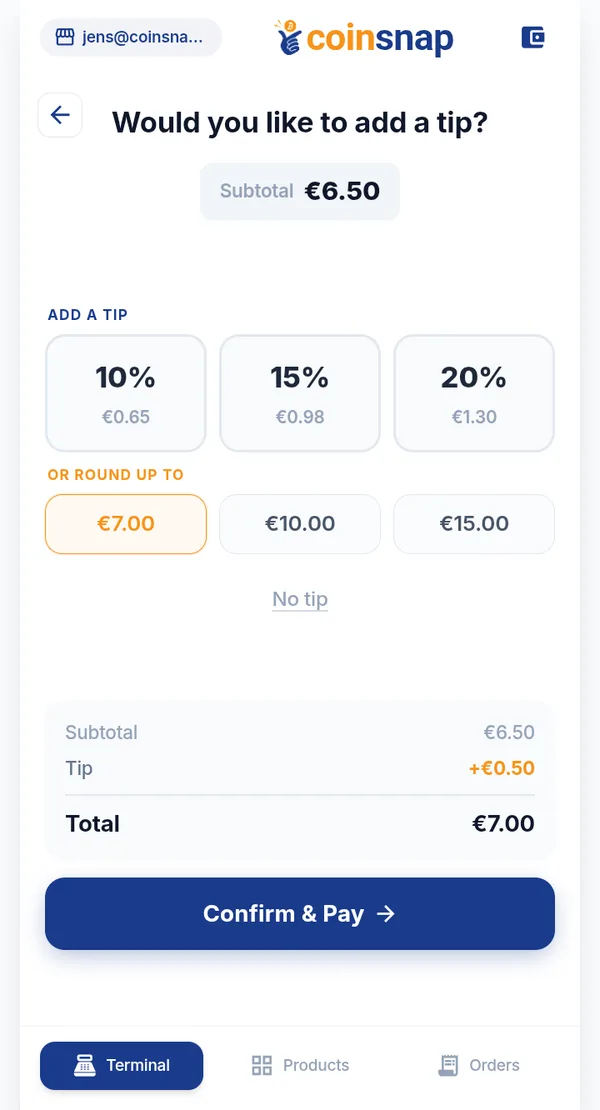
Coinsnap Point of Sale can allow customers to add a tip during checkout. Tip options can be configured for the Point of Sale and presented to the customer before payment.
Terminals and Employees
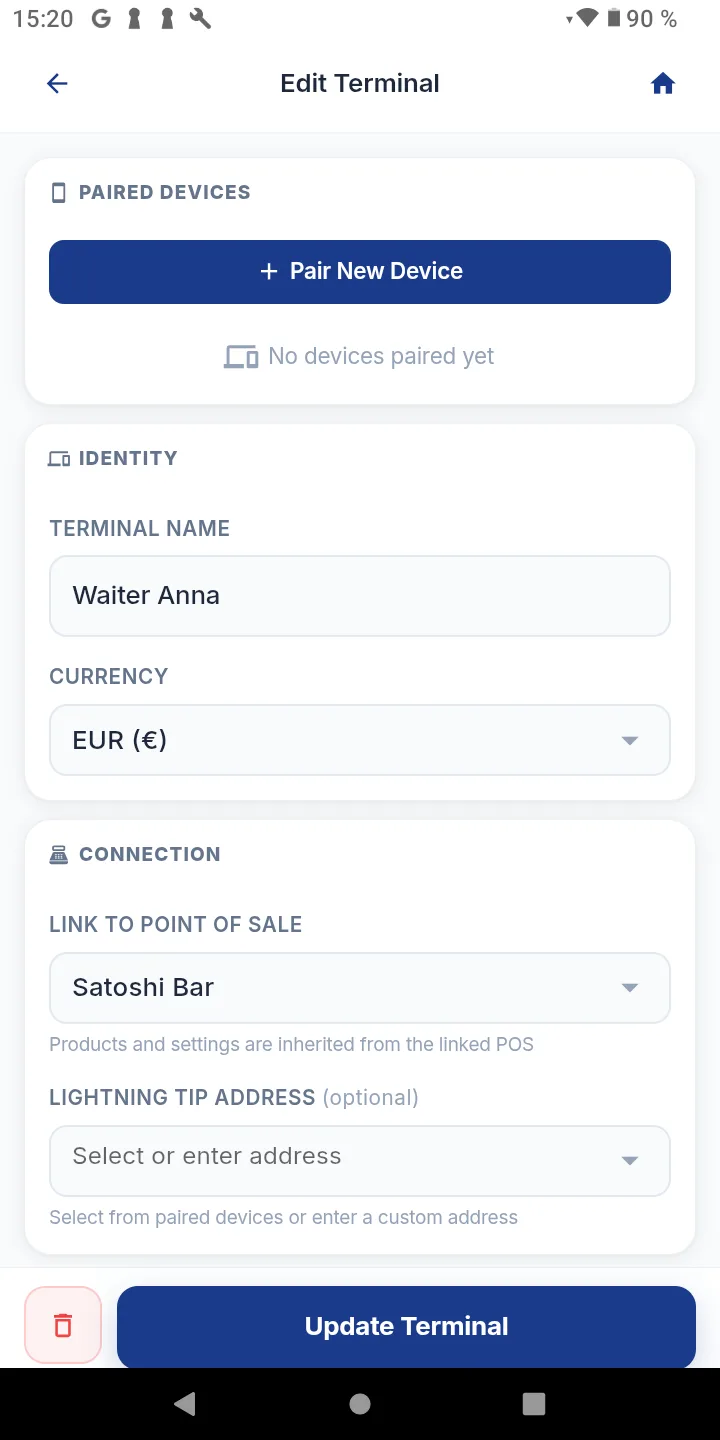
A Point of Sale can have multiple terminals. A terminal represents an individual checkout or payment location. Examples:
This allows payments and orders to be assigned to the correct terminal while the merchant maintains central control through the Coinsnap Merchant Account.
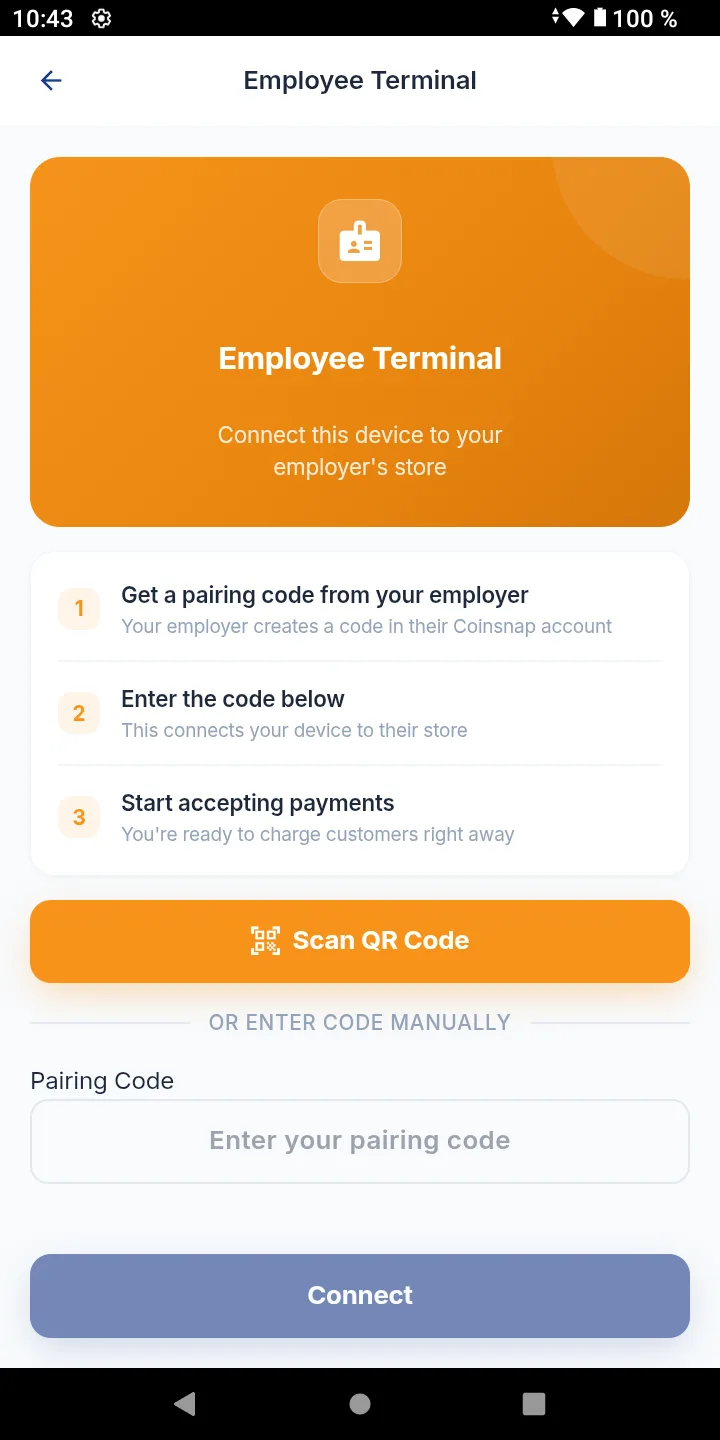
A smartphone, tablet or compatible POS device can be paired with a terminal and used by an employee to accept customer payments.
Kiosk Mode
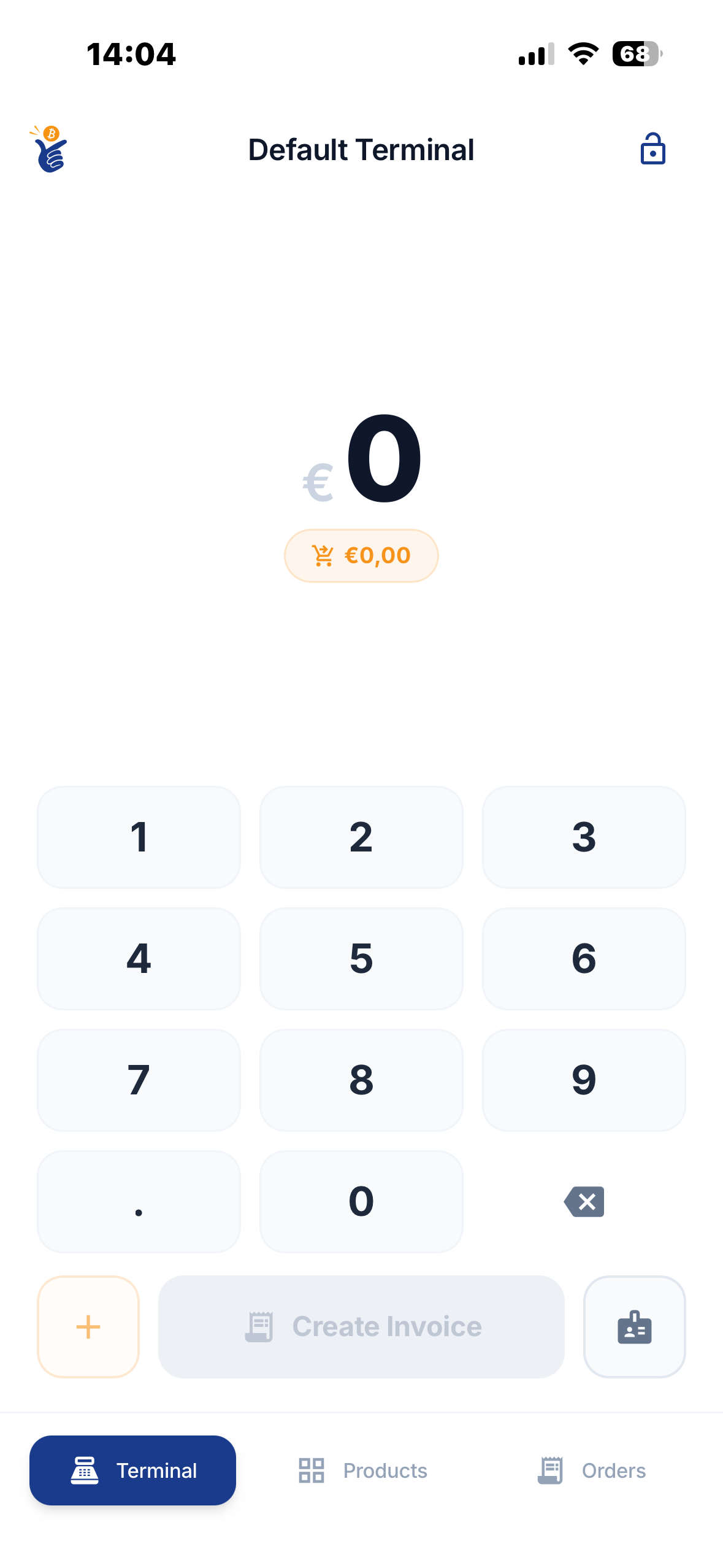
Coinsnap Kiosk Mode turns a smartphone, tablet, iPad or Android POS device into a dedicated Bitcoin payment terminal for employees.
In Kiosk Mode, employees can use the assigned Point of Sale while access to the wallet, balances, settings and merchant administration remains protected.
Kiosk Mode is useful when a merchant wants to provide a payment device to:
Kiosk Mode requires a connected Coinsnap Merchant Account and an existing Point of Sale terminal. A PIN protects access when leaving Kiosk Mode.
Transactions & Reporting
Transactions and Orders
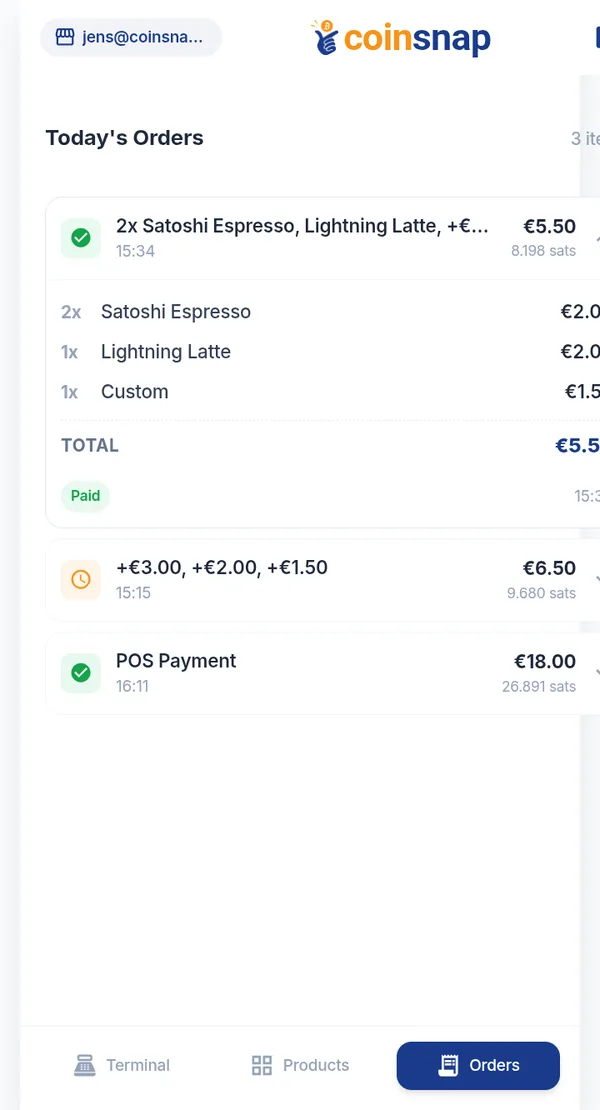
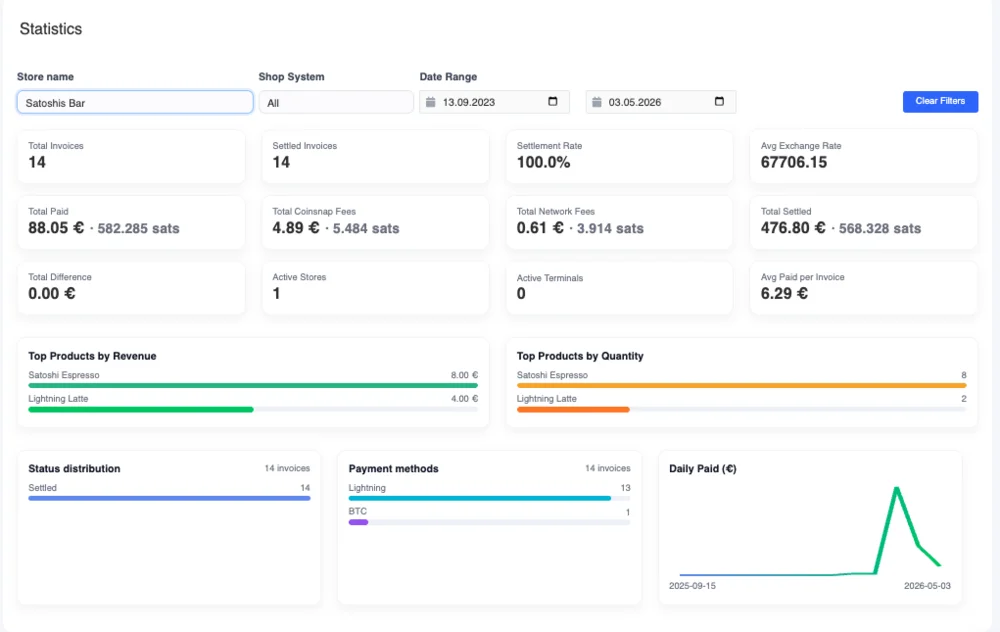
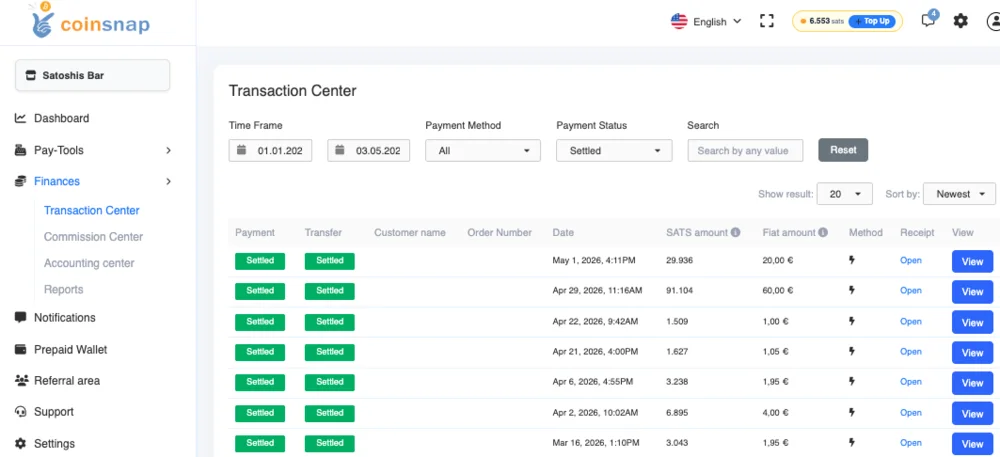
Coinsnap keeps your payments and orders organized. The transaction overview lets you review wallet activity, while the merchant tools provide information about Point of Sale orders and customer payments.
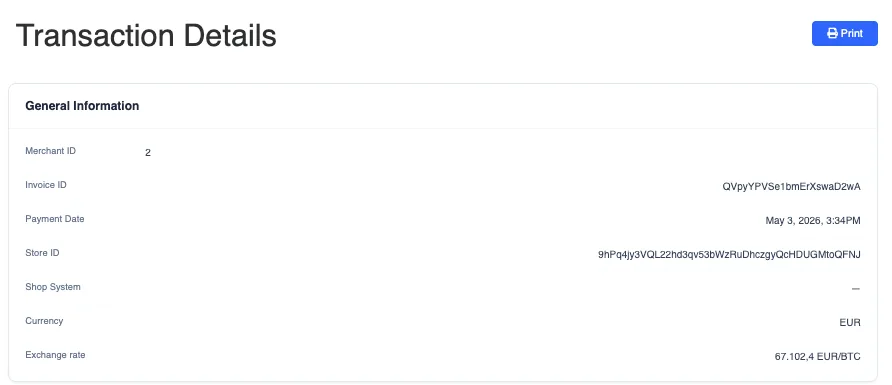
For individual transactions, detailed payment information can be reviewed where available.
Reporting and Accounting
Merchants can use the Coinsnap backend to review sales and payment activity. Coinsnap provides payment reporting and transaction data that can be used for bookkeeping and accounting workflows.
Depending on the available reporting view, merchants can review sales, orders and payment details and export transaction information for further processing.
Fees
Coinsnap Wallet can be used as a wallet on its own or together with the merchant Point of Sale. Wallet network costs and Point of Sale service fees are handled separately.
Wallet fees
The Coinsnap Wallet does not charge a service fee for wallet-only use. Network-related costs may still apply.
- Receive via Lightning: free
- Receive via Spark: free
- Receive on-chain: about 99 sats claim fee
- Send via Lightning: about 0.25% plus routing fee
- Send via Spark: free
- Send on-chain: Bitcoin network fee
Point of Sale fees
For payments processed through Coinsnap Point of Sale and Coinsnap merchant infrastructure, Coinsnap charges a 1% service fee.
- The payment itself is not reduced by the Coinsnap service fee.
- The fee is charged separately from the merchant's Coinsnap credit balance.
- External network-related costs may apply depending on the payment method and current network conditions.
If you only receive Bitcoin directly with the Business Wallet and do not use Point of Sale features, you can receive Bitcoin without Coinsnap service fees.
Help & How-to Guides
Quick Overview
| Feature | Coinsnap Wallet |
|---|---|
| Bitcoin | Send, receive, hold and pay |
| Digital Dollars | Send, receive, hold and pay |
| Bitcoin ↔ USD conversion | Yes |
| Automatic conversion | Configurable per wallet |
| Wallets | Up to 5 |
| Wallet names | Custom |
| Lightning Address | Individual per wallet |
| Self-custody | Yes |
| Recovery Phrase | 12 words |
| Point of Sale | Integrated |
| Product Catalog | Yes |
| Bitcoin Discounts | Yes |
| Tips | Yes |
| Multiple POS Terminals | Yes |
| Kiosk Mode | Yes, with Merchant Account |
| Payment Reporting | Yes |
Frequently Asked Questions
Find short answers to common questions about Coinsnap Wallet, Bitcoin, Digital Dollars, backups and Point of Sale.
Coinsnap Wallet FAQHow-to Guides
For functions that require more detailed setup, use our step-by-step guides.