
Coinsnap Customer Account
Full payment to your wallet
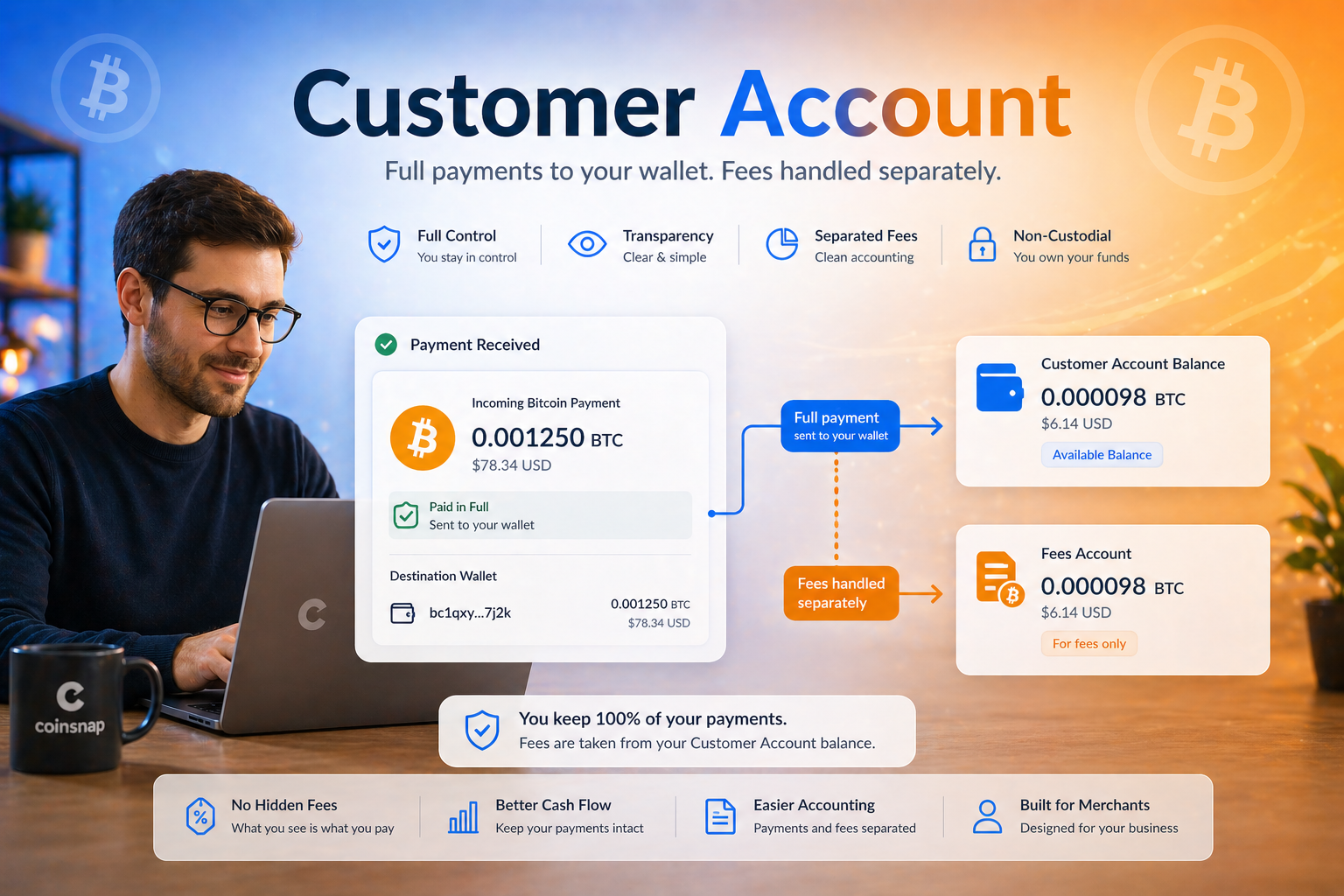
With the Coinsnap customer account, you receive Bitcoin payments in a way that is much easier to track in day-to-day business: The amount your customer pays is credited in full directly to your own wallet. This makes your incoming payments more transparent, simplifies reconciliation with your bookkeeping, and clearly separates payments from fees.
With Coinsnap, the amount your customer pays is credited 1:1 directly to your wallet.
That means: you receive exactly the amount that the payer sent.
This gives you a clear advantage: incoming payments are much easier to verify, track, and assign internally. Especially when working with bookkeeping and controlling, this creates more clarity and reduces administrative effort.
Fees are charged through your customer account
The Coinsnap fee of 1% of revenue as well as the applicable network fees are no longer deducted from the amount paid by your customer. Instead, they are charged separately through a prepaid customer account.
This creates a clear separation between incoming payments and fee settlement:
- Your customer pays the invoice amount in Bitcoin
- The full amount is credited directly to your wallet
- Coinsnap fees and network fees are charged through your customer account
This model gives you greater transparency and makes using Coinsnap in daily business much easier.
Transaction History & Fee Reporting
With the Coinsnap customer account, Bitcoin payments and Coinsnap fees are recorded separately. The full amount paid by your customer is credited directly to your wallet, while Coinsnap processing fees and applicable network fees are charged to your prepaid customer account.
This separation makes it easier to reconcile your Bitcoin sales revenue and track the fees incurred when processing payments.
Where can I find my Coinsnap fees?
Your Coinsnap fees are recorded in the Transaction History of your prepaid customer account.
Because these fees are charged separately from incoming Bitcoin payments, they are no longer included as fee deductions in the regular payment transaction CSV export.
To review your fees, open the Fee Debits section of your prepaid balance transaction history.
How to export your Coinsnap fees as a CSV file
Follow these steps to download your fee records:
- Log in to your Coinsnap dashboard.
- Click Prepaid Balance in the left sidebar.
- Select View balance & history.
- Open Transaction History and select the Fee Debits tab.
- Click Export CSV to download your fee transactions.
The exported CSV file can be used to review and reconcile your Coinsnap fees in your accounting or bookkeeping software.
Important: To obtain a complete overview of your business activity, use both the regular payment transaction export and the separate fee debit export.
Invoices & Bookkeeping
The Coinsnap customer account makes bookkeeping easier by clearly separating incoming Bitcoin payments, processing fees, and prepaid balance top-ups.
1. Bitcoin payments from your customers
When a customer pays with Bitcoin, the payment amount is credited directly to your wallet according to your configured settlement method.
These transactions represent your incoming customer payments and can be reviewed in the Coinsnap payment transaction history.
For your bookkeeping, use the regular transaction CSV export to reconcile incoming payments with your sales and invoices.
2. Coinsnap processing fees
Coinsnap processing fees and applicable network fees are charged separately through your prepaid customer account.
These fees are recorded as individual debits in your prepaid balance transaction history.
To obtain a record of your processing fees, go to Prepaid Balance → View balance & history → Transaction History → Fee Debits → Export CSV.
This allows you to track the cost of processing Bitcoin payments independently from your sales revenue.
3. Prepaid balance top-ups and invoices
When you add funds to your Coinsnap prepaid customer account, the top-up is recorded separately from your incoming customer payments.
Invoices for prepaid balance top-ups provide documentation of the amounts added to your customer account and can be used as supporting records for your bookkeeping.
The top-up itself and the subsequent fee debits are different transactions. Make sure they are recorded appropriately in your accounting system to avoid counting the same expense twice.
Which records do I need for my bookkeeping?
- Payment transaction export: For incoming Bitcoin payments and sales reconciliation.
- Fee Debits CSV export: For Coinsnap processing fees and applicable network fees.
- Top-up invoices: For documentation of prepaid balance funding.
By keeping these records separate, you can maintain a clearer overview of your revenue, transaction costs, and prepaid balance activity.
For questions about the correct tax or accounting treatment of prepaid balances and fees, consult your accountant or tax adviser.
Starting credit for your onboarding
Your new Coinsnap customer account is automatically credited with an initial balance of €5 in sats.
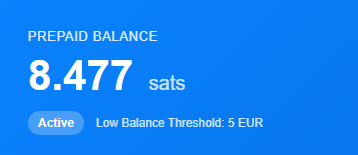
This allows you to test Coinsnap right away, receive your first payments, and try out the integration at your own pace without having to top up your customer account immediately.
If you also have a voucher code, you receive an additional €5 in sats.
This makes getting started with Coinsnap especially simple and low-risk.
You can top up your customer account at any time
You can top up your customer account at any time. You do not need to wait until the starting credit has been used up.
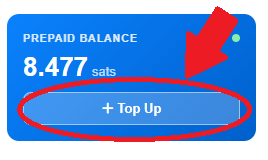
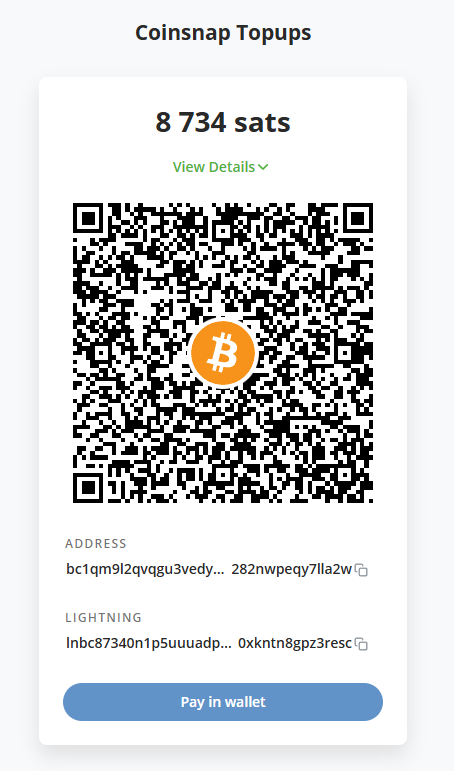
As soon as your balance falls below €5, you automatically receive an email notification letting you know that your account can be topped up. That email includes a payment link that allows you to conveniently top up your customer account with €20.
Alternatively, you can log in to your Coinsnap backend at any time, go to your customer account, and choose your own top-up amount. The minimum top-up amount is €5.
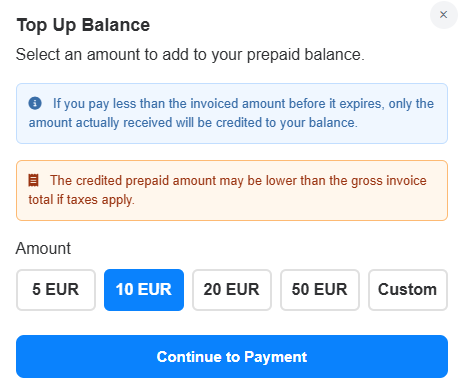
Top up with Bitcoin On-Chain and Lightning
You can top up your customer account using both common Bitcoin payment methods:
- Bitcoin On-Chain
- Bitcoin Lightning
This gives you full flexibility and allows you to top up your account in the way that best suits your needs.
Why the customer account model is so practical for you
The Coinsnap customer account was designed to make Bitcoin payments even more practical for your day-to-day business.
Your key benefits:
Easier payment reconciliation
Because exactly the amount your customer pays arrives in your wallet, you can check and assign payments more easily.
More transparency
Fees are charged separately through your customer account and are therefore clearly separated from the actual incoming payment.
Better bookkeeping processes
The clear separation of revenue and fees makes internal reconciliation easier and reduces administrative work.
Easy onboarding
With the starting credit, you can test Coinsnap right away and get familiar with the system at your own pace.
Flexible top-up
You can top up your customer account at any time via On-Chain or Lightning — either directly through the payment link in the email or individually in the backend.
Frequently Asked Questions
Where can I find my Coinsnap processing fees?
You can find your Coinsnap processing fees in your prepaid customer account transaction history. Open Prepaid Balance → View balance & history → Transaction History → Fee Debits to review the fees charged to your account.
Why are Coinsnap fees no longer included in the regular transaction CSV export?
With the prepaid customer account model, your incoming Bitcoin payments and processing fees are handled separately. The regular payment export records your payment transactions, while Coinsnap fees are recorded as debits from your prepaid balance.
How can I download a CSV file of my Coinsnap fees?
Open your Coinsnap dashboard and navigate to Prepaid Balance → View balance & history → Transaction History → Fee Debits. Click Export CSV to download the fee records.
Where can I find invoices for my prepaid balance top-ups?
Invoices associated with prepaid balance top-ups are available through the corresponding top-up or billing records in your Coinsnap customer account. These invoices document the funding of your prepaid balance separately from customer payments.
How should I record Coinsnap fees in my bookkeeping?
Use the regular payment transaction export for your incoming Bitcoin payments and the separate Fee Debits CSV export for processing fees. Keep your prepaid balance top-up invoices as supporting documents. Your accountant can advise you on the appropriate accounting treatment.
What happens when my prepaid customer account balance becomes low?
When your balance falls below the configured threshold, Coinsnap sends an email notification reminding you to top up your account. You can add funds using Bitcoin On-Chain or Lightning. The minimum top-up amount is €5.
Conclusion
With the Coinsnap customer account, using Bitcoin payments becomes easier, more transparent, and more predictable for you.
The key benefit for you:
You receive exactly the amount your customer paid, credited directly to your own wallet.
At the same time, Coinsnap fees and network fees are charged clearly and transparently through your prepaid customer account.
This makes bookkeeping reconciliation easier, gives you a clearer overview of your payment flow, and makes using Coinsnap even more convenient overall.
Thanks to the starting credit, the optional voucher bonus, and flexible top-up via Bitcoin On-Chain or Lightning, the customer account model is perfectly designed for practical use in your everyday business.