


With the Coinsnap Bitcoin Invoice Form Plugin, you can easily accept Bitcoin payments for invoices on your WordPress website – directly, securely, and without intermediaries. The plugin is free, easy to install, and connects seamlessly to Coinsnap or a BTCPay Server.
1. Introduction: Accept Bitcoin Payments Easily
Allow your customers to pay invoices not only by bank transfer but also in Bitcoin – directly on your own website.
The Bitcoin Invoice Form by Coinsnap enables you to accept Bitcoin payments directly on your WordPress website.
If you currently send invoices that customers pay via bank transfer, you can now give them the option to pay with Bitcoin instead.
Your customers simply open a payment page on your website and settle their invoice in Bitcoin – fast, transparent, and secure.
Coinsnap also provides an HTML-based solution that can be embedded into any website.
For WordPress, we have a dedicated plugin that you can install and configure with just a few clicks — no technical expertise required.
The plugin supports both Coinsnap and BTCPay Server as payment gateways.
2. Benefits of the Bitcoin Invoice Form Plugin
A simple, flexible, and free solution to start accepting Bitcoin payments on your WordPress site.
- ✅ Accept Bitcoin instead of bank transfers – offer your customers a modern, fast payment option.
- 🌐 Payments directly on your website – no external redirects or third-party pages.
- ⚡ Direct payments to your wallet – via Coinsnap or BTCPay Server.
- 🆓 Completely free to use – no hidden fees or setup costs.
- 🎁 Bitcoin Discount support – reward customers who pay in Bitcoin.
3. The Bitcoin Invoice Form from the Customer’s Perspective
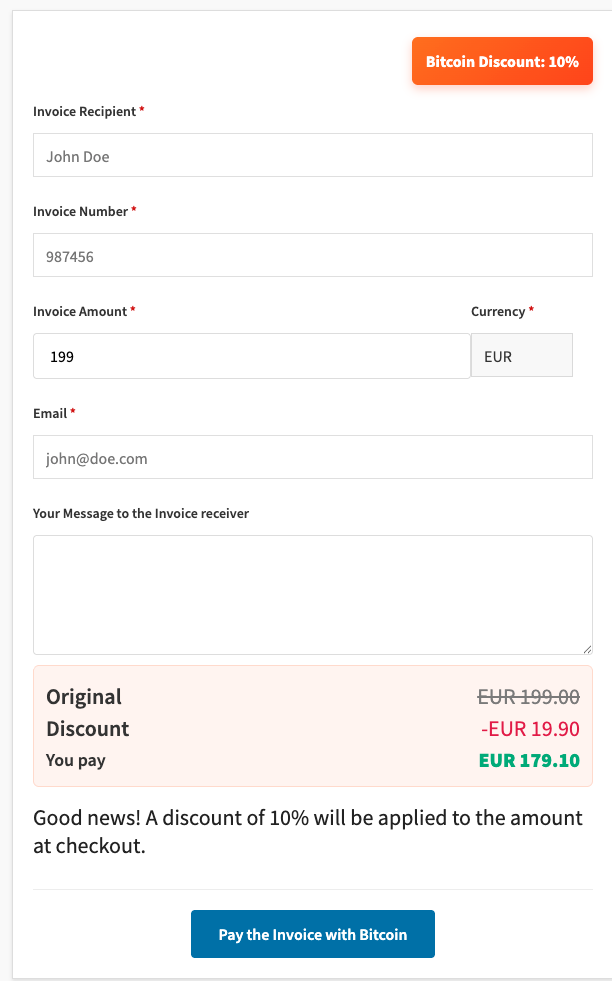
Customers pay directly on your site by entering the invoice number and amount — simple, secure, and transparent.
When your customer receives an invoice, it includes a payment URL such as:
👉 https://my-company.com/bitcoin
On this page, the Bitcoin payment form appears.
The customer enters the invoice number and amount, and optionally provides their name, email address, or a message.
All payments take place directly on your domain — no redirection to external processors.
Live demo: https://invoice.coinsnap.org/
4. Installing the Bitcoin Invoice Form Plugin
Install and activate the plugin directly from your WordPress dashboard in just a few steps.
- Log in to your WordPress admin panel.
- Go to Plugins → Add New.
- Search for Coinsnap Bitcoin Invoice Form.
- Click Install Now, then Activate.
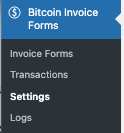
- After activation, a new menu item appears: Bitcoin Invoice Forms.
5. Connecting the Plugin to a Payment Gateway
Choose whether to process your Bitcoin payments through Coinsnap or BTCPay Server.
To receive Bitcoin payments, the plugin needs to connect to a Bitcoin payment gateway.
Go to Bitcoin Invoice Forms → Settings, then select your preferred option:

5.1 Bitcoin Invoice Form for BTCPay Server
- Log into your BTCPay Server and create a new store.
- In the plugin settings, choose BTCPay Server as the gateway.
- Enter your BTCPay Server URL.
- The configuration wizard connects automatically.

5.2 Bitcoin Invoice Form for Coinsnap
- Create a free account at Coinsnap.io.
- In your dashboard, go to Settings → Store.
- Copy your Store ID and API Key.
- Enter both in your WordPress plugin settings under Coinsnap.
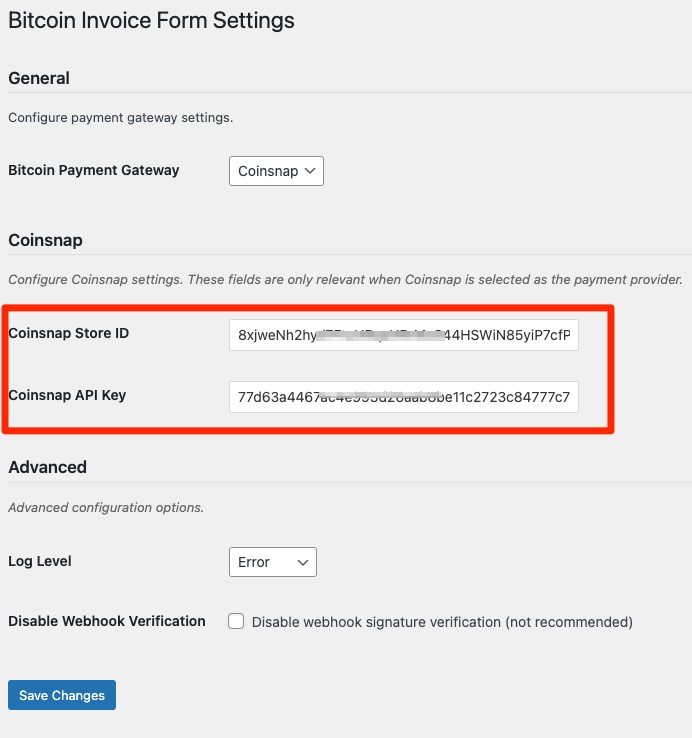
Your WordPress plugin is now connected to Coinsnap and ready to process Bitcoin payments.
6. Creating a Bitcoin Invoice Form
Create multiple Bitcoin payment forms — for example, for different languages or brands.
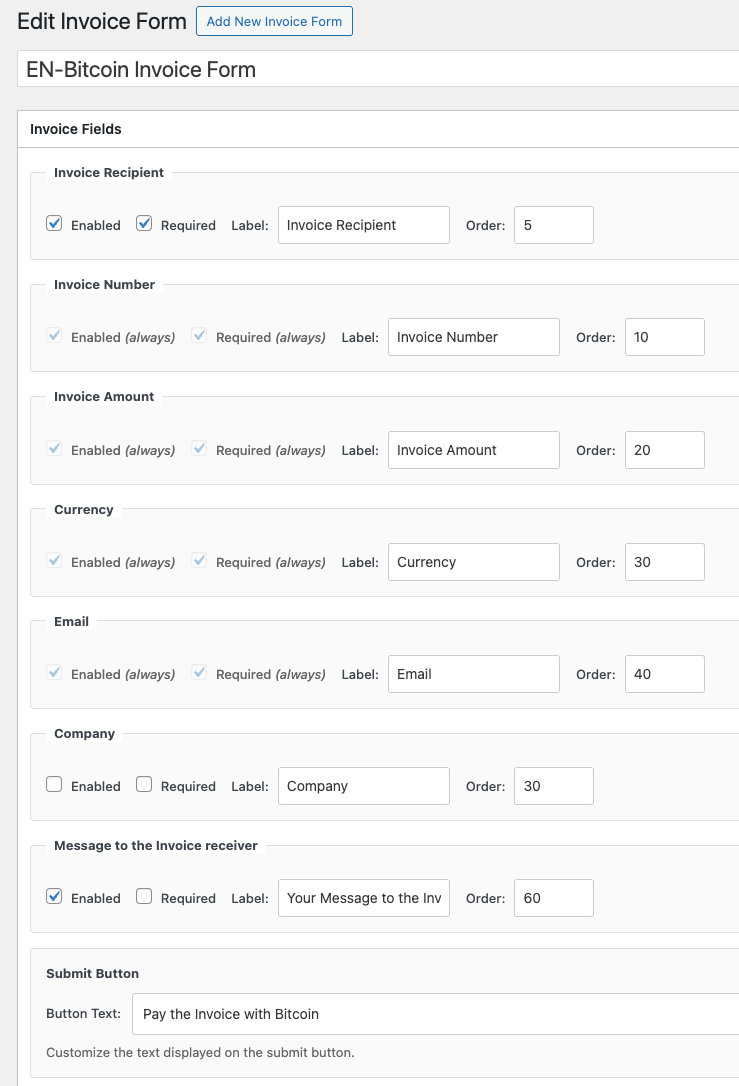
In your WordPress dashboard, go to Invoice Forms → Add New Invoice Form.
You can create multiple forms if your site serves different markets or languages.
- Invoice Recipient – name of the payer (required)
- Invoice Number and Invoice Amount – required
- Currency – invoice currency
- Email Address – optional for confirmations
- Message Field – optional message from the customer
7. Bitcoin Discount
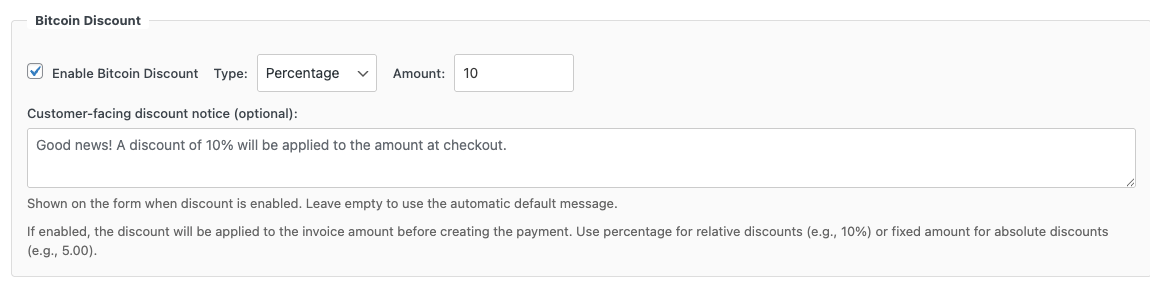
Encourage your customers to pay in Bitcoin by offering a discount.
Activate the Bitcoin Discount feature to reward customers who pay with Bitcoin.
You can define either a fixed discount amount (e.g. €10) or a percentage discount (e.g. 10%).
8. Email Settings
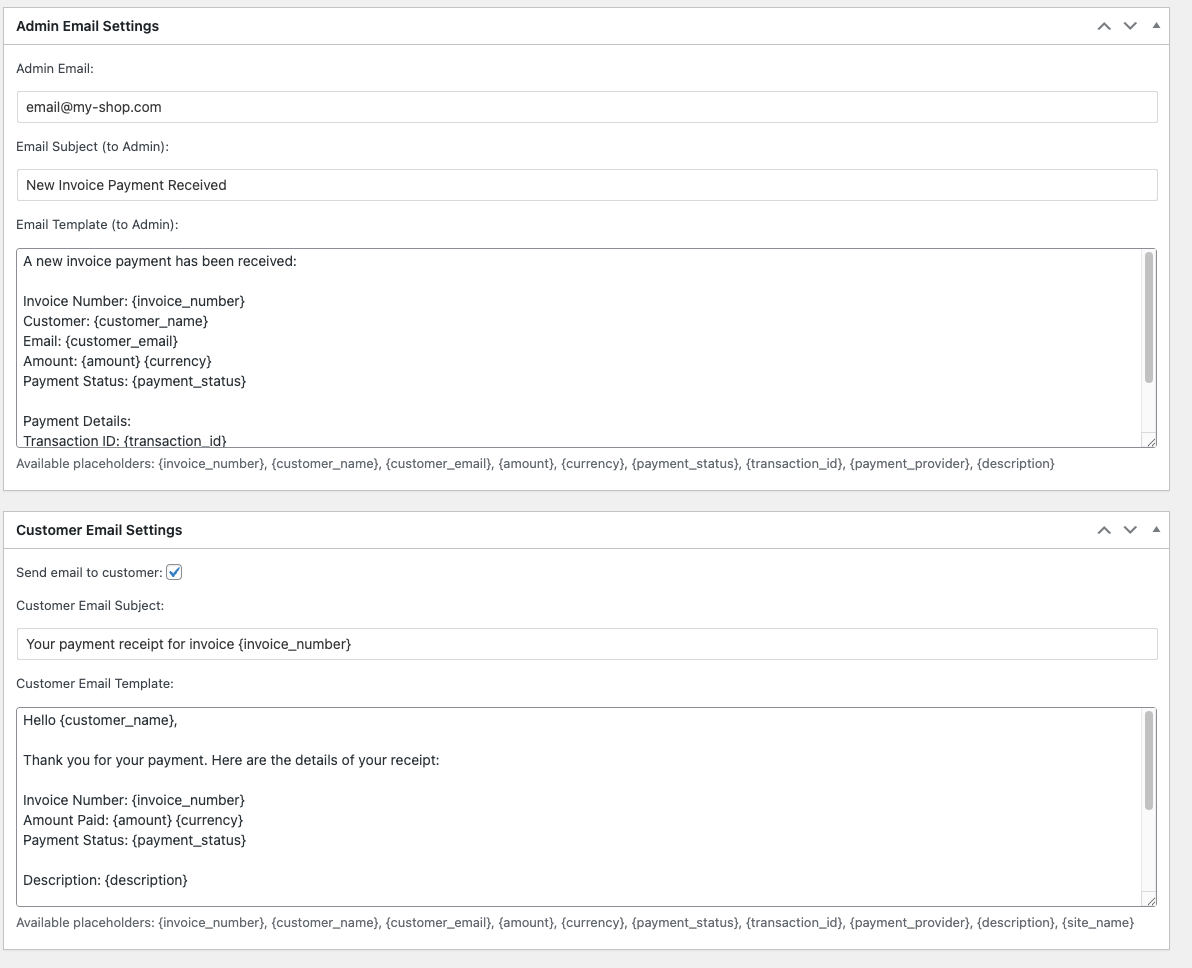
Configure who receives email notifications after a Bitcoin payment — you, the payer, or both.
- The invoice issuer receives an email notification confirming the payment.
- If Customer Email Settings are enabled, the payer will also receive a confirmation email once payment is successful.
Important: The payer must provide an email address in the invoice form for this to work.
9. Redirect Settings
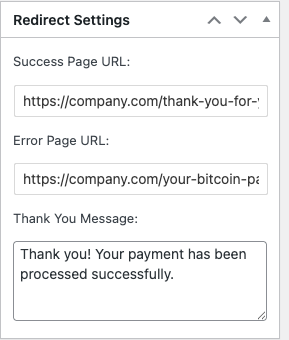
Control what happens after a payment — redirect users to custom success or error pages.
- Success Page URL: Page shown after successful payment.
- Error Page URL: Page shown after failed or canceled payment.
We recommend creating two separate pages — one for success (e.g., “Thank You”) and one for errors.
If left empty, a default message appears instead.
10. Shortcode Integration
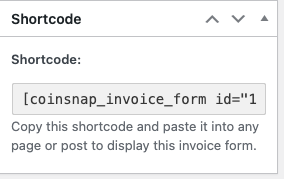
Display your Bitcoin payment form anywhere on your site using a shortcode.
Each form generates a shortcode, for example:
[coinsnap_invoice_form id="12345"]Copy this shortcode and paste it into any WordPress page or post.
11. Transaction Overview
Track every Bitcoin payment and view detailed transaction data.
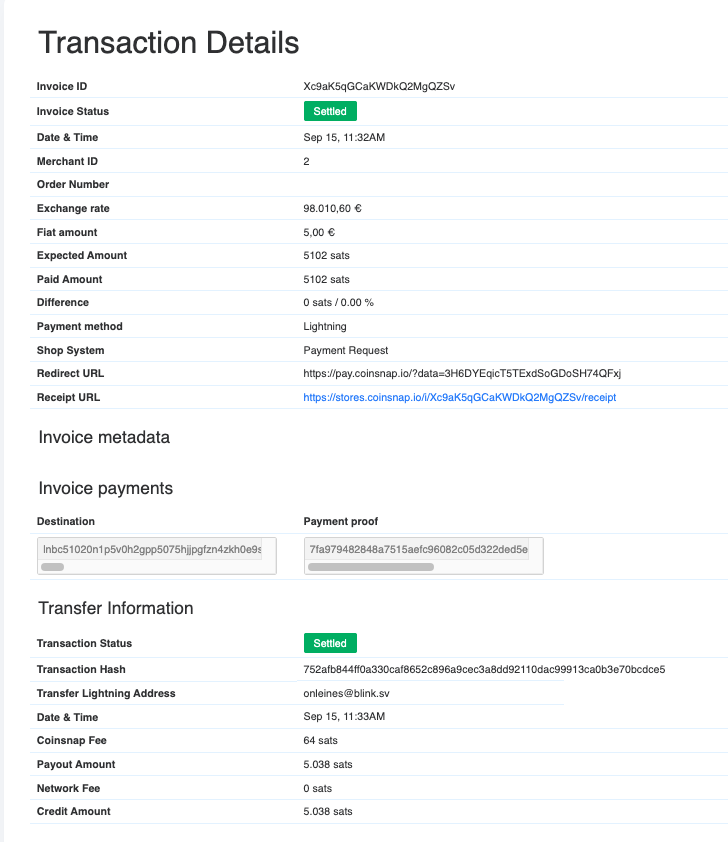
Under Transactions, you’ll find a complete list of all received Bitcoin payments — including invoice numbers, payers, amounts, and payment status.
- Payment amount in fiat and Bitcoin
- Exchange rate used for conversion
- Timestamp of the payment
- Wallet address that received the funds
These details ensure full transparency and simplify accounting.
Conclusion
The Coinsnap Bitcoin Invoice Form Plugin is the easiest way to accept Bitcoin payments on your WordPress website — transparent, secure, and completely free.
With just a few clicks, you can start receiving payments directly on your site without intermediaries or complex integrations.
👉 Try it live: invoice.coinsnap.org
or install it directly via your WordPress dashboard.