
Modified Shop Bitcoin User Guide
This User Guide shows you how to accept Bitcoin and Lightning payments with the Modified Shop Bitcoin module. It explains the requirements, how to install and connect the Coinsnap payment module, how to configure all relevant settings, and how to enable Bitcoin payments at checkout so customers can pay instantly via Bitcoin (on-chain + Lightning).
Add Bitcoin + Lightning to your Modified Shop checkout — fast setup, no complex integration.



GET STARTED - REQUIREMENTS
To enable Bitcoin payments with Coinsnap in your Modified Shop, you must meet the following requirements:
-
A Modified Shop installation with administrator access
You need full backend access to install payment modules and configure settings. -
FTP access to your shop server
Required to upload the Coinsnap plugin files into the root directory of your Modified Shop installation. -
An active Coinsnap account
You need a Coinsnap account to generate your Store ID and API Key for connecting the plugin. -
The Coinsnap for Modified Shop plugin (downloaded from GitHub)
Download the latest version of the plugin ZIP file from the Coinsnap GitHub page before starting the installation.
Step 1 - install the module
As soon as you have registered with Coinsnap and downloaded the ZIP file containing the module from GitHub, log in to your Modified Shop backend.
Extract the archive and upload the files and folders to the Modified Shop root directory using an FTP client, keeping the directory structure:
- callback
- includes
- lang
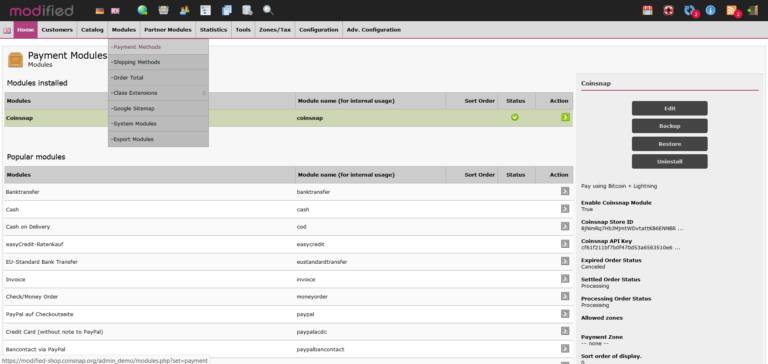
Log in to Modified Shop as an admin. Go to Modules → Payment methods, search for Coinsnap, and click Install. After installation, Coinsnap will appear in the list of installed modules.
Now you can proceed with the setup of your Coinsnap plugin as described below. After the Coinsnap for Modified Shop plugin has been installed and activated, it still needs to be configured. You can learn how to do this
here.
Step 2 - Connect Coinsnap for Modified Shop with the Coinsnap Bitcoin gateway
For the whole thing to work, you need to connect your plugin to the Coinsnap Bitcoin gateway.
Coinsnap for Modified Shop Settings
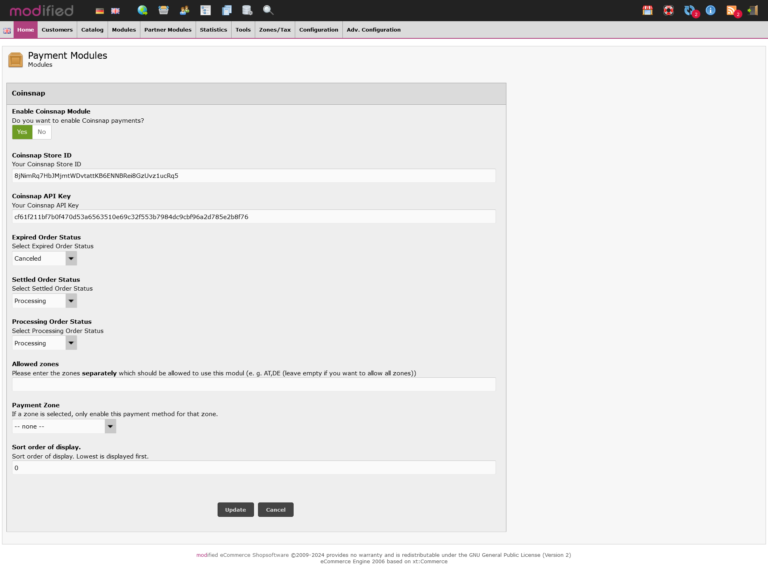
- Go to Modules -> Payment methods, search for Coinsnap and click on the icon – the page with the Coinsnap settings will open.
- Activate the Coinsnap module (click on “Yes”).
- Enter the Coinsnap Store ID and your Coinsnap API Key (you can find these in your Coinsnap account, see here).
- Select the payment status for Coinsnap payment status.
- If you wish, you can enter permitted payment zones and select a payment zone from the list of payment zones.
- Click on Save.
Frequently Asked Questions
What Users Ask About This plugin
Which skills do I need to install and configure the module?
You should be familiar with basic server and shop administration tasks. This includes uploading files via FTP, managing directories in your Modified Shop root folder, and configuring payment modules in the backend.
No advanced programming or custom development is required, but basic technical knowledge is recommended.
Can I get help if I don’t have these skills?
Yes. If you are not comfortable with FTP uploads or backend configuration, you can contact the Coinsnap support team for assistance. Coinsnap offers a free integration service to install and correctly connect the Modified Shop module for you.
Do I need FTP access to install the module?
Yes. The Modified Shop Bitcoin module must be uploaded manually to the root directory of your Modified Shop installation via FTP while preserving the folder structure.
Which folders must be uploaded to the root directory?
After extracting the ZIP file, upload the folders exactly as provided (e.g., callback, includes, lang) into your Modified Shop root directory without changing the structure.
Why does the Coinsnap payment method not appear after installation?
Some Modified Shop themes require clearing the template cache before new payment methods become visible. Clear the cache and reload the backend.
Does the module update order status automatically after payment?
Yes. Coinsnap sends automatic server callbacks to your shop. Once payment is confirmed, the order status is updated automatically.
Can I restrict Bitcoin payments to specific countries or zones?
Yes. Inside the module settings, you can define permitted payment zones and assign a specific payment zone if needed.
