

Why does Coinsnap use a prepaid credit balance?
If you want to know how to top up your Coinsnap credit, it helps to first understand why Coinsnap uses a prepaid credit balance in the first place.
Coinsnap credit is a prepaid balance merchants use to pay Coinsnap’s 1% transaction fee. Because Bitcoin payments are forwarded directly from the customer to the merchant’s wallet, Coinsnap never holds the payment and cannot deduct its fee from it. Instead, the fee is deducted from the merchant’s prepaid Coinsnap credit after each successful transaction.
Coinsnap never takes possession of the Bitcoin your customers pay you. When a customer makes a Bitcoin or Lightning payment, Coinsnap processes the payment request and forwards the payment directly from the customer to your connected Bitcoin wallet. Your Bitcoin does not pass through a Coinsnap account.
For this service, Coinsnap charges a 1% fee on successfully processed Bitcoin payments. Because Coinsnap never holds your Bitcoin, it cannot simply deduct this fee from the payment before sending it to you.
This is why Coinsnap uses a prepaid credit balance. As a merchant, you deposit credit into your Coinsnap account in advance. After each successful transaction, the 1% Coinsnap fee is deducted from this balance.
Your Coinsnap credit therefore contains only funds used to pay Coinsnap fees. It never contains the Bitcoin payments you receive from your customers.
If you don’t have a Coinsnap account yet, here’s how to open one in less than a minute!
Step 1: Open your Coinsnap balance
Log in to your Coinsnap account and go to Finances → Balance. Here you can see your current Coinsnap credit balance and start a new top-up.
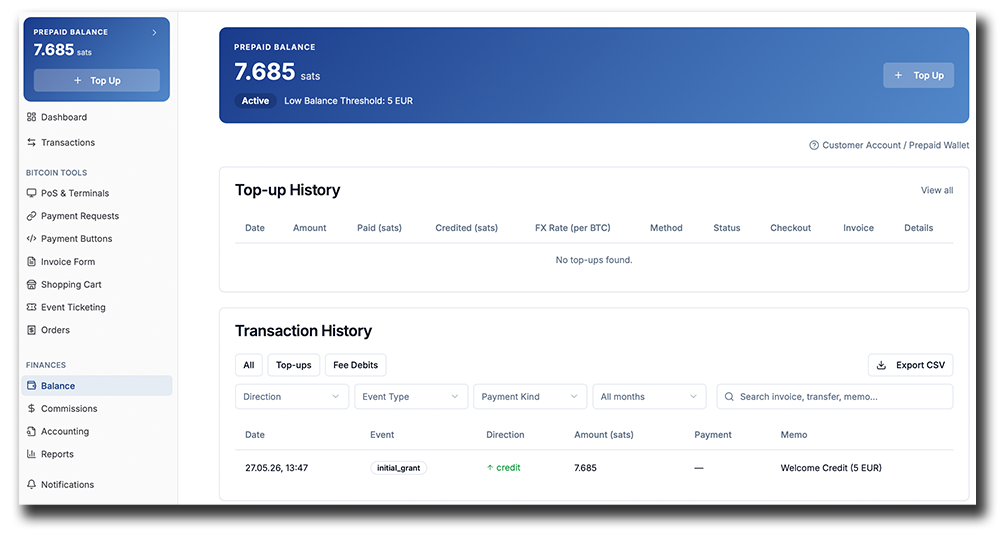
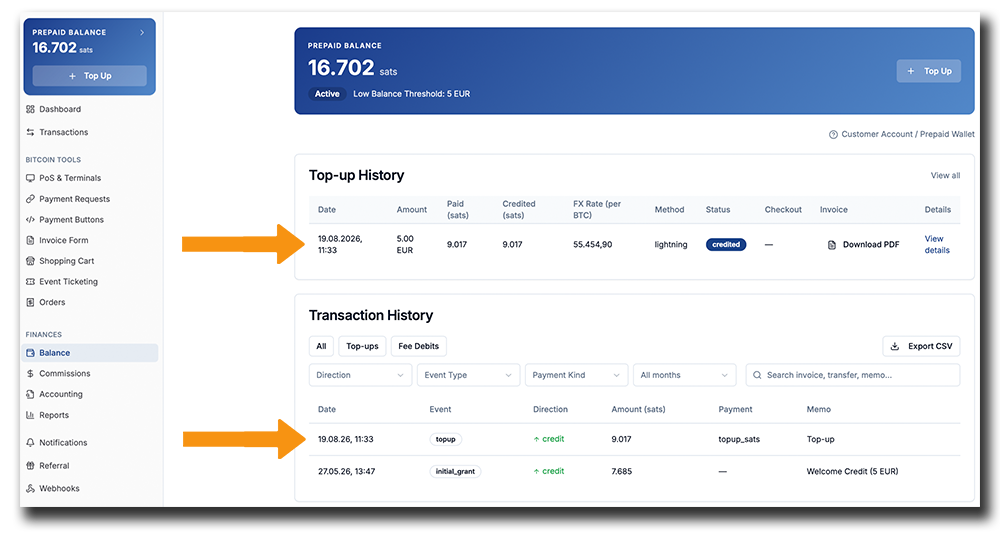
The Balance page gives you an overview of your prepaid Coinsnap credit. At the top, you can see your current balance in sats and the Top Up button. Below, the Top-up History shows previous credit deposits, while the Transaction History records top-ups and fee deductions from your balance.
Step 2: Add credit to your balance
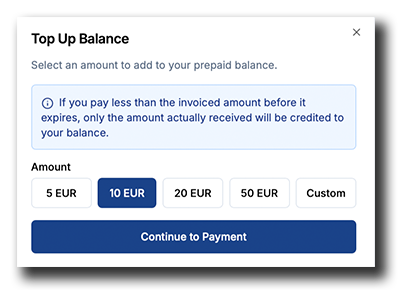
Click Top Up to open the Top Up Balance window. Choose how much credit you want to add to your prepaid balance: €5, €10, €20 or €50. If you want to add a different amount, select Custom and enter the amount yourself.
Remember that with Coinsnap’s 1% transaction fee, every euro of credit covers €100 in Bitcoin sales. A €10 top-up, for example, is enough for €1,000 in sales, while €50 covers €5,000. Before choosing your top-up amount, consider how much Bitcoin sales volume you expect over the next few weeks and add at least 1% of that expected sales volume to your Coinsnap credit.
Once you have selected your amount, click Continue to Payment.
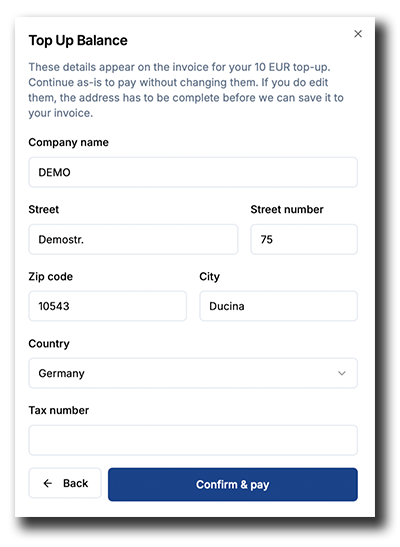
Before creating the top-up payment, Coinsnap displays the company and address information that will appear on the invoice. Check the information and, if necessary, complete or update it. You can also enter your VAT ID. Then click Confirm & pay.
Coinsnap then creates a Bitcoin payment request for the selected top-up amount. You can pay it with Bitcoin on-chain or Lightning, either by scanning the QR code or by opening a compatible Bitcoin wallet directly.
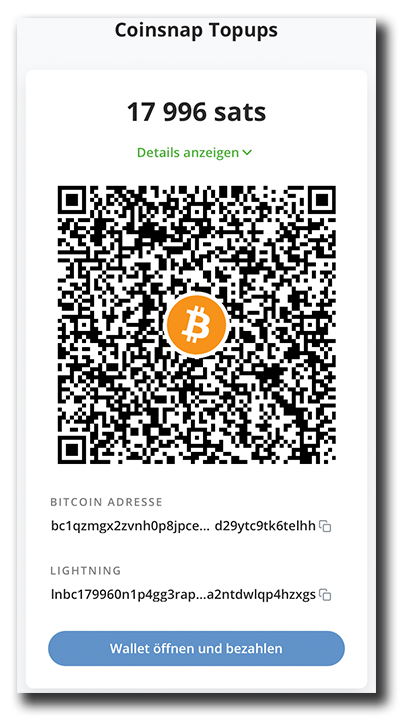
Once the payment has been received, the corresponding amount is credited to your prepaid balance and becomes available for future Coinsnap fees. You can also see your completed top-up in the Top-up and Transaction History, where all credit deposits to your Coinsnap account are recorded.
Frequently Asked Questions About Coinsnap Credit
Coinsnap never holds the Bitcoin your customers pay you. Payments go directly from the customer to your connected Bitcoin wallet, so Coinsnap cannot deduct its 1% transaction fee from the payment itself. Instead, the fee is deducted from your prepaid Coinsnap credit balance.
Coinsnap charges a 1% fee for successfully processed Bitcoin payments. There are no fees for unsuccessful transactions.
Your credit should be at least 1% of the Bitcoin sales volume you expect to process. For example, €10 of Coinsnap credit covers €1,000 in Bitcoin sales, while €50 covers €5,000.
Yes. Coinsnap gives you €5 of free starting credit when you open a Coinsnap account. At a 1% transaction fee, this is enough to process €500 worth of Bitcoin sales before you need to top up for the first time.
Log in to your Coinsnap account and go to Finances → Balance → Top Up. Select €5, €10, €20 or €50, or enter a custom amount, then continue to payment.
Yes. After choosing your top-up amount, Coinsnap creates a Bitcoin payment request. You can pay the top-up using Bitcoin on-chain or Lightning.
Go to Finances → Balance in your Coinsnap account. Your current prepaid balance is displayed at the top of the page in sats.
Your previous credit deposits are listed under Top-up History on the Balance page. The Transaction History below it also records credit movements and Coinsnap fee deductions.
No. Coinsnap is non-custodial and does not take possession of your customers’ Bitcoin. Payments are sent directly from the customer to the Bitcoin wallet you have connected to Coinsnap.