
WordPress Bitcoin Paywall Installation Guide
This user guide shows you how to accept Bitcoin and Lightning payments on your WordPress website using the Coinsnap Bitcoin Paywall plugin. It walks you through the technical requirements, installing and activating the plugin, connecting it to your Coinsnap Bitcoin gateway or your BTCPay Server, configuring all relevant settings, and publishing paid content that visitors can unlock directly on your pages.
Monetize your content with a Bitcoin paywall — powered by Bitcoin (on-chain + Lightning).


Requirements
THESE REQUIREMENTS MUST BE MET FOR BITCOIN PAYWALL TO FUNCTION CORRECTLY:
WordPress & Bitcoin Paywall
- A self-hosted WordPress website
- Bitcoin Paywall installed and activated
Bitcoin Gateways (Coinsnap or BTCPay Server)
For this plugin, you need either a Coinsnap account with a Lightning address or your own BTCPay Server. Consequently, one of the following requirements must be met:
- An active Coinsnap account
-> How to set up a Coinsnap account
- A Bitcoin Lightning wallet
-> How to get a Lightning address
or
- A connected BTCPay Server
-> How to connect a Cponsnap plugin with your BTCPay Server
and
- The installed Coinsnap Bitcoin Paywall plugin
->How to install the plugin and connect it with your Coinsnap account or your BTCPay Server
Server & Access
- Ability to install and activate WordPress plugins
- HTTPS (SSL) enabled on the website
Bitcoin Paywall Campaign Setup
- At least one Bitcoin Paywall campaign created (to enable a test payment)
STEP 1 - CONFIGURE AND CUSTOMIZE THE PLUGIN
All the requirements listed above are met, and you have successfully installed the plugin in your WordPress. If not, here is a Step-by-step: How to install a Coinsnap plugin in WordPress guide to help you install the plugin.
You will soon be able to accept Bitcoin payments (on-chain and Lightning) for restricted content with the Bitcoin Paywall plugin anywhere on your website — without the need for a complex shop system like WooCommerce or traditional payment providers such as credit cards or PayPal. But before you can do that, you need to configure Bitcoin payments in your Bitcoin Paywall plugin.
HOW TO CONFIGURE THE PLUGIN
1. Choose and set up your Bitcoin Gateway
After installing and activating the Bitcoin Payment plugin, you need to configure a Bitcoin gateway connection, either with Coinsnap or with a BTCPay Server.
In the WordPress admin dashboard, go to Coinsnap Bitcoin Crowdfunding → Settings in the left-hand sidebar.
You now need to choose between two payment gateways: Coinsnap or your own BTCPay Server, and to enter your Store ID and API Key.
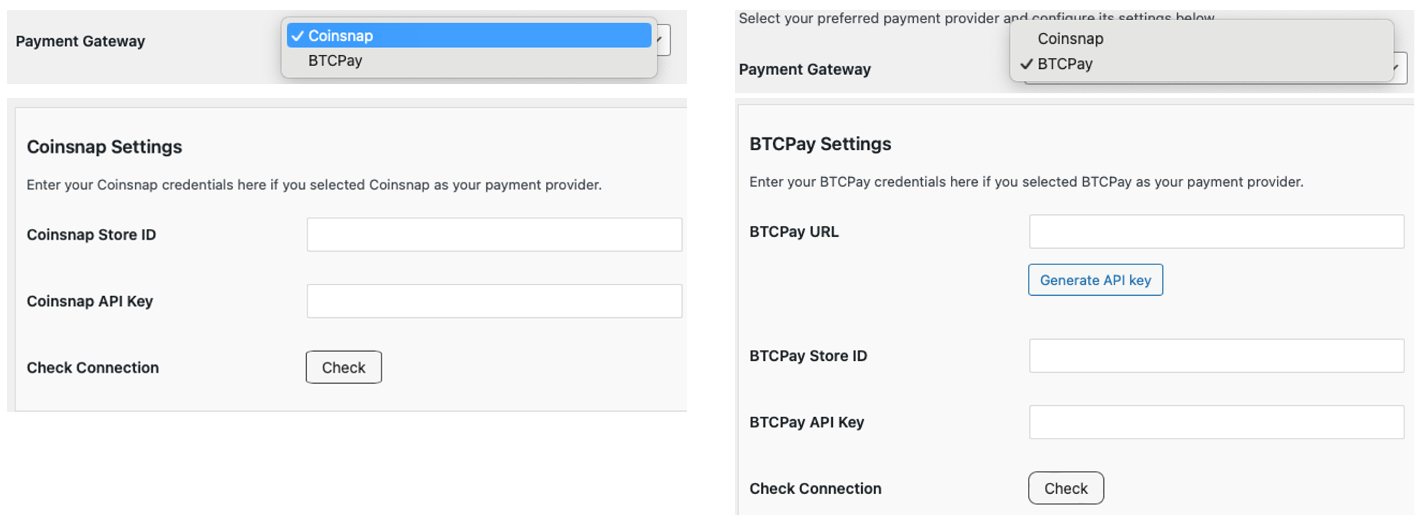
Coinsnap
Coinsnap is the easiest option. Coinsnap handles the technical setup for you and connects your store to Bitcoin and Lightning payments with just a few clicks. It’s ideal if you want a quick, hassle-free solution without managing your own payment infrastructure.
Learn here how to retrieve your Coinsnap Store ID and API Key:
-> Step-by-step explanation: How to connect your Coinsnap account with your plugin
BTCPay Server
BTCPay Server is a self-hosted option for merchants who want full control. You run your own Bitcoin and Lightning payment server, manage your own wallets, and don’t rely on a third party. This option offers maximum independence but requires more technical setup and maintenance.
Learn how to retrieve your Store ID and API Key using our BTCPay Server wizard here:
-> Step-by-step explanation: How to connect your BTCPay Server with your plugin
2. Check Connection
Whichever gateway you’ve set up, once you’re done, click the check button.

If everything went well, you should now see the following notification at the top of the settings screen:

The plugin is now successfully connected to your Bitcoin payment gateway and fully operational — you can now create and configure paywalls to match your content and monetization needs.
STEP 2 - CREATE A SIMPLE BITCOIN DONATION BUTTON
With the Coinsnap Bitcoin Paywall Plugin, you can turn your WordPress site into a paid content platform where visitors unlock articles, videos, files, or sections only after paying a small amount in Bitcoin or Lightning. Instead of relying on ads, subscriptions, or account-based access models, you create a simple pay-per-access system where every unlock represents real value and intent.
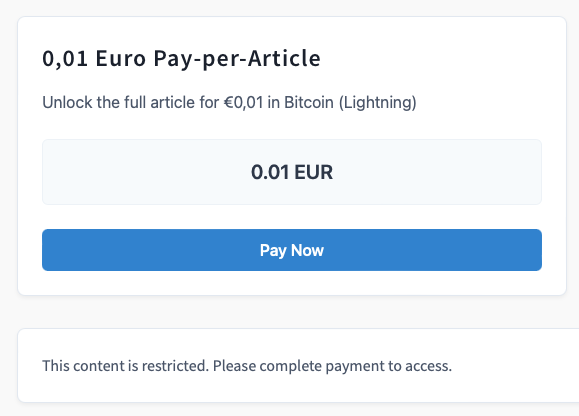
To display a paywall within your content, go to Coinsnap Bitcoin Paywall → Paywall Shortcodes in the left sidebar of your WordPress dashboard, then click Add New Paywall Shortcode at the top left of the screen. You will now see the configuration options for creating a paywall tailored to your content:
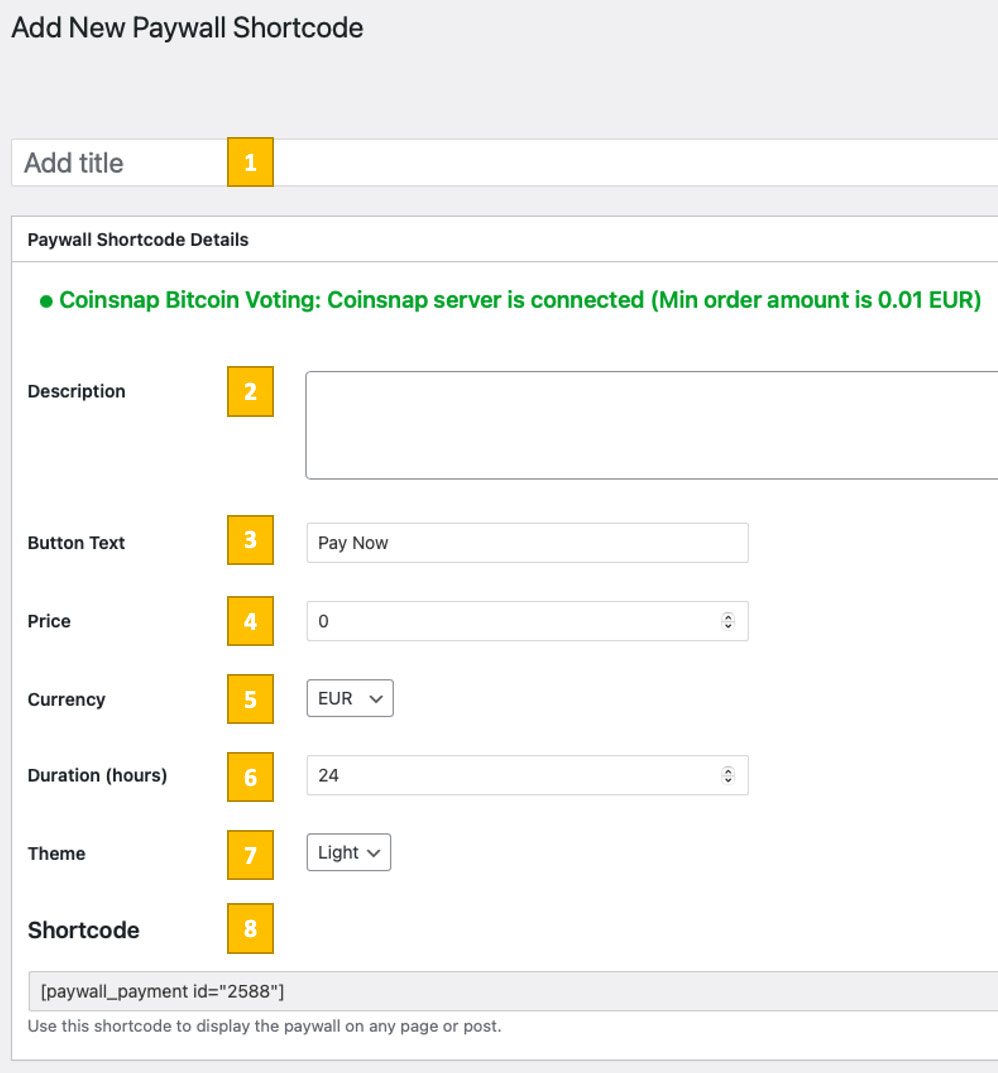
On the Add New Paywall Shortcode screen, you define how your Bitcoin paywall behaves and how it is presented to visitors:
[1] Title
Enter a name for this paywall. This title is displayed as the headline of the paywall box in your content. It is visible to visitors and should clearly describe what they are unlocking or paying for.
Connection status
The green status message confirms that the plugin is correctly connected to your Bitcoin gateway and ready to process payments. It also shows the minimum transaction amount supported by your gateway.
[2] Description
Add a short explanatory text that visitors will see above the payment button. Use this to explain what content will be unlocked after payment or why payment is required.
[3] Button Text
This is the label shown on the payment button. You can keep the default or customize it to match your tone, for example “Unlock content” or “Pay with Bitcoin”.
[4] Price
Define the amount visitors must pay to unlock the content protected by this paywall.
[5] Currency
Choose the fiat currency used to define the price. The amount will be converted automatically and paid in Bitcoin or Lightning by the user.
[6] Duration (hours)
Set how long the content remains unlocked for the user after successful payment. Once this time expires, the paywall box will be shown again.
[7] Theme
Select the visual appearance of the paywall. The light theme works well on most websites, but you can choose the option that best matches your design.
[8] Shortcode / paywall box placement
This shortcode is generated automatically. Copy and paste it into any post or page where you want the paywall to appear. The paywall will be displayed exactly at the position where the shortcode is placed.
Once saved, this paywall can be reused across your site, allowing you to protect different content areas with the same price, duration, and message.
Step 3 - Add the paywall to your content
Create content
Now create your content as usual in WordPress, for example a text article like in this example.
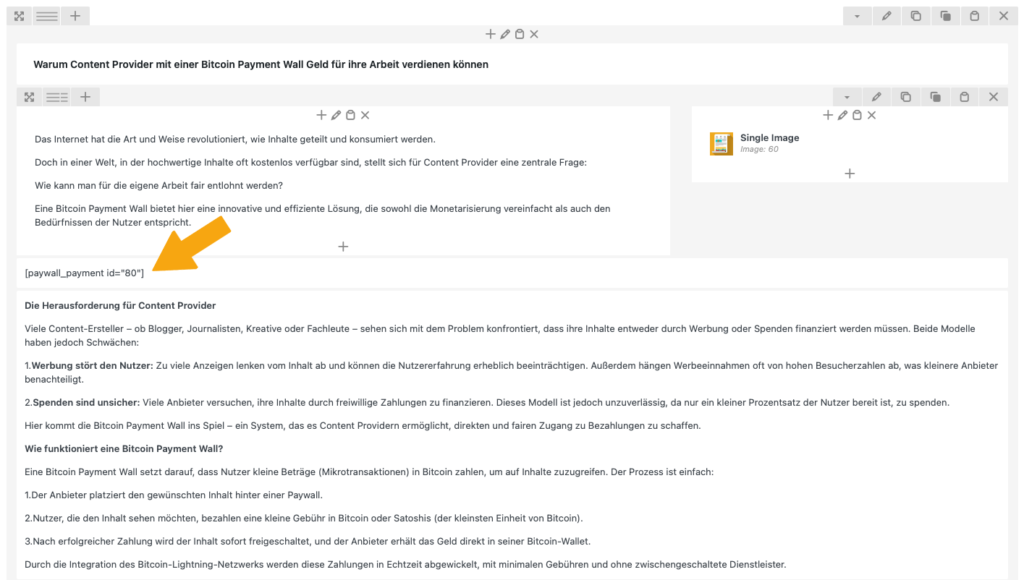
Once the article is finished, place the shortcode you just created at the exact position where you want the reader to pay. In most cases, this is done directly after the introductory paragraph, as shown below.
STEP 4 — MAKE A TEST PAYMENT TO ENSURE EVERYTHING WORKS CORRECTLY
After all settings have been made, a test transaction should be carried out.
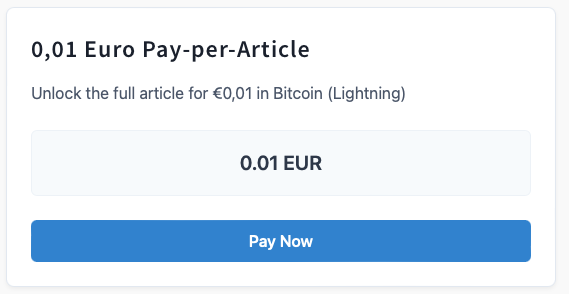
Click on the Pay Now button on a paywall box that you created on your website.
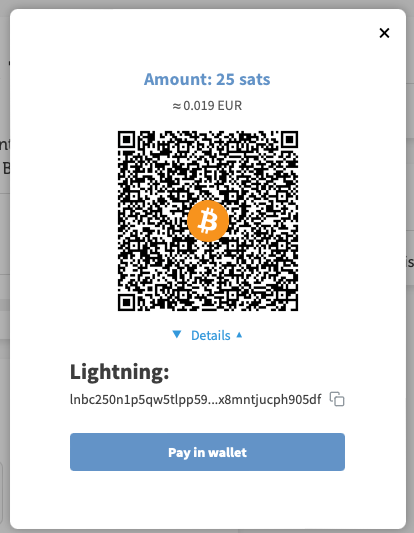
You will then be redirected to the Bitcoin payment page to complete the purchase. The Bitcoin payment page allows the payer to choose between Bitcoin and Lightning. Both payment methods are integrated into the displayed QR code.
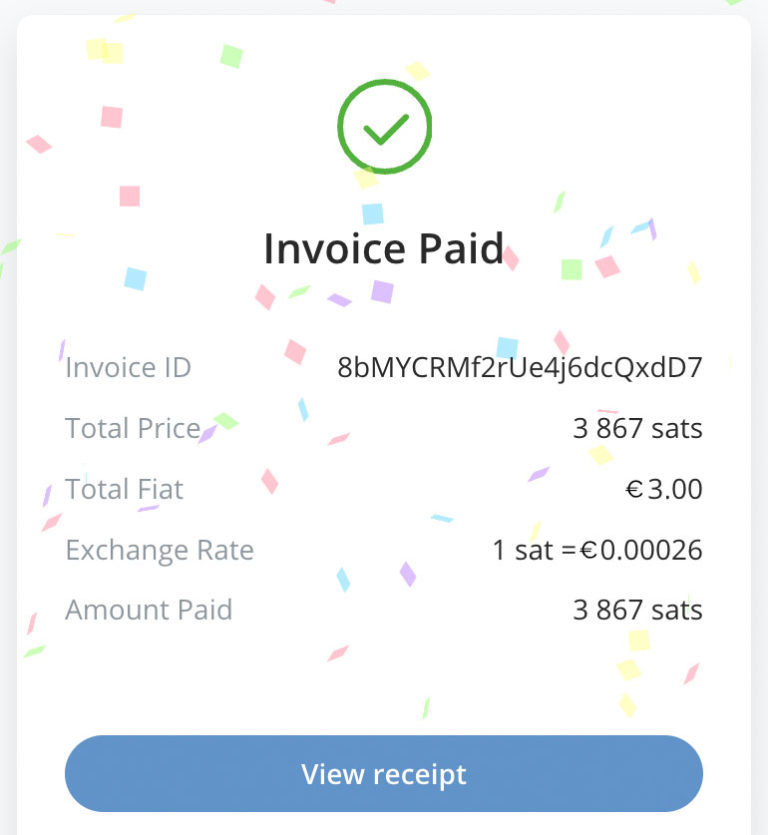
After a successful payment, the invoice can be viewed in detail.
Frequently Asked Questions
What Users Ask About This plugin
Do visitors need a Coinsnap account to pay?
No. Visitors only need a Bitcoin or Lightning wallet to unlock the content.
Can users pay with both Bitcoin on-chain and Lightning?
Yes. The paywall supports both Bitcoin on-chain and Lightning payments via a single QR code.
Is the price shown in Bitcoin or fiat currency?
You can define the price in any of the supported currencies: EUR, USD, SATS, BTC, CAD, JPY, GBP, CHF, or RUB. The payer can then complete the payment in Bitcoin (on-chain) or Lightning.
Is the price shown in Bitcoin or fiat currency?
You define the price in a fiat currency. The plugin automatically converts it to sats and processes the payment in Bitcoin or Lightning.
What happens after a successful payment?
The paywall is removed immediately and the protected content becomes visible for the duration you defined.
Can I use different paywalls with different prices on one website?
Yes. You can create multiple paywall shortcodes, each with its own price, duration, text, and design.
How long does the content stay unlocked?
The unlock duration is fully configurable in hours. After it expires, the paywall is shown again.
Can I place the paywall anywhere inside my content?
Yes. You can insert the shortcode at any position in a post or page where access should be restricted.
Do I need coding skills to use the paywall?
No. Creating and placing paywalls is entirely shortcode-based and works through the WordPress backend.
Can I connect the plugin to BTCPay Server instead of Coinsnap?
Yes. The plugin supports both Coinsnap and self-hosted BTCPay Server as Bitcoin payment gateways.
