
OpenCart Bitcoin User Guide
This OpenCart Bitcoin User Guide shows you how to accept Bitcoin and Lightning payments in OpenCart with the OpenCart Bitcoin module. It explains the requirements, how to install and connect the Coinsnap payment extension, how to configure all relevant settings, and how to enable Bitcoin payments at checkout so customers can pay instantly via Bitcoin (on-chain + Lightning).
Add Bitcoin + Lightning to your OpenCart checkout — fast setup, no complex integration.



GET STARTED - REQUIREMENTS
To enable Bitcoin payments with Coinsnap in your OpenCart store, you must meet the following requirements:
- A OpenCart Store with administrator access
- An active Coinsnap account
- Download the .zip-File with the Coinsnap for OpenCart module
Step 1 - install the Coinsnap extension in Opencart
Find and select the Extensions section on the left-hand side of the Opencart login page.
(2) Access to the installer
In the Extensions section, find the Installer subsection and click on it to continue.
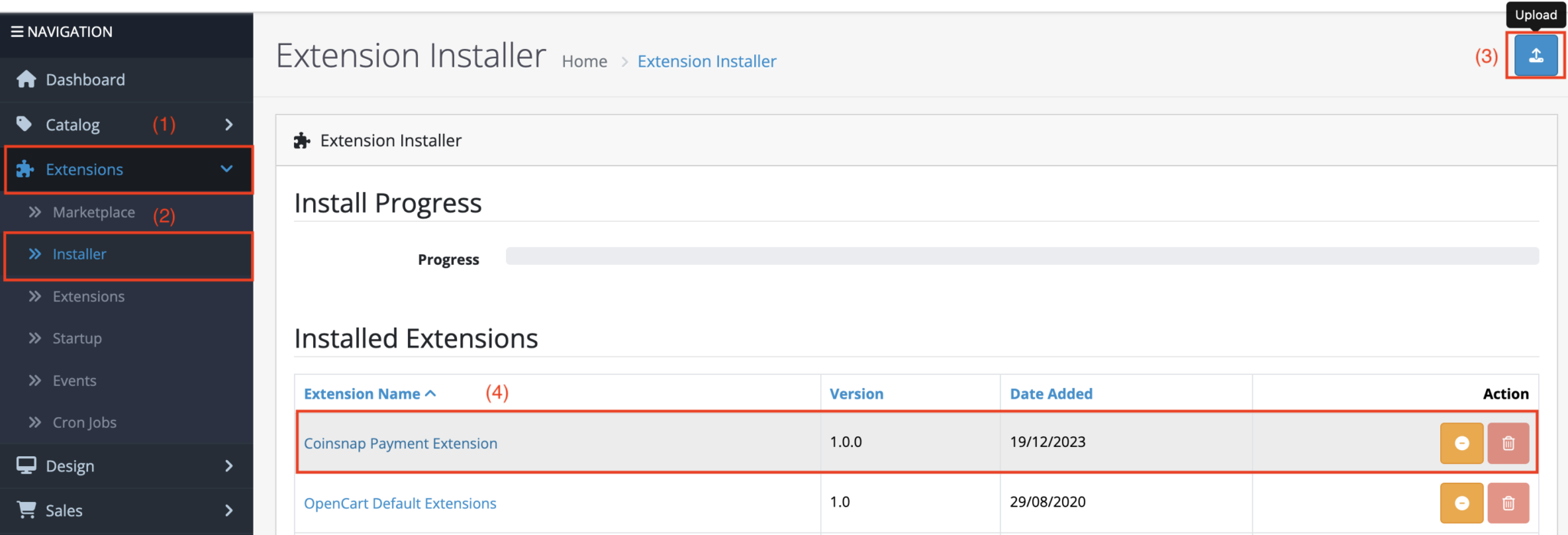
(3) Upload ZIP file
On the right-hand side, you’ll find a blue Upload button. Click it and upload the downloaded OpenCart Bitcoin module.zip file.
(4) Install Coinsnap payment extensions
Click on the button to install the uploaded Coinsnap Payment Extension. After successful installation, the button should now be highlighted in orange.
Step 2 - Set the extension as a payment method
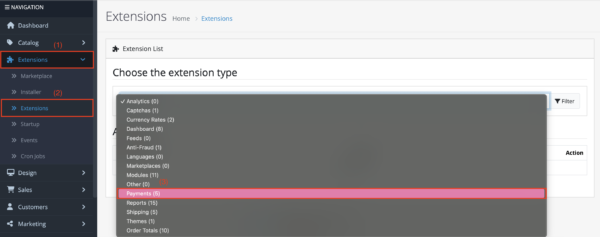
Find and select the Extensions section on the left-hand side of the OpenCart login page.
Within the Extensions section, search for the Extensions subsection and click on it to continue.
(3) Payments
Under Select the extension type, search for the payment category and select it.
After you have selected Payments, scroll down to find Coinsnap as a payment method. Click on the “Edit” button on the right-hand side:
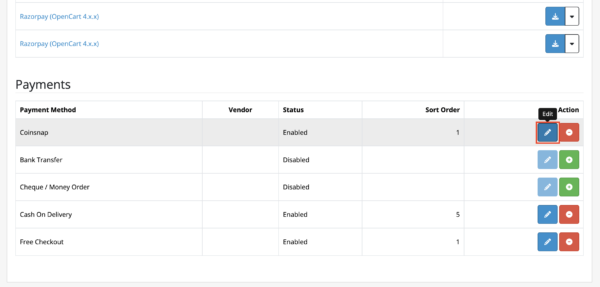
Step 3 - Connect OpenCart with the Coinsnap Bitcoin gateway
Enter your login details in your Coinsnap app and navigate to the settings. Look for the Store settings section in the settings, where you can access your store ID and API key and copy these login details for future use.
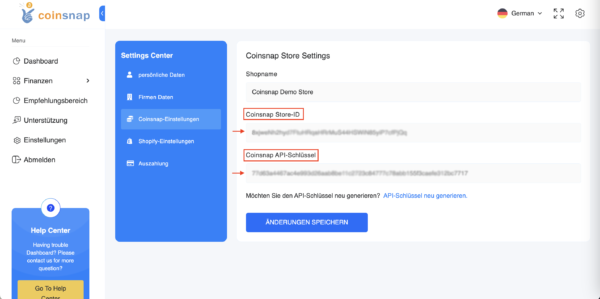
STEP 4 – Enter Your Store ID and API Key in the OpenCart Coinsnap Extension
If you click on the Edit button, fields are displayed in which you must enter the previously copied store ID and the API key.
Fill in these fields and your integration with the Coinsnap app will be successfully completed.
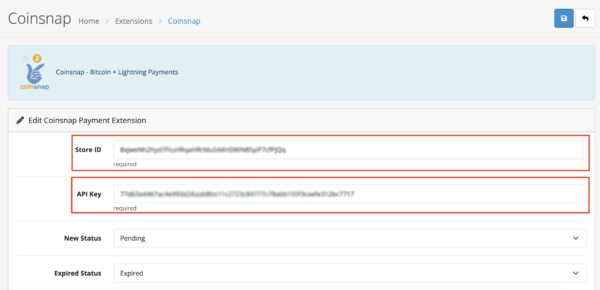
You are now ready to accept Bitcoin+Lightning payments.
Frequently Asked Questions
What Users Ask About This plugin
Does the module work with OpenCart themes?
Yes, it integrates with all modern OpenCart 3.x themes.
Which payment methods are supported by Coinsnap in OpenCart?
Coinsnap supports Bitcoin payments via both on-chain and Lightning. Customers can choose their preferred method during checkout using a single QR code.
Do I need a Lightning node or Bitcoin infrastructure to use Coinsnap?
No. You only need an active Coinsnap account and a connected Bitcoin or Lightning wallet. No own node, server, or additional infrastructure is required.
In which currency is the product price displayed to customers?
Prices are shown in your shop’s default fiat currency. The Bitcoin amount is calculated in real time during checkout based on the current exchange rate.
When do I receive the Bitcoin payment?
Payments are credited instantly after successful confirmation, either directly to your connected wallet or according to your Coinsnap settlement configuration.
Can I use Coinsnap in test mode before accepting real payments?
Yes. You can create a small test transaction to verify that the payment flow works correctly before offering Bitcoin payments to customers.
Does Coinsnap support refunds or chargebacks?
Bitcoin payments do not support chargebacks. Refunds, if required, must be handled manually by sending Bitcoin back to the customer.
Is the Coinsnap extension compatible with all OpenCart themes?
The Coinsnap payment method integrates into OpenCart’s standard checkout and is compatible with most themes that use the default payment workflow.
