
Gambio Bitcoin User Guide
This User Guide shows you how to accept Bitcoin and Lightning payments with the Gambio Bitcoin module. It explains how to install and connect the Coinsnap payment module, how to configure all relevant settings, and how to enable Bitcoin payments at checkout so customers can pay instantly via Bitcoin (on-chain + Lightning).
Add Bitcoin + Lightning to your Gambio checkout — fast setup, no complex integration.



GET STARTED - REQUIREMENTS
To enable Bitcoin payments with Coinsnap in your Gambio store, you must meet the following requirements:
- A Gambio online shop with administrator access, as well as administrator access to the Shopify Partner Portal
- An active Coinsnap account
- The Coinsnap Bitcoin payment module for Gambio from the Gambio Module Center
Step 1 - clean caches
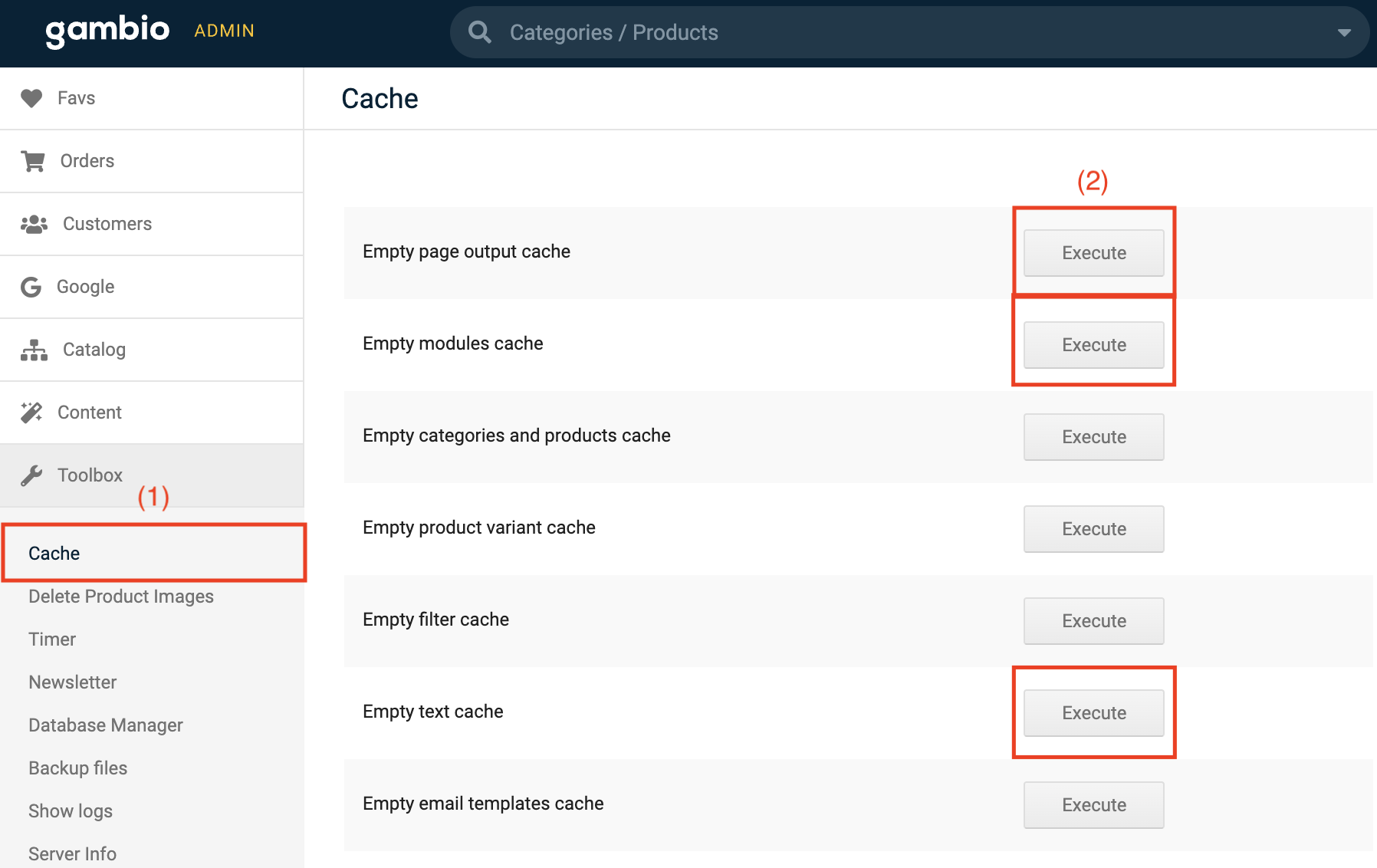
Navigate to the toolbox and select the first section Cache [1]. Delete the module, output, and text cache by clicking on the corresponding Execute buttons [2].
Step 2 - install the Coinsnap module from the Module center
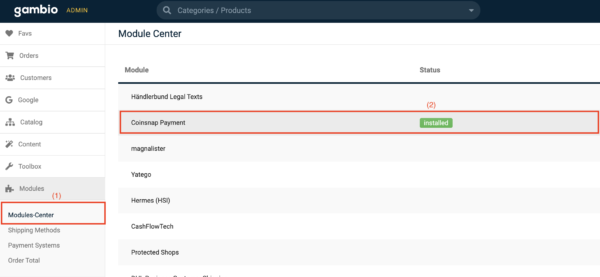
Navigate to the Modules section and search for Modules Centre [1] at the top. Click on it.
Select Coinsnap Payment and proceed to install the module. Once the module is successfully installed, a green notice appears [2].
After successful installation, return to the cache area and delete the module, output, and text cache again.
Connect the module with the Coinsnap Bitcoin gateway
Now log in to your Coinsnap account and navigate to Settings.
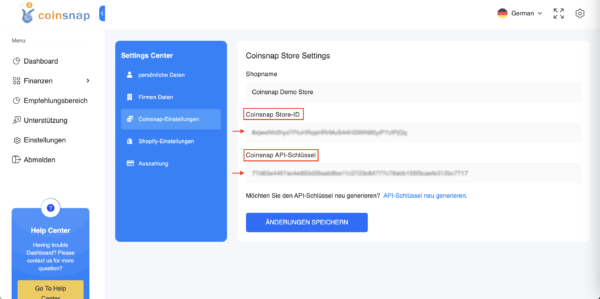
Look for the Store settings section, where you will find your Store ID and API key. Copy these details for further use.
In your Gambio backend go to Modules → Module Centre → Coinsnap Payment and click on Edit again.
Store ID
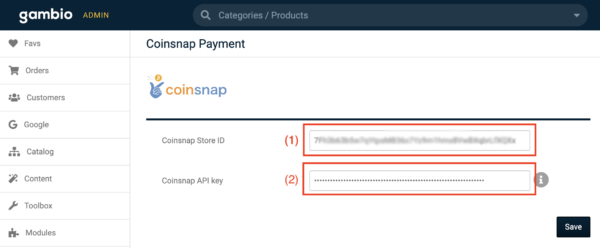
Paste the previously copied Store ID into the first field [1].
API Key
Paste the previously copied API key into the second field [2].
After saving the data, your Gambio shop is successfully connected to the Coinsnap app.
Now enable Bitcoin and Lightning payments by continuing with the steps below.
Step 3 - activate Bitcoin payment for your Gambio store
Navigate to Modules → Payment systems [1]. Open the Miscellaneous tab [2] at the top right-hand side.
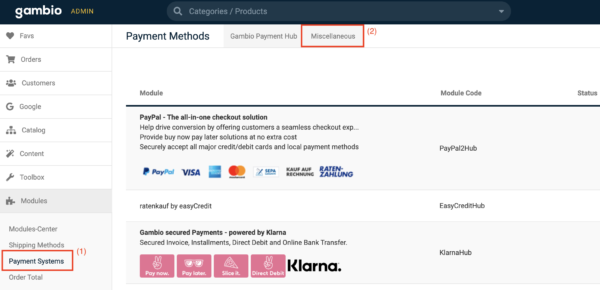
Scroll to the bottom of the page where you will find the Added modules section.
Click on Bitcoin + Lightning to start the installation of the payment method.

After installation, click on Edit. Enter Coinsnap in the Alias for order overview field and
activate the payment method.
Click on Update. The module is now ready for use.
Frequently Asked Questions
What Users Ask About This plugin
Do I need technical knowledge to use the Gambio Bitcoin module?
No. The module is installed via the Gambio Module Center and configured by copying your Store ID and API key from your Coinsnap account.
Why do I need to clear the cache before and after installing the Gambio Bitcoin module?
Gambio caches module and output data. Clearing the cache ensures that newly installed modules and configuration changes are applied correctly.
Where do I find my Store ID and API key?
Log in to your Coinsnap account and navigate to Settings → Store settings. Your Store ID and API key are displayed there.
Can customers pay with both Bitcoin on-chain and Lightning?
Yes. The Coinsnap payment module supports both Bitcoin on-chain and Lightning payments through a single QR code at checkout.
Is the payment credited immediately?
Yes. Successful payments are credited instantly to the Bitcoin-Lightning wallet or settlement destination configured in your Coinsnap account.
Can I change the payment name shown to customers at checkout?
Yes. You can customize the payment label by editing the Alias for order overview field in the payment module settings.
Is a test payment recommended after installation?
Yes. After activation, a small test payment is recommended to verify that the connection between Gambio and Coinsnap is working correctly.
