
Shopware Bitcoin User Guide
This User Guide shows you how to accept Bitcoin and Lightning payments with the Shopware Bitcoin module. It explains how to install and connect the Coinsnap module, how to configure all relevant settings, and how to enable Bitcoin payments at checkout so customers can pay instantly via Bitcoin (on-chain + Lightning).
Add Bitcoin + Lightning to your Shopware checkout — fast setup, no complex integration.



GET STARTED - REQUIREMENTS
To enable Bitcoin payments with Coinsnap in your Shopware store, you must meet the following requirements:
- A Shopware 6 website with administrator access
- An active Coinsnap account
Since the Coinsnap for Shopware Bitcoin payment module is listed in Shopware Extensions, you do not need to download the module separately.
Step 1 - Activate and connect the Shopware Bitcoin extension
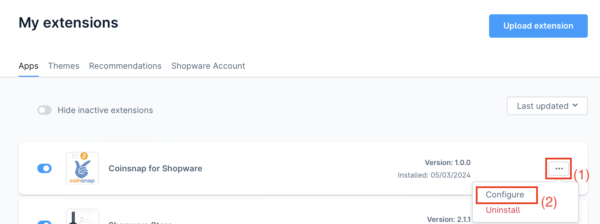
As soon as a Coinsnap account has been set up, we can start connecting the Shopware Bitcoin extenision with the Coinsnap Bitcoin gateway. The Coinsnap for Shopware extension is available in Extensions → My extensions.
Click on the three dots[1] on the right-hand side to start the configuration process.
Click on Configure [2] to start the configuration process.
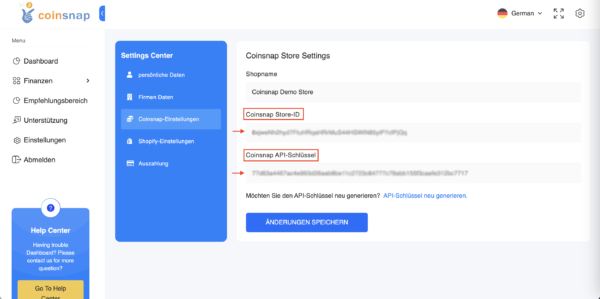
The Coinsnap API Key and the Coinsnap Store ID must be stored in the configuration area. Go to Settings in the Coinsnap backend. In Store Settings, you will find your Store ID and API Key.
(If you do not know how to find your Coinsnap Store ID and API Key, read this (Step 4))
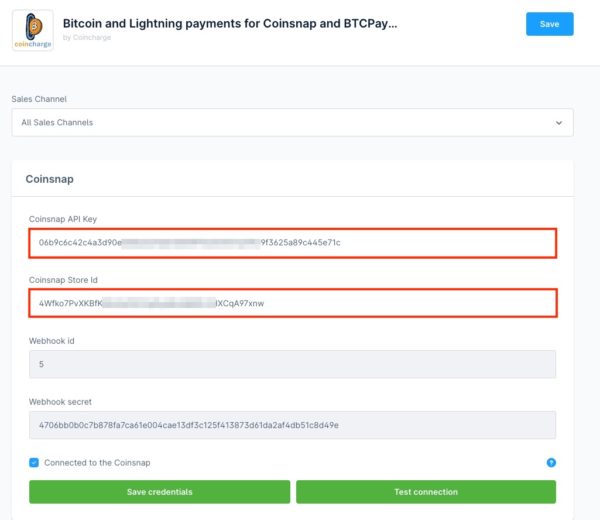
Enter the Coinsnap API Key and Store ID you copied from the Coinsnap backend into Shopware, then click Save credentials.
Step 2 - enable Coinsnap Bitcoin payment in Shopware payment settings
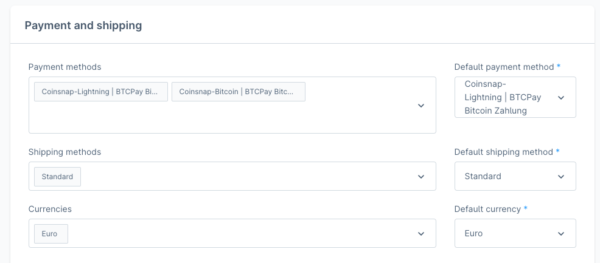
Within the sales channel, the configuration options for payment and shipping can be found under
General basic settings -> Payment methods.
Here you can select Bitcoin and Lightning as your payment method.
As soon as this is done, these payment methods are activated and can be used in the store.
Alternative - let Coinsnap set up Bitcoin payment in your Shopware store
The Shopware extension makes integrating Bitcoin and Lightning payment options into a Shopware 6 online store via Coinsnap a simple task.
But, if you don’t want to install the Coinsnap plugin yourself, we can install Coinsnap for Shopware for you.
How to use the free Coinsnap Shopware Integration Service
To do this, you must grant Coinsnap access to your backend. After the installation is complete, you can simply remove Coinsnap as a user.
Log in to your Shopware store in the Shopware Administration Panel. In the left menu bar, go to Settings. Then click on System and then on Users & Permissions.
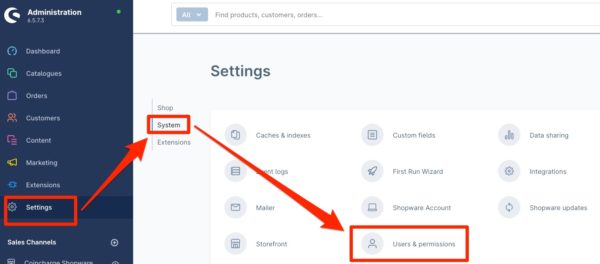
You are now in the area for creating users and authorizations.
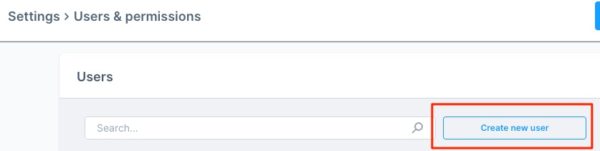
Go to User and click on Create New User.
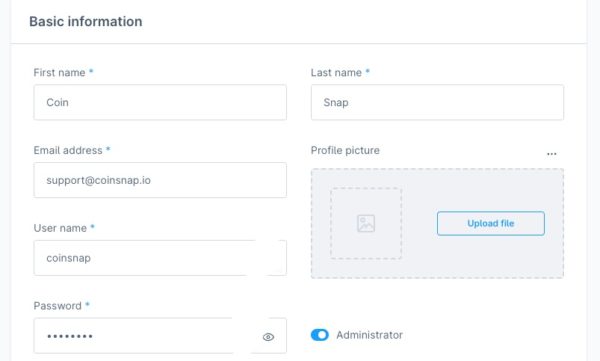
Create a new account for the user Coinsnap.
You can enter the following data:
- First name: Coin
- Last name: Snap
- Email address: support@coinsnap.io
- User name: coinsnap
- Password: Create it yourself and provide it to Coinsnap
- Administration: Set the role to Administrator to grant the required permissions
Then click on Save.
Shopware will ask you to confirm the creation of the Coinsnap user with your own password.
Please send us an email to support@coinsnap.io and let us know that we can start with the integration. Please enter the e-mail address you used to register with Coinsnap and the URL of your store. After Coinsnap has integrated the payment module into your store, you must delete the Coinsnap user.
Frequently Asked Questions
What Users Ask About This plugin
Which Shopware version is supported by the the Shopware Bitcoin module?
Coinsnap’s Shopware Bitcoin module supports Shopware 6.
Do I need to download the Shopware Bitcoin module manually?
No. The Coinsnap for Shopware Bitcoin payment module is listed in Shopware Extensions and can be installed directly from there.
Where do I find my Coinsnap Store ID and API Key?
You can find both in the Coinsnap backend under Settings → Store Settings. Here is a full description (Step 4)
Can I accept both Bitcoin on-chain and Lightning payments?
Yes. The Coinsnap payment method enables both Bitcoin on-chain and Lightning payments via a single checkout option.
Do I need to enable Bitcoin payment per sales channel?
Yes. Payment methods in Shopware must be activated within each sales channel under Payment methods.
Is it possible for Coinsnap to handle the Shopware setup for me?
Yes. Coinsnap offers a free Shopware integration service. To use it, you must temporarily grant Coinsnap administrator access to your Shopware backend.
Is it safe to grant Coinsnap backend access?
Yes. Access is only required for installation and configuration. After completion, you should immediately delete the Coinsnap user from your Shopware backend.
What happens if the Coinsnap user is deleted after setup?
Deleting the Coinsnap user does not affect the functionality of the Bitcoin payment module once installation and configuration are complete.
