
Ninja Forms Bitcoin User Guide
This guide explains everything you need to know to accept Bitcoin and Lightning payments with the Ninja Forms Bitcoin module. You will learn the technical requirements, how to install the Coinsnap for Ninja Forms plugin, how to connect it to your Coinsnap account or a BTCPay Server, how to configure all available settings, and how to implement Bitcoin payments directly within your Ninja Forms forms.
Accept Bitcoin & Lightning payments directly through Ninja Forms — without a shop system.



Requirements
These requirements must be met for Coinsnap for Ninja Forms to function correctly:
WordPress & Ninja Forms
- A self-hosted WordPress website
- Contact Form 7 installed and activated
Coinsnap & Payments
- An active Coinsnap account
-> how to set up a Coinsnap account - A connected Bitcoin Lightning wallet (self-custodial wallet or BTCPay Server)
-> how to get a Lightning address - The installed Ninja Forms Bitcoin module
-> How to install the plugin and connect it with your Coinsnap account or your BTCPay Server
Server & Access
- Ability to install and activate WordPress plugins
- HTTPS (SSL) enabled on the website
Ninja Forms Setup
- At least one Ninja Forms form created
STEP 1 - CONFIGURE AND CUSTOMIZE THE Ninja Forms Bitcoin module
All the requirements listed above are met, and you have successfully installed the plugin in your WordPress. If not, here is a Step-by-step: How to install a Coinsnap plugin in WordPress guide to help you install the plugin.
You will soon be able to accept Bitcoin payments (on-chain and Lightning) directly from within your Ninja Forms — without the need for a complex shop system like WooCommerce or traditional payment providers such as credit cards or PayPal. But before you can do that, you need to configure Bitcoin payments in your Ninja Forms plugin.
HOW TO CONFIGURE THE PLUGIN
1. Choose and set up your payment provider
After installing and activating the Coinsnap for Ninja Forms plugin, you need to configure the Coinsnap connection.
In the WordPress admin dashboard, go to Ninja Forms [1] → Settings [2] using the left-hand sidebar.
Scroll down to the bottom of the settings panel until you find the Coinsnap section:
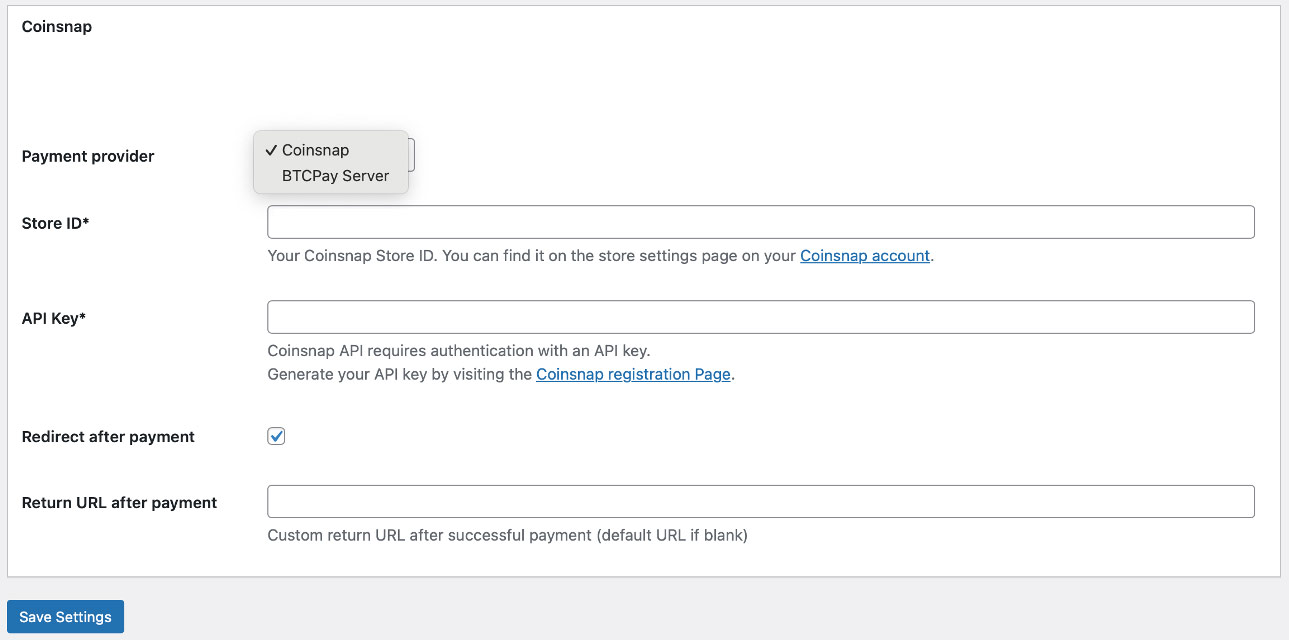
You now need to choose between two payment gateways: Coinsnap or your own BTCPay Server [1], and to enter your Store ID [2] and API Key [3].
Coinsnap
Coinsnap is the easiest option. Coinsnap handles the technical setup for you and connects your store to Bitcoin and Lightning payments with just a few clicks. It’s ideal if you want a quick, hassle-free solution without managing your own payment infrastructure.
Learn here how to retrieve your Coinsnap Store ID and API Key:
-> Step-by-step explanation: How to connect your Coinsnap account with your plugin
BTCPay Server
BTCPay Server is a self-hosted option for merchants who want full control. You run your own Bitcoin and Lightning payment server, manage your own wallets, and don’t rely on a third party. This option offers maximum independence but requires more technical setup and maintenance.
Learn how to retrieve your Store ID and API Key using our BTCPay Server wizard here:
-> Step-by-step explanation: How to connect your BTCPay Server with your plugin
2. Select the page customers should be redirected to after a successful payment

The Success URL determines where customers are sent once their payment is completed.
By default, after completing the Bitcoin payment, the customer is redirected back to the Ninja Form where the payment process was started.
Alternatively, you can create your own thank-you page in WordPress (for example, myshop.com/thank-you) and redirect customers there instead. If you want to use your own thank-you page, just enter that URL in field Return URL after payment.
Step 2 - Activate Bitcoin payment in a Ninja Form
Accepting Bitcoin payments with Coinsnap for Ninja Forms is straightforward.
Open the form in which you want to enable Bitcoin payments. Then switch to the Emails & Actions tab [1].
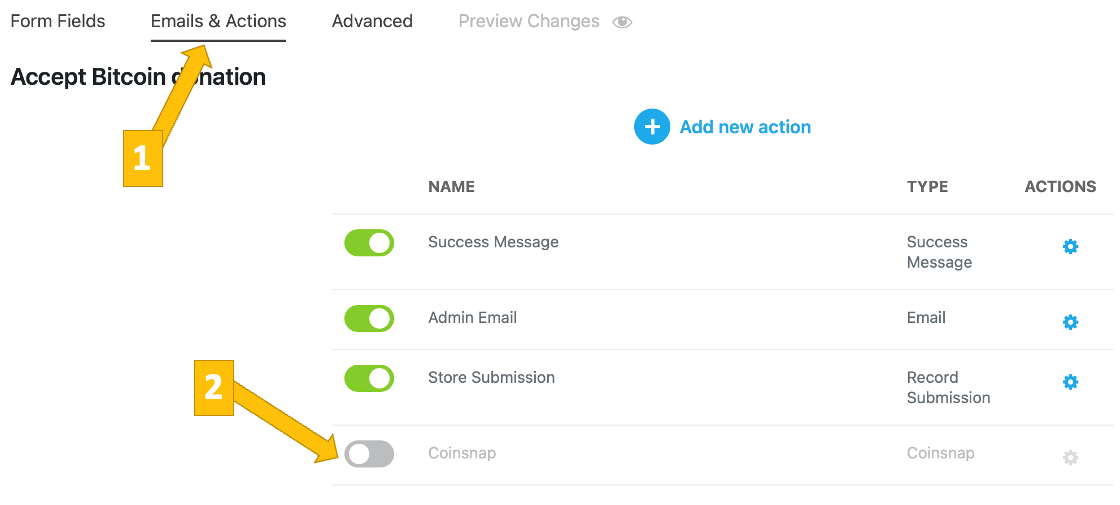
Enable Coinsnap [2].
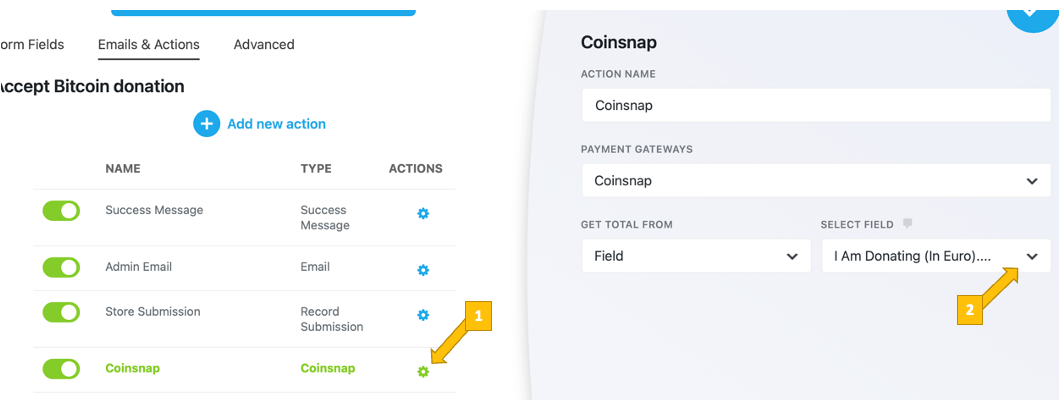
After enabling Coinsnap, click the cog icon [1] to configure the action and define which form field is used as the payment amount [2].
STEP 3 — MAKE A TEST PAYMENT TO ENSURE EVERYTHING WORKS CORRECTLY
After completing all settings, you should perform a test transaction.
Fill out the Ninja Form form you just created and click the blue button to start the Bitcoin payment.
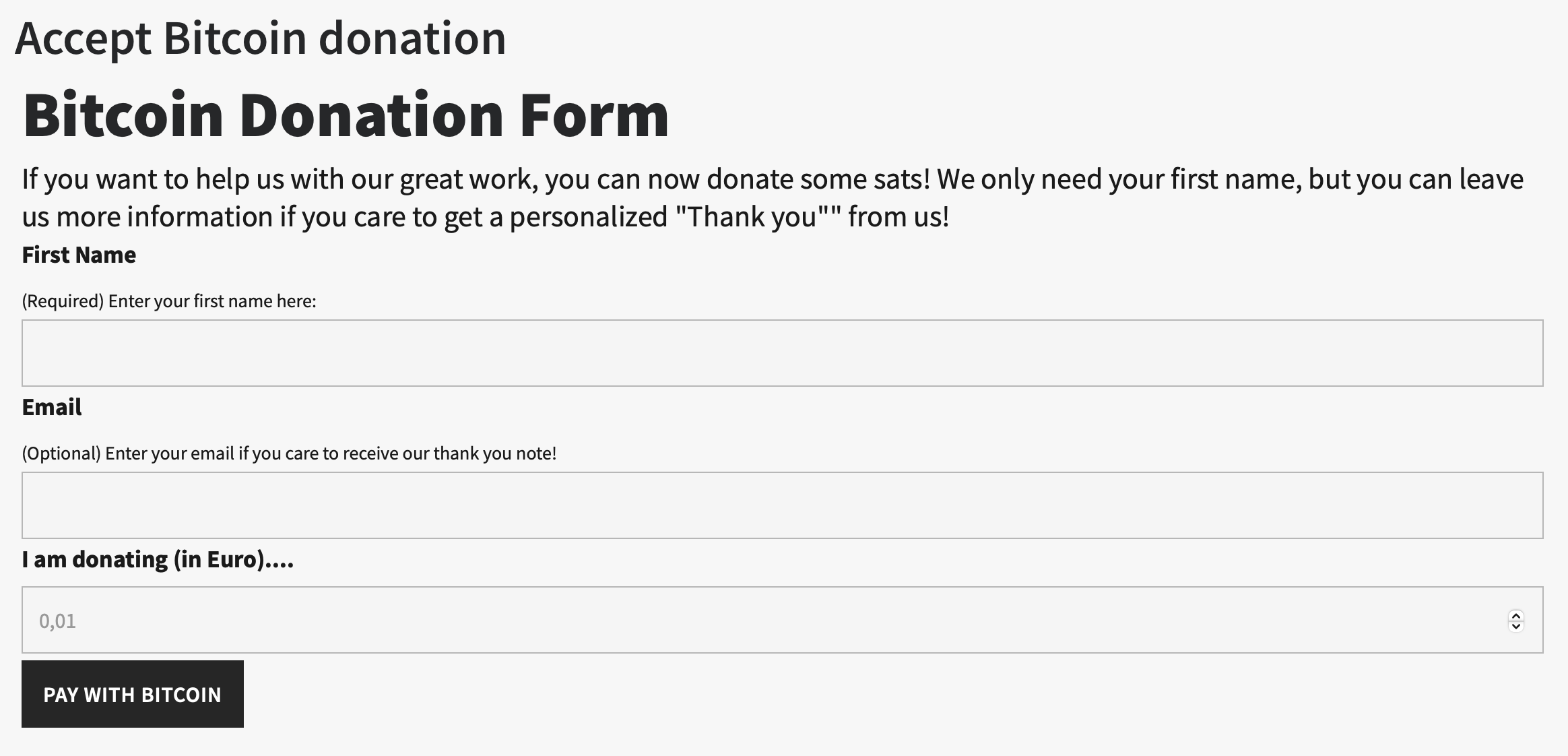
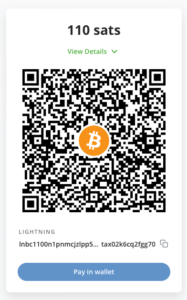
You will now be redirected to the Bitcoin payment page to complete the payment.
The Bitcoin payment page is displayed and offers the payer the option to pay with Bitcoin or Lightning. Both payment methods are integrated into the displayed QR code.
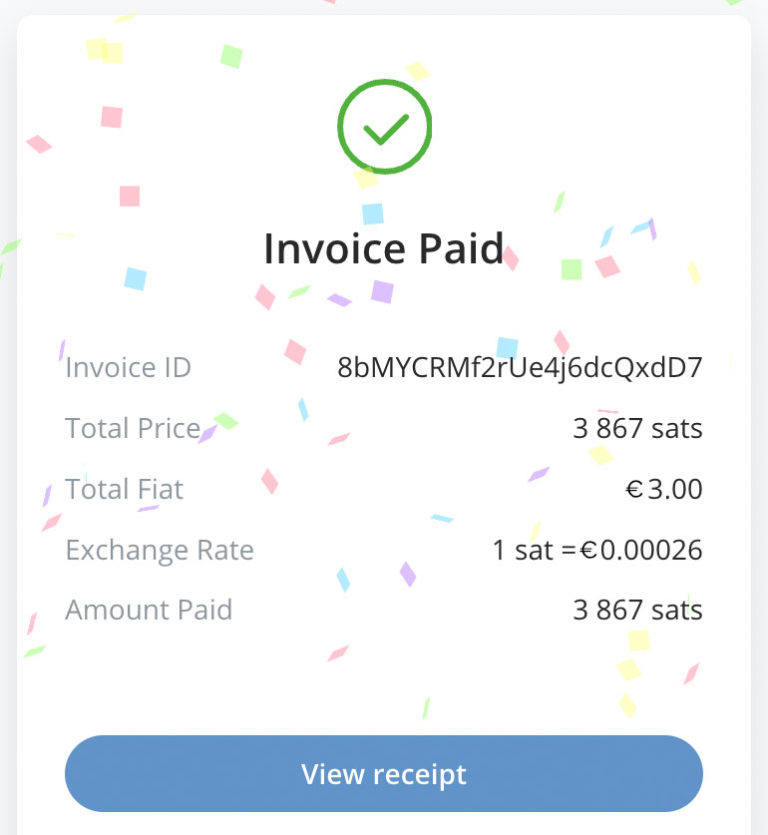
After a successful payment, the invoice can be viewed in detail.
Frequently Asked Questions
What Users Ask About This plugin
Do I need a shop system like WooCommerce to accept Bitcoin payments with Ninja Forms?Which payment methods are supported? Coinsnap supports Bitcoin on-chain and Bitcoin Lightning payments. Both options are offered via a single QR code on the payment page.
No. Coinsnap for Ninja Forms enables Bitcoin and Lightning payments directly from forms, without WooCommerce or any other shop system.
Which payment methods are supported?
Coinsnap supports Bitcoin on-chain and Bitcoin Lightning payments. Both options are offered via a single QR code on the payment page.
Where do I find my Coinsnap Store ID and API Key?
You can find both in your Coinsnap dashboard under your store settings. These credentials are required to connect Ninja Forms to your Coinsnap account.
What happens after the customer completes the Bitcoin payment?
By default, the customer is redirected back to the Ninja Form where the payment was initiated. You can optionally define a custom return or thank-you page.
Can I use a custom thank-you or confirmation page?
Yes. You can enter your own URL in the Return URL after payment field to redirect customers to a custom thank-you page after payment.
Is coding required to enable Bitcoin payments in Ninja Forms?
No. All configuration is done through the Ninja Forms interface and the Coinsnap settings. No coding or custom development is required.
