
The Best Plugins for WooCommerce Bitcoin and Lightning Payment with BTCPay Server
This guide is for WooCommerce merchants who already operate a
BTCPay Server and want to accept Bitcoin payments in their Woo store.
You’ll learn how to connect BTCPay Server with WooCommerce and offer both
on-chain and Lightning payments.
We’ll explain why you should enable Lightning alongside on-chain,
present the two best integration routes, and show step-by-step installation
instructions for both. By the end, you’ll be able to
enable Bitcoin & Lightning payments in under an hour,
even without coding experience.

Why use Bitcoin payment with BTCPay instead of a commercial provider?
Running your own BTCPay Server gives you full sovereignty and control:
no platform fees, no KYC/KYB in a self-custody setup,
complete control over data, uptime, and both on-chain and
Lightning payment options.
You also avoid costs of credit cards, PayPal, Stripe, or commercial Bitcoin
processors like BitPay and CoinGate.
For privacy-focused Woo merchants who value independence and want direct
control from checkout to wallet, BTCPay is the first choice.
What plugins connect BTCPay to WooCommerce?
There are two official plugins available:
BTCPay Greenfield for WooCommerce
The official BTCPay Greenfield plugin is the standard option for merchants
who operate or share a BTCPay Server.
How it works
- Connects WooCommerce directly to your BTCPay server.
- All payment methods configured on the server appear automatically in your shop.
- By default supports Bitcoin on-chain payments directly to your wallet.
- You can also add Lightning payments, though this requires
running and maintaining your own Lightning node (channel management, liquidity). - Additional coins (e.g. USDT) are supported via BTCPay plugins.
Checkout in WooCommerce: BTCPay appears as a payment option.
The customer selects it, scans a QR code, and chooses on-chain or Lightning.
Tip: In WooCommerce → Payments, label the option clearly
(e.g. “BTC / Lightning”) instead of “BTCPay,” which customers might not recognize.
Coinsnap for WooCommerce
The Coinsnap plugin integrates BTCPay Server but uses Coinsnap’s
Lightning infrastructure.
It lets you accept Lightning payments without running your own node.
How it works
- Connects WooCommerce and your BTCPay Server for seamless Lightning checkout.
- Instant Lightning payouts to your chosen wallet.
- Also supports on-chain Bitcoin through your BTCPay Server wallet.
Two ways – one checkout
- Run on-chain through your BTCPay wallet.
- Run Lightning via Coinsnap’s managed Lightning setup.
Customers can choose on-chain or Lightning at checkout,
improving clarity and conversion.
Bonus feature – Bitcoin Discount:
Offer a percentage discount (e.g. 5%) for Bitcoin payments.
It’s applied automatically at checkout, incentivising BTC use and
reducing your payment-provider fees.
Overview and comparison: BTCPay Greenfield vs Coinsnap
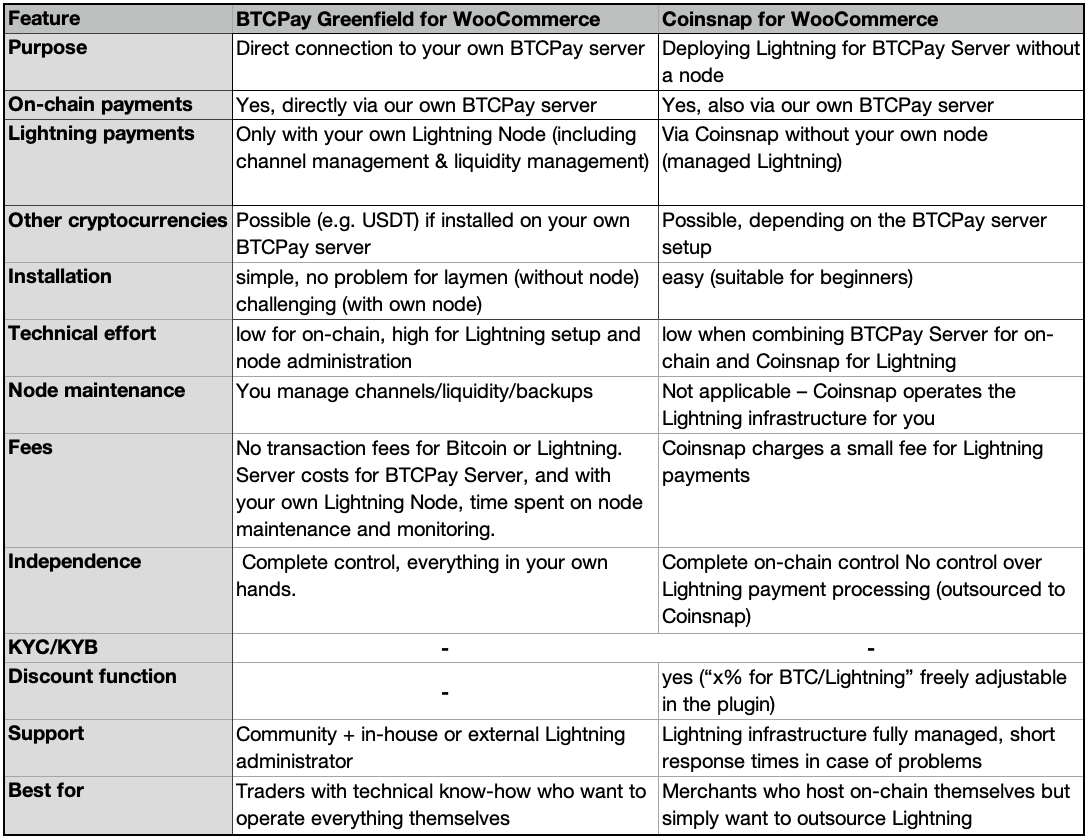
(Click to download Excel spreadsheet)
Can I also accept Lightning payments with BTCPay?
Yes, there are two options:
- Your own Lightning node inside BTCPay Server.
- BTCPay Server + Coinsnap (no Lightning node required).
Why do I need Lightning for WooCommerce?
Lightning offers instant settlement, minimal fees, and a “scan & pay” checkout.
It’s perfect for everyday carts under €150, boosting conversion and reducing costs.
Merchant survey (14 stores):
- Under €150: ~⅔ Lightning, ~⅓ on-chain.
- €150–€1,000: ~⅓ Lightning, ~⅔ on-chain.
- Over €1,000: Mostly on-chain.
Without Lightning, you lose conversions on smaller baskets.
Read full survey.
Which is better – BTCPay Server + Lightning Node or BTCPay Server + Coinsnap?
BTCPay Server + your own Lightning node
Maximum autonomy but requires maintenance
(channel balancing, routing, backups, updates).
Best for teams with DevOps skills who want full control.
BTCPay Server + Coinsnap (Managed Lightning)
No maintenance, instant Lightning setup,
and an integrated discount tool for conversion boosts.
Best for merchants wanting a reliable, no-node Lightning option.
How do I install Bitcoin Lightning payment in WooCommerce?
BTCPay Greenfield – Quick Setup
- In WordPress: Plugins → Add → search BTCPay for WooCommerce (Greenfield), install & activate.
- In BTCPay: Store → API Keys → Create Greenfield API key, save it.
- In WooCommerce: Settings → Payments → Enable BTCPay → Enter server URL, store ID, API key.
- Enable on-chain (and Lightning if running your own node).
- Test €1 transaction and verify order status.
Step-by-step installation guide
Coinsnap for WooCommerce – Quick Setup
- Plugins → Add → search Coinsnap, install & activate.
- Connect BTCPay URL and create API key.
- Set Bitcoin discount (e.g. 5%).
- Activate in Woo → Settings → Payments (“Lightning Payment”).
- Test €1 Lightning order.
Step-by-step installation guide
Which payment methods can I offer with BTCPay & WooCommerce?
- BTCPay On-Chain only: Best for high-value carts and maximum autonomy.
- BTCPay On-Chain + Lightning: Full control with higher maintenance effort.
- Coinsnap Lightning + optional BTCPay On-Chain: Fast Lightning for everyday orders, on-chain for large ones.
FAQ
Does WooCommerce accept Bitcoin?
No—natively it doesn’t. Use BTCPay Greenfield or Coinsnap plugins.
Can I add Bitcoin Lightning payment with BTCPay Server to WooCommerce?
Yes—install BTCPay Greenfield (own node) or Coinsnap (managed Lightning).
What is the best plugin?
BTCPay Greenfield for full control, or Coinsnap for the fastest, node-free Lightning setup.
Is WooCommerce Bitcoin Lightning payment via BTCPay Server free?
Yes for merchants—BTCPay has no platform fees. Buyers pay miner fees. Managed services may add small processing fees.
How do I set up a BTCPay wallet?
In BTCPay: Store → Settings → Wallet → Setup → Create new wallet or connect existing hardware wallet (recommended).
How do I get a Lightning wallet?
See: How do I get a Lightning wallet?
Summary: What’s the best choice for me?
If you have developer expertise, use BTCPay Greenfield + your own node
for maximum control.
If not, BTCPay + Coinsnap is ideal — managed Lightning means
no node maintenance and a built-in Bitcoin Discount feature to boost conversions.
- BTCPay On-Chain only: maximum autonomy.
- BTCPay On-Chain + Lightning: complete control, higher effort.
- Coinsnap Lightning + optional On-Chain: best of both worlds.