
HTML Bitcoin Invoice User Guide
This User Guide shows you how to create and use Bitcoin Invoice Forms (HTML) in the Coinsnap dashboard. It explains the requirements, how to configure all relevant invoice settings, how to generate the HTML snippet, and how to embed it on any HTML-based website so customers can pay instantly via Bitcoin (on-chain + Lightning).
Create invoices with an embeddable HTML form — accept Bitcoin anywhere with any internet-connected device.


INTRODUCTION
A Bitcoin Invoice Form (HTML) is a small embeddable HTML snippet generated inside your Coinsnap dashboard. Once embedded on your website, it lets customers:
- enter (or see) an invoice amount (depending on your setup)
- optionally provide payer details (name, email, address, message, etc.)
- click to pay and complete the payment via a QR code that supports Bitcoin + Lightning
- receive a success confirmation (and optional redirect)
No plugin, no shop system, no API integration needed.
REQUIREMENTS
- An active Coinsnap account
- A connected Bitcoin-Lightning wallet or a configured BTCPay Server connection stored in your Coinsnap account
- A website / page where you can paste HTML code (e.g., your own website, landing page builder with “custom HTML”, CMS page, etc.)
Step 1 - create a Bitcoin invoice form
In your Coinsnap account dashboard, go to Pay-Tools → Invoice [1]. Then click New Template [2].
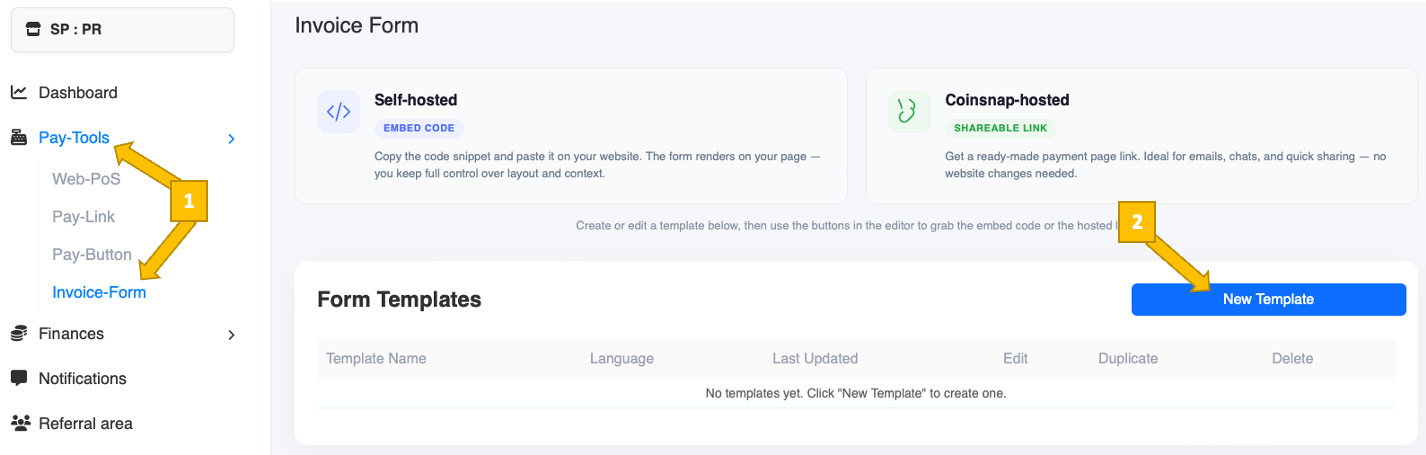
You will now get to see this:
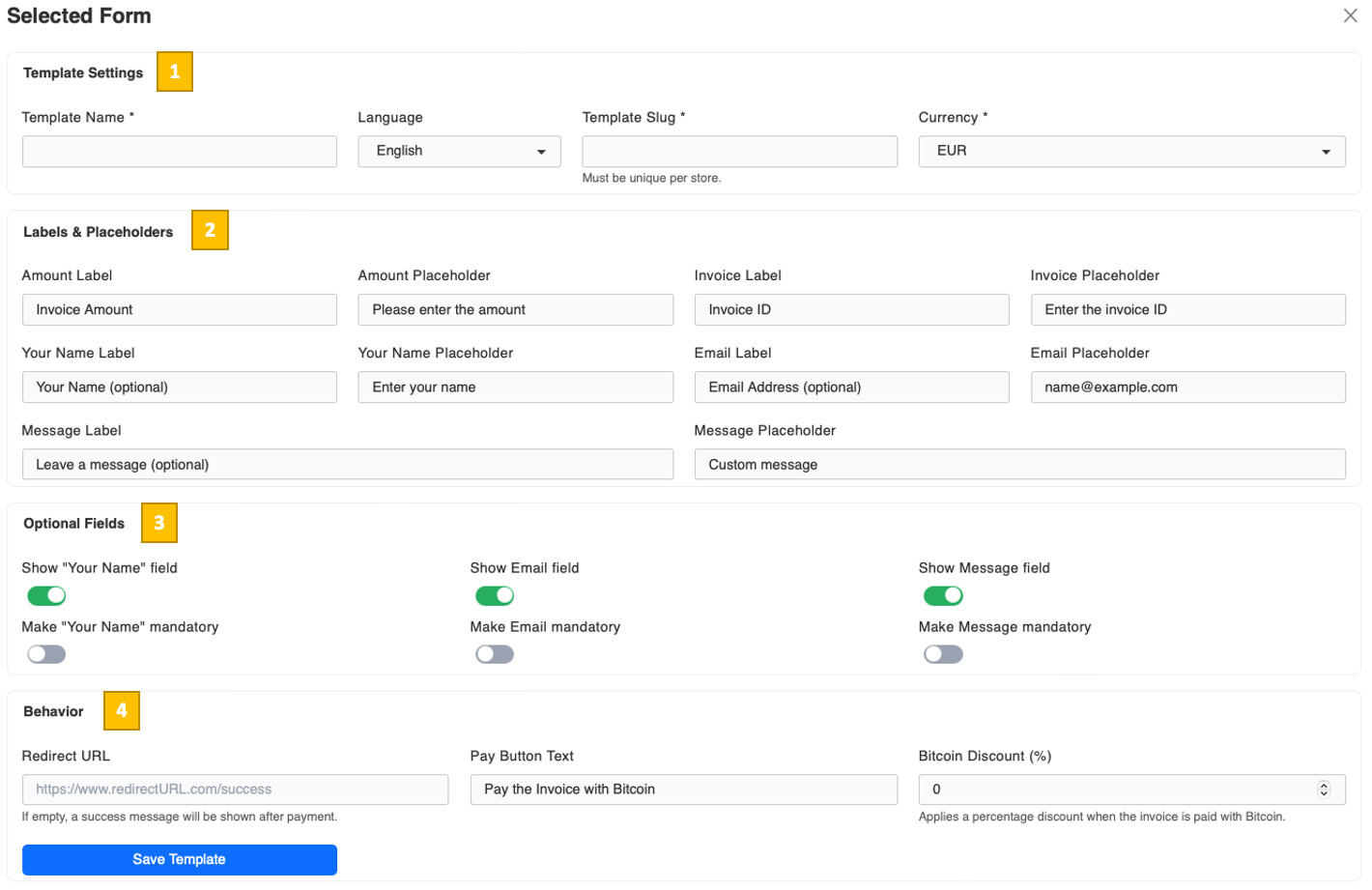
After selecting an invoice form template, you will see the configuration screen divided into four logical sections: Template Settings, Labels & Placeholders, Optional Fields, and Behavior. Each section controls a specific aspect of how the invoice form looks and behaves for the payer.
[1] Template Settings
In this section, you define the basic identity and context of the invoice form.
Template Name
Enter an internal name for this invoice form. This name is used only inside your Coinsnap dashboard to help you identify the template later.
Language
Select the language in which all labels and placeholders will be displayed to the payer.
Template Slug
Define a unique identifier for this invoice form. The slug must be unique per website and identifies the page where this invoice form is embedded.
Example: yourcompany.com/bitcoin-invoice
Currency
Choose the fiat currency in which the invoice amount is defined (for example EUR). The amount will be converted to Bitcoin at the time of payment.
[2] Labels & Placeholders
This section allows you to fully customize the text shown inside the invoice form fields. You can adapt the wording to match your business language or invoice use case.
Amount Label / Amount Placeholder
Define how the invoice amount field is labeled and what helper text is shown inside the field before the user enters a value.
Invoice Label / Invoice Placeholder
Customize the label and placeholder for the invoice reference or invoice ID field.
Your Name Label / Placeholder
Define the label and placeholder text for the payer’s name field.
Email Label / Placeholder
Customize how the email field is presented, including the example email shown as placeholder text.
Message Label / Placeholder
Define the label and placeholder for an optional message or note that the payer can include with the invoice payment.
All labels appear above the fields, while placeholders are shown inside the input fields before any data is entered.
[3] Optional Fields
Here you control which payer information fields are displayed and whether they are required.
Show “Your Name” field
Enables or hides the name field.
Make “Your Name” mandatory
If enabled, the payer must enter a name to proceed with payment.
Show Email field
Enables or hides the email address field.
Make Email mandatory
Requires the payer to enter an email address before paying.
Show Message field
Enables or hides the message field.
Make Message mandatory
Forces the payer to enter a message before completing the payment.
This allows you to collect exactly the level of payer detail you need—no more, no less.
[4] Behavior
This section defines what happens during and after payment.
Redirect URL
Enter a URL where the payer will be redirected after a successful Bitcoin payment. If left empty, Coinsnap will display a default success message instead.
Pay Button Text
Customize the text shown on the payment button, for example Pay the invoice with Bitcoin.
Bitcoin Discount (%)
Optionally apply a percentage discount when an invoice is paid with Bitcoin. This is an effective way to actively incentivize Bitcoin payments and nudge customers toward a faster, chargeback-free payment method.
In many cases, the cost of the discount is fully or partially offset by the lower processing fees compared to traditional payment methods such as credit cards or bank transfers.
Enter 0 to disable discounts.
Saving the Configuration
Once all settings are configured, click Save Template. The invoice form is now ready to be embedded as an HTML snippet and used to accept Bitcoin (on-chain + Lightning) payments.
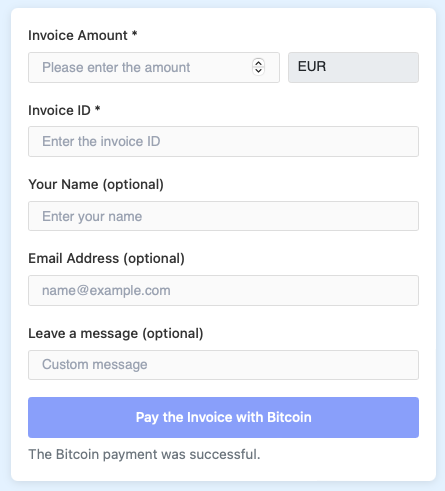
The form preview at the bottom of the configuration screen shows how your Bitcoin Invoice Form will appear to payers:
Step 2 - deploy your Bitcoin Invoice form
Below the configuration section, you will find the Deploy your form area. This section gives you two flexible ways to use your Bitcoin Invoice Form, depending on whether you want to embed it directly on your website or share it as a standalone payment link.

Self-hosted (Embed on your website)
Use this option if you want to display the Bitcoin Invoice Form directly on your own website.
Click Copy embed code to copy the HTML snippet generated by Coinsnap. Paste this code into any page on your website that supports HTML, such as a custom HTML block in your CMS or a static HTML page.
A common use case is to embed the form on a dedicated invoice or payment page, for example:
yourcompany.com/bitcoin-invoice
Once embedded, customers can open this page, enter the invoice details, and pay instantly via Bitcoin or Lightning—without being redirected to a third-party checkout.
This option is ideal if you want full control over the page layout, branding, and surrounding content.
Coinsnap-hosted (Payment link)
Use this option if you prefer a ready-made payment page hosted by Coinsnap.
Click Copy payment link to copy a secure URL that opens the invoice form on a Coinsnap-hosted payment page. No website or HTML integration is required.
You can use this payment link in many ways:
- add it to invoices you send by email or PDF
- place it behind a “Pay with Bitcoin” button on your website
- share it directly with customers or clients via email or messenger
When customers open the link, they are taken directly to the Bitcoin Invoice Form and can complete the payment immediately.
This option is ideal for fast setup and off-site payments, or situations where you don’t want to maintain a dedicated invoice page on your website.
STEP 3- QUALITY ASSURANCE: MAKE SURE YOUR BITCOIN INVOICE FORM WORKS CORRECTLY
Before sharing your Bitcoin Invoice Form with customers, it’s recommended to run a quick test to make sure everything works as expected.
Open the embedded form or payment link yourself, fill in the fields with test (“dummy”) information, and use a small payment amount to complete a trial transaction.
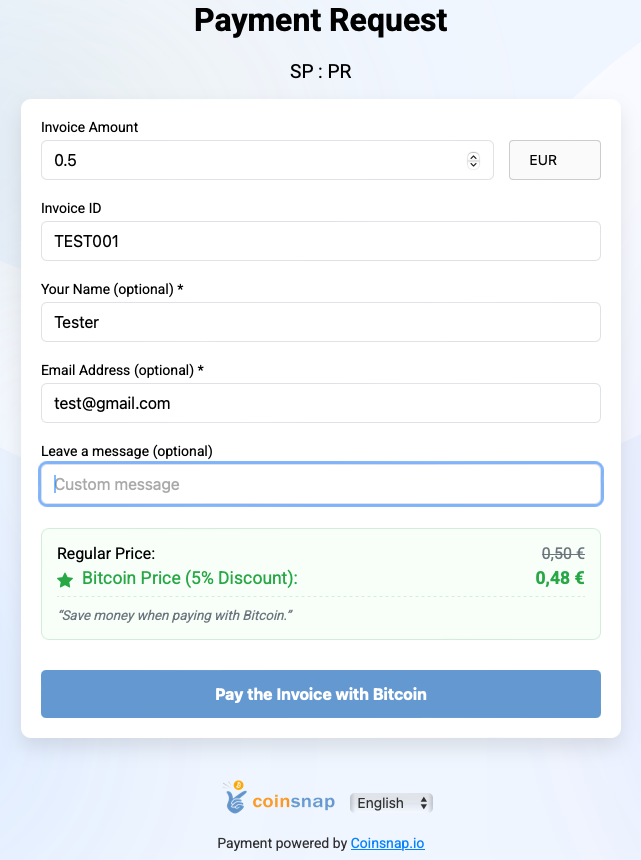
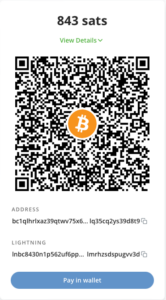
Click Pay the invoice with Bitcoin. The Bitcoin payment screen opens, displaying a QR code that supports Bitcoin and Lightning payments.
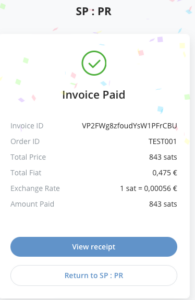
If you see this screen after completing the payment, your invoice form is working correctly and is ready to be used with customers:
Frequently Asked Questions
What Users Ask About This plugin
Can my customers pay with both Bitcoin and Lightning?
Yes. The payment QR code supports both Bitcoin (on-chain) and Lightning. The payer can choose the method directly in their wallet.
Is the invoice amount shown in Bitcoin or fiat currency?
The invoice amount is defined in the fiat currency you selected (for example EUR). Coinsnap automatically converts the amount to Bitcoin at the time of payment using the current exchange rate.
Do I need a website to use Bitcoin Invoice Forms?
No. If you use the Coinsnap-hosted payment link, no website or HTML integration is required. A website is only needed if you want to embed the invoice form yourself.
Can I reuse the same invoice form for multiple invoices?
Yes. The same Bitcoin Invoice Form can be reused for unlimited invoices. Customers can enter different invoice IDs and amounts, depending on how you configured the form.
Can I collect customer details for accounting or reconciliation?
Yes. You can enable name, email, and message fields and decide whether they are hidden, optional, or mandatory.
What happens after a successful payment?
After payment, the payer sees a success confirmation. If you configured a redirect URL, they are automatically forwarded to your custom success page.
Where do the Bitcoin payments go?
Payments are forwarded directly to the Bitcoin-Lightning wallet or BTCPay Server connection stored in your Coinsnap account.
Can I offer a discount for Bitcoin payments only?
Yes. You can apply a percentage Bitcoin discount to incentivize Bitcoin payments. In many cases, lower payment fees offset the cost of the discount.
Is this suitable for B2B invoices?
Yes. Bitcoin Invoice Forms are ideal for freelancers, agencies, service providers, and B2B companies that want to accept Bitcoin payments for invoices without running a shop system.
