
Bitcoin Payment Link User Guide
This User Guide shows you how to accept Bitcoin and Lightning payments using the Coinsnap Bitcoin Payment Link tool. It explains the requirements, how to create and manage payment links, how to configure all relevant settings, and how to share payment links with customers to receive Bitcoin payments instantly — without a shop system or complex checkout.
Get paid with a simple Bitcoin payment link — powered by Bitcoin (on-chain + Lightning).

Introduction
What Is a Bitcoin Payment Link — and Why It Simplifies Invoice Payments
The Bitcoin Payment Link is a simple, practical way to simplify invoice payments. Wherever bank transfers are used today, a Bitcoin Payment Link can dramatically simplify the payment process — for both the payer and the payment recipient.
Instead of sharing IBANs, reference numbers, and payment instructions that customers must manually re-enter in their banking app, you send one secure link. All payment-relevant details are already embedded in that link, including invoice number, reference or customer ID, amount, currency, and optional payment notes.
When a customer clicks your Bitcoin payment link, they are redirected to the Bitcoin payment interface — either hosted on your own website or provided directly by Coinsnap, depending on your configuration.
The customer then simply initiates the payment by clicking the button, scanning the displayed QR code with their Lightning wallet, and authorizing the transaction. The payment amount is transferred directly to your connected Bitcoin or Lightning wallet.
Requirements
- An active Coinsnap account
- A valid email address registered with Coinsnap
- Your Coinsnap Store ID
- A connected Bitcoin / Lightning wallet to receive payments
That’s it — no shop system, no coding, no additional plugins.
Step 1 - Create a payment link
In your Coinsnap account dashboard, go to Pay-Tools → Payment Link [1].
Then click Create payment link [2].
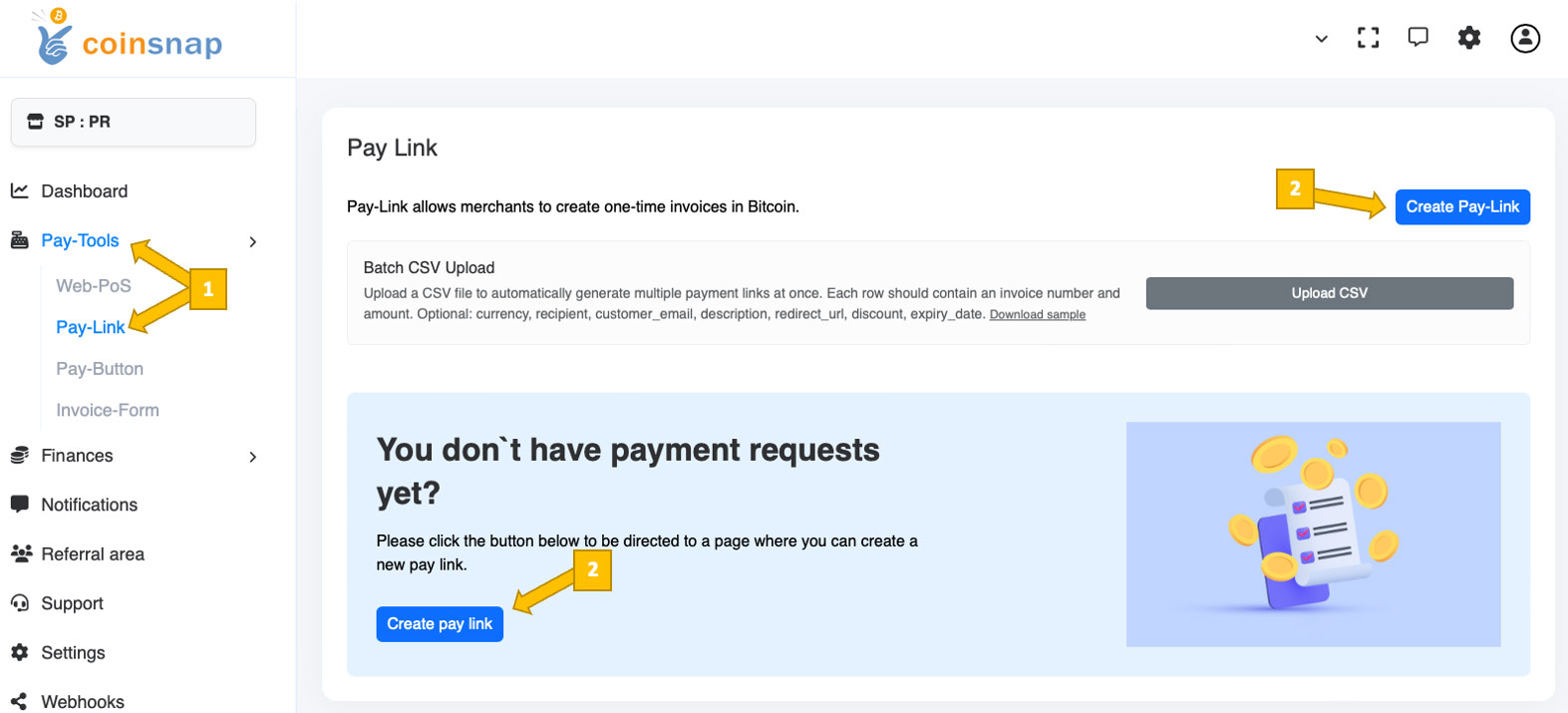
You will now get to see this:
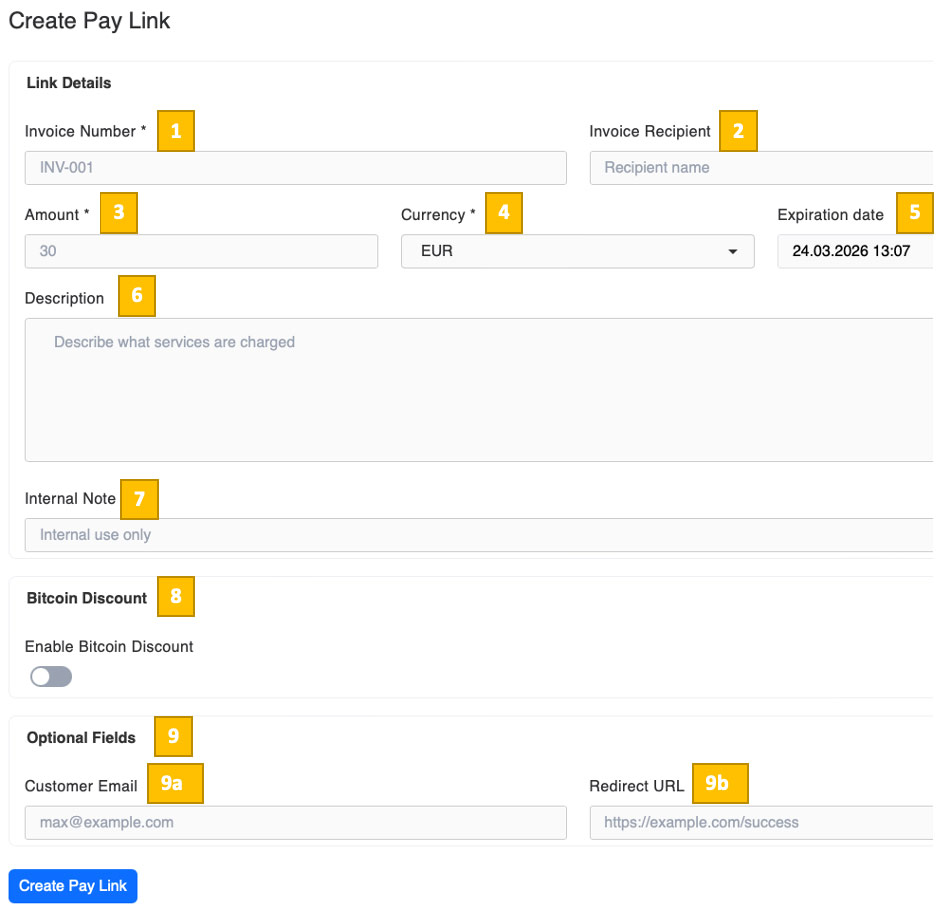
In the Link Details section, start by entering a unique Invoice Number [1] that helps you identify this payment internally, for example an order or invoice reference.
In Invoice Recipient [2], add the name of your customer if you want it displayed on the payment page.
Next, define the payment itself. Enter the Amount [3] to be paid and select the Currency [4] you want to price the payment in. Coinsnap will automatically calculate the Bitcoin and Lightning equivalent.
Use the Expiration date [5] to set how long the payment link remains valid. After this date, the link can no longer be paid.
In the Description field [6] , briefly describe what the customer is paying for, such as a service, product, or invoice reference. This text is visible to the payer and helps avoid confusion.
The Internal Note [7] field is for your own use only and is not shown to the customer.
If you want to incentivize Bitcoin payments, you can enable the Bitcoin Discount [8] option. When activated, customers paying with Bitcoin can receive a predefined discount compared to the fiat amount:

Set the discount you want to offer for Bitcoin payments as a percentage.
Under Optional Fields [9], you can enter the customer’s email address [9a] if you want to associate the payment with a specific person or use it for internal tracking. In Redirect URL [9b], you can define a custom page where the customer will be sent after a successful payment, such as a thank-you or confirmation page on your website.
Your configuration screen should now look similar to the example shown below.
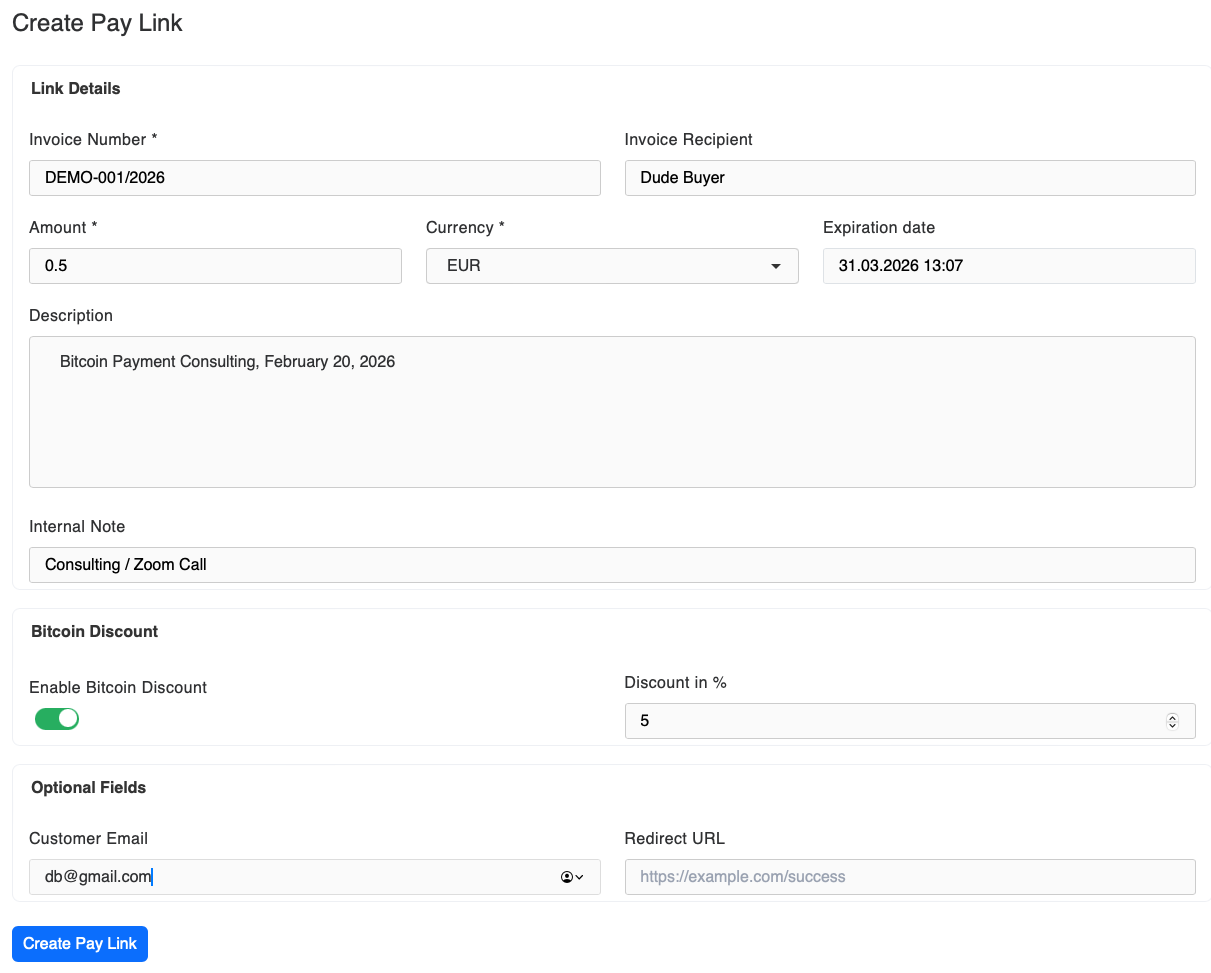
Once all required fields are filled in, click the Create Pay Link button on the bottom of the screen. Your dedicated Bitcoin payment link is now ready and can be shared directly with your customer via email, messenger, or any other channel.
Step 2 - Using the Bitcoin Payment Link
After you saved your configuration, you will see something like this:
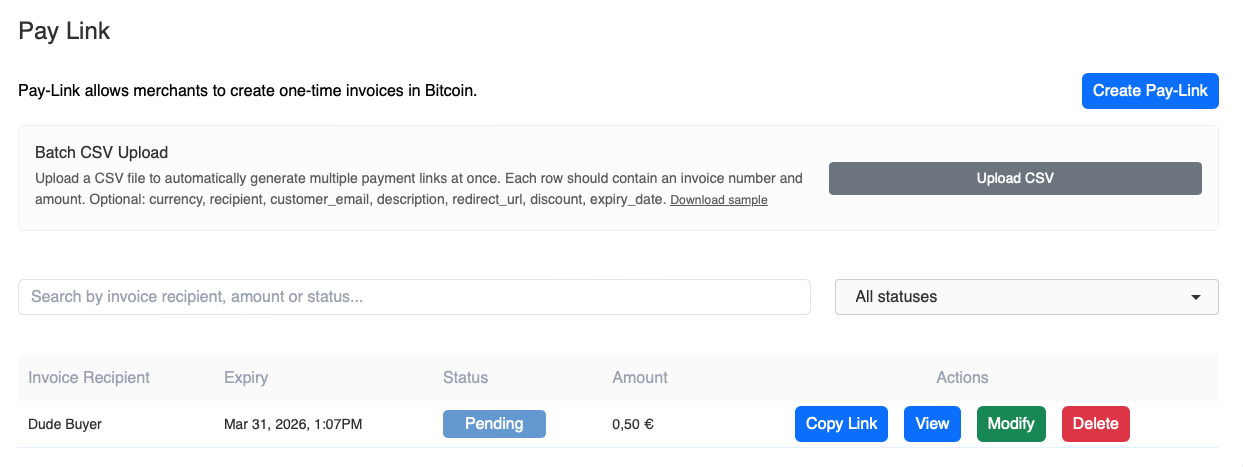
You can now see the Bitcoin payment link you created for “Dude Buyer”, including its expiration date, current status, and the amount due.
Next to these informations, you’ll find four action buttons:
Copy Link
You can now paste this link into an email, a WhatsApp message, or directly into an invoice that you send to your customer.
View
If you click the View button, you will be forwarded to the payment interface you have just created:
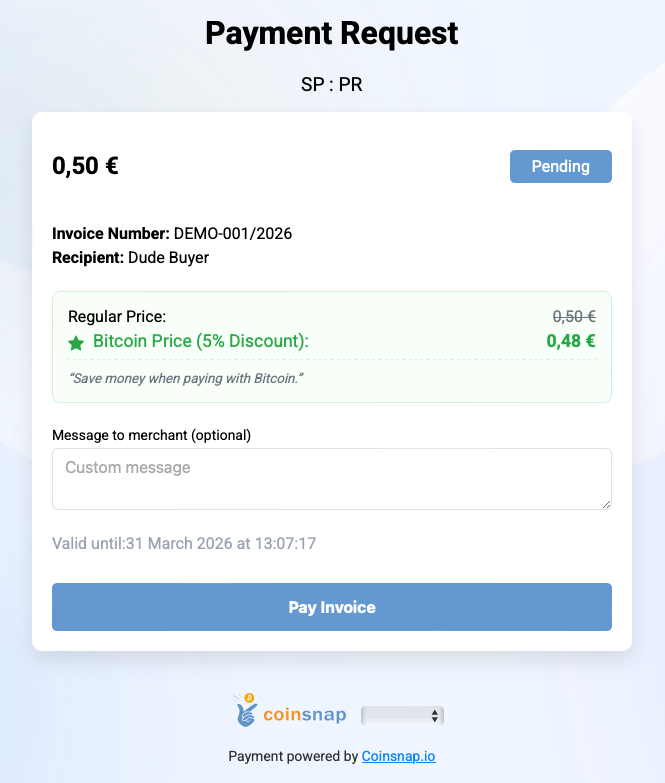
Modify
By clicking the Modify button, you will be redirected back to the configuration screen.
Delete
speaks for itself 🙂
Done – send the Bitcoin Payment link to your customer
All required steps have now been completed successfully — you can send the payment link to your customer and wait for the Bitcoin payment to be completed.
Step 3- Quality assurance: make sure your Bitcoin payment links are working correctly
Before sending out your first payment link, it’s a good idea to verify that everything works smoothly and exactly as expected.
To do this, create a test payment link with a very small amount. Open the link yourself and start the payment with a click on Pay Invoice. You will then see the QR code for your payment:
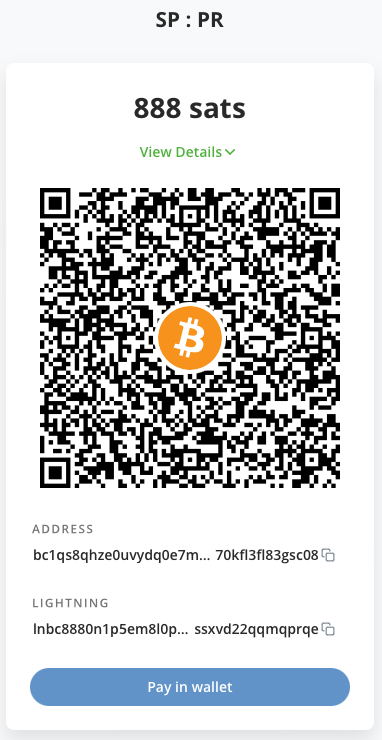
Scan the QR code with your private Lightning wallet and authorize the payment.You will see a short success animation confirming that the payment was completed successfully:
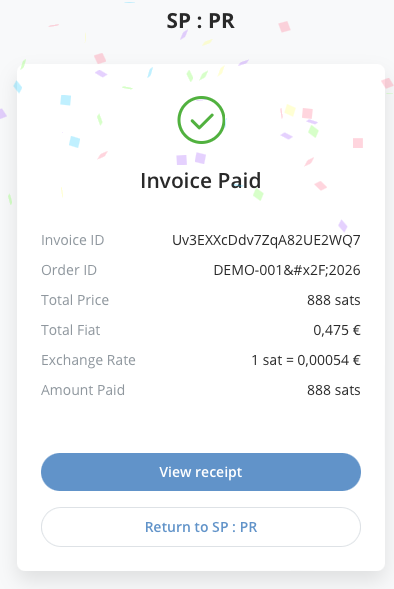
After a few seconds, you will be redirected to the default success page (unless you configured a custom redirect URL to send the customer to a dedicated page you created):
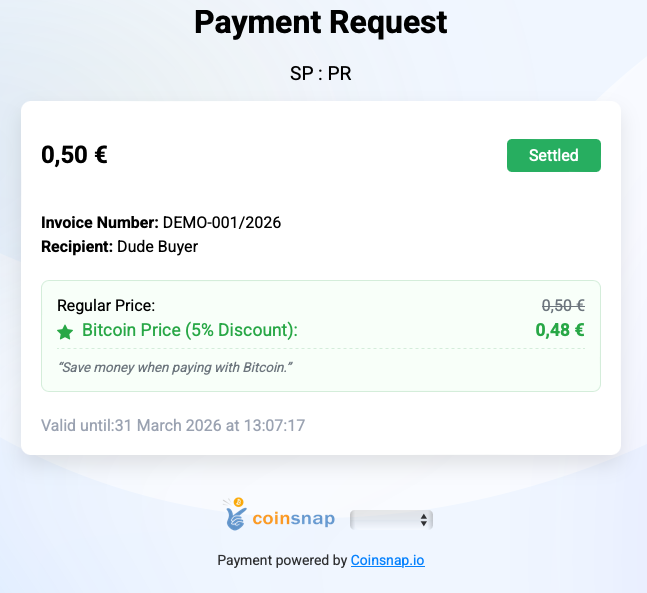
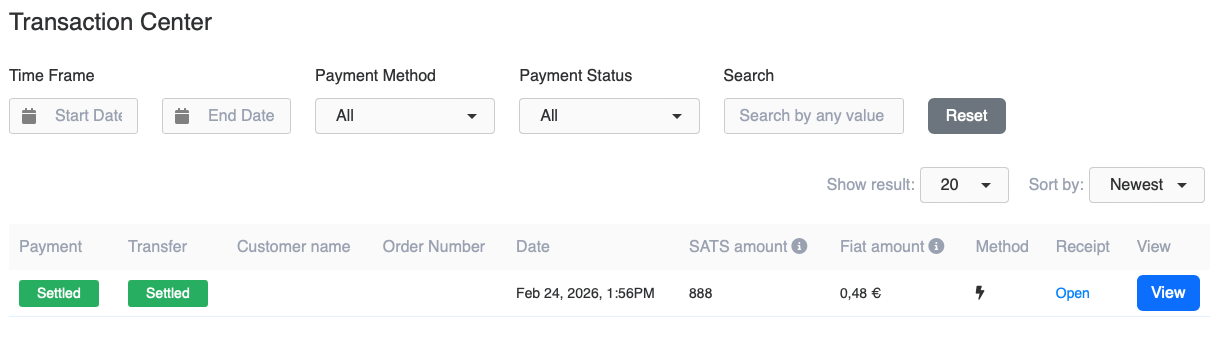
After the successful payment, log in to your Coinsnap account dashboard. Go to Finances → Transaction Center and confirm that the transaction is listed correctly:
Finally, return to Bitcoin tools → Payment Link and verify that the payment link you just used is marked with the status Settled.

Then check whether the funds have been credited to your business Bitcoin or Lightning wallet.
Frequently Asked Questions
What Users Ask About This plugin
Do I need an online shop or website to use Bitcoin Payment Links?
No. Payment Links work completely independently of any shop system. You can send them by email, messenger, or attach them to PDF invoices — your customer just clicks the link to pay.
Can I reuse the same Bitcoin Payment Link for multiple customers?
Typically, each Payment Link is created for a specific invoice or customer. However, you can also set up more generic “pay now” style links if your use case allows, for example if the amount is filled in by the customer.
How is the Bitcoin amount determined?
You set the amount in fiat currency. When the customer pays, Coinsnap uses the current exchange rate to convert that amount into Bitcoin. The BTC amount shown on the payment page is therefore always based on the live rate at payment time.
Can customers choose between Lightning and on-chain Bitcoin?
Yes. The payment page created from the link can offer both Lightning and on-chain Bitcoin payment options, depending on your Coinsnap configuration.
Where do payments go after the invoice is paid?
All payments are forwarded directly to the Lightning wallet or Bitcoin address you configured in your Coinsnap account. Coinsnap does not hold your funds.
