Coinsnap for Prestashop

Coinsnap for Prestashop

PrestaShop is a leading French open source e-commerce platform with over 300,000 installations, mainly focussed on Europe.
In line with the evolving landscape of digital transactions, Coinsnap has developed a complementary plugin that seamlessly enables Bitcoin and Lightning payments via PrestaShop’s robust shop software.
The Coinsnap payment plugin was specially developed for PrestaShop and offers merchants a user-friendly interface for optimised Bitcoin payment processing.
This innovative module, which is available for free download and installation, integrates seamlessly into the PrestaShop environment.

Main features of the Coinsnap payment plugin for PrestaShop:

Effortless integration: Quick and easy implementation of the payment plugin in your PrestaShop shop software.
Dedicated support: Our free support team at Coinsnap is always available to help with any queries or challenges you may encounter.

By using the Coinsnap payment plugin, PrestaShop shop operators can easily introduce Bitcoin and Lightning payments, expanding their payment options to cater to the different preferences of their customers.
If you would like to experience the Bitcoin and Lightning payment process first-hand in a PrestaShop environment, we invite you to visit our PrestaShop demo shop.
Here you can initiate a test order with demo data and seamlessly make payments with Bitcoin and Lightning.

Prestashop Demo Store


You can see how a payment with Bitcoin and Lightning works in a Prestashop store from the payer’s point of view in the Coinsnap Shopware Demo Store and try it out for yourself at this link.

(1) Choosing demo T-shirt product

When you open our demo shop, scroll down to see our demo products.
Select a product number (1) or number (2).

After you have selected our test product, go to the checkout to test payments with Lightning/Bitcoin via Coinsnap.


Once you have entered your details, you will be redirected to the payment method selection screen:

(1) Coinsnap Bitcoin/Lightning

Choose the option to pay with Bitcoin and Lightning via Coinsnap.

(2) Send order

Click on Submit order to finalise the test payment.
After you have submitted your order, you will receive a QR code that you should scan with your wallet.
Scan and pay with Bitcoin and Lightning via Coinsnap!

Installation and configuration of the Prestashop plugin

The Prestashop plugin can be downloaded from Coinsnap’s GitHub page at this link. After successfully downloading the .zip file, go to the PrestaShop administration area and log in with your credentials.

Download the Prestashop plugin!


(1) Module Manager

Navigate to the main menu and find the “Improve” section, then select “Modules”, followed by “Module Manager”.

(2) Upload module

In the Module Manager, search for the option to upload a module that corresponds to the previously downloaded .zip file. Upload the file from your computer.

(3) Search Coinsnap

Enter “Coinsnap” in the search bar area and click on the “Install” button.

(4) Configure Coinsnap-Prestashop

After successful installation, click on the “Configure” button.

Then open the Coinsnap app (if you don’t have an account yet, you can find instructions on how to get started with Coinsnap at this link).

Go to “Settings” and navigate to the “Store settings” section where you need to copy the following information: (1) Store-ID and (2) API-Key.


(1) Store ID

Paste the Store ID you copied into the first field.

(2) API-Key

Api key that you have copied, paste it into the second field.

(1) Order status

Select the appropriate payment status for the order status.

(2) Save changes

Finally, click on the “Save” button to ensure that your settings are applied.


Download the Prestashop plugin!

Coinsnap for Gambio

Coinsnap for Gambio

Gambio is a German shop system that offers a complete solution for online retailers with extensive functions and tools.
It offers simple handling for small and medium-sized companies that want to design their own e-commerce presence.
Gambio was founded in 2005 and is used by more than 25,000 e-commerce merchants, primarily in Germany, Austria and Switzerland.
Gambio offers two different systems: Gambio Cloud and the self-hosted version.
The Gambio plugin from Coinsnap is provided free of charge for the self-hosted version.
The Gambio Cloud version is not yet supported.

With the self-hosted store software Gambio, store operators opt for a flexible and user-friendly application.
Neither programming skills nor in-depth knowledge of search engine optimisation are required.
Gambio also offers users a customised layout for their shop and an easy-to-use user interface.
Coinsnap has developed a free module so that Bitcoin and Lightning payments can also be conveniently processed via the Gambio shop software.
This payment plugin is directly adapted to Gambio and enables the convenient processing of Bitcoin payments.
The Gambio payment plugin from Coinsnap can be downloaded and installed free of charge.

Main features of the Coinsnap payment plugin for Gambio:

The payment plugin can be implemented quickly and easily in the Gambio shop software.
Coinsnap’s free support is available for questions and problems.
With the Coinsnap payment plugin for Gambio, shop operators can accept Bitcoin and Lightning payments from their customers.
If you would like to try out what paying with Bitcoin and Lightning in a Gambio shop looks like from the payer’s perspective, you can place a test order in our Gambio demo shop.
Here you can enter demo data and pay for the demo product with Bitcoin and Lightning.

Gambio Demo Store

Once you have successfully installed and configured the Gambio plugin, you can test its functions in our demo store.

Test its capabilities, including the ability to accept Bitcoin and Lightning payments, at this link.


Install Gambio plugin via GitHub

The Gambio plugin can be downloaded from Coinsnap’s GitHub page at this link. You must download the module (the ‘.zip’ file) and unpack the files from the archive.

To install the Coinsnap Bitcoin and Lightning payment plugin for the Gambio 4.5.x – 4.x system, you need to install an FTP client (Filezilla, Free FTP, Cyberduck, WinSCP…). Copy the entire contents of the “coinsnap-gambio directory” with your FTP client to the root directory of your Gambio store on your web server.

Once you have completed the first step, you can log in with your login details on the login page.

Download the Gambio plugin now!


(1) Search the cache area

Navigate to the toolbox and select the first section “Cache”.

(2) Empty cache

Execute the module, output and text cache by clicking on the corresponding buttons.

(1) Access to the Modules Centre

Navigate to the “Modules” section and search for “Modules Centre” at the top.
Click on it.

(2) Install module

Select “Coinsnap Payment” and proceed to install the module.

(3) Delete cache

After successful installation, return to the cache area and delete the module, output and text cache again.


Now log in to your Coinsnap app with your login details and navigate to the settings.

Look for the “Store settings” section in the settings, where you will find your store ID and API key.

Copy these login details for further use.

Navigate to “Modules” -> “Module Centre” -> “Coinsnap Payment” and click on “Edit” again.

(1) Store-ID

Paste the previously copied store ID into the first field.

(2) API-Key

Paste the previously copied API key into the second field.


After you have saved the data, your Gambio shop is successfully connected to the Coinsnap app.
Let’s now proceed to enable Bitcoin+Lightning payments by following the next instructions:

(1) Find the payment settings

Navigate to the “Modules” section -> “Payment systems”.

(2) Open the “Miscellaneous” tab

Click on the “Miscellaneous” tab at the top right-hand side.

Scroll to the bottom of the page where you will find the “Added modules” section.
Click on “Bitcoin + Lightning” to start the installation of the “Bitcoin + Lightning” payment method.


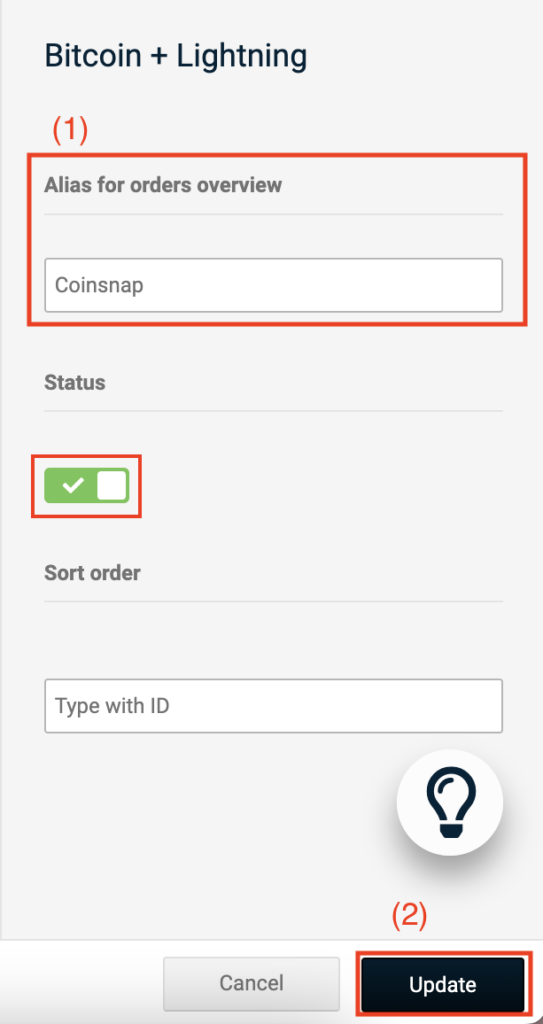
After you have installed the “Bitcoin+Lightning” payment method, continue by clicking on “Edit”.

(1) Enter “Coinsnap”

Enter “Coinsnap” in the “Alias for order overview” field and activate the payment method.

(2) “Update” button

Click on “Update” and the module is ready for use once this step has been completed.

Download the Gambio plugin now!