
Coinsnap for Shopify Installation Guide
If you have a Shopify online store, offering Bitcoin payment has never been easier than with the Coinsnap for Shopify app.Simply install the app (which you find in your Coinsnap account) on Shopify and link it to your Coinsnap account – and your customers can pay with Bitcoin-Lightning immediately!
Of course, all incoming Bitcoin transactions are immediately credited to your Bitcoin Lightning wallet. To receive Bitcoin in your Shopify store, you have to connect the Coinsnap for Shopify Bitcoin payment app with your Shopify store.
We will guide you through that process, step-by-step, now:
Enable Bitcoin & Lightning payments on your Shopify store without code.



Step 1
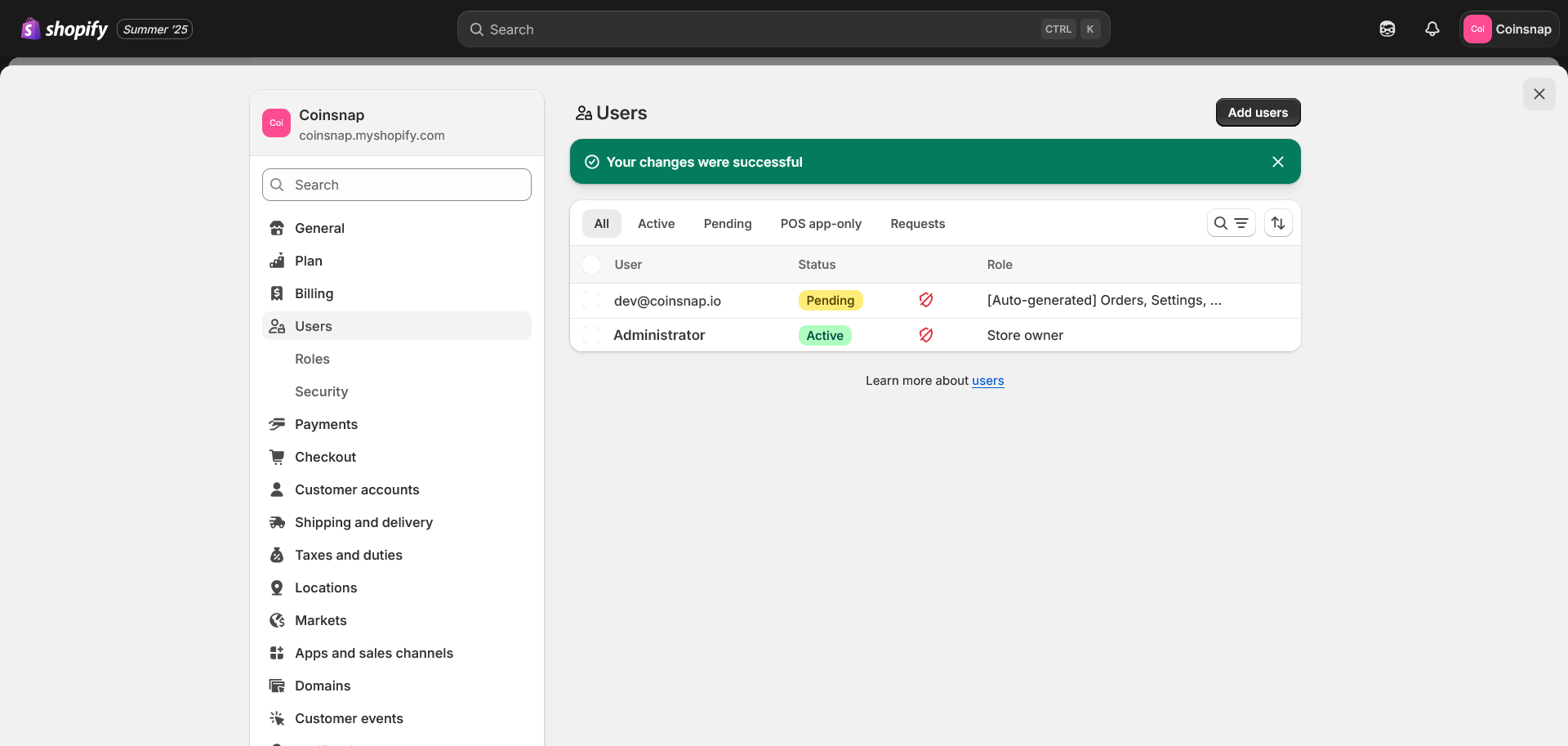
If your Shopify Partner and Shopify Store have the same account, you can jump to Step 1. But if you plan different accounts, you need to prepare Shopify Store – to add Partner’s account as Store User. Shopify store administrator should do it before App installation
Open your Shopify Store:
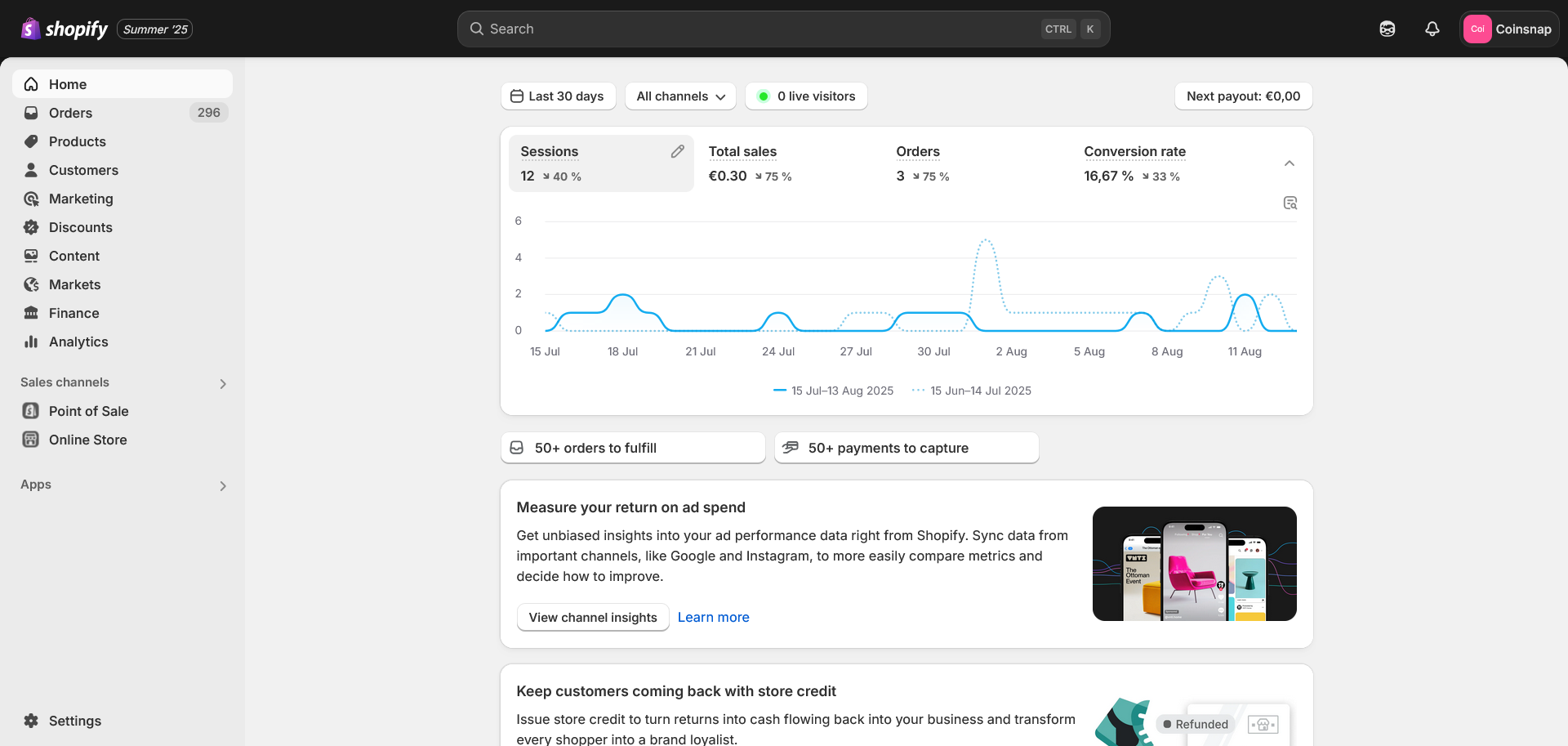
And then go to Users part in Settings section:
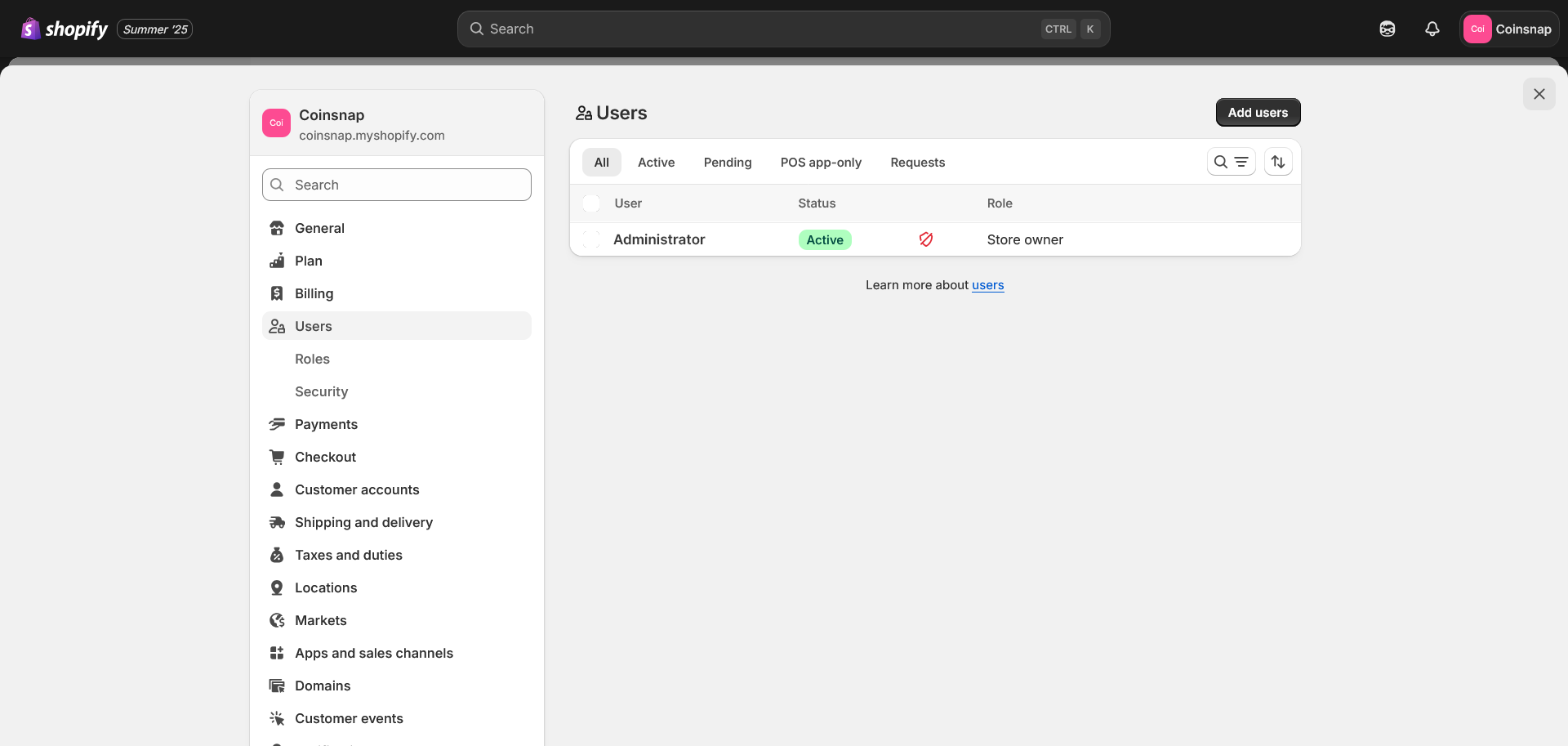
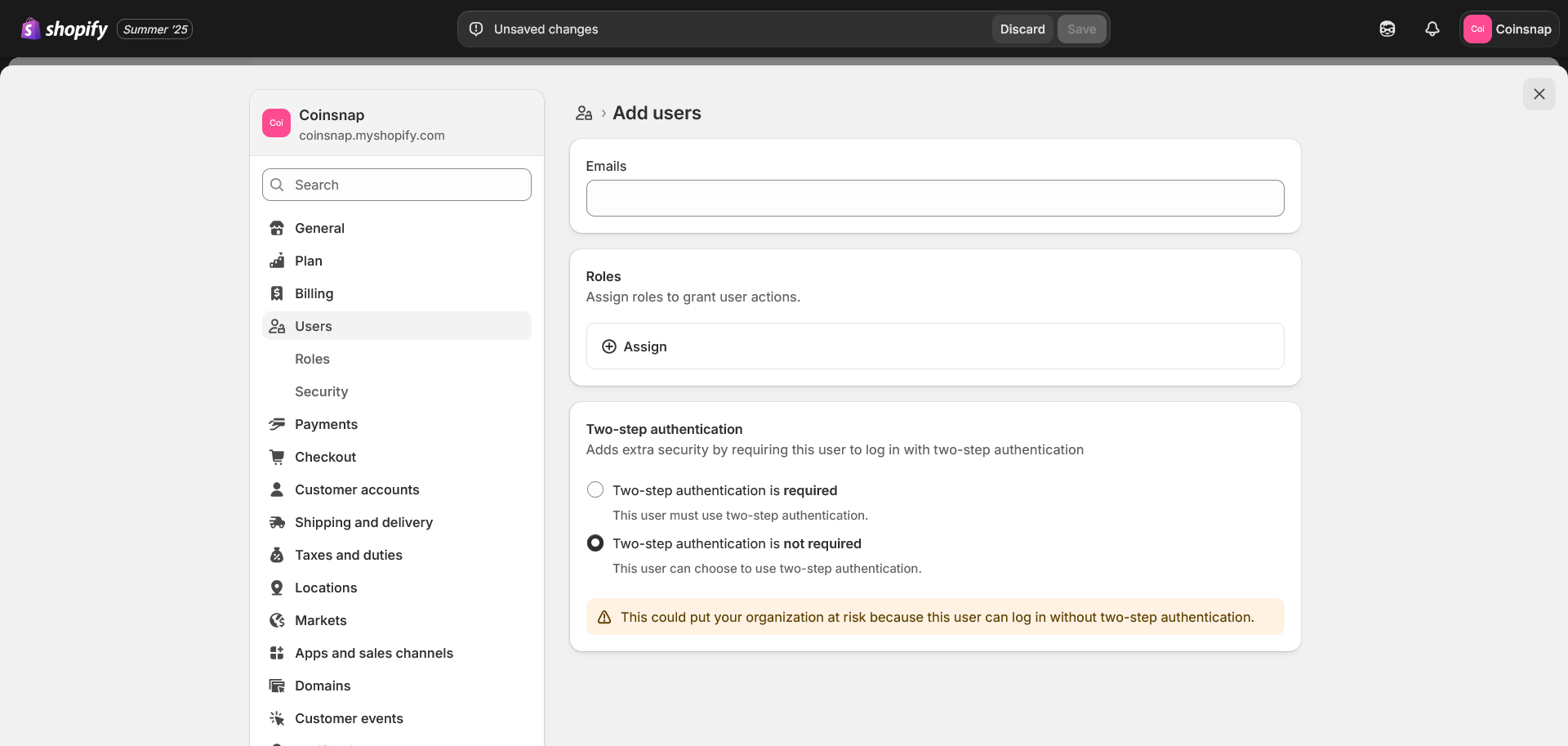
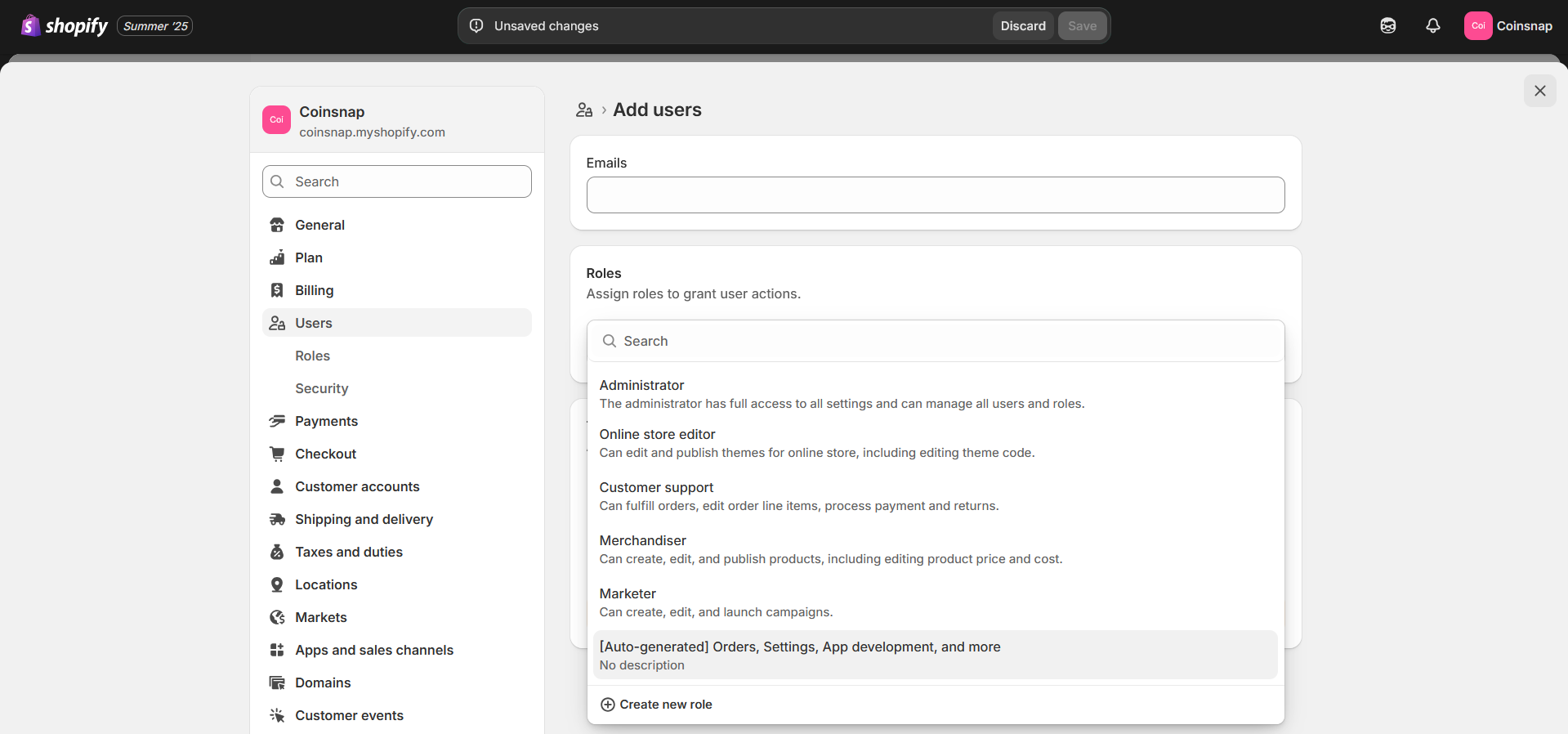
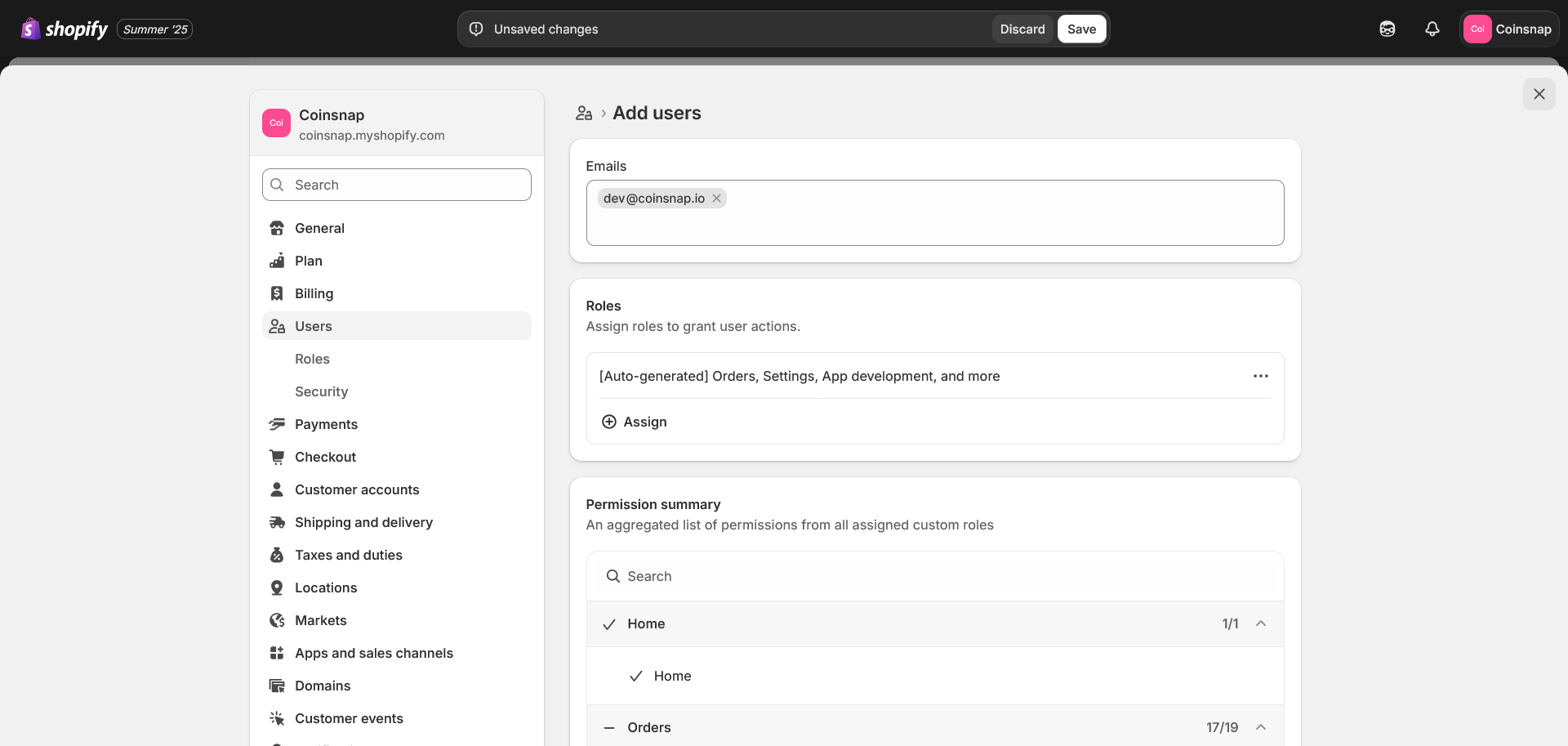
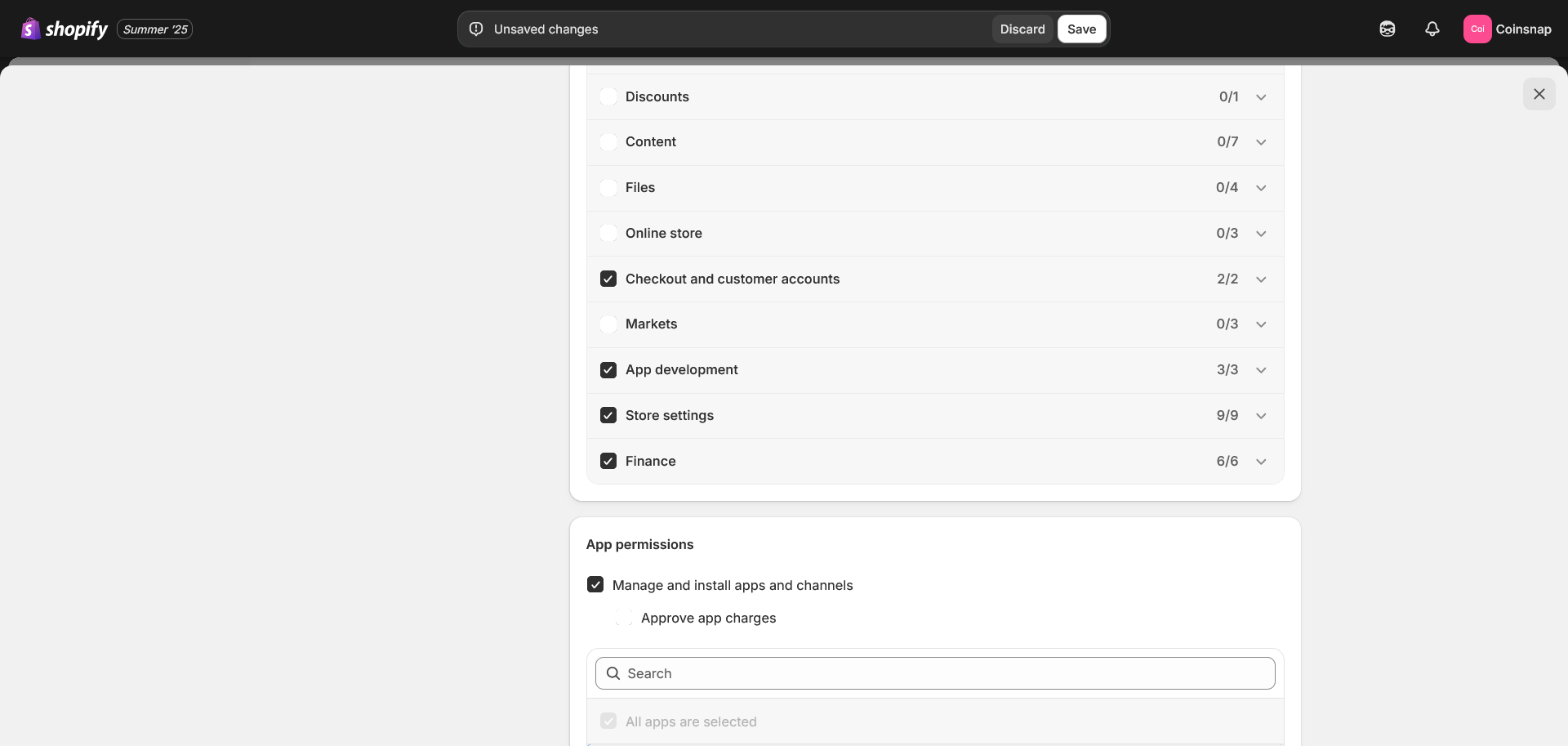
You need to give to Partner Checkout and customer accounts and Finance rights, it will allow to set up payment method and Thank you page:
Step 2
1.1. Log in to the Shopify partner portal: Go to https://www.shopify.com/partners

1.2. Register / login as a Shopify partner
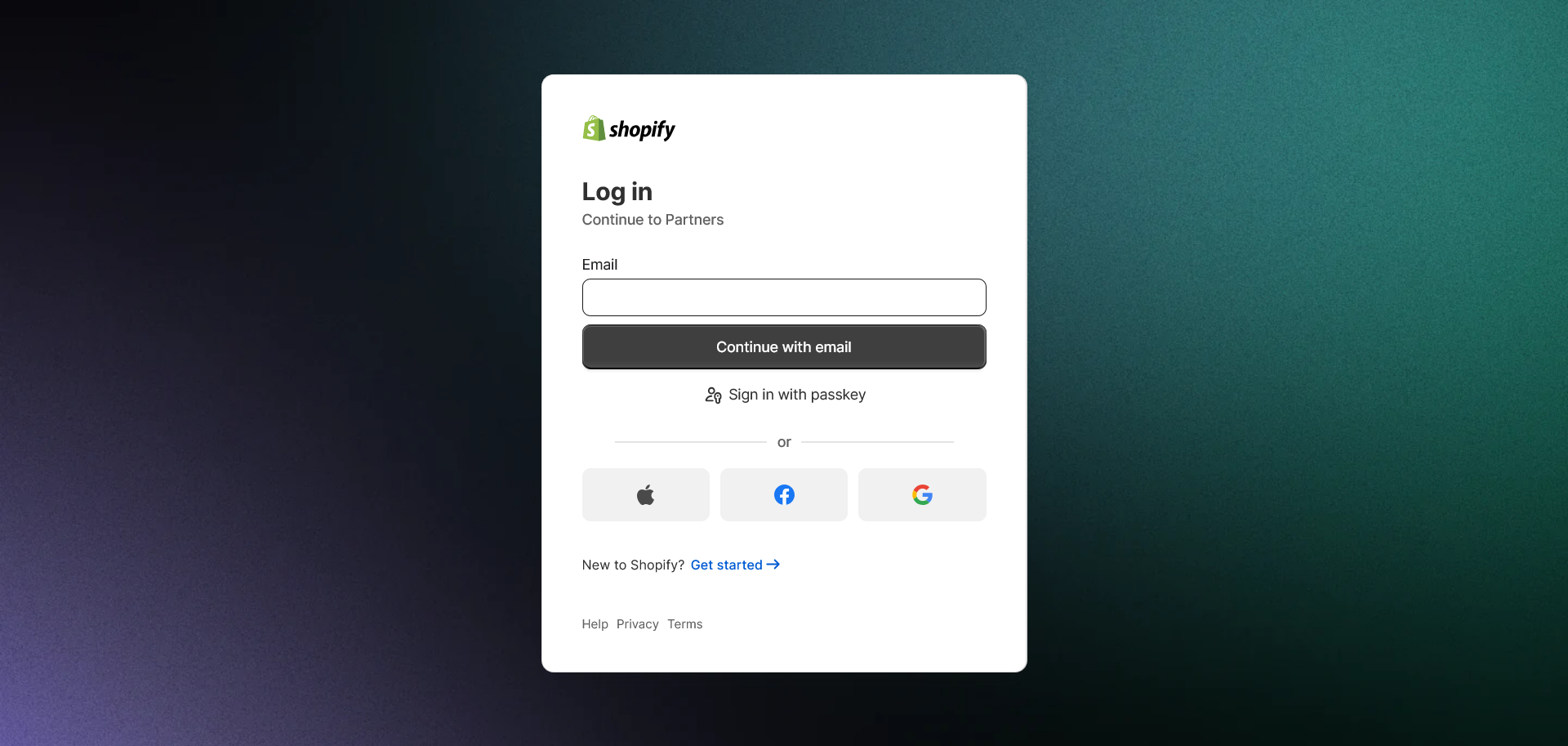
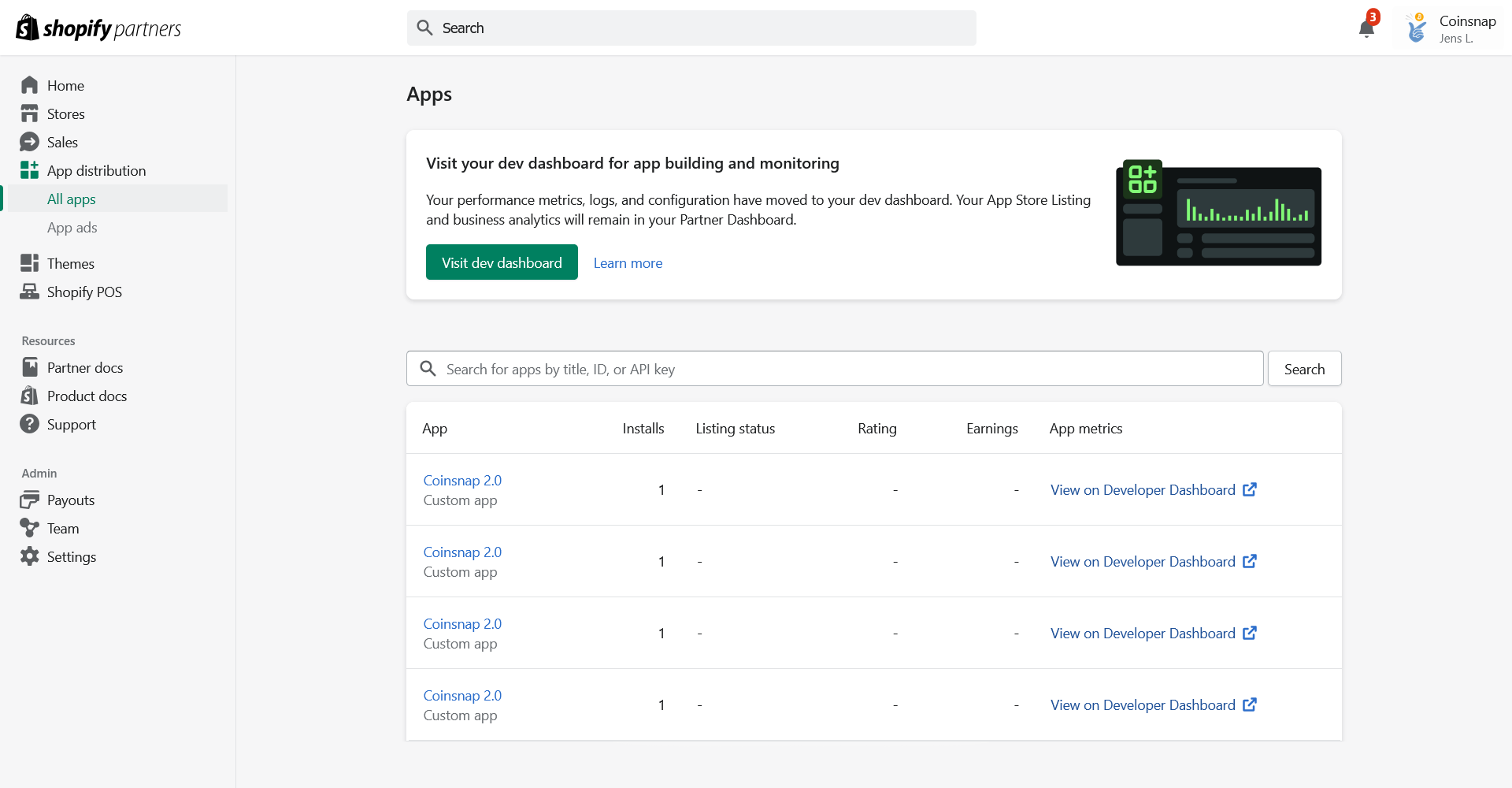
Press button Visit dev dashboard, after that you’ll go to your App Developer dashboard.
1.4. Go to Create app:
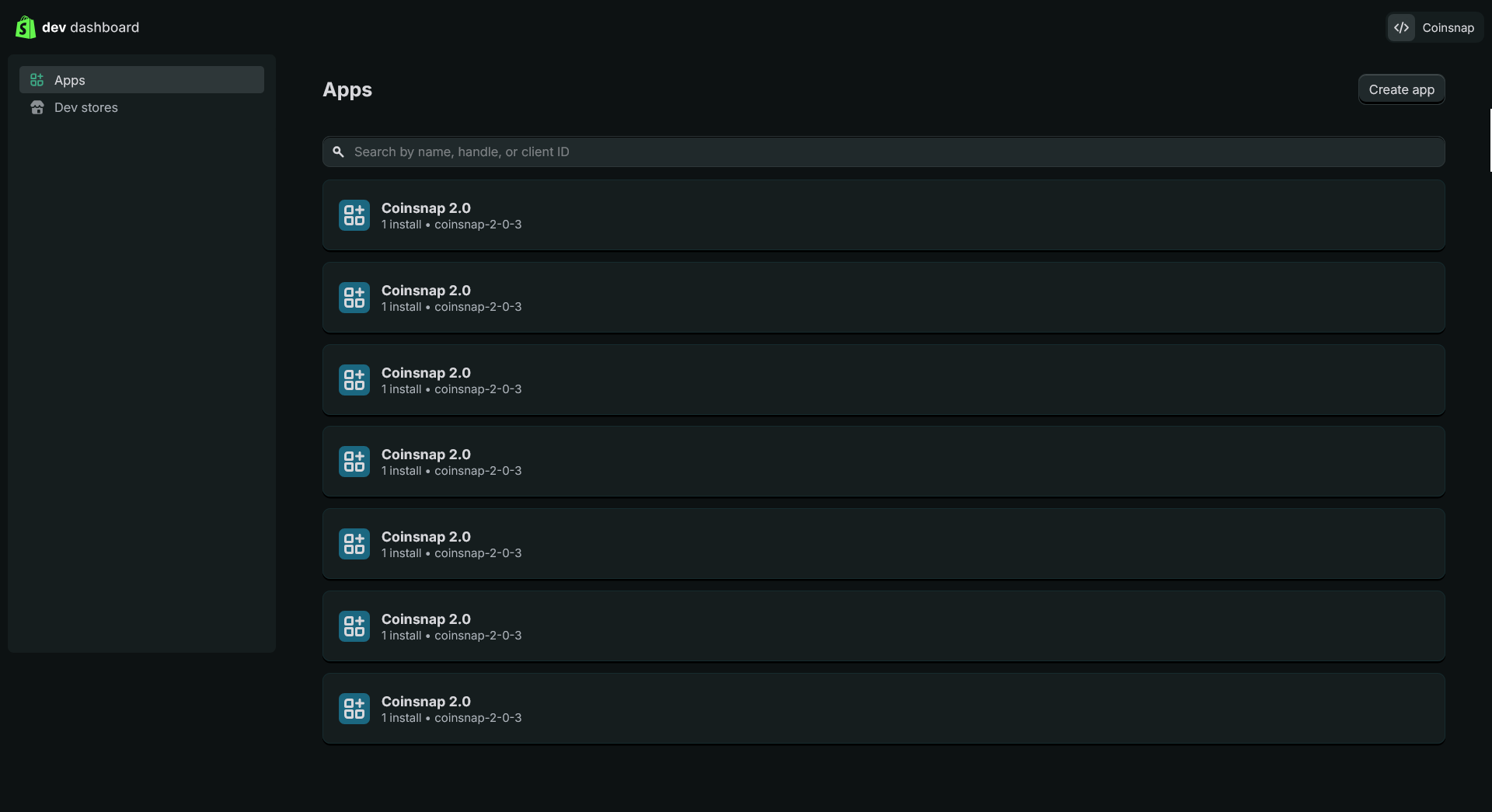
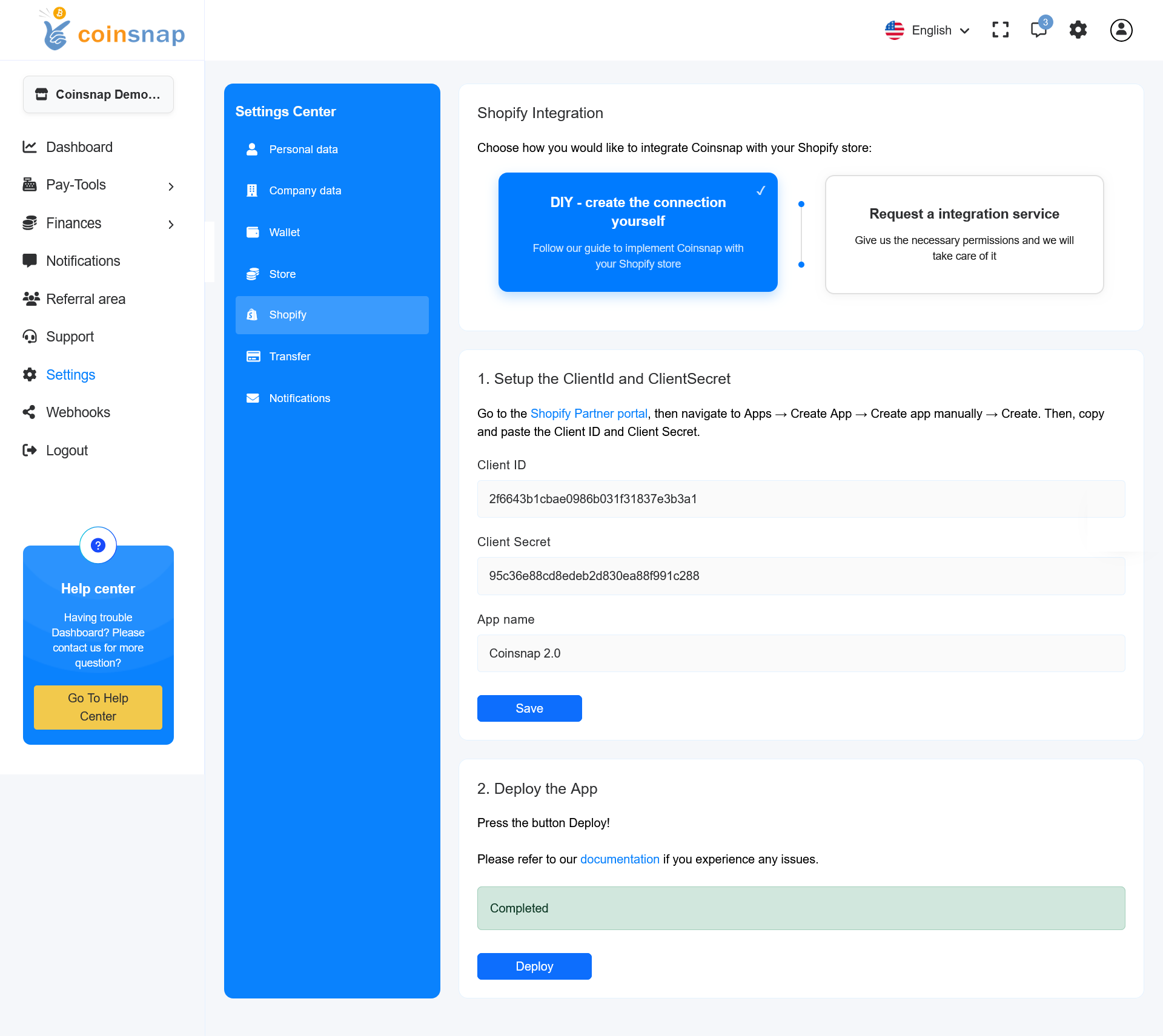
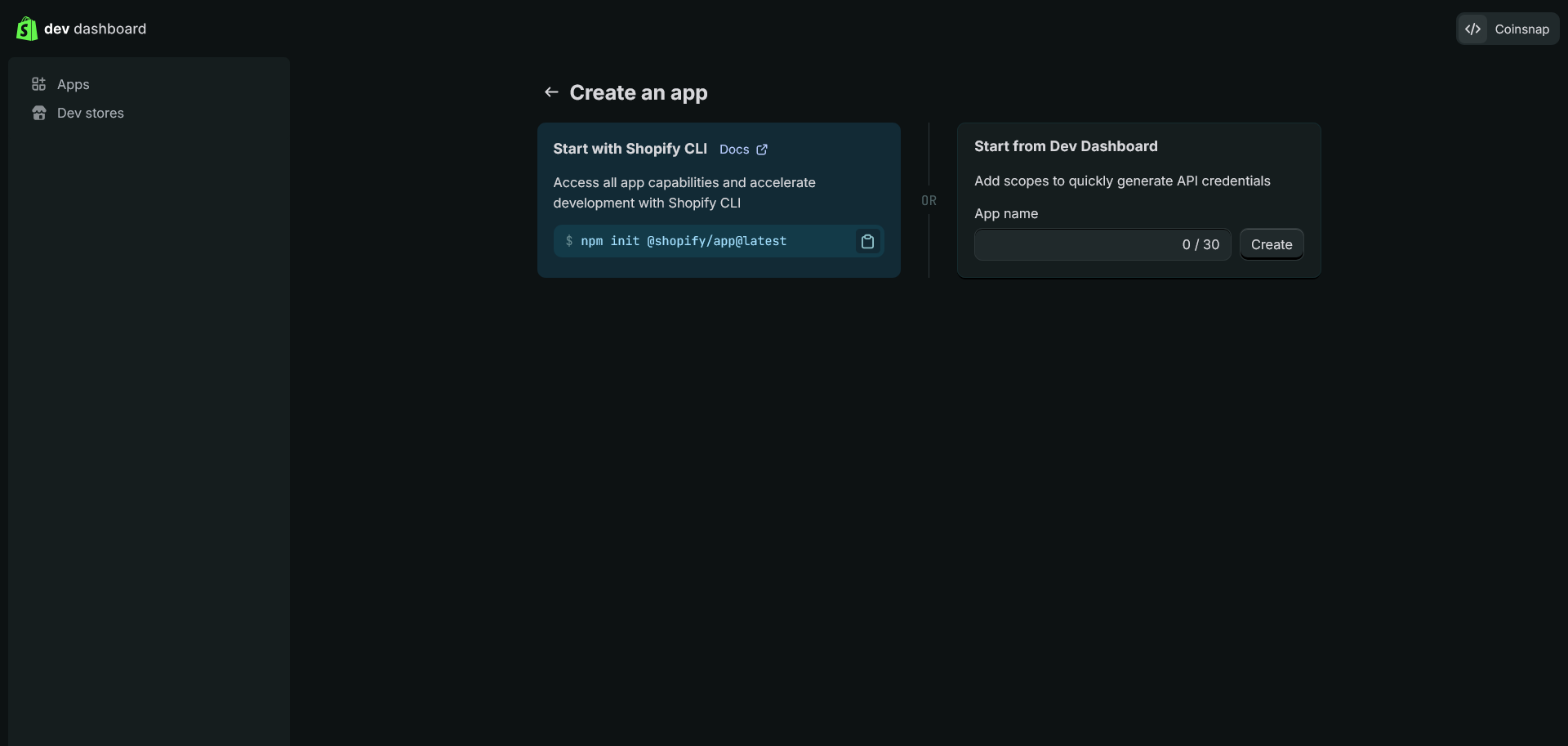 1.6. New App is created. Go to Settings item in App’s submenu and save App’s credentials: Client ID and Secret.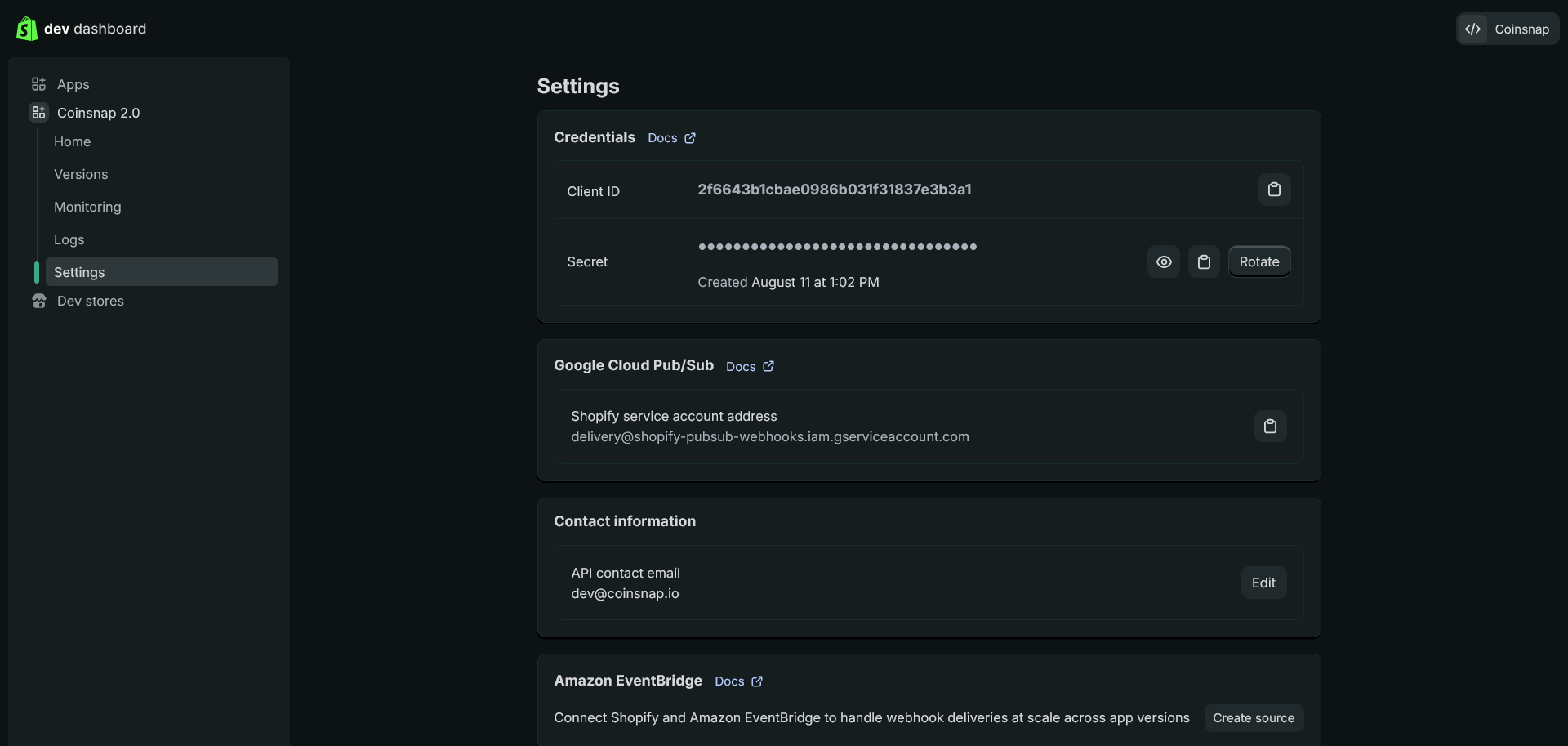
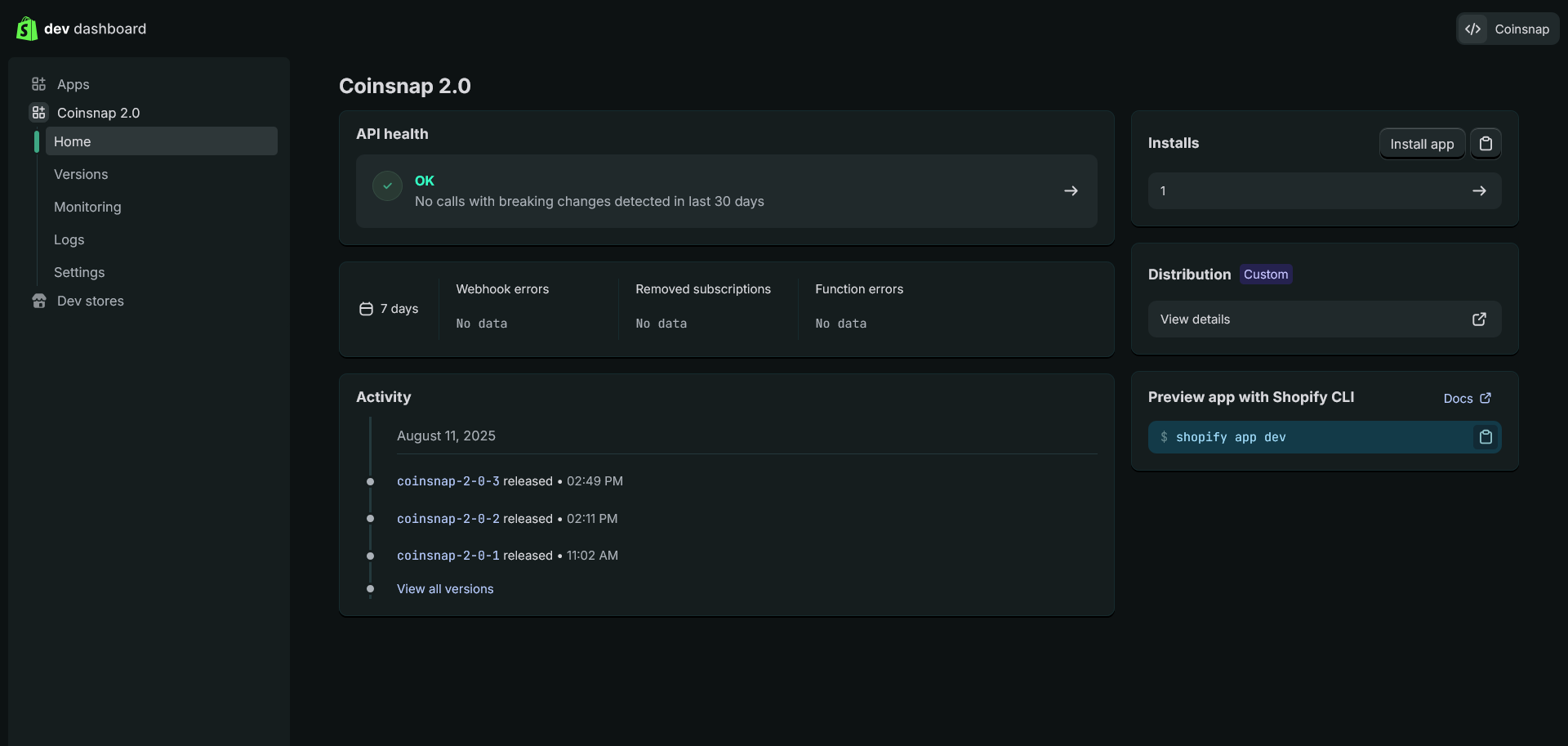
You will go back to the Partner’s portal in new tab.
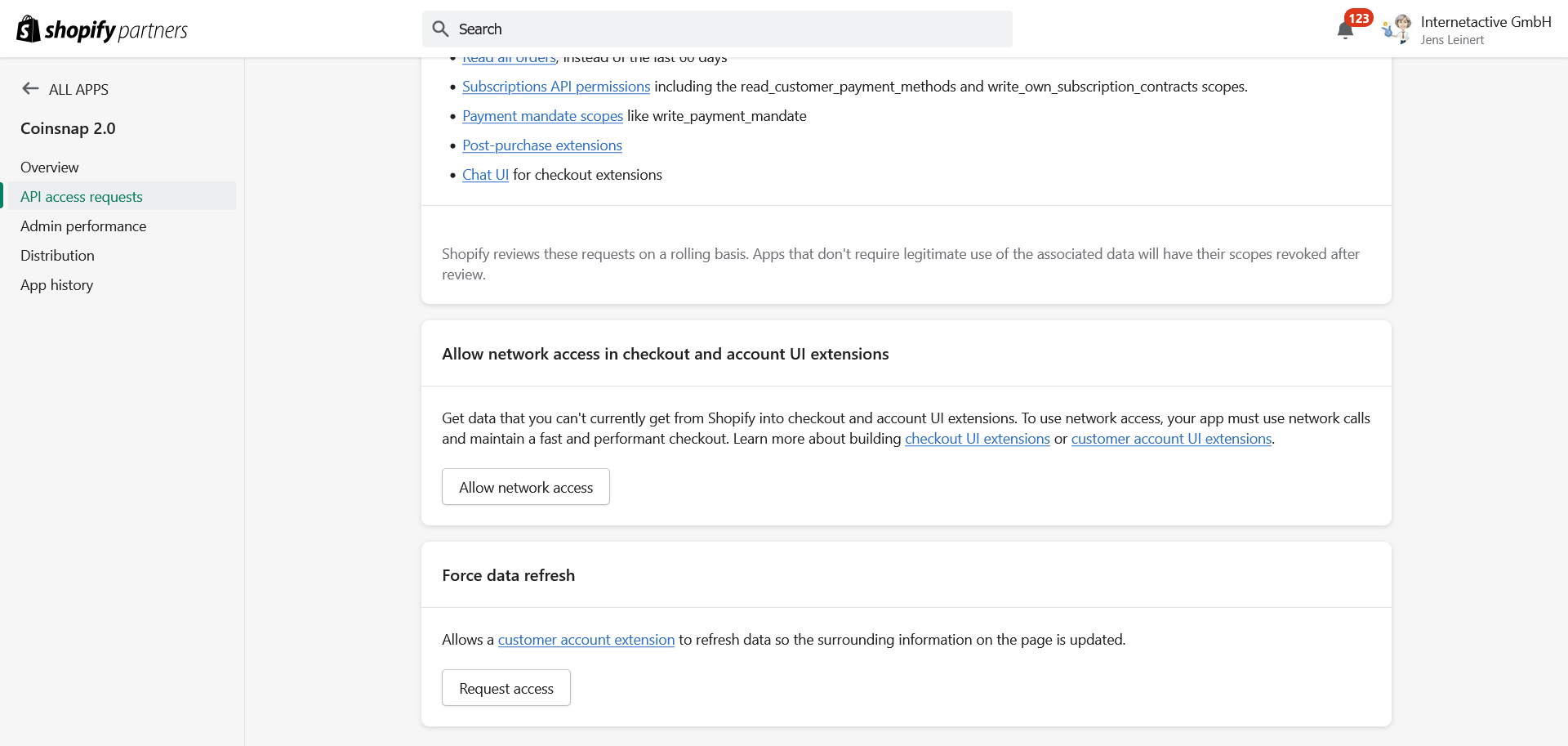
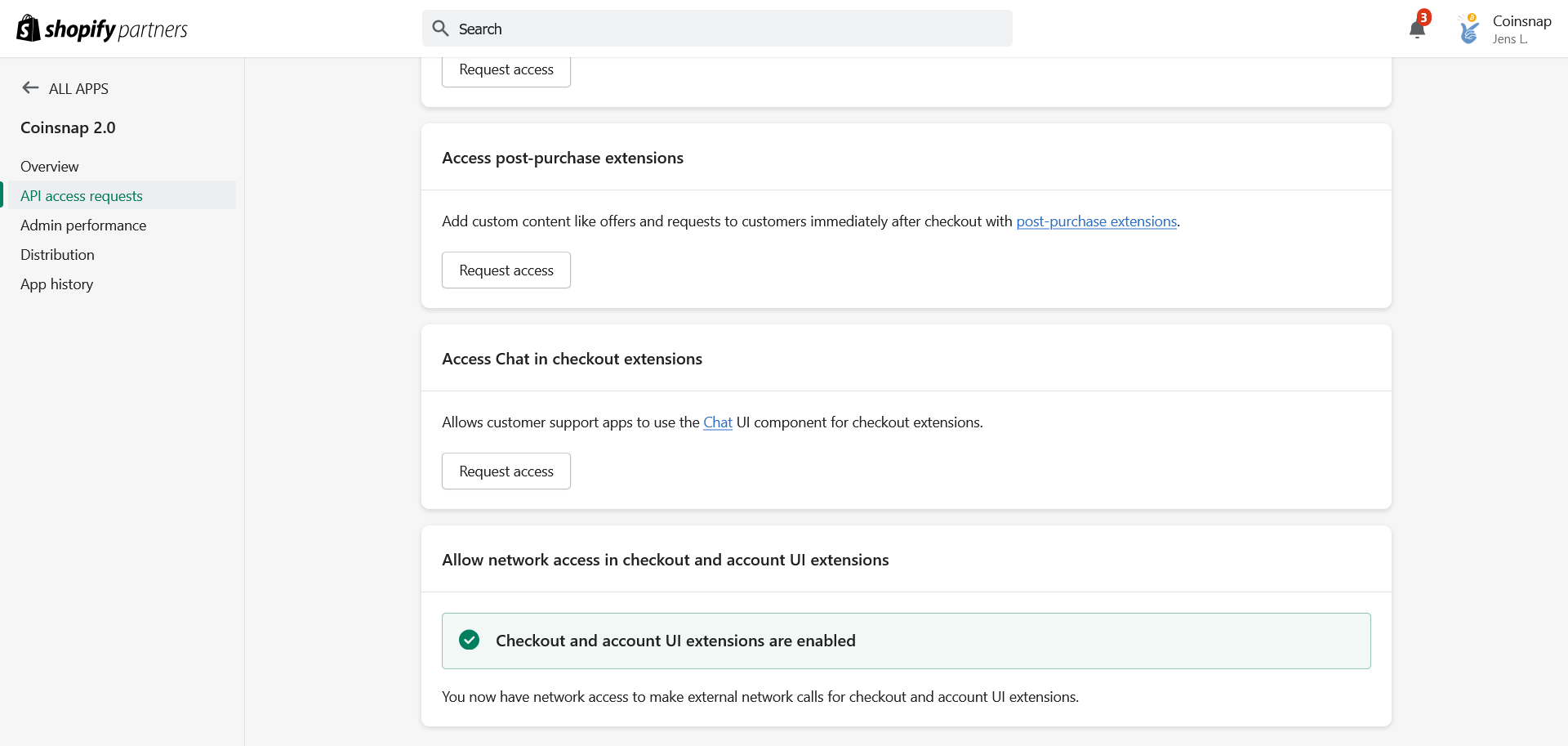
1.8 Select API access request on the left menu, scroll down to Allow network access in checkout and account UI extensions and grant network access:
Step 3
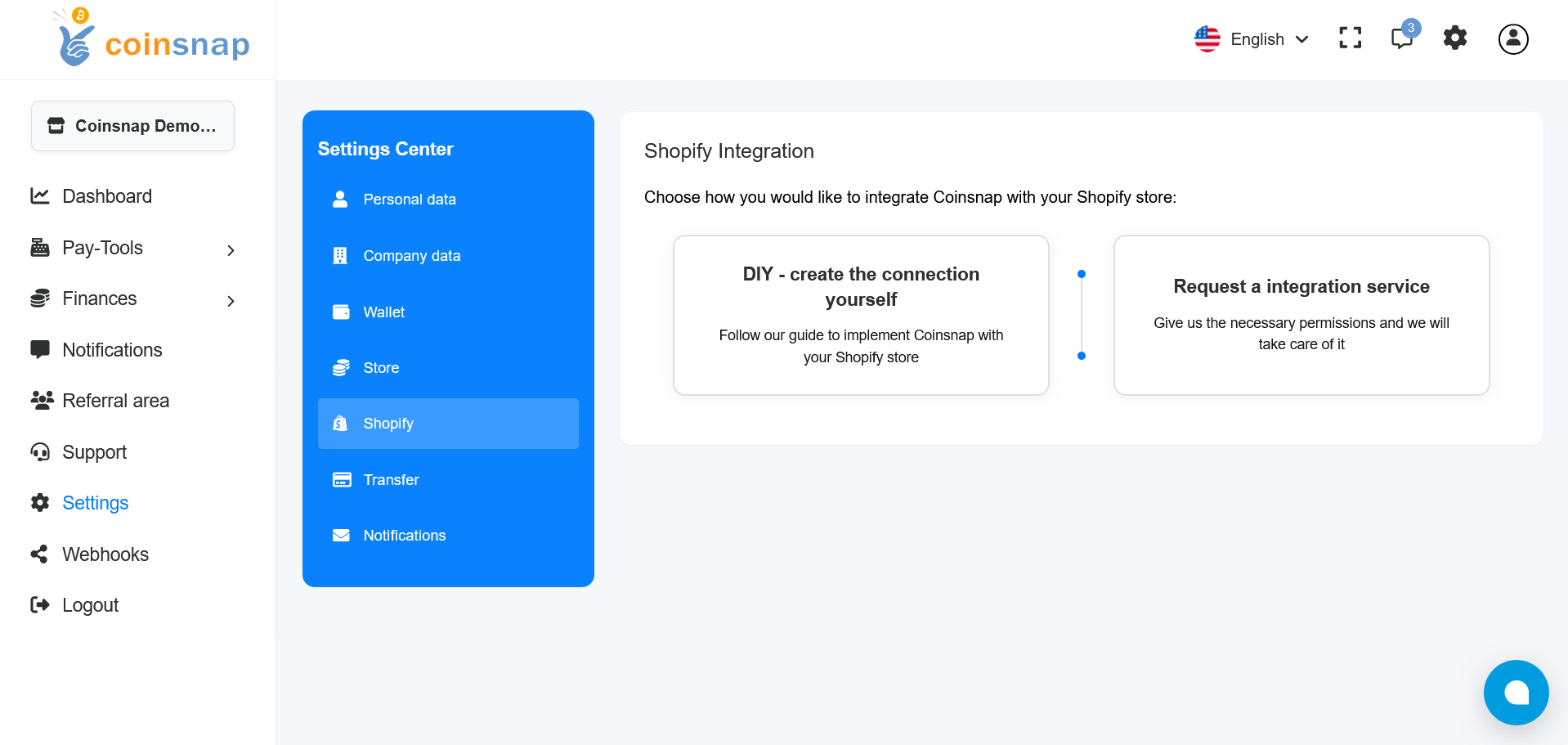
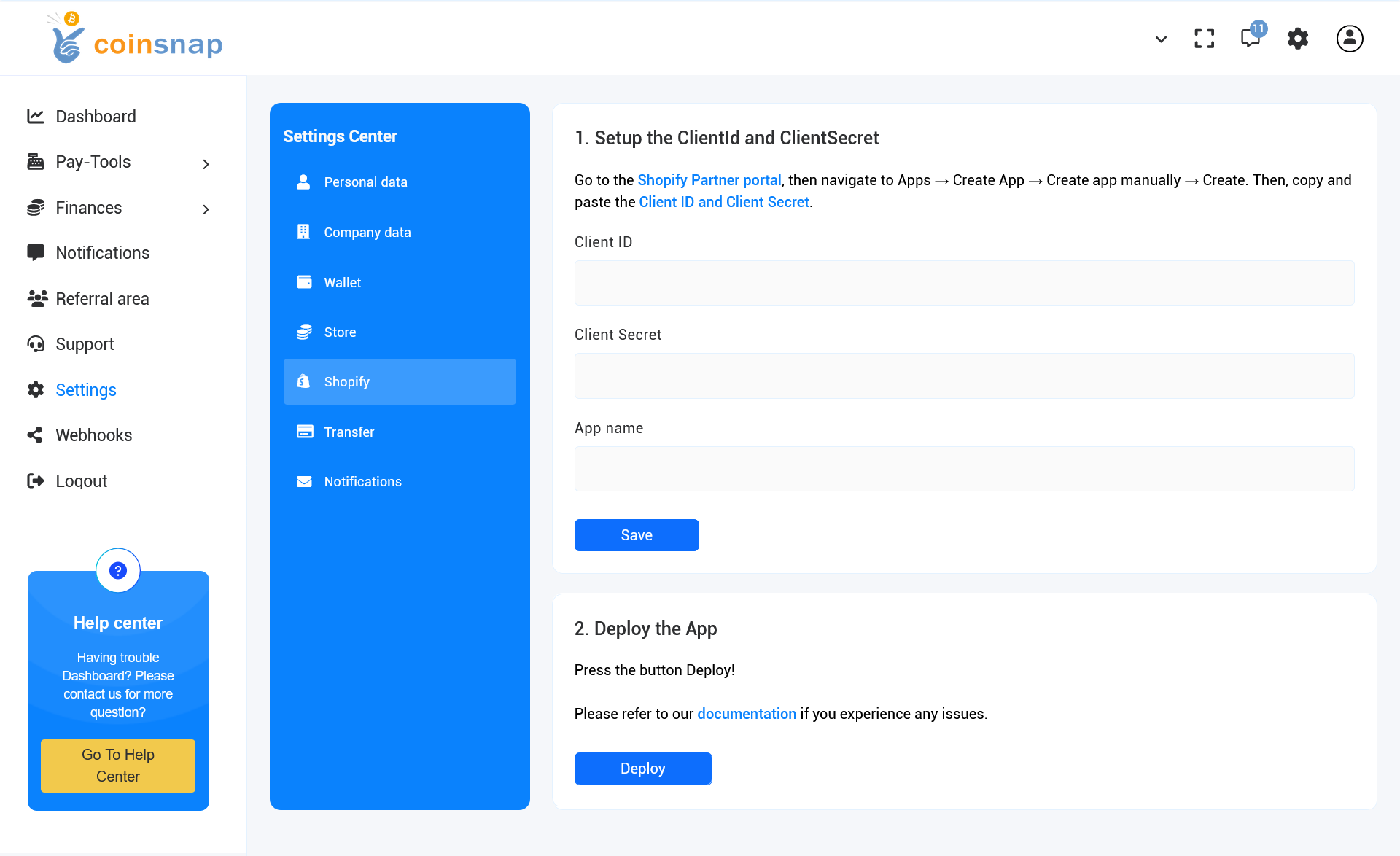
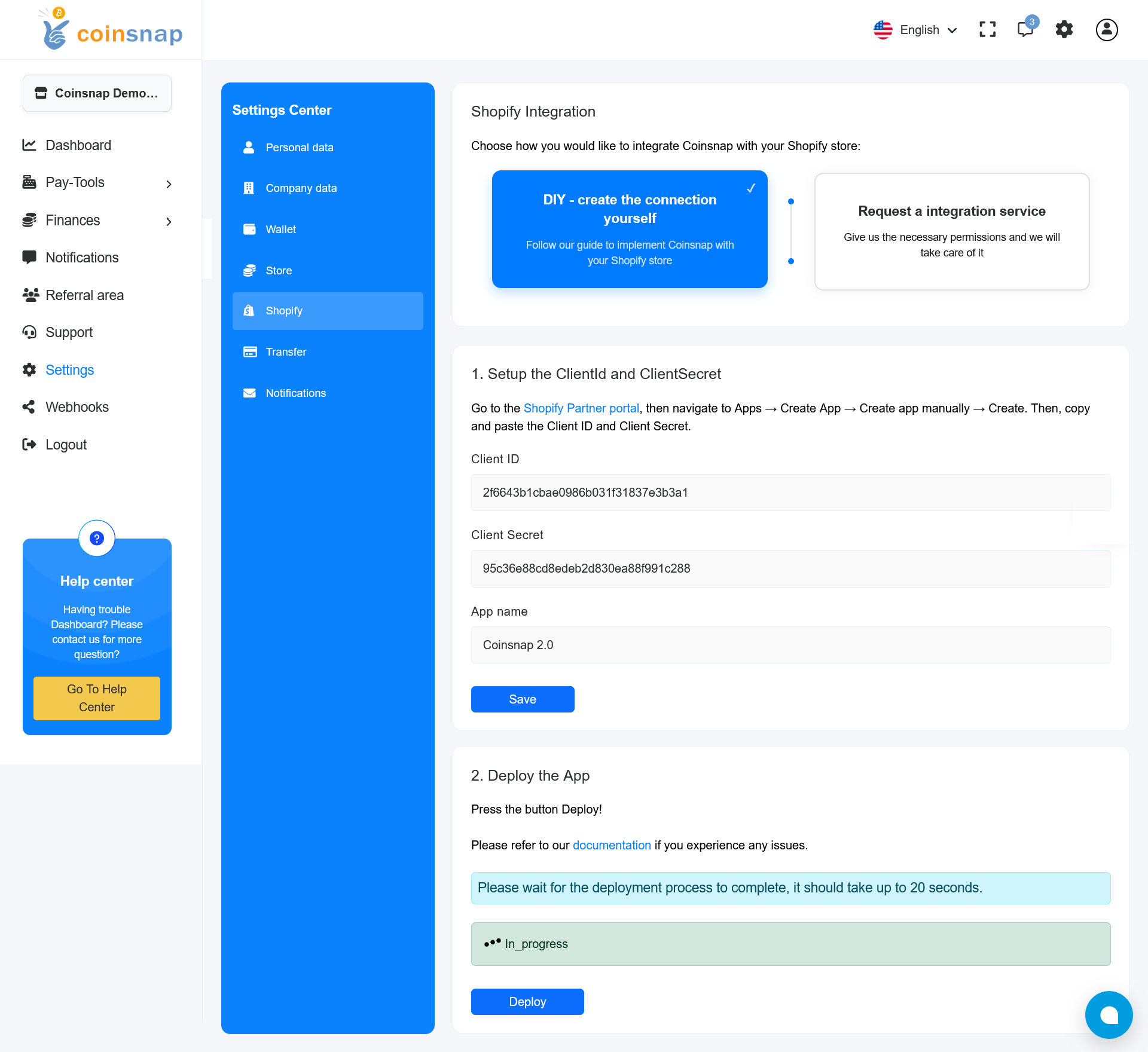
Follow deployment status changes on light-green bar over Deploy button.
2.4. System will ask you to Shopify Authorization. Click the button Open Shopify authorization
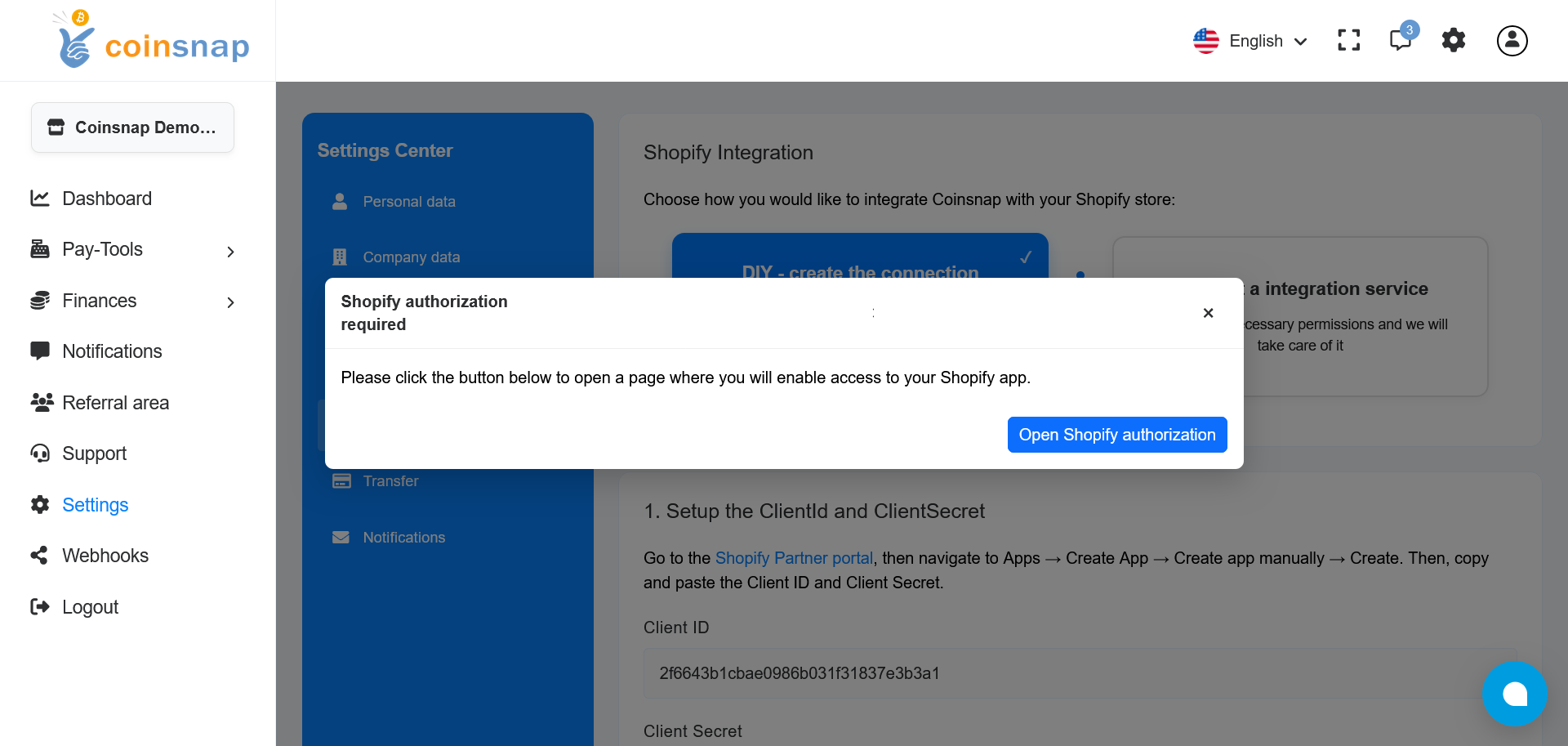
After clicking button a new tab will open and Shopify will ask you to enter in your Shopify account.
2.5. Shopify will ask you to confirm login on Coinsnap App, please click Confirm and log-in button.
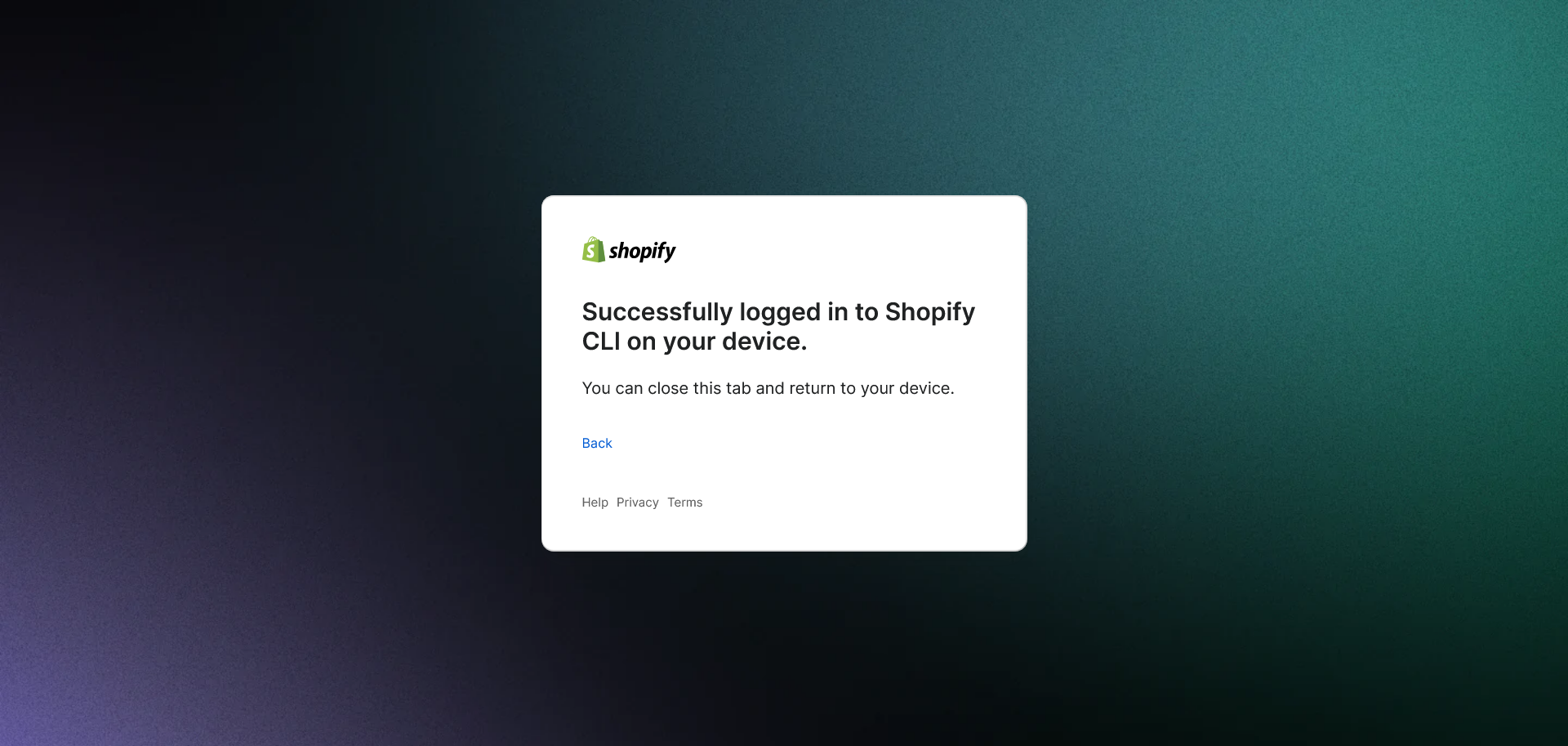
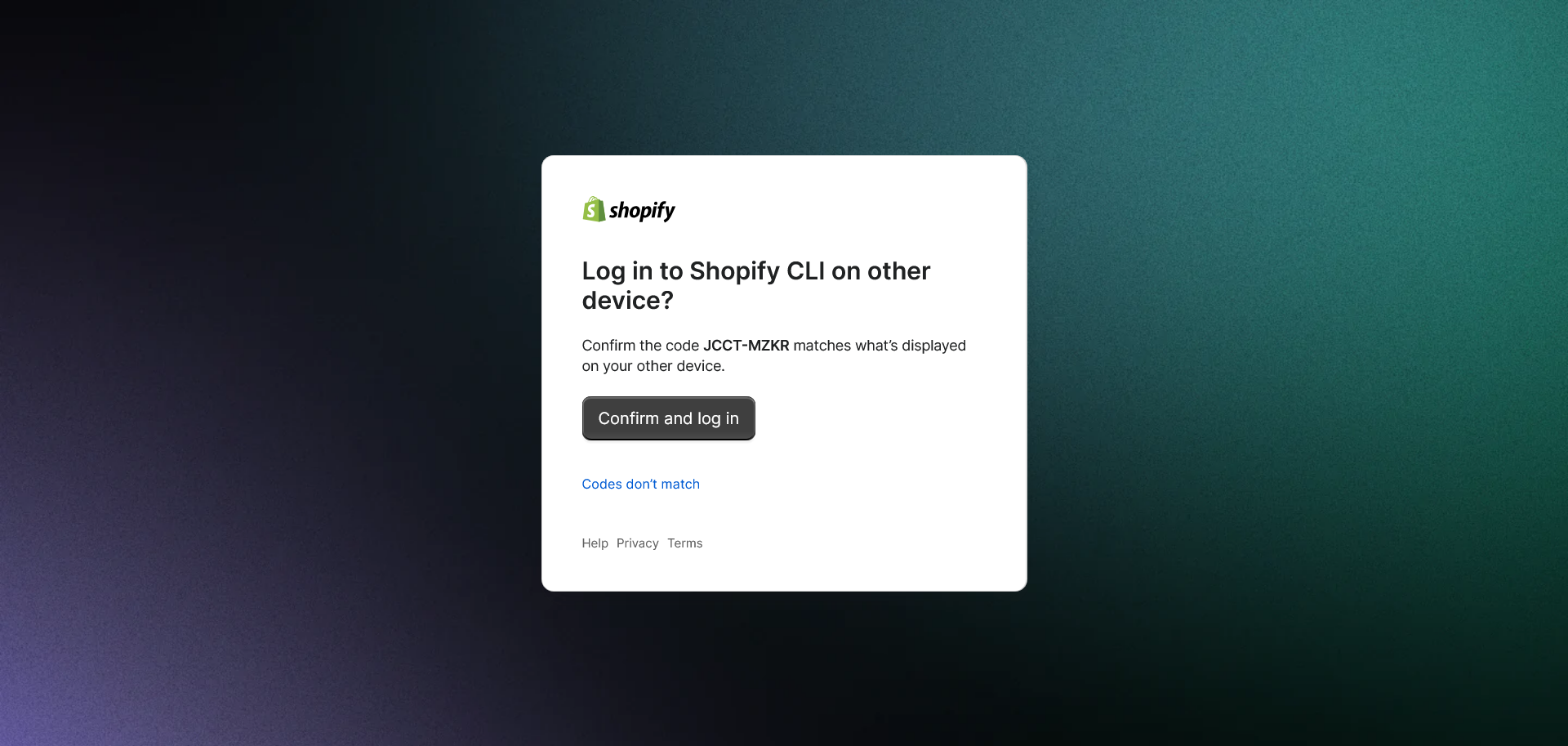 2.6. You will see message that you successfully logged in to Shopify CLI on Coinsnap App. You can close current tab.
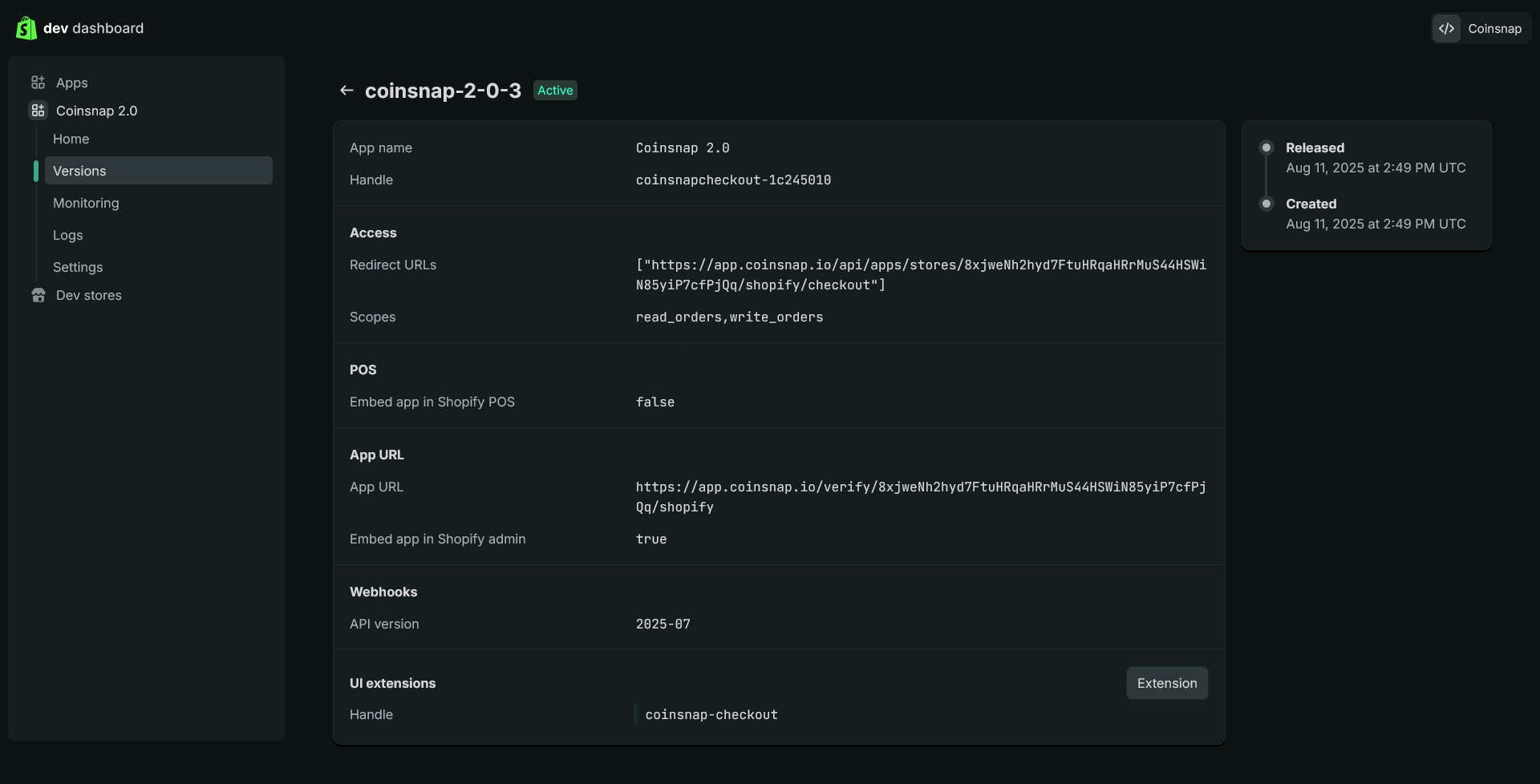
 2.7. You can open App’s page on Shopify dev portal to check successful deployment. You will see new App’s version as result of deployment:
 After your successful login in to Shopify CLI on Coinsnap App deployment process is completed:
Step 4
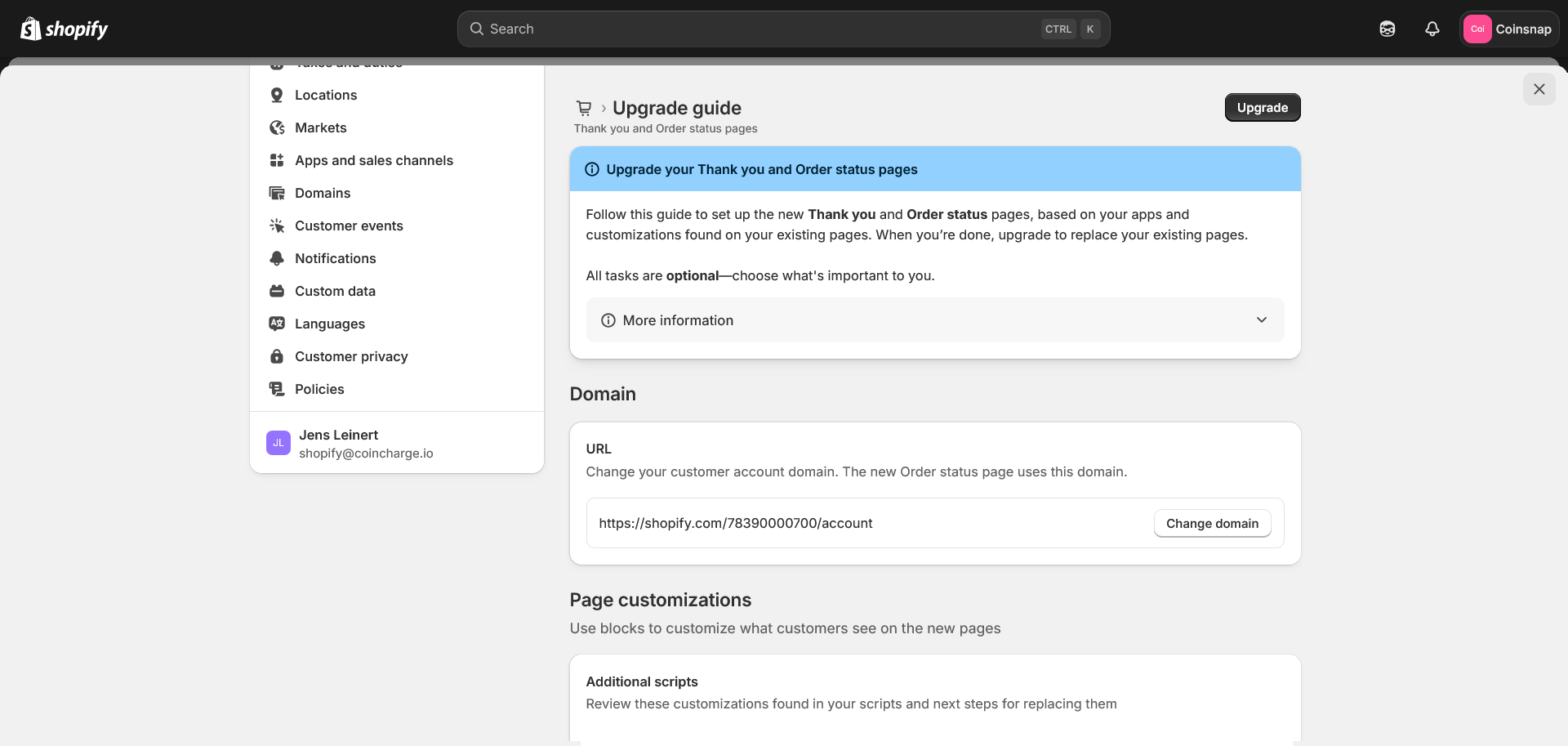
If you had previously installed Coinsnap App 1.0 in your Shopify store and you still have not upgraded your Shopify Checkout, please updrade it. Go to Settings → Checkout , open Upgrade guide and click Upgrade button.
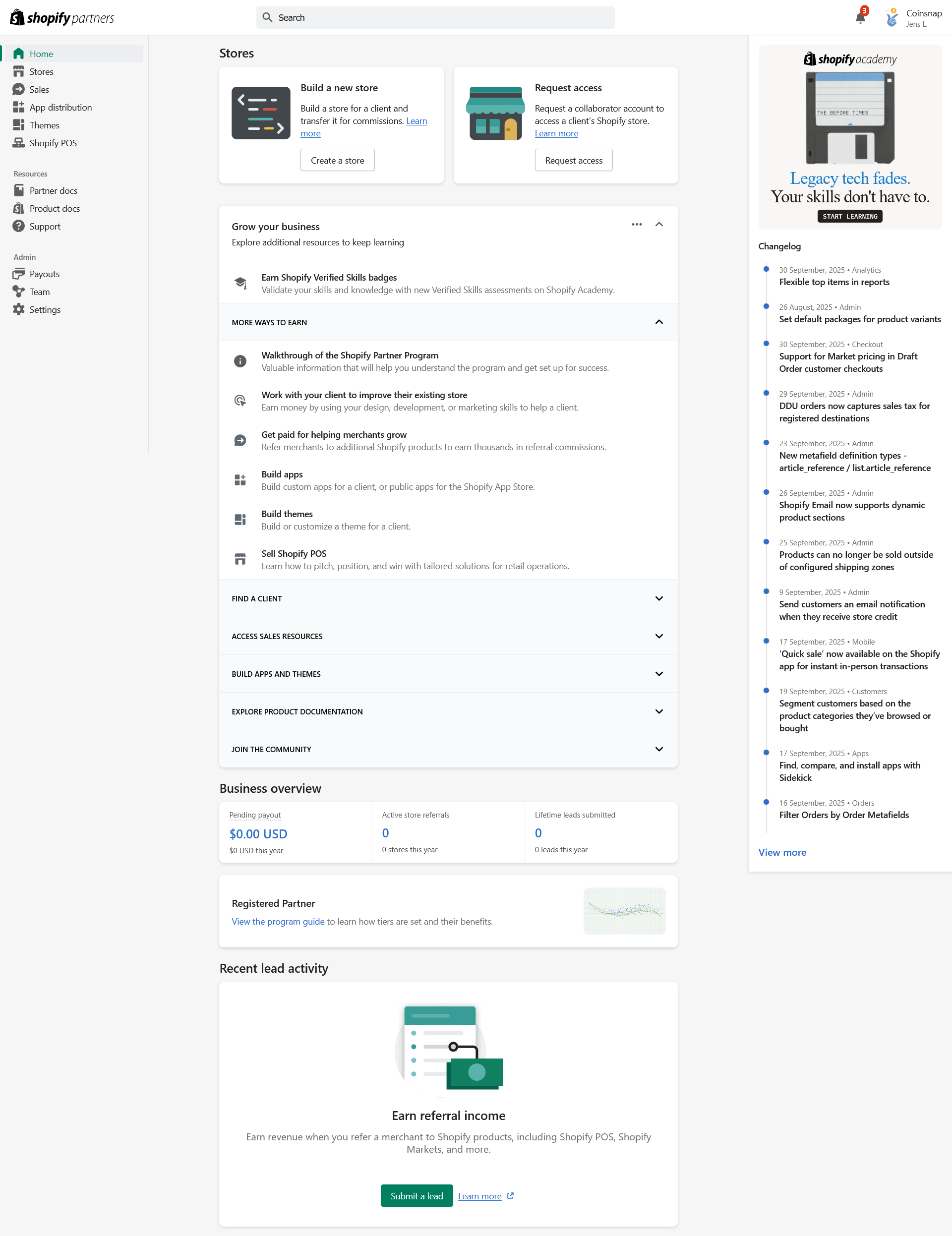
3.1. On Partner account go to App distribution, select the app you just created, click on Choose distribution
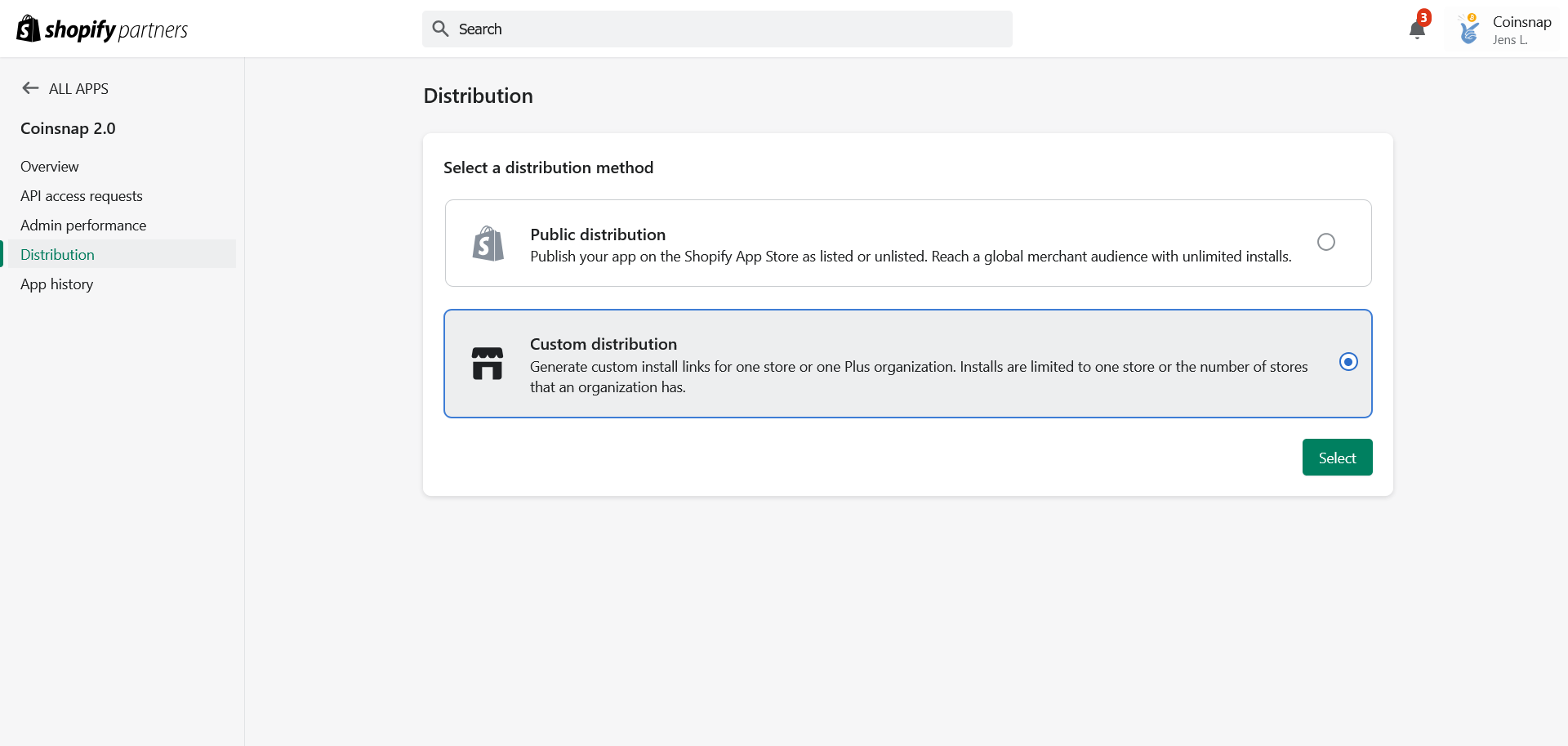
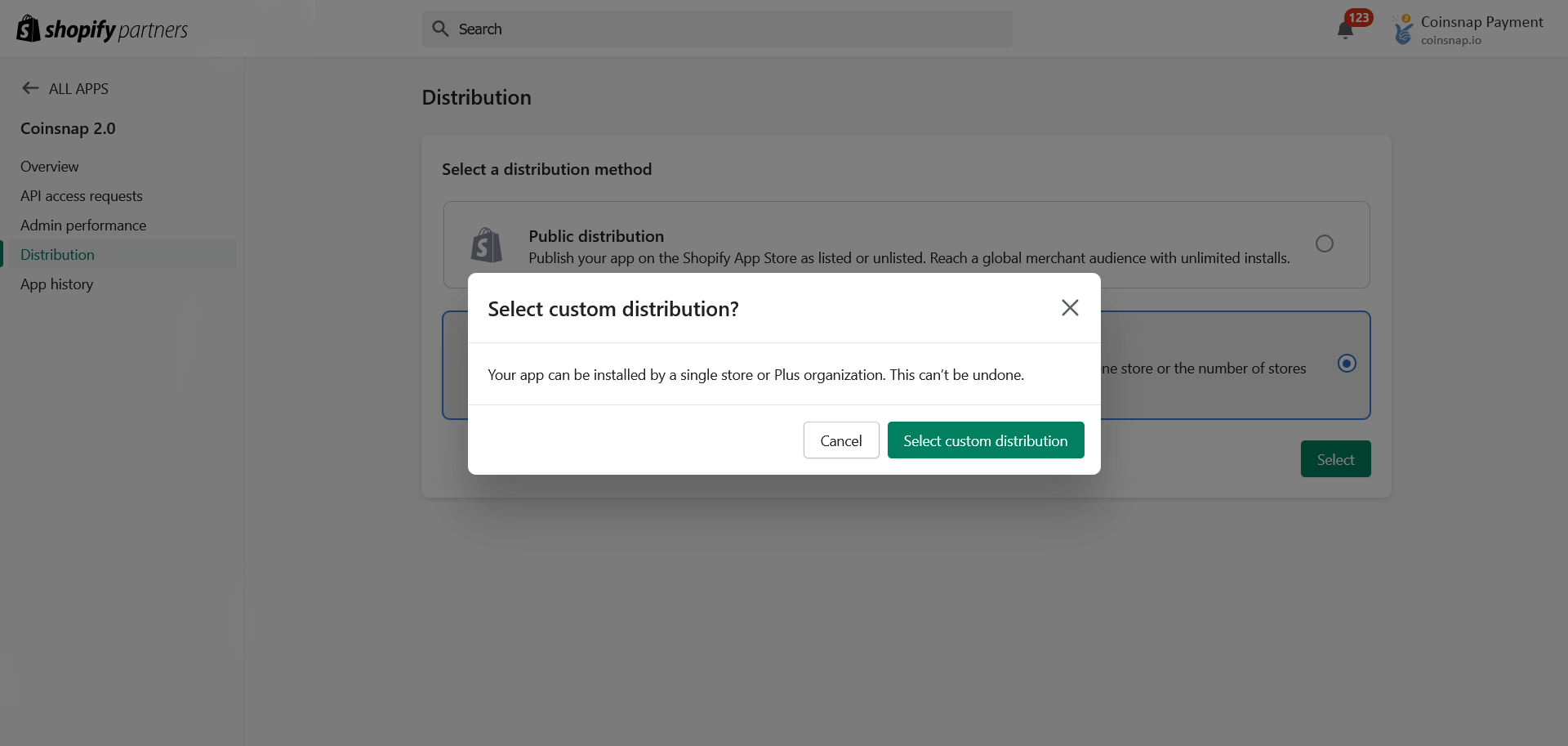
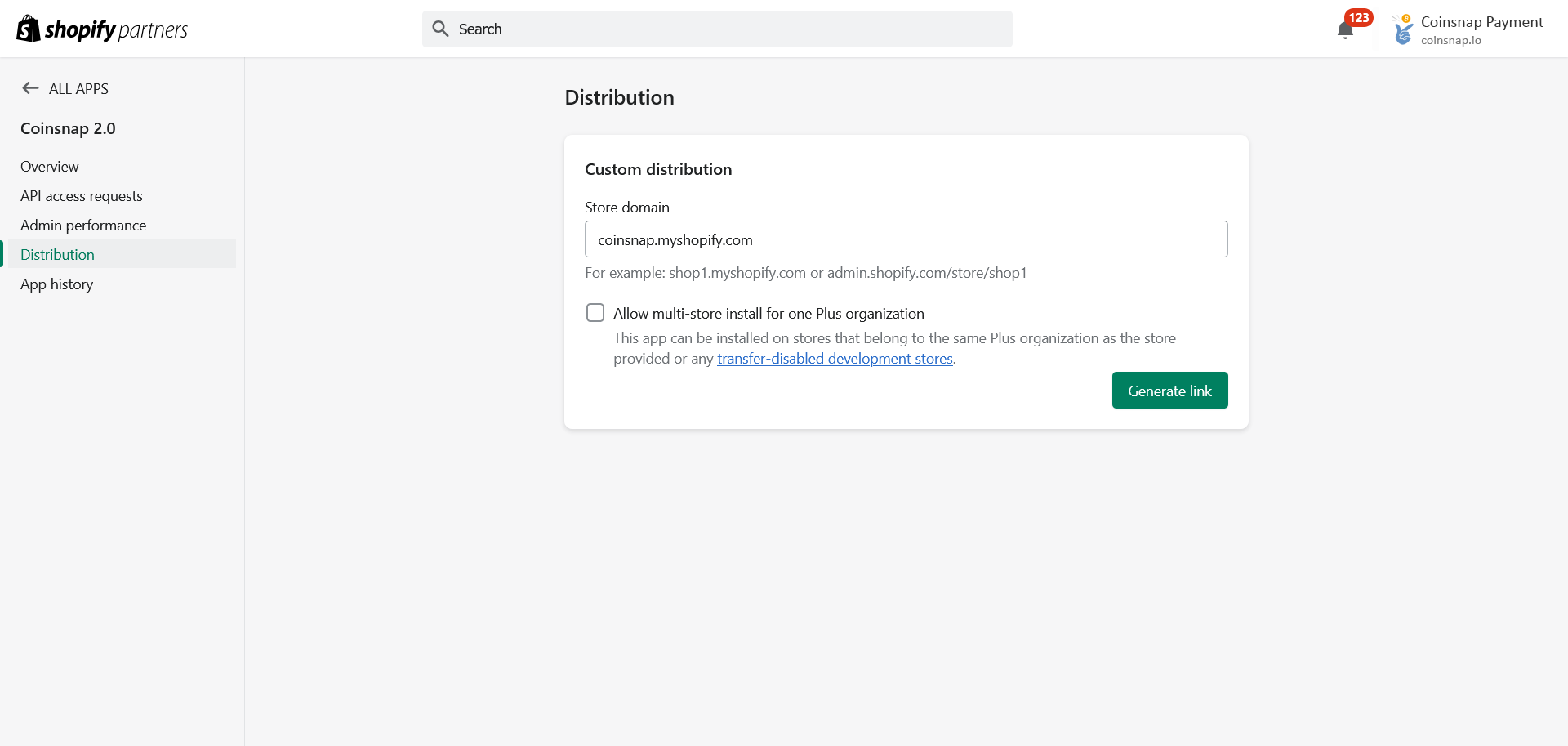
3.4. Enter the Shopify store URL that you want to link the application to. This is typically the internal store url you see when you are configuring the store.
Warning! Leave the checkbox Allow multi-store install unchecked!
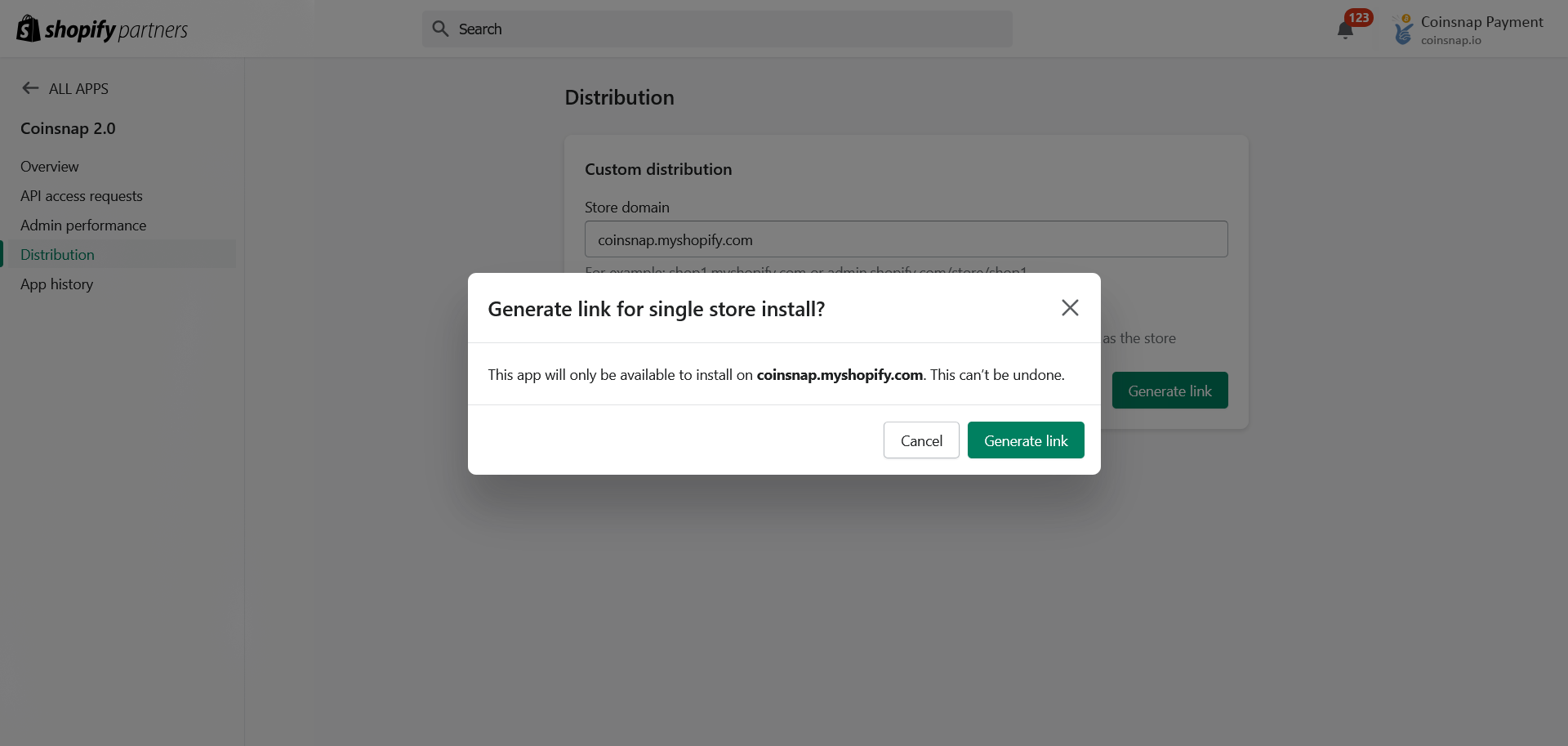
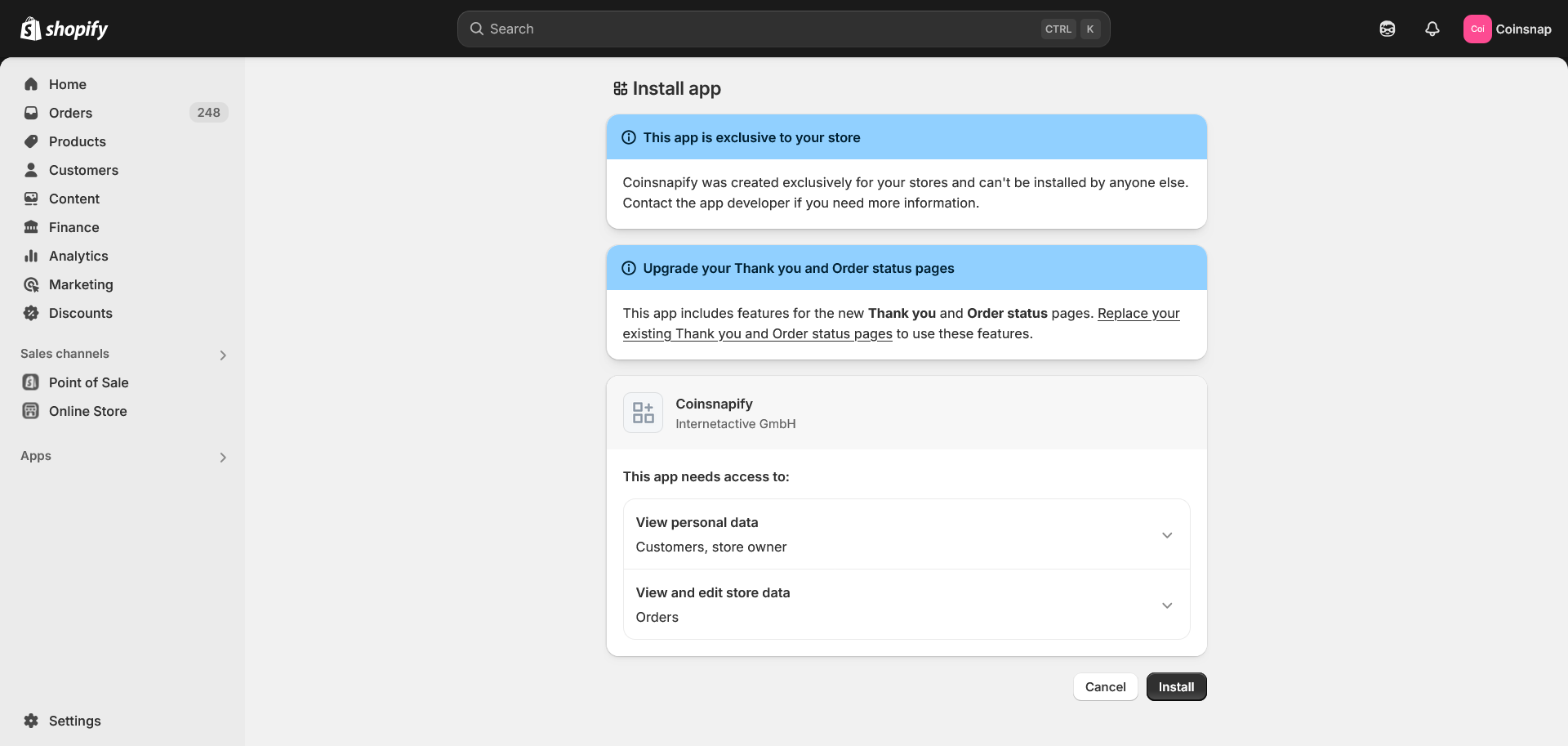
3.6. You will see your app listed and you can now install it by clicking on Install (if you are not logged in you need to log in first).
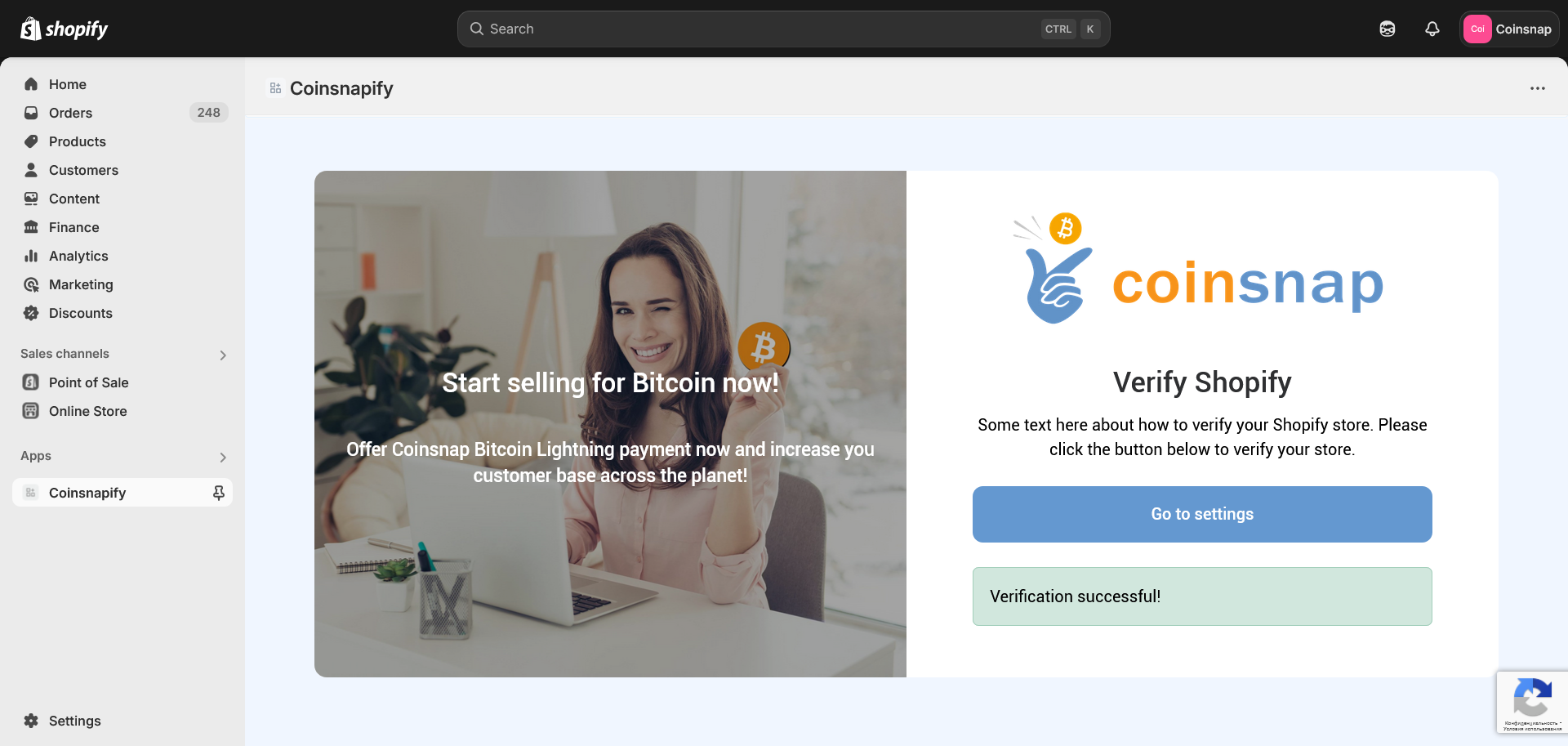
Step 5
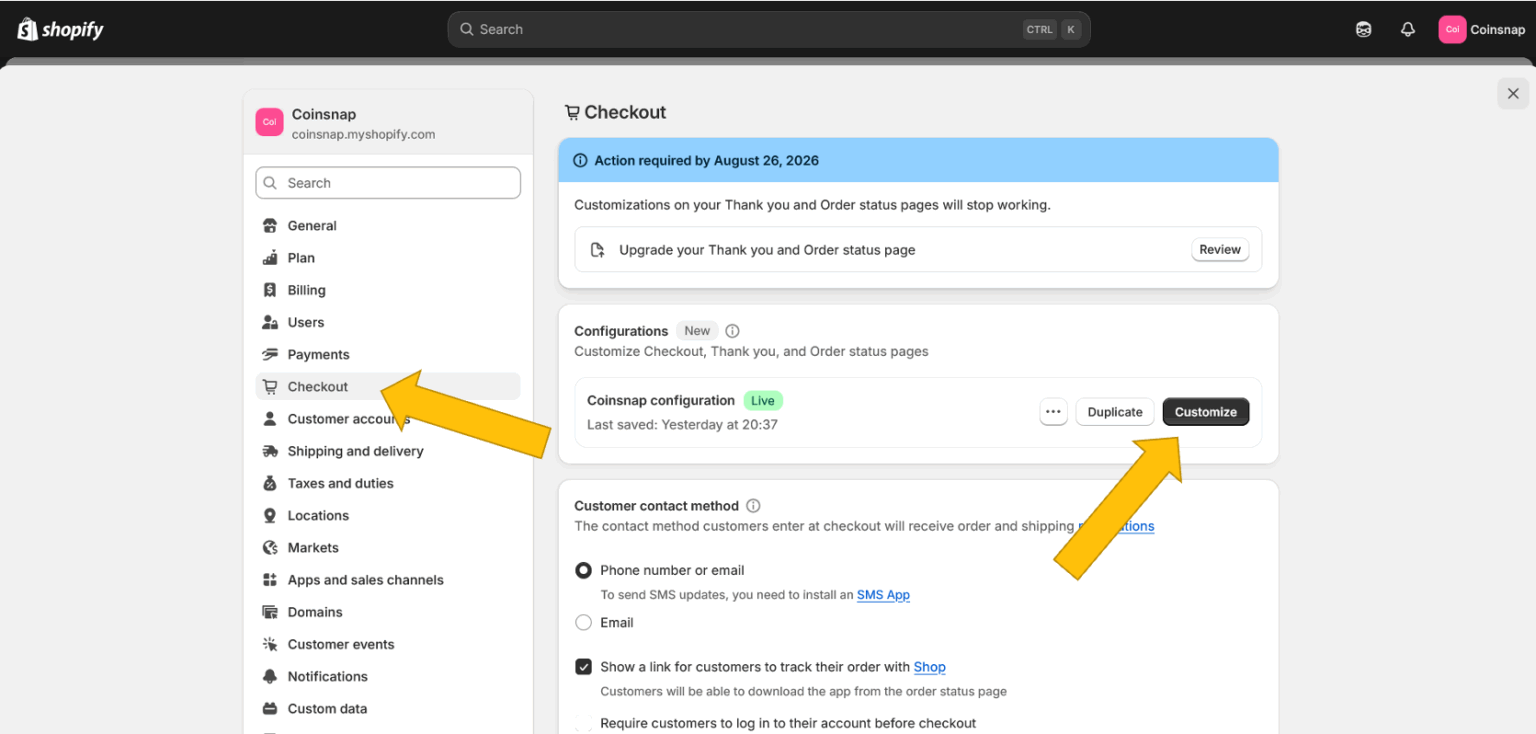
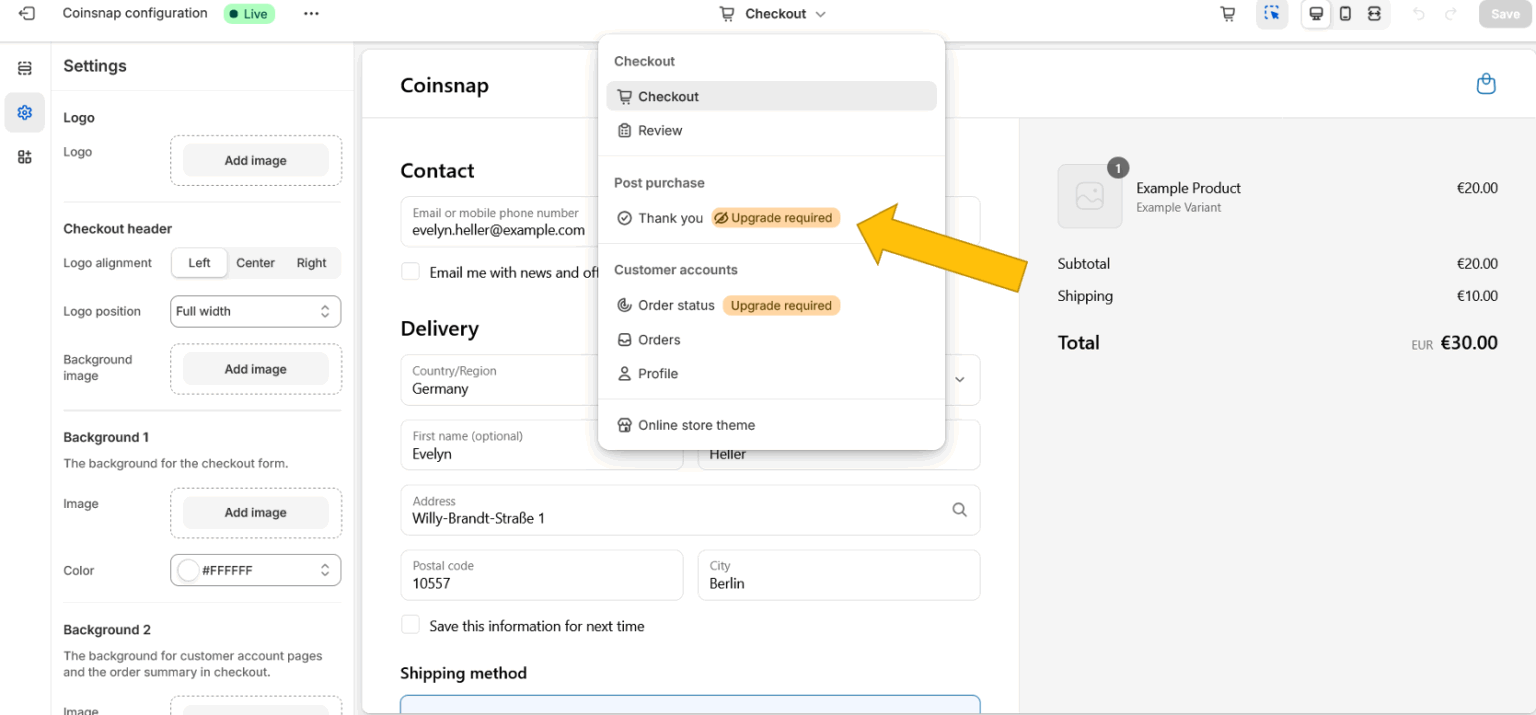
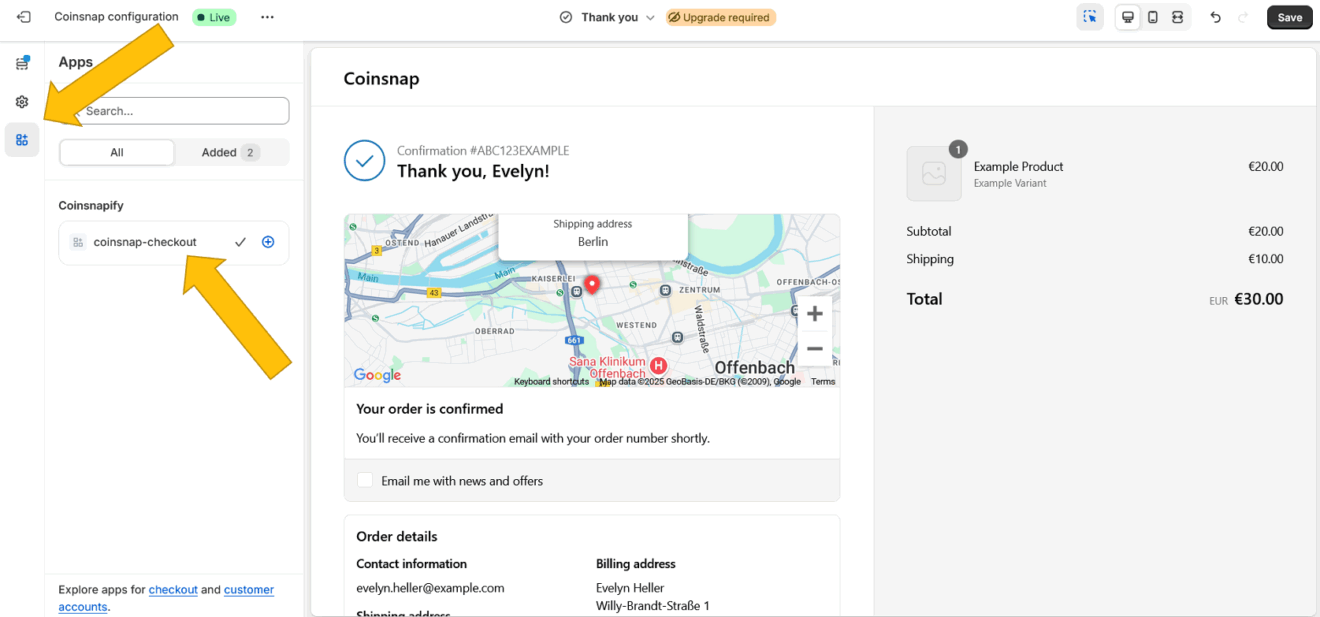
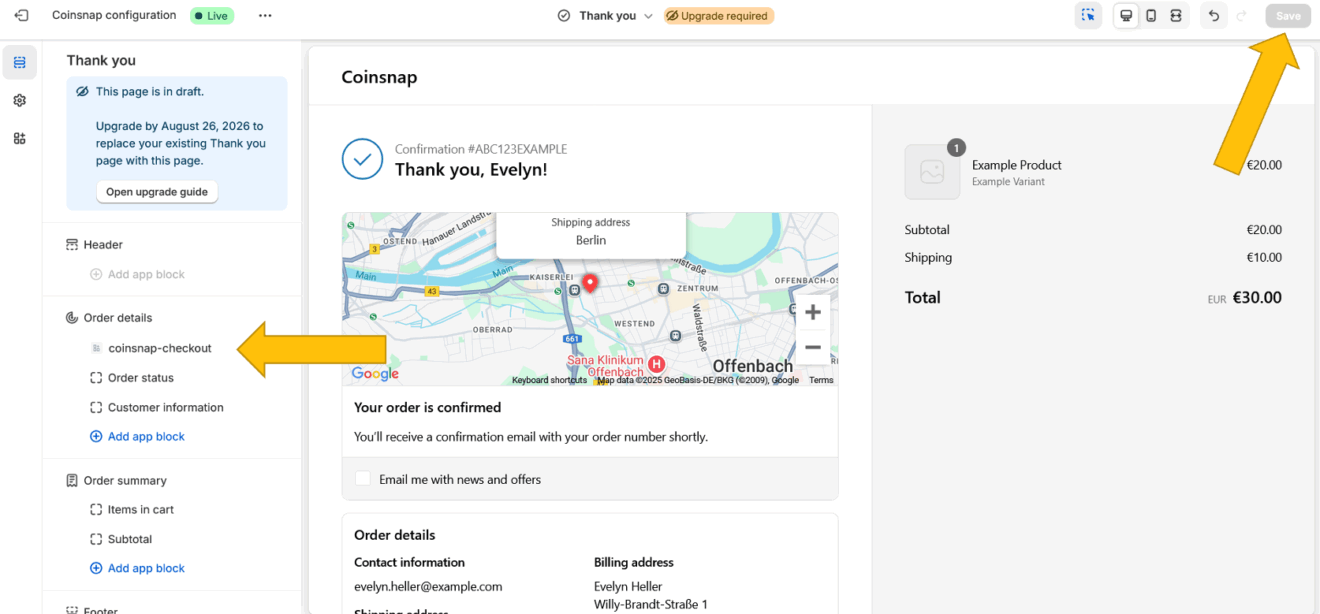
Important: Click Save in the top right corner.
To double-check all is working, click on the left arrow < next to the App name and verify that it is listed in the Order details section.
Step 6
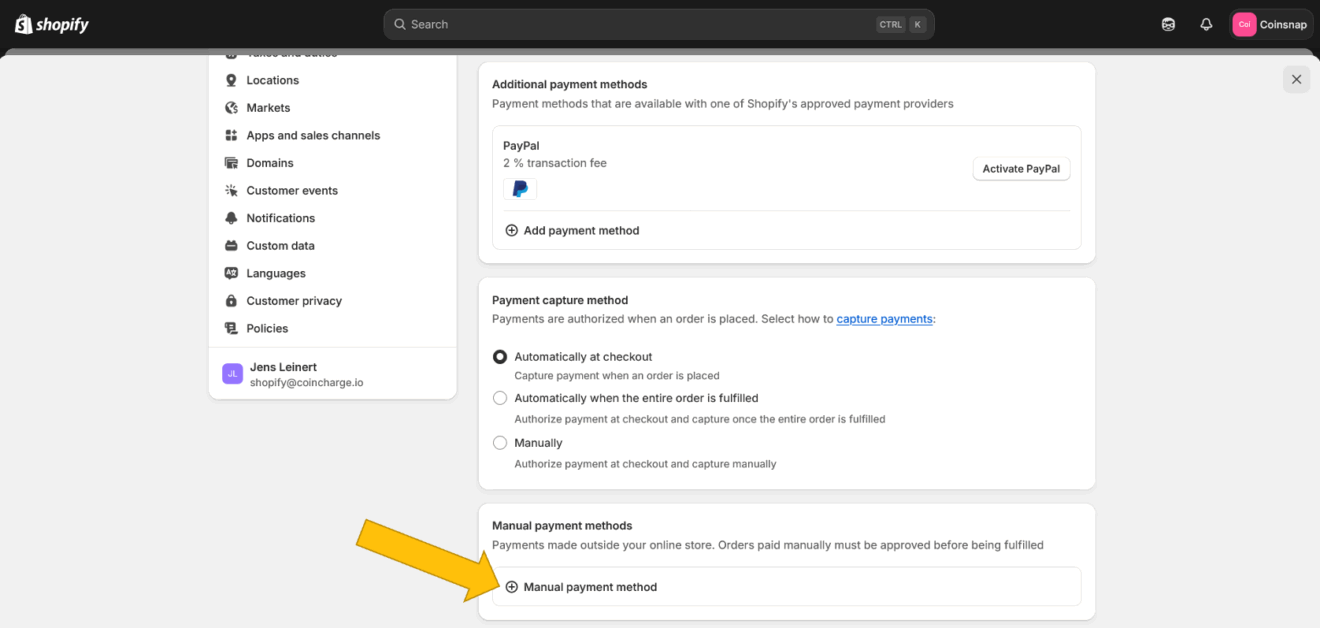
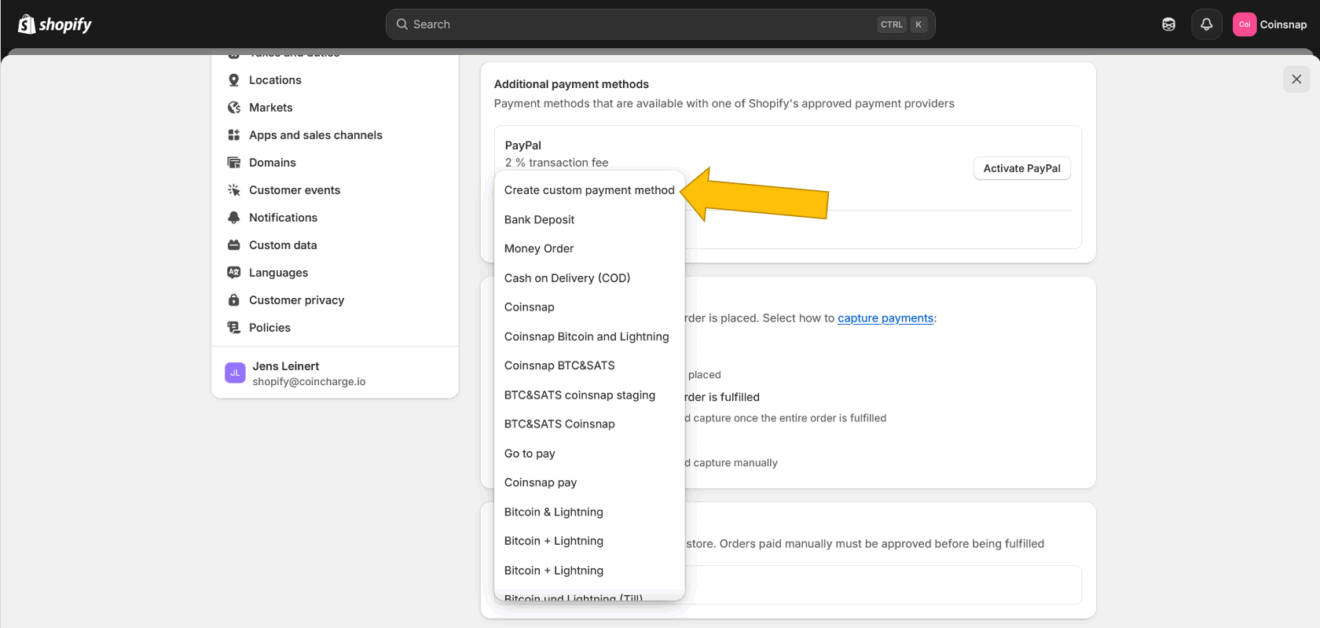
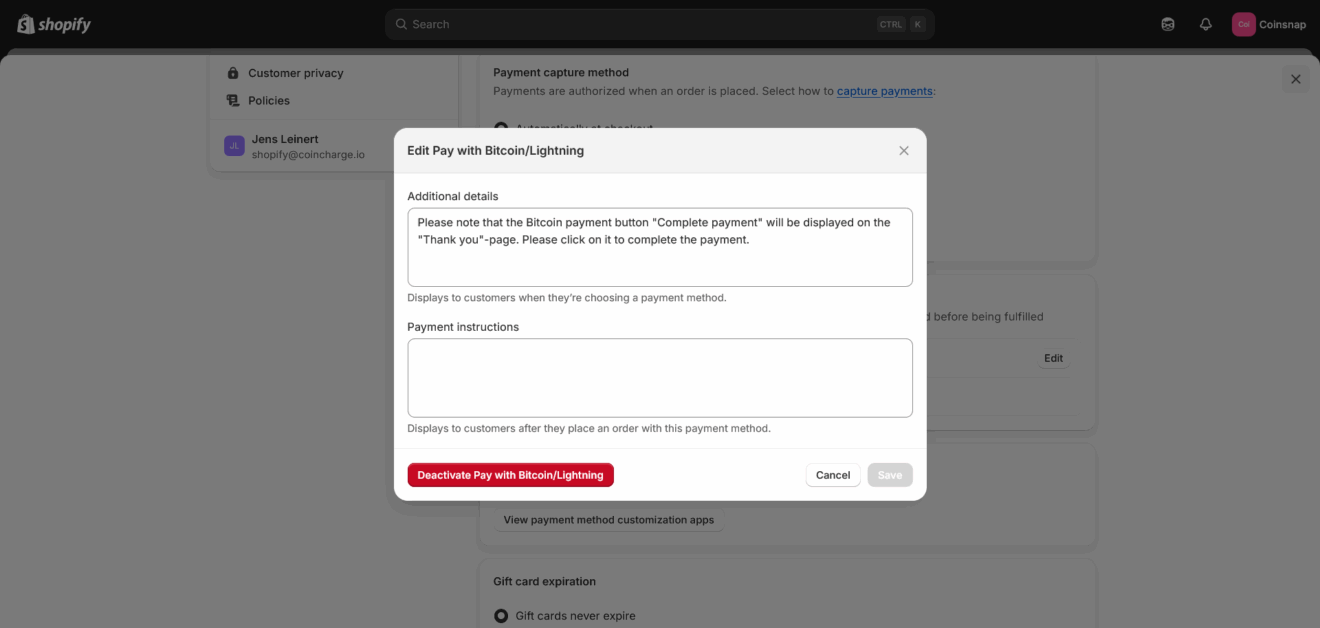
Step 7
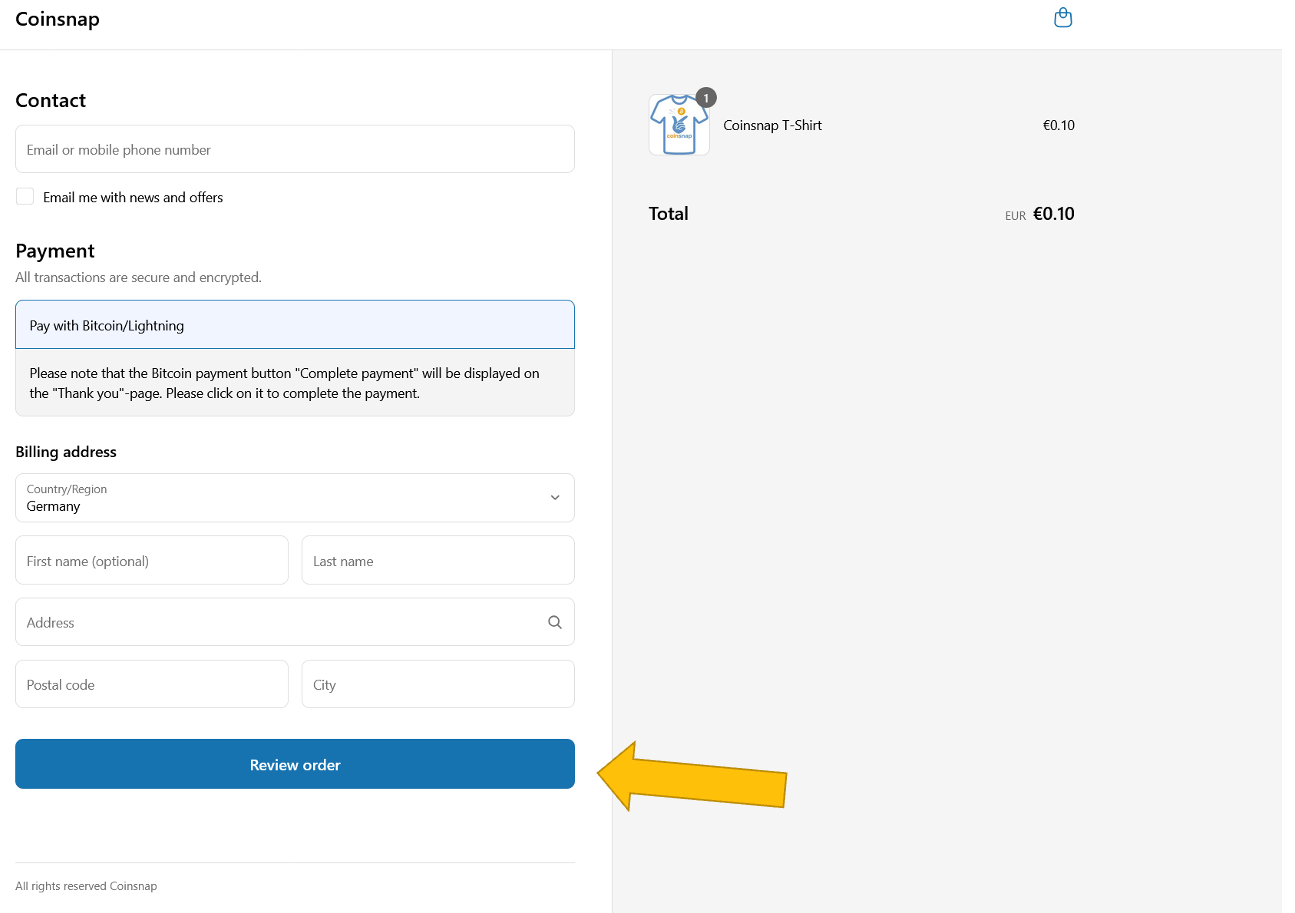
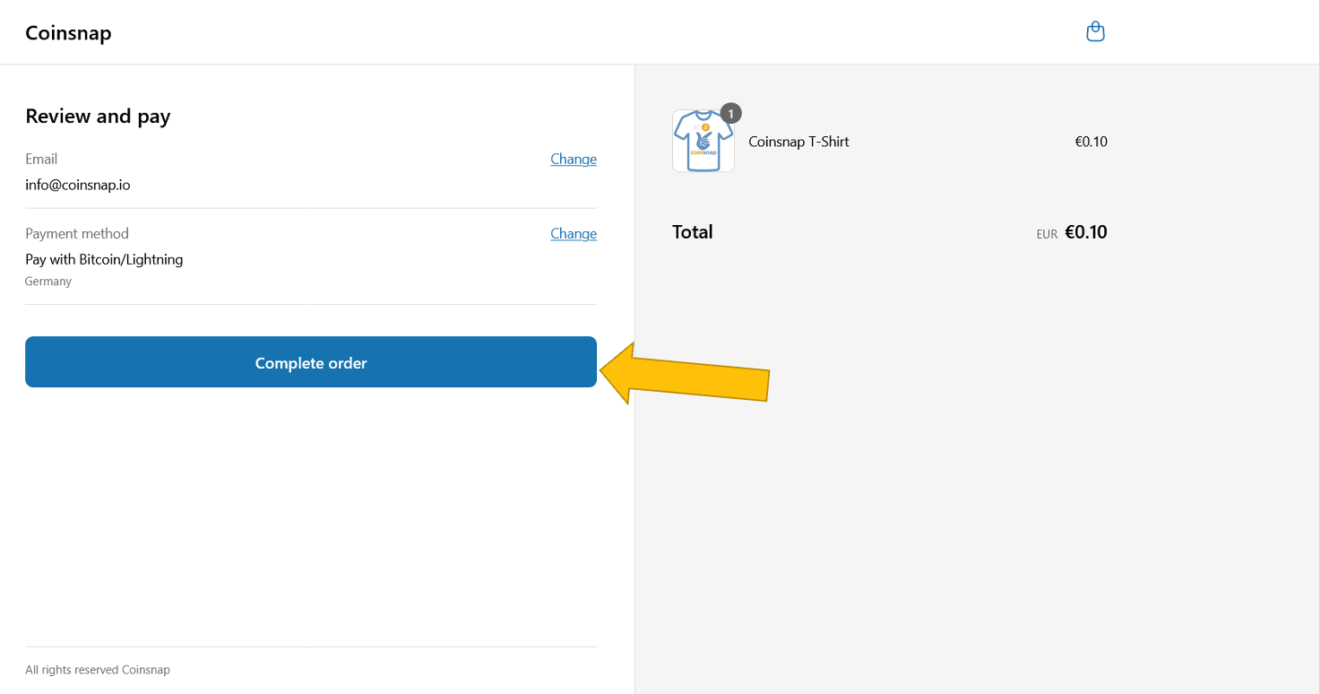
6.2. Check the order information under Review and pay and press the button Complete order
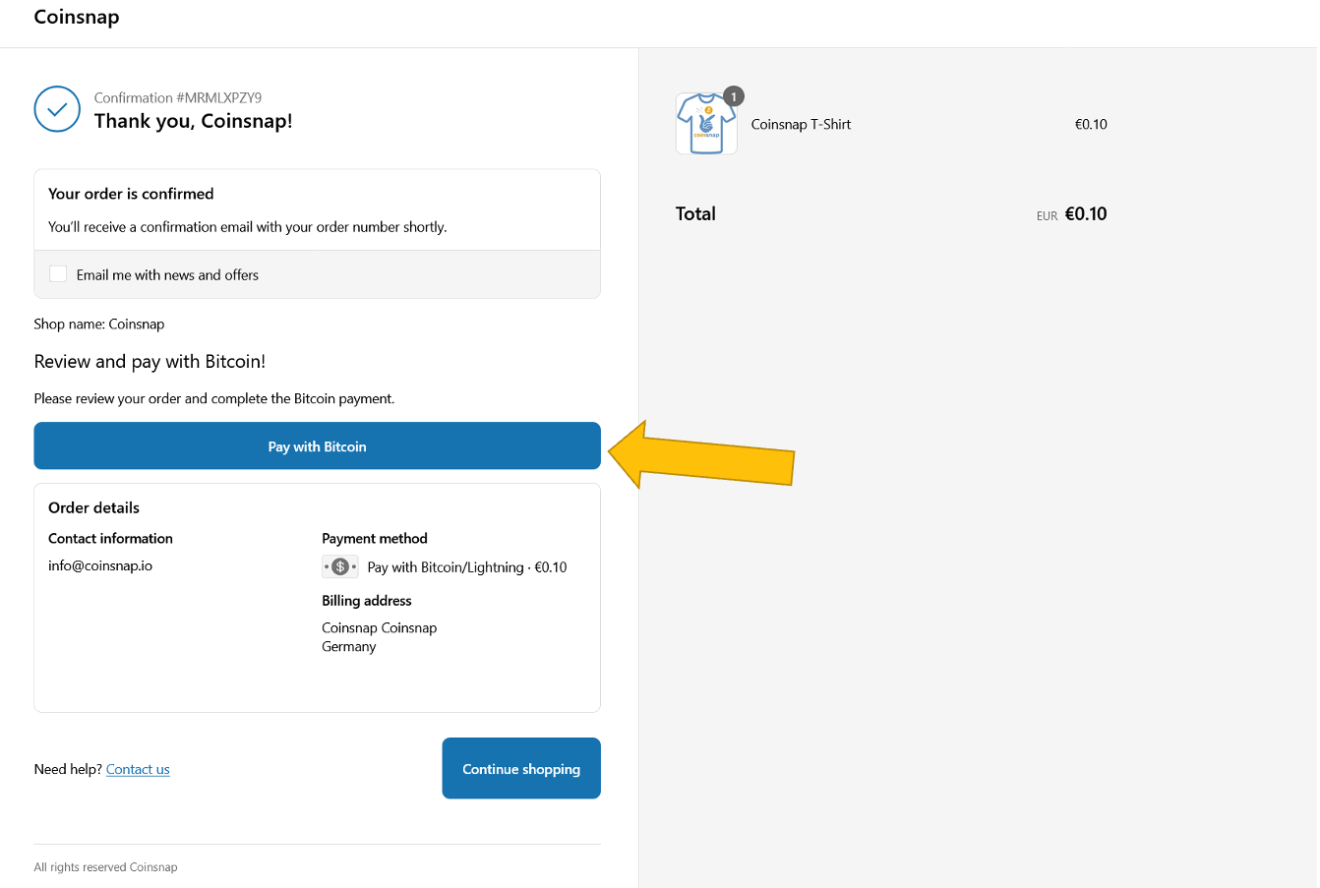
6.3. On the order confirmation page, press the Pay with Bitcoin button
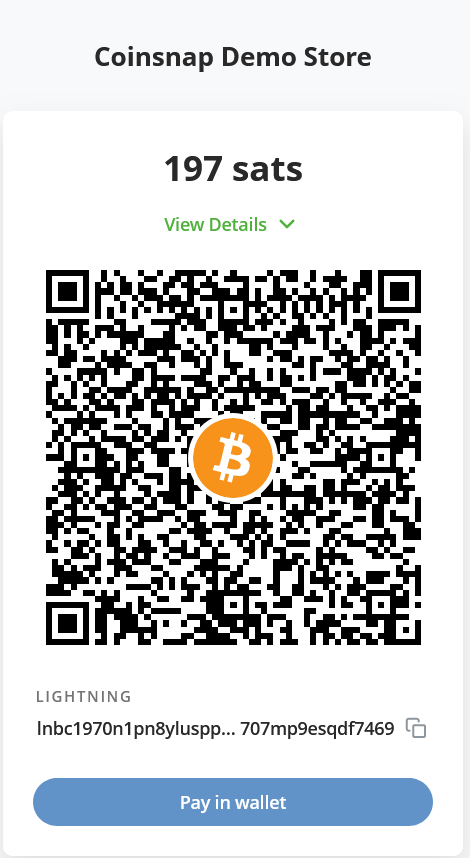
Now the QR-code for the Bitcoin Lightning payment will appear.
Scan this QR-code with your Bitcoin Lightning wallet, and authorize the payment. The payment will immediately be credited to the wallet you specified in your Coinsnap account.
So – now you have Bitcoin payment in your Shopify store!
Frequently Asked Questions
What Users Ask About This plugin
Does the Shopify plugin support on-chain Bitcoin?
Yes, but Lightning is recommended for speed.
Are chargebacks possible with Bitcoin?
No, Bitcoin payments are irreversible, which reduces fraud risk.
