
Coinsnap for Paid Memberships Pro Installation Guide
Learn how to use Coinsnap as a payment gateway for Paid Memberships Pro so members can join your site using Bitcoin and Lightning payments.
Accept Bitcoin & Lightning for membership subscriptions.



Step 1
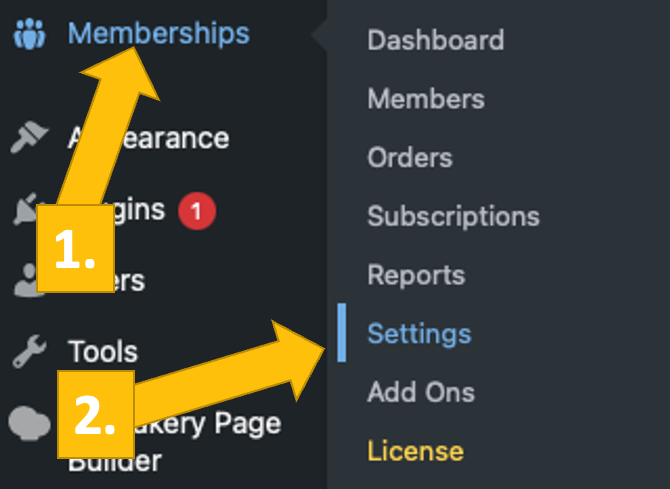
After you have installed and activated the Coinsnap for PMPro plugin, you need to configure the Coinsnap settings. Go to Memberships [1] in the black sidebar on the left. Then go to Settings [2].
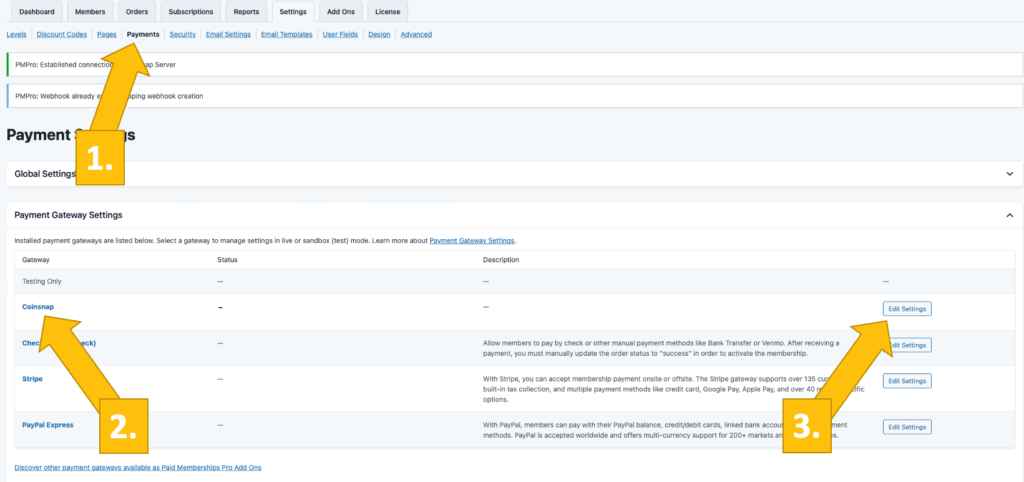
Next, in the settings window, choose the Payments tab [1].
You will then see the Payment Gateway Settings below. Choose Coinsnap [2] and click on Edit Settings [3].
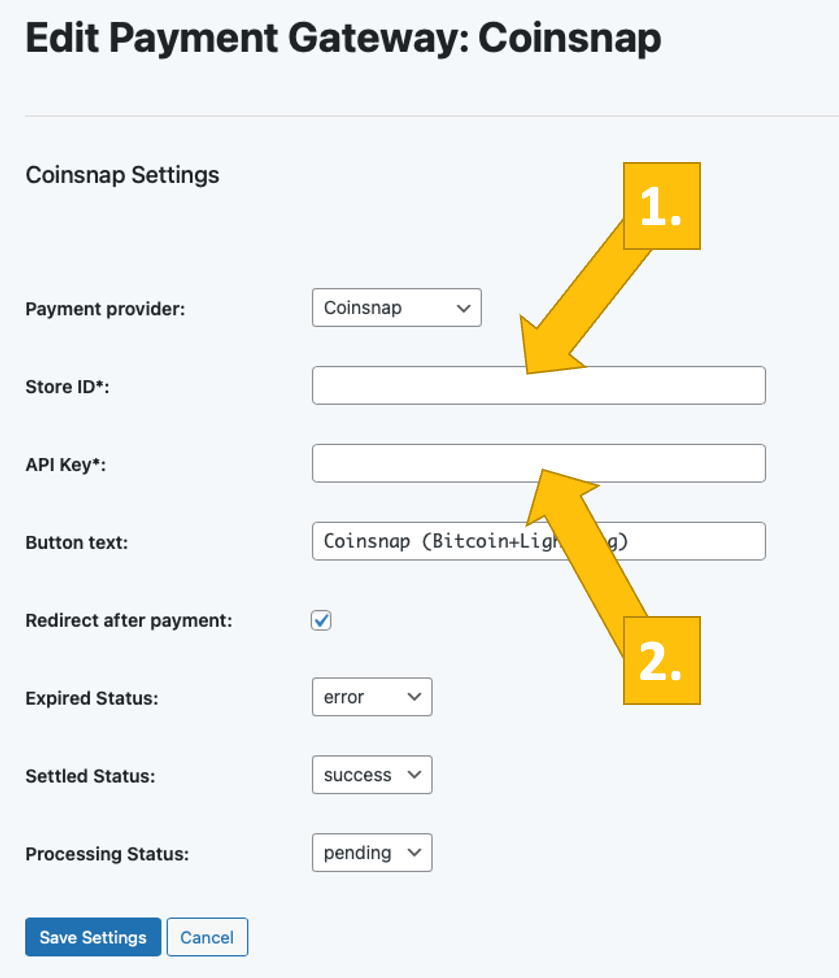
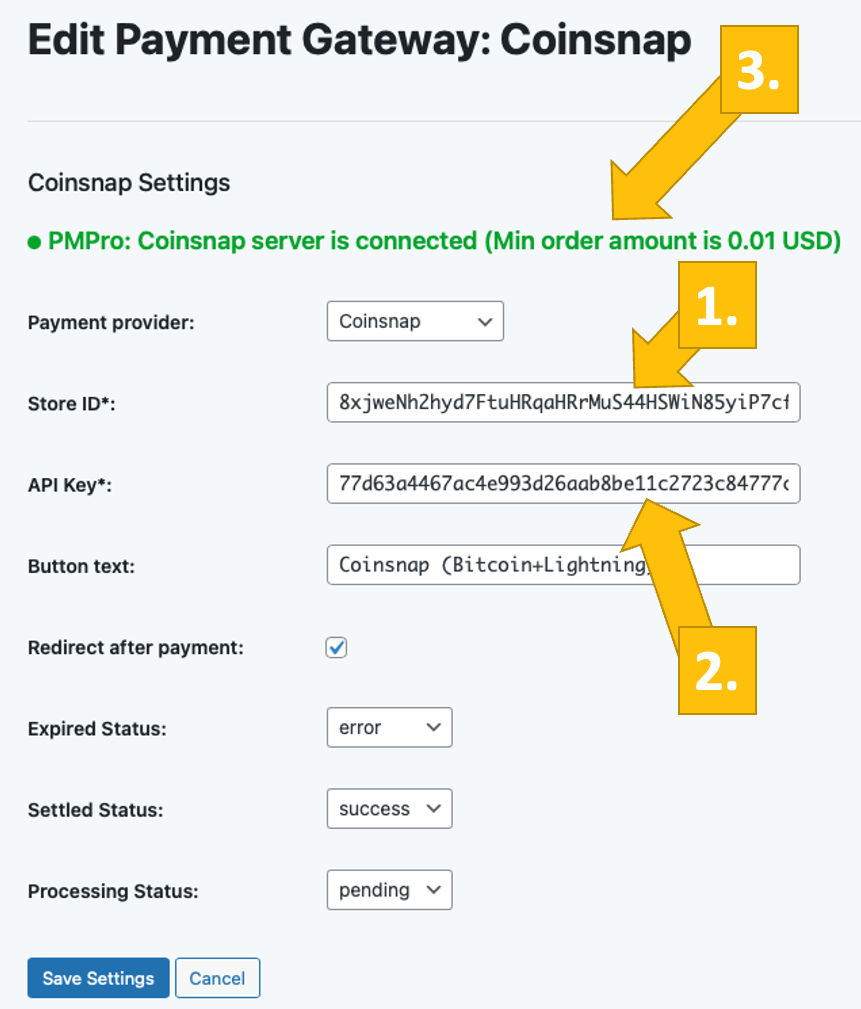
Now you have to enter your Coinsnap Store ID [1] and the API Key [2].
We’ll show you now where to find these keys.
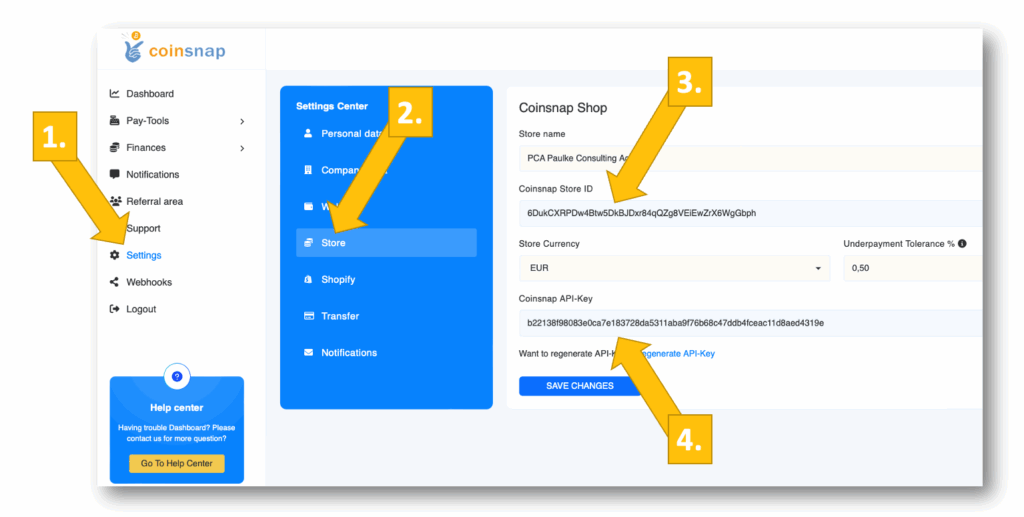
To retrieve the Store ID and the API Key you need to log into your Coinsnap account.
Then click on Settings [1], Store [2] and copy the Store ID [3] and the API Key [4].
Now just paste the Store ID [1] and the API Key [2] in the Easy Digital Download plugin settings, and click Save Settings on the bottom of the screen.
Now you will see the green message that your Easy Digital Downloads plugin is now connected with the Coinsnap payment gateway [3]!
You are now ready to receive Bitcoin Lightning payments with PMPro via Coinsnap. All payments will be directly credited to your Lightning wallet.
If you want to use your own BTCPay Server rather than Coinsnap, we show you in the next paragraph how to connect your BTCPay server with PMPro via the Coinsnap for Paid Memberships Pro plugin:
Step 2
If you run your own BTCPay Server, with our Coinsnap add-on you have the easiest way to use it with PMPro to accept Bitcoin on your WordPress website. Thanks to the Coinsnap BTCPay Server Wizard it is absolutely simple to get this done:
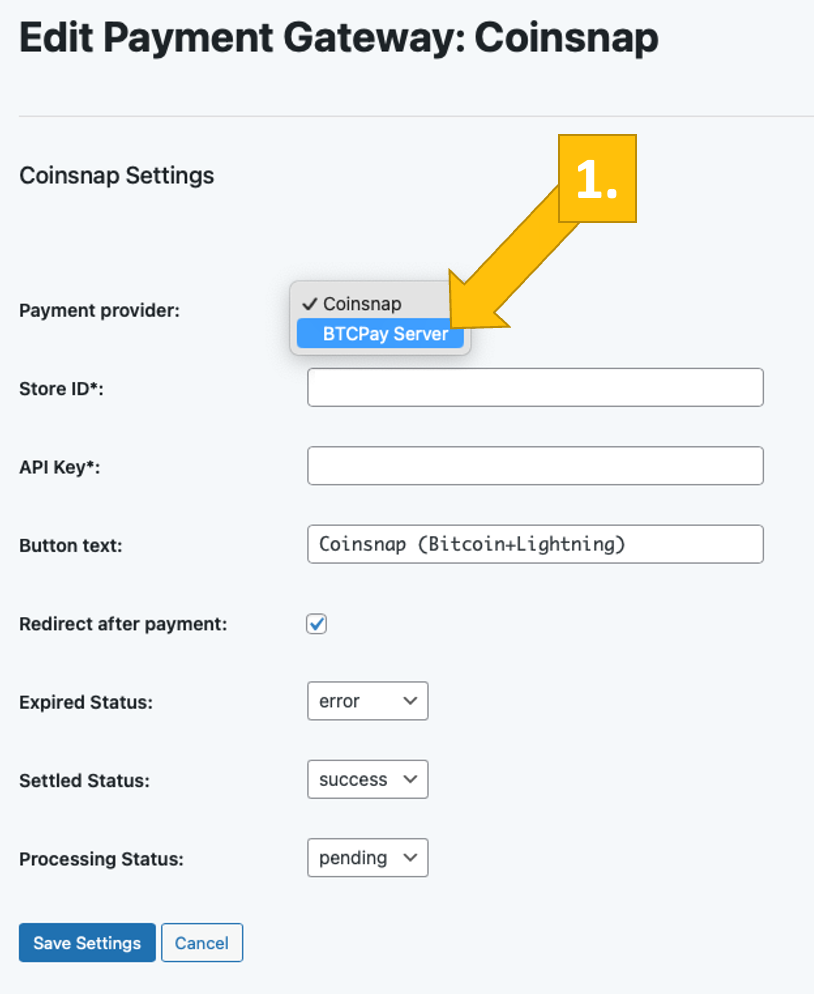
First, in the Coinsnap settings tab of your PMPro plugin choose BTCPay Server as your preferred payment gateway [1].
Now, log into your BTCPay Server.
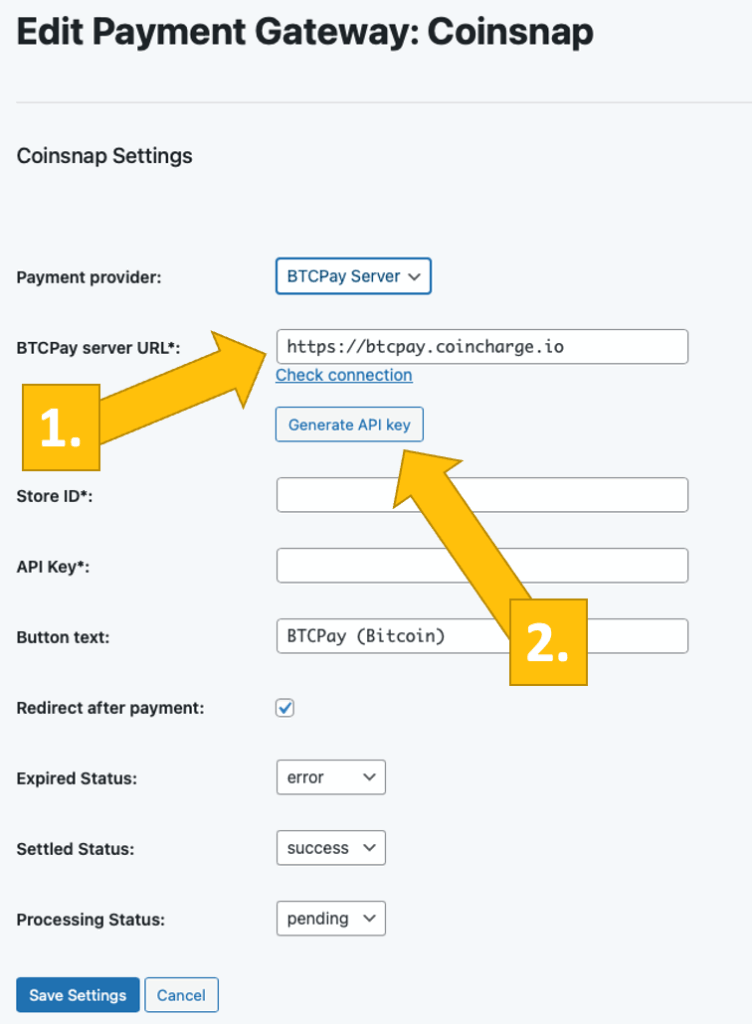
As soon as you’ve done that, enter your BTCPay Server URL [1] in the Coinsnap settings in PMPro.
Then, click on Generate API Key [2].
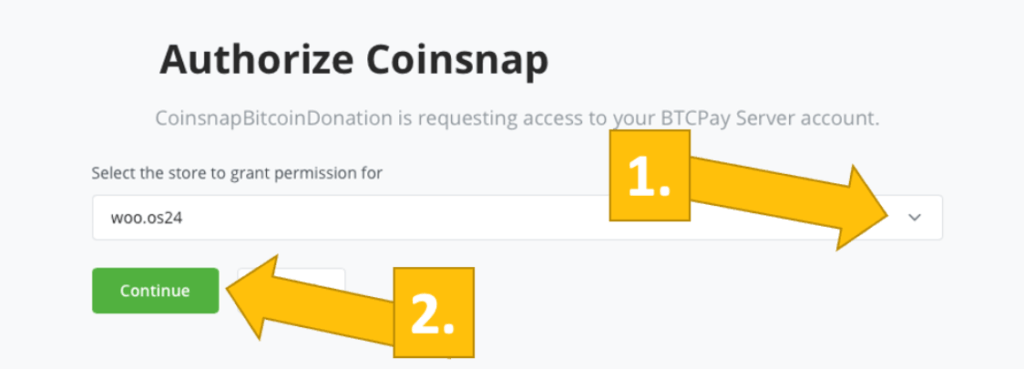
You will be forwarded to your BTCPay Server where you have to grant Coinsnap access to your BTCPay Server. Choose your Shop [1], then click on continue [2].
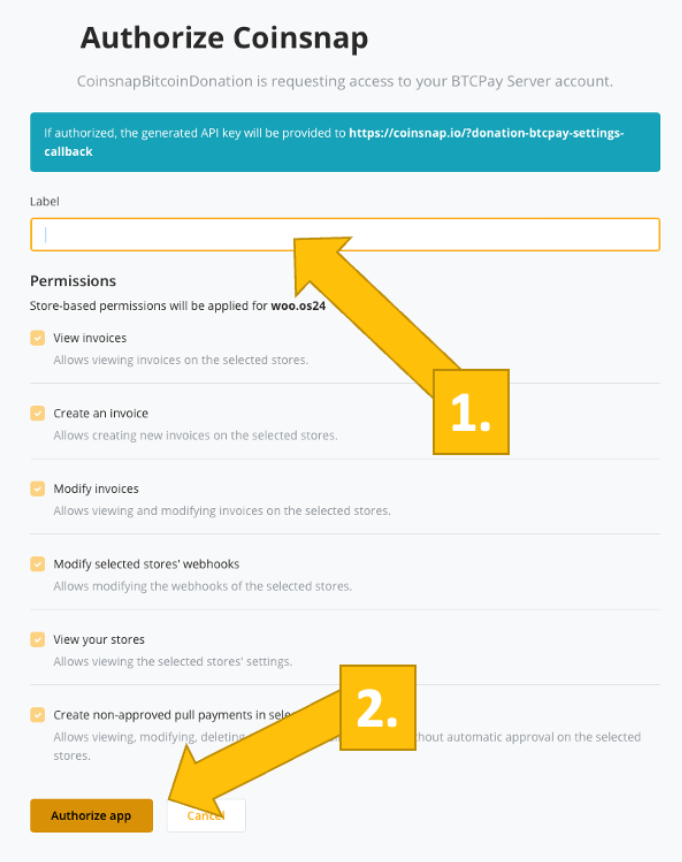
You’ll then get forwarded to this screen. Enter the name you want to your customers to see in the checkout process [1]. Just click on Authorize app [2].
And that is it:
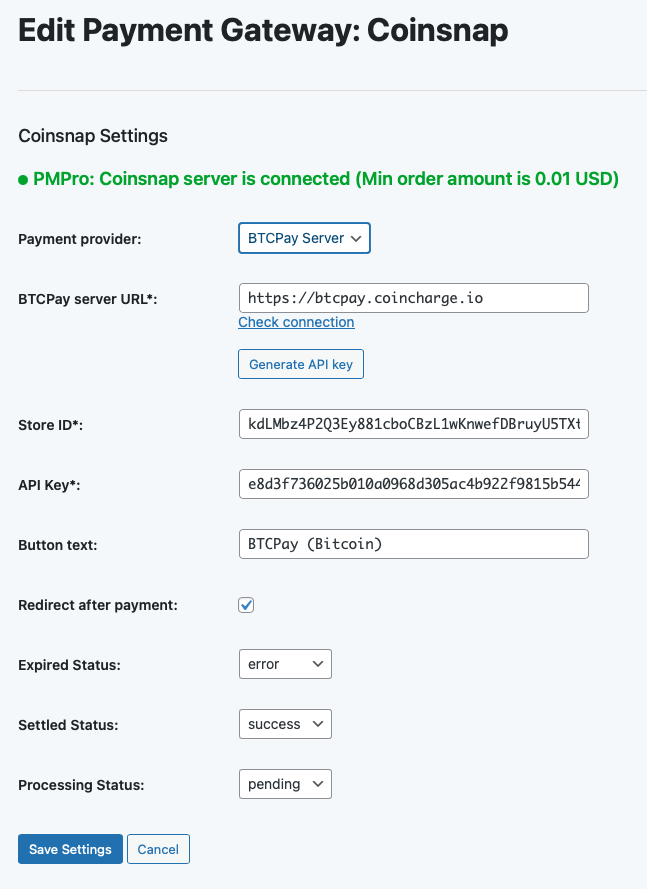
In about a minute you integrated your PMPro plugin with your BTCPay Server, thanks to the BTCPay Server wizard that’s integrated in the Coinsnap for Paid Memberships Pro plugin!
Step 3
To ensure everything works fine you should buy a membership on your website with Bitcoin.
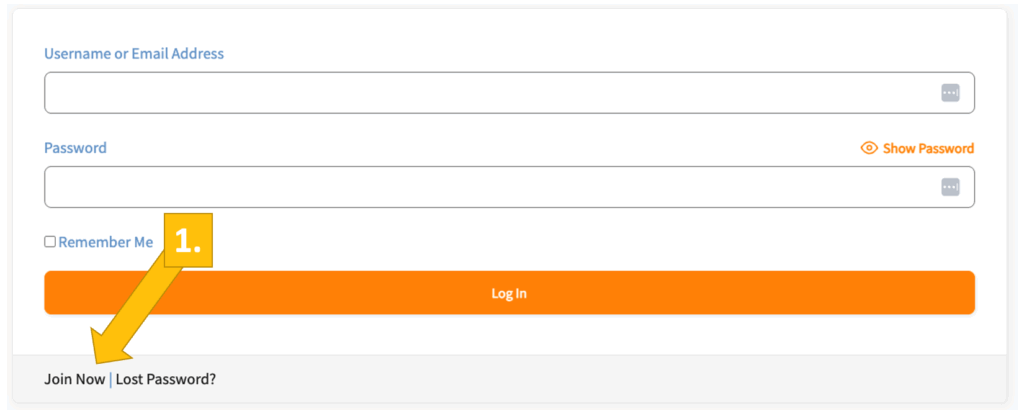
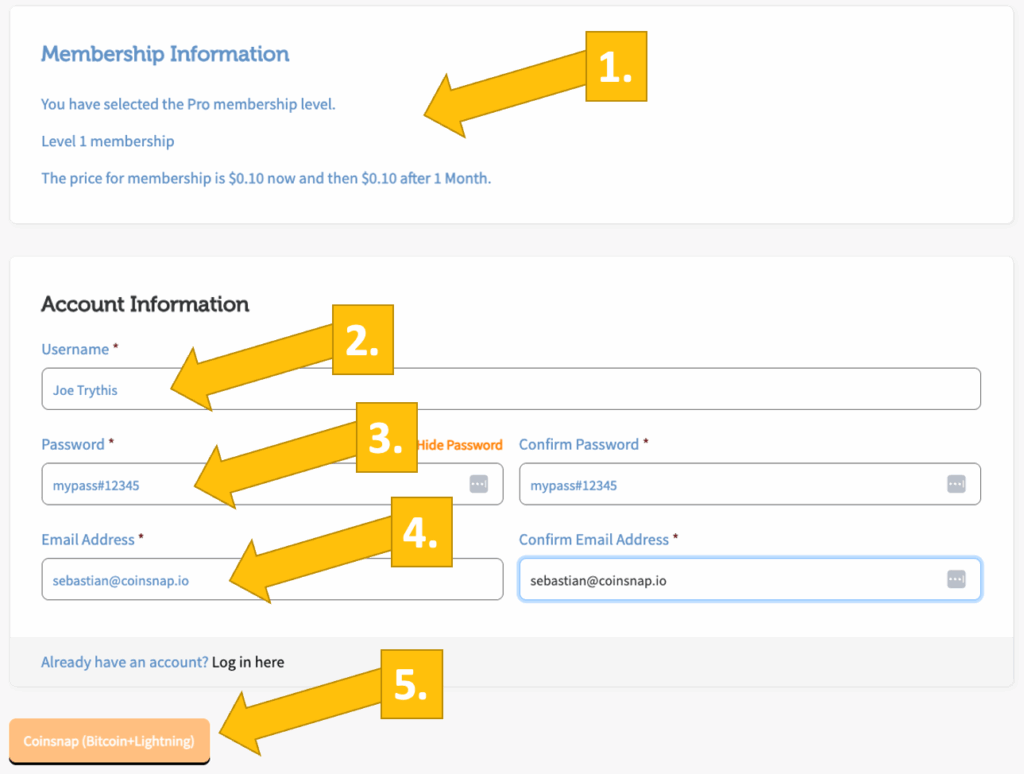
Go to the login of your membership (while not being logged in!), and click on Join Now [1].
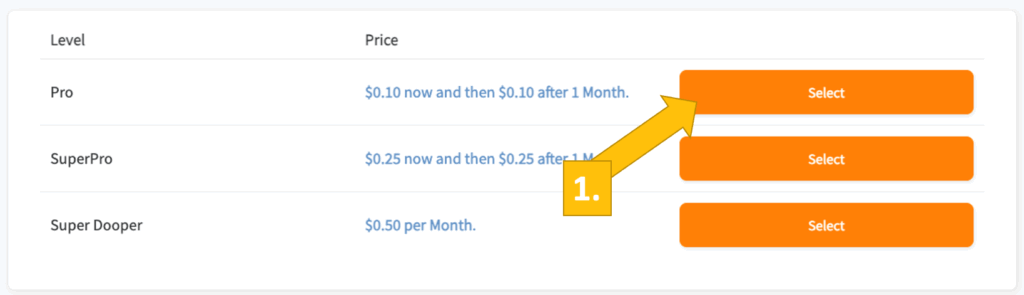
Select your preferred membership plan (Pro) [1].
You will see information now on your chosen membership plan [1]. If this is ok,
enter a Username [2], a Password [3] (confirming the next field), and your email address [4] (again, confirm in the next field).
Then click on the payment Button on the bottom (Coinsnap (Bitcoin+Lightning)) [5].
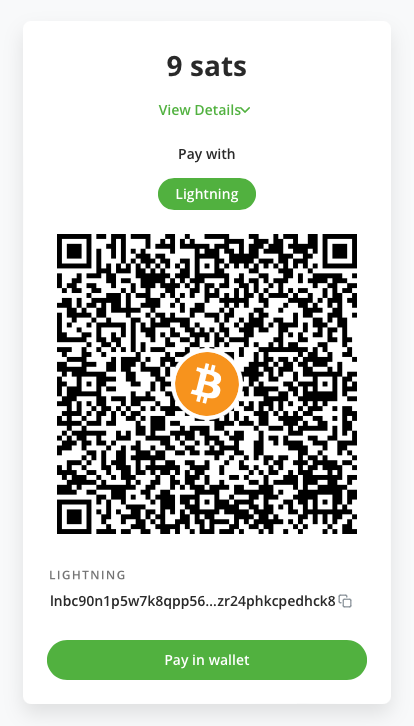
Now you see the qr-code for your payment. Scan it with your Lightning wallet and authorize the payment.
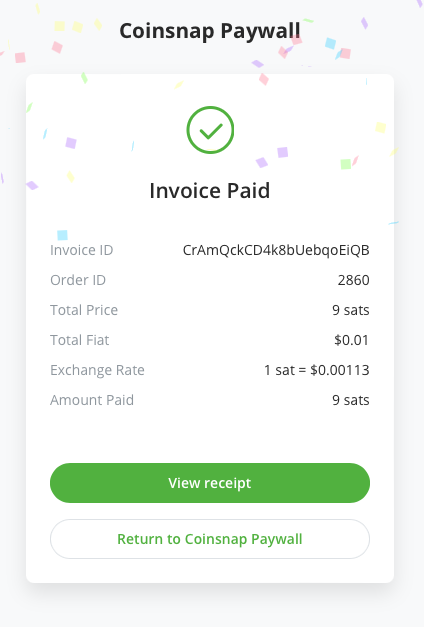
The payment has been accepted, and the Satoshis have already been transferred to your Lightning wallet.
The new subscriber is then forwarded to his membership confirmation:
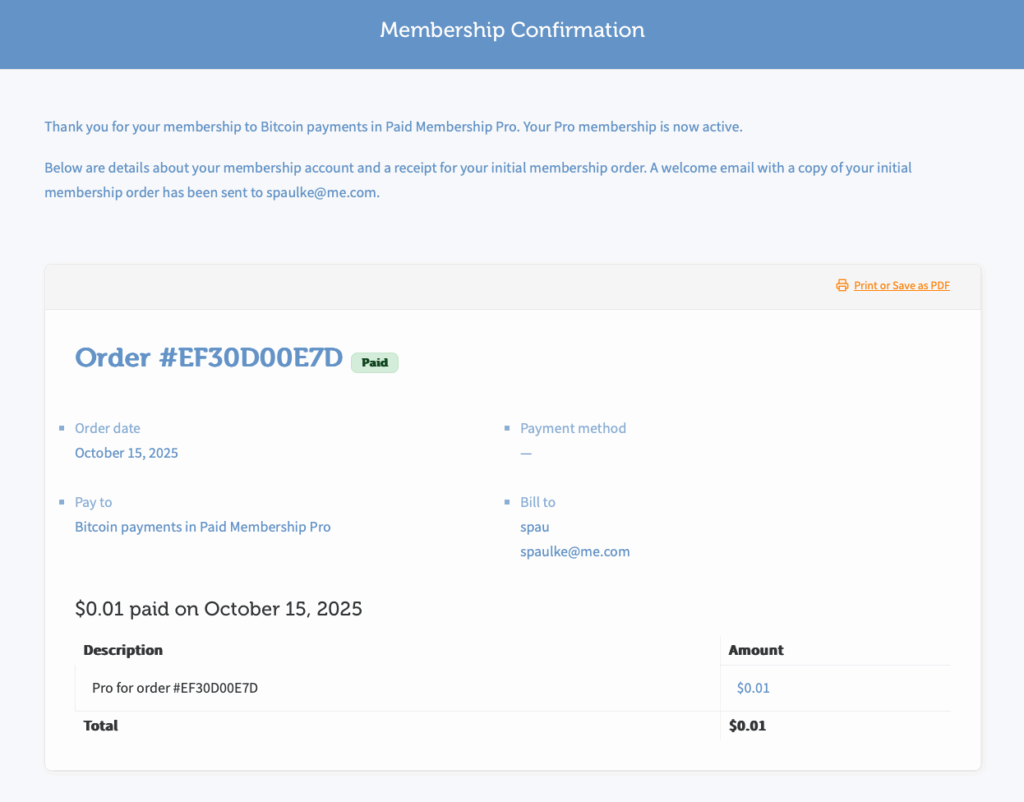
If you get the same process when creating a membership on your website with PMPro, then all is good — your PMPro is correctly connected with Coinsnap or your BTCPay Server and you are ready to charge Bitcoin with your PMPro plugin!
Frequently Asked Questions
What Users Ask About This plugin
Does Coinsnap support automated recurring billing in PMPro?
Does Coinsnap support automated recurring billing in PMPro?
Can users upgrade or downgrade plans with Bitcoin?
Yes — PMPro handles level changes, and Coinsnap handles the new payment transaction.
