
Coinsnap for Gravity Forms Installation Guide
This guide shows you how to integrate Coinsnap as a payment processor within Gravity Forms so you can collect Bitcoin payments easily.
Accept Bitcoin and Lightning payments in Gravity Forms securely.



Step 1
With the Coinsnap for Gravity Forms payment plugin, Coinsnap offers the option of integrating Bitcoin payments quickly and easily into any forms on your WordPress website.
You can download the plugin directly from the WordPress Marketplace or install it directly from within your WordPress installation.
If you have already installed Gravity Forms, log in to your WordPress account.
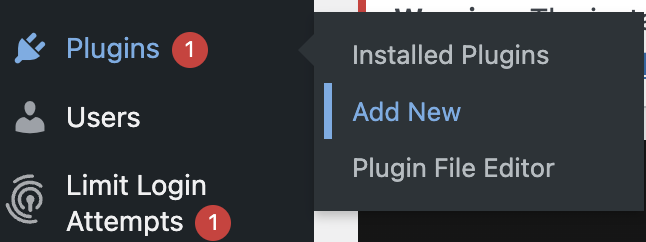
(1) Call up the WordPress backend and go to Plugins > Add New.
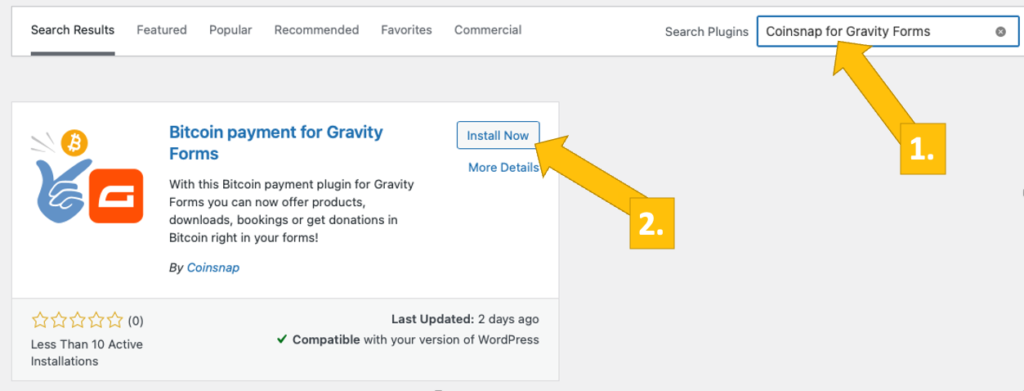
(2) Enter “Coinsnap for Gravity Forms” in the search bar and click on “Install now“.
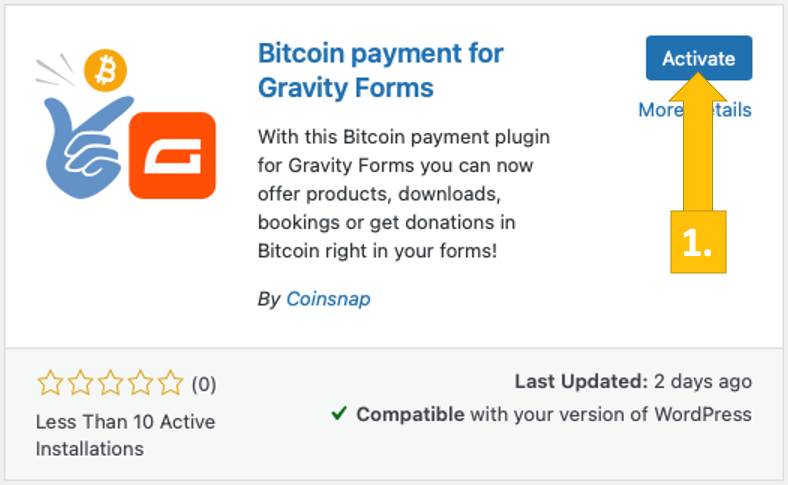
Then activate the plugin (3).
The Coinsnap for Gravity Forms plugin is now successfully installed and Coinsnap payment settings are available in settings.
Step 2
Gravity Forms Coinsnap Settings
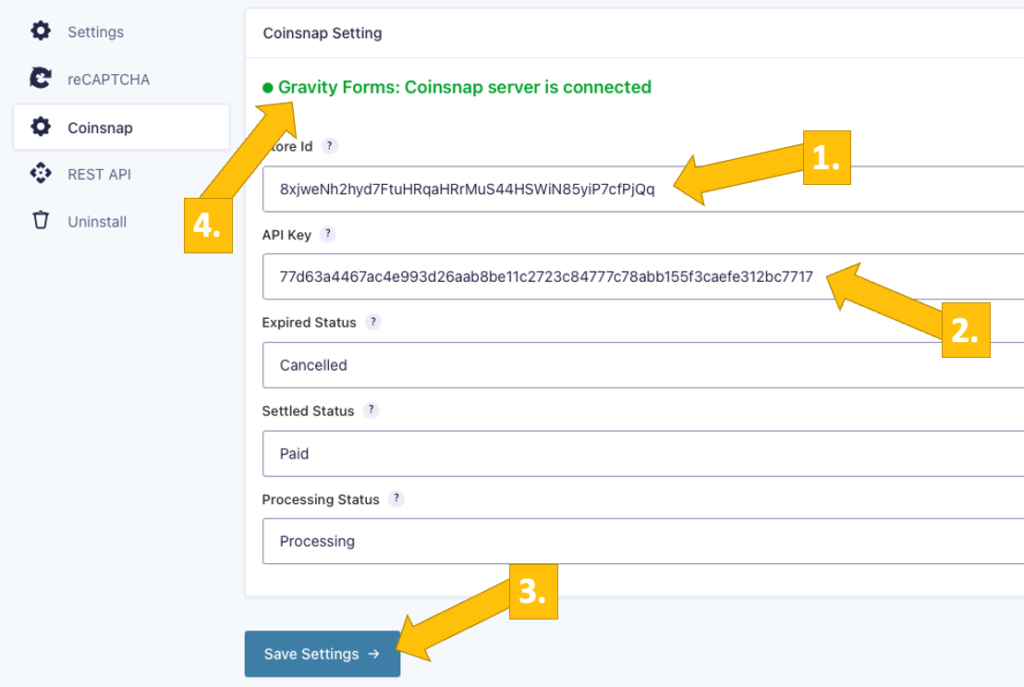
After you have installed and activated the Coinsnap for Gravity Forms plugin, you need to make the Coinsnap settings. Go to Forms / Settings [1] in the black sidebar on the left. Then click on Coinsnap [2].
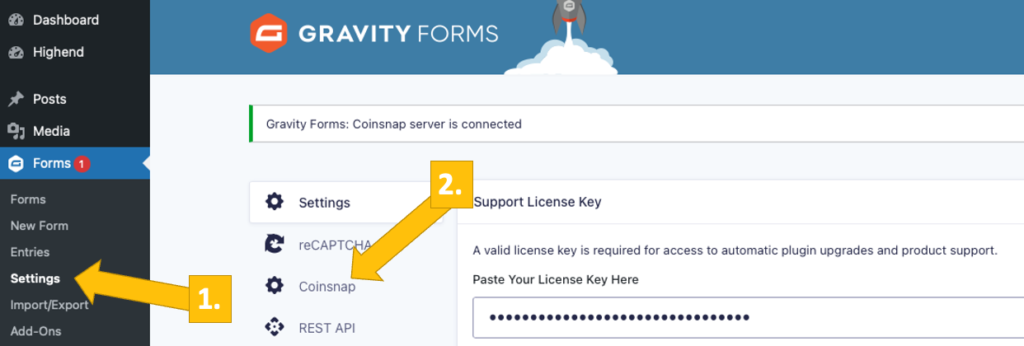
Now you can see the Coinsnap settings.

You are almost done. Just…
[1] Enter your Coinsnap Store ID (see below)
[2] Enter your Coinsnap API Key (see below)
[3] Click on save settings.
[4] Now you can see in the green line on the top that your Gravity Forms are all set up for Bitcoin payment!
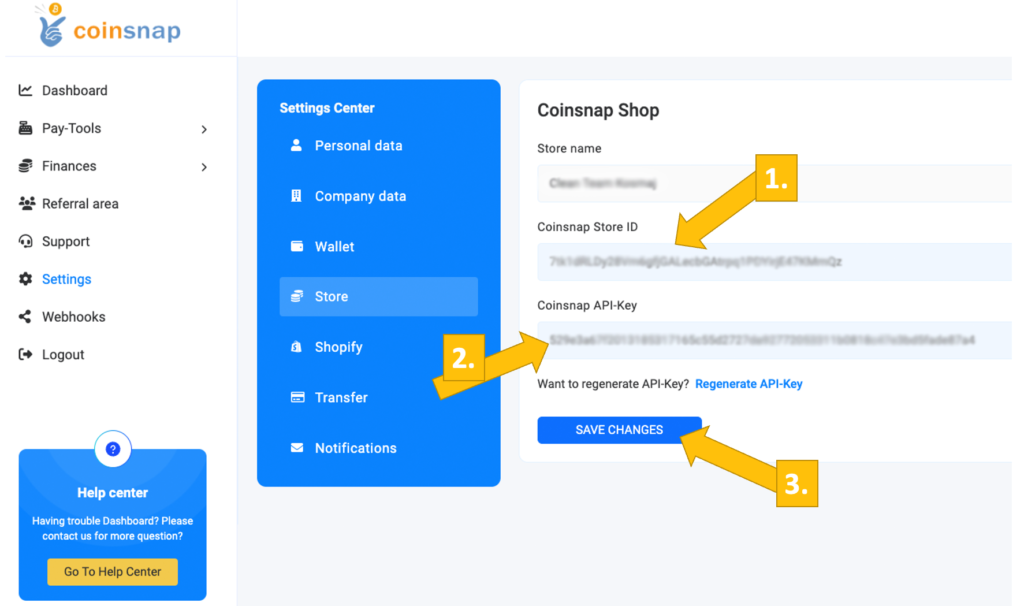
In the next paragraph we show you how to find your Coinsnap Store ID and your Coinsnap API Key:
Coinsnap Store Settings
In the Coinsnap backend, go to the Settings menu item, then click on Store in the blue field. There you will find the Coinsnap Store ID [1] and the Coinsnap API Key [2]. Copy these one after the other into the corresponding fields in the Coinsnap settings (see above). Then click on the Save Changes button at the bottom of the page to apply and save the settings.
Once you have entered and saved the Coinsnap data in the Gravity Forms Coinsnap settings, you are set to receive Bitcoin transactions from your customers’ wallet to your wallet. Now just one last step remains and you can sell for Bitcoin!
Step 3
Coinsnap for Gravity Forms BTCPay Server Settings
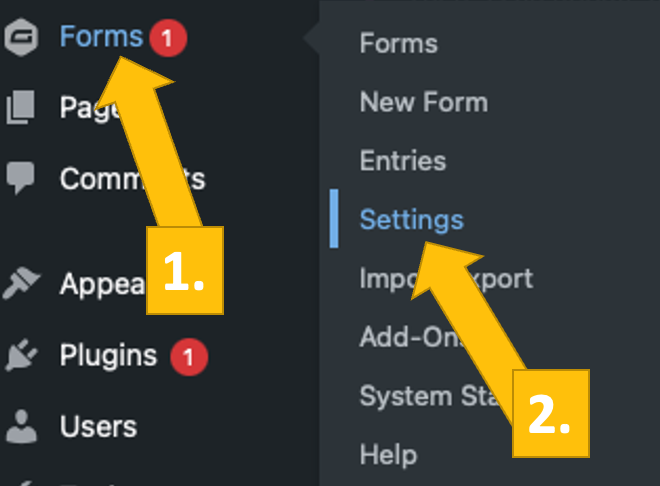
After you have installed and activated the Coinsnap for Gravity Forms plugin, you need to configure the Coinsnap settings. Go to Forms [1] -> Settings [2] in the black sidebar on the left.
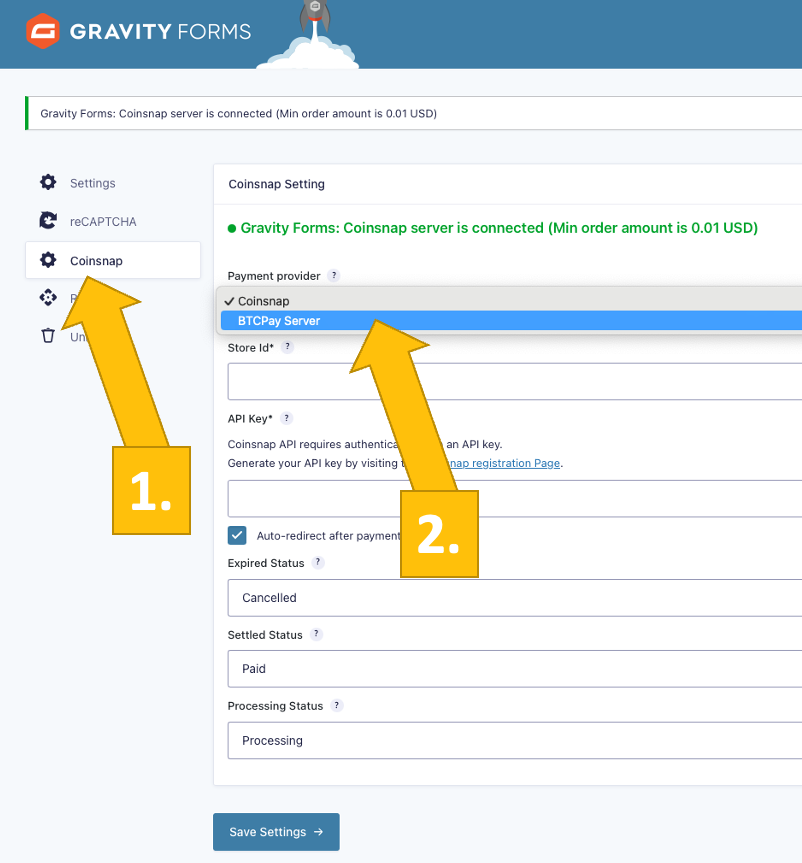
Now click on Coinsnap [1] and choose your payment gateway BTCPay [2] and click save.
Now, log into your BTCPay Server. If you’ve done that, enter your BTCPay Server URL into the matching field in the Settings tab [1].
Next, you’ll have to click on the Generate API Key button [2].
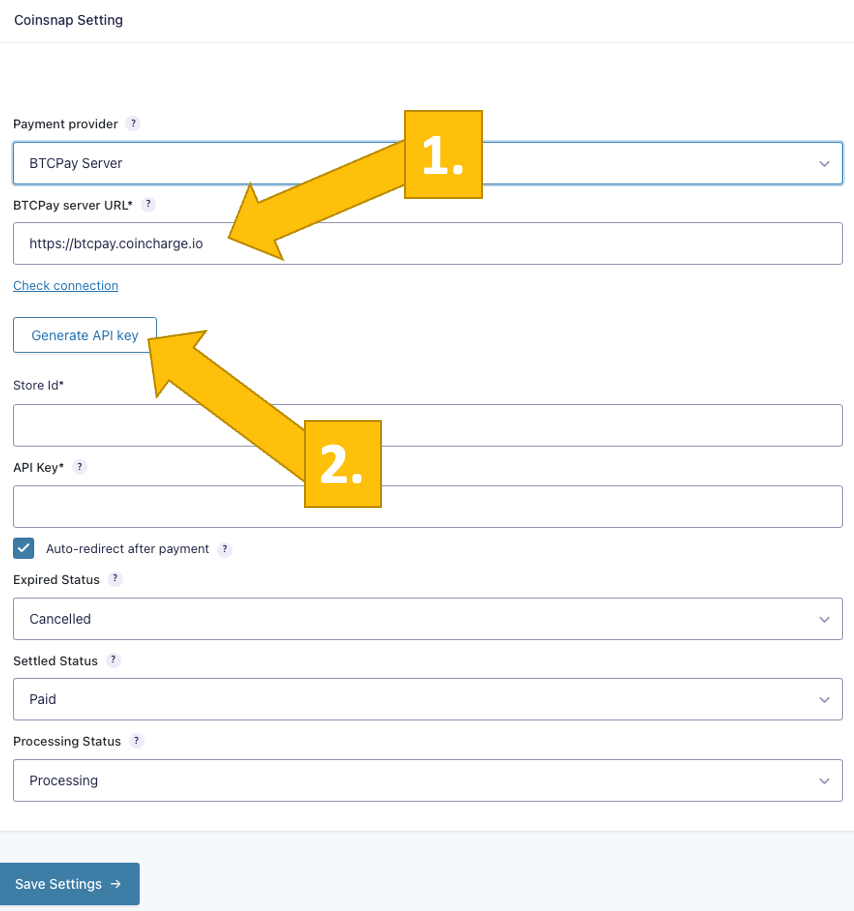
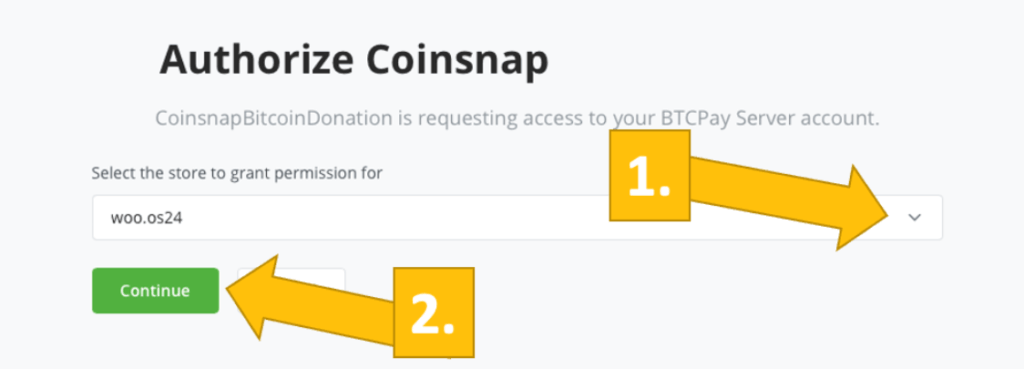
You’ll then be forwarded to your BTCPay Server.
Choose your Shop [1], then click on continue [2].
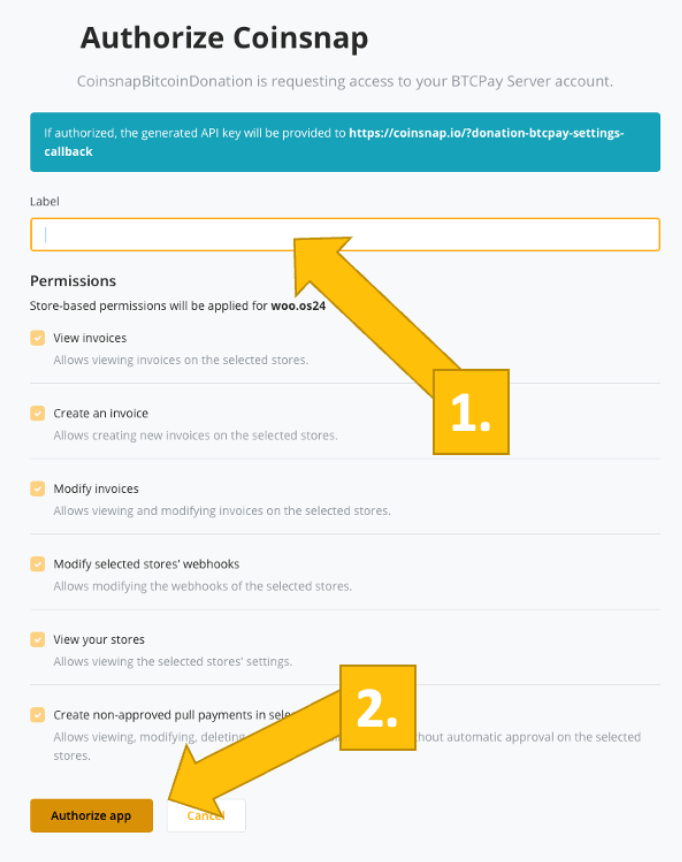
You’ll then be forwarded to this screen. Enter your shop’s name on the top [1], and then click on authorize app [2].
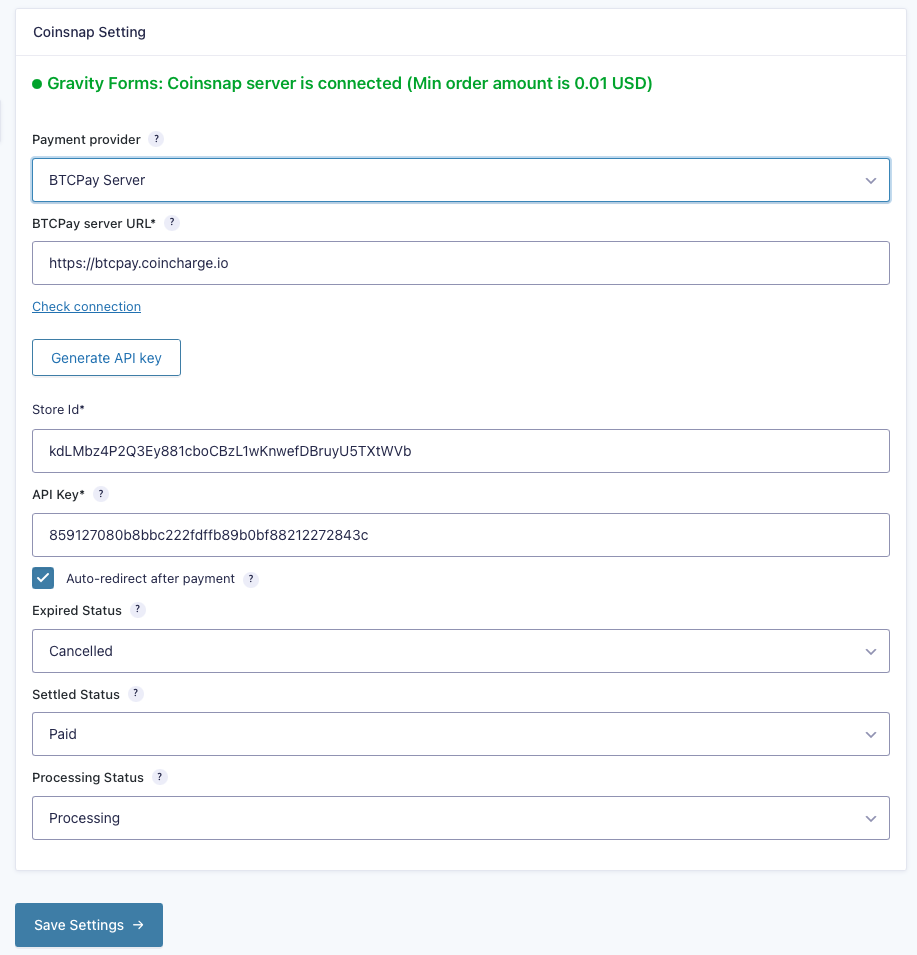
Your BTCPay Server is now successfully connected to your Gravity Forms plugin, via the Coinsnap for Gravity Forms plugin!
You can see the green confirmation message on top!
Step 4
Create a payment form
First set up a form (i.e. a Bitcoin donation form) in Gravity forms. As soon as you are done, click on Settings on the top and choose Coinsnap.
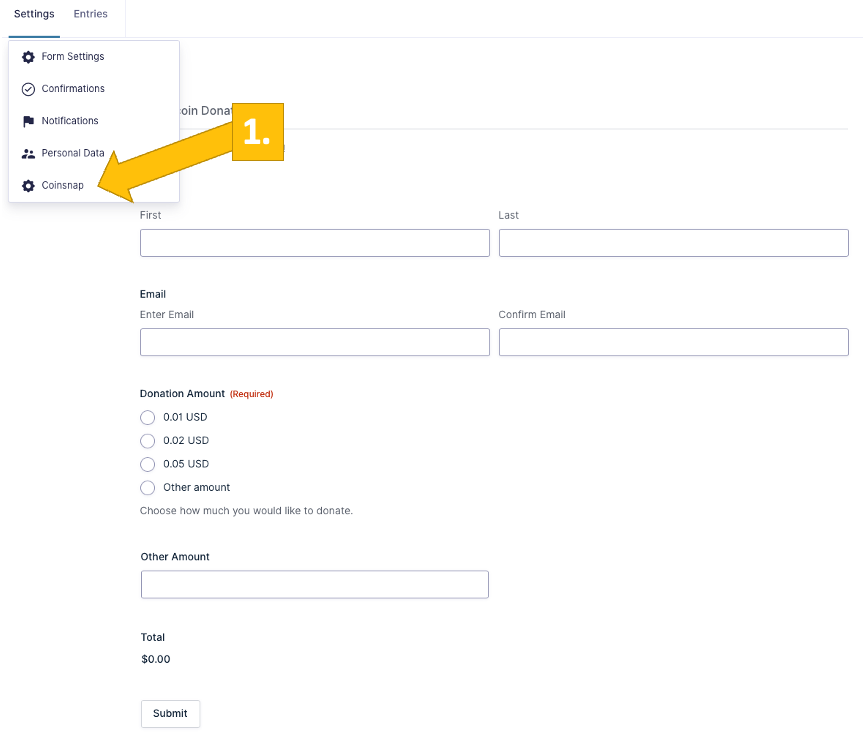
Add the Coinsnap payment gateway to your form
After you clicked on Coinsnap [1], you now have to add a Coinsnap feed to your form, simply by clicking on add new [2].
You will then see another window where you should click on Save
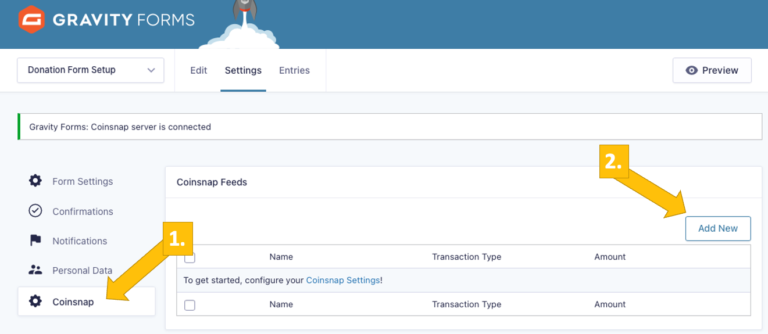
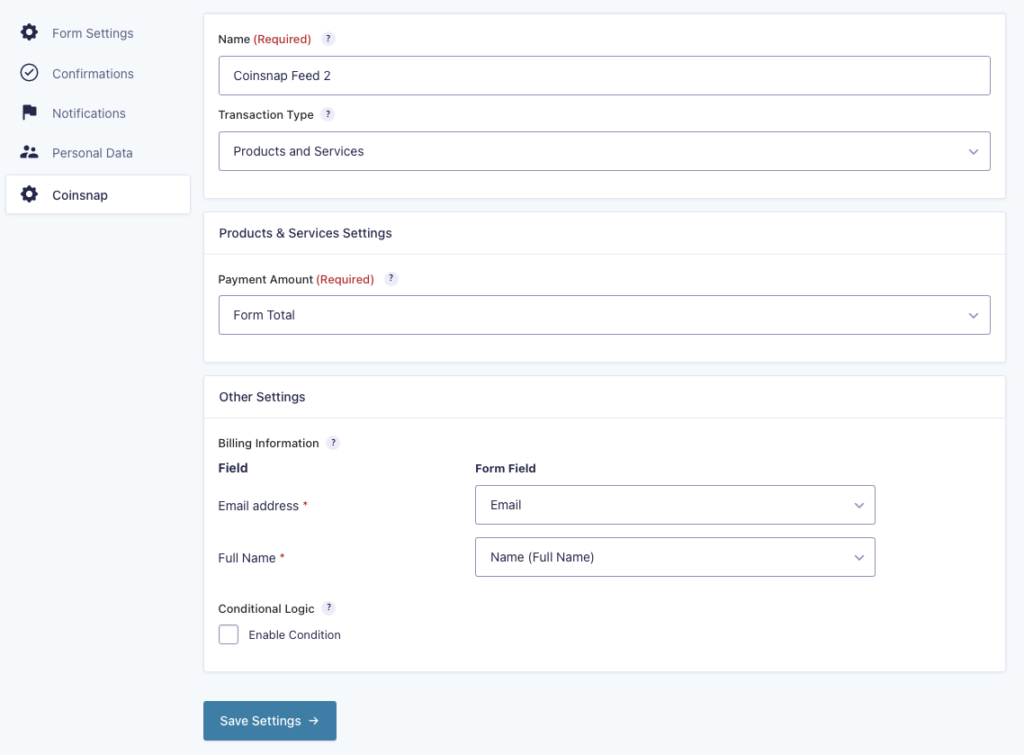
Start receiving Bitcoin in your new donation form
If you now open the forms overview in Gravity Forms, you will notice that your plugin Donation Form Setup is now active – meaning that Bitcoin payment now works in the plugin.
Now, in the form you want to use on your website, click on </> Embed on the top right of your form [1].
Next, either copy the Form ID [2] or the shortcode [3] and place it at the appropriate place of your website.
And your visitors can now donate sats to your cause!

Step 5
After all settings have been made, a test transaction should be carried out.
Fill out a Gravity Form you have just created and click on the blue button, starting the Bitcoin payment.
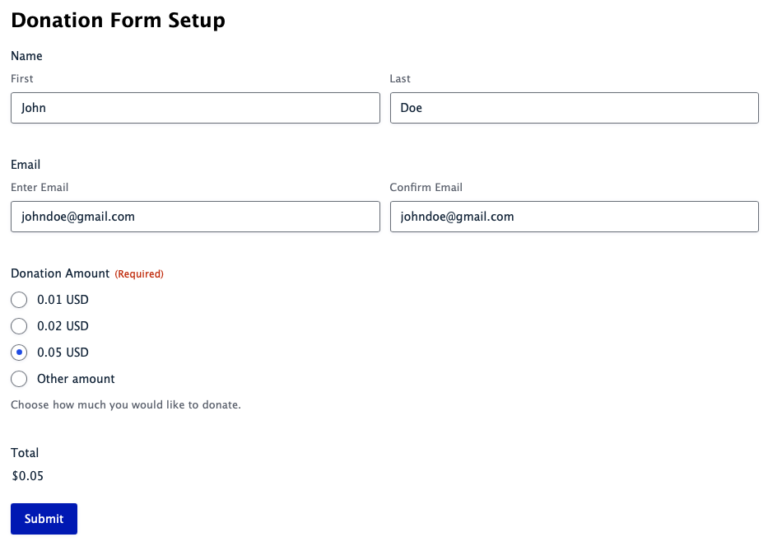
You will now be redirected to the Bitcoin payment page to complete the purchase.
The Bitcoin payment page is now displayed and offers the payer the option of paying with Bitcoin or Lightning.
Both methods are integrated in the displayed QR code.
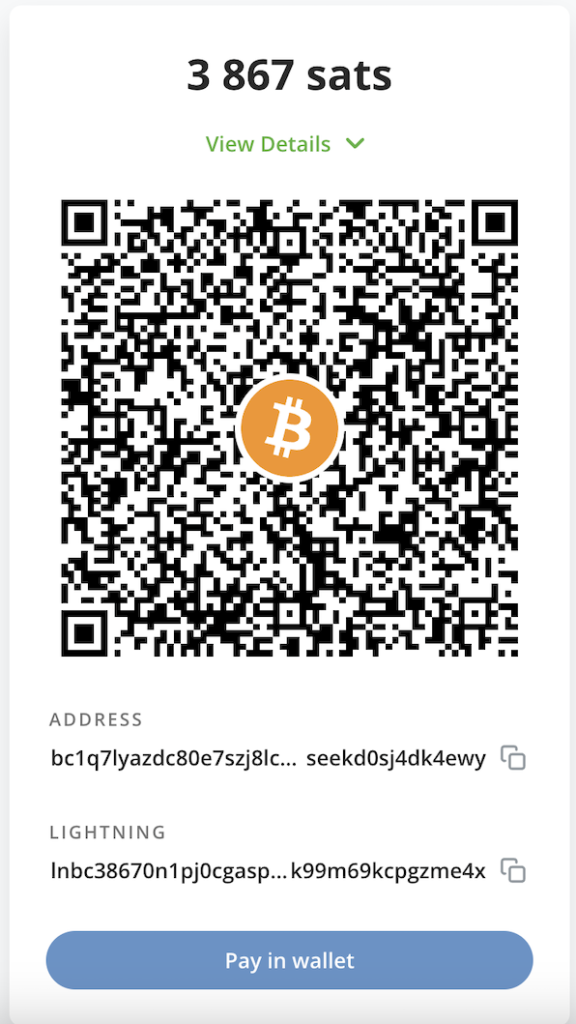
After successful payment, the invoice can be viewed in detail.
Frequently Asked Questions
What Users Ask About This plugin
Does Gravity Forms support multi-step Bitcoin payments?
Yes — Coinsnap works in multi-page forms as long as the payment feed is configured.
Can I use coupons or discounts with Bitcoin?
Yes. Gravity Forms coupon add-on works normally before the Coinsnap payment is generated
