
Coinsnap for GetPaid Installation Guide
This guide shows how to add Coinsnap as a payment processor in GetPaid so you can invoice clients in Bitcoin and Lightning.
Create invoices and accept Bitcoin payments with the GetPaid plugin.



Step 1
You must have Gravity Forms, AffiliateWP, Contact Form 7, Ninja Forms or GeoDirectory running on your WordPress site and also have the GetPaid plugin installed.
Step 2
With the Bitcoin payment plugin Coinsnap for GetPaid, you can quickly and easily integrate Bitcoin payments anywhere on your WordPress website or in many WordPress plugins.
You can download the plugin directly from the WordPress Marketplace or install it directly in your WordPress.
If you have already installed GetPaid, log in to your WordPress account.
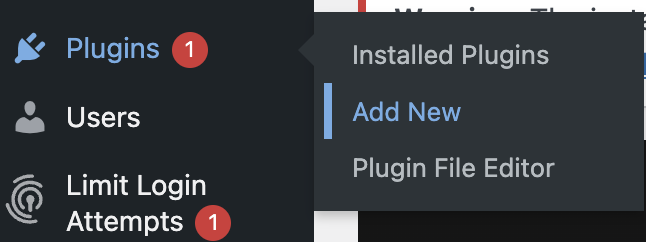
Open the WordPress backend and go to Plugins > Add new.
Enter Coinsnap for GetPaid in the search field [1] and click on Install now [2], then activate the plugin.
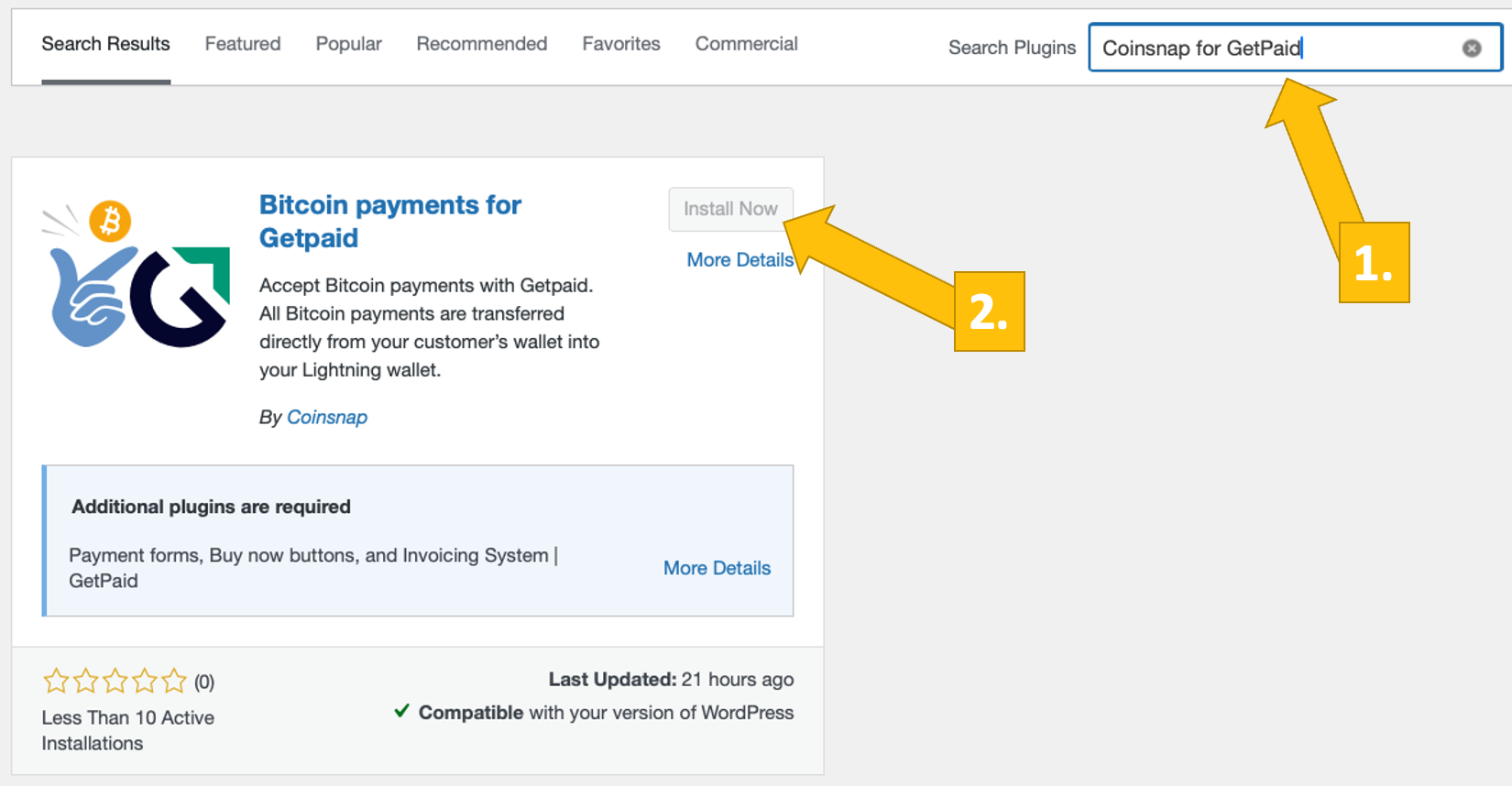
The Coinsnap for GetPaid plugin is now installed. Next, you need to connect the plugin to your preferred payment provider (Coinsnap or BTCPay Server).
We will now show you how to do this:
Step 3
After installing Coinsnap for GetPaid, you need to link the plugin to your GetPaid plugin and your Coinsnap account so that your Bitcoin sales are credited to your Lightning wallet.
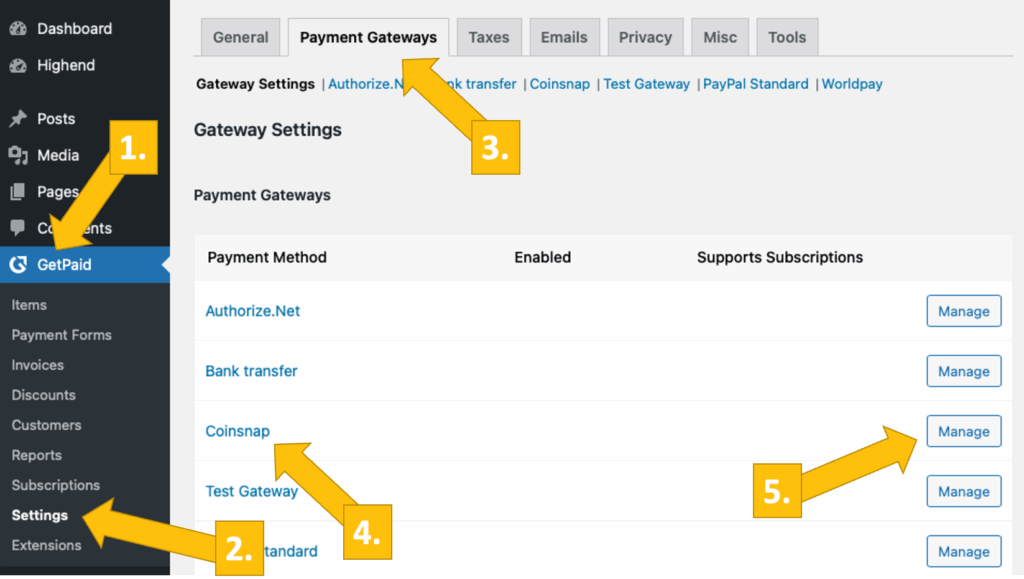
In the left menu bar, open GetPaid [1] and click on Settings [2].
Then open the Payment Gateways tab [3] and select Coinsnap [4] from the list of all GetPaid payment gateways.
Now click on Manage [5] to configure the individual settings.
Go to the Settings menu in the Coinsnap backend and then click on Store in the blue field. There you will find the Coinsnap Store ID [1] and the Coinsnap API Key [2]. Copy these into the corresponding fields in the Coinsnap settings (see above). Then click on save changes at the bottom of the page to apply and save the settings.
If you do not yet have an account with Coinsnap, you can create one here.
All you need is an email address and a Lightning wallet with a Lightning address. To find out how to create a Coinsnap account, go to Getting Started.
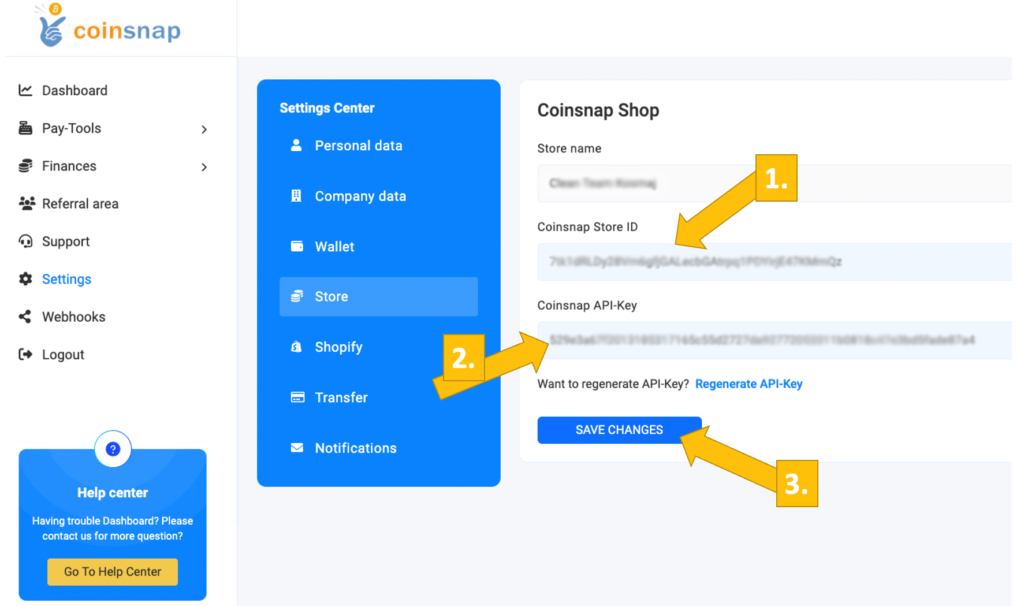
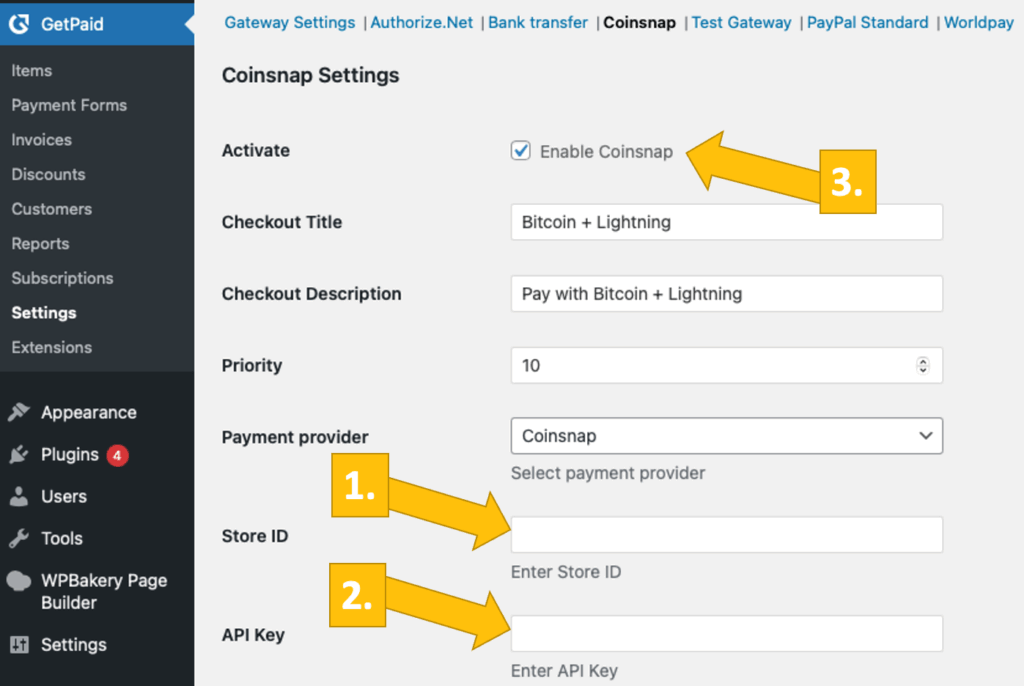
Now enter the Store ID [1] and API Key [2] in the GetPaid settings, and Bitcoin payment will be available in GetPaid immediately.
Don’t forget to enable Coinsnap [3] and save the page (click Save at the bottom of the page).
Step 4
Coinsnap for Ninja Forms BTCPay Server Settings
You can also use the Coinsnap for GetPaid plugin with your own BTCPay server. All you need is the Coinsnap for GetPaid plugin, and you don’t even need to set up a Coinsnap account!
We’ll show you how to do this with the Coinsnap BTCPay server-wizard in two minutes:
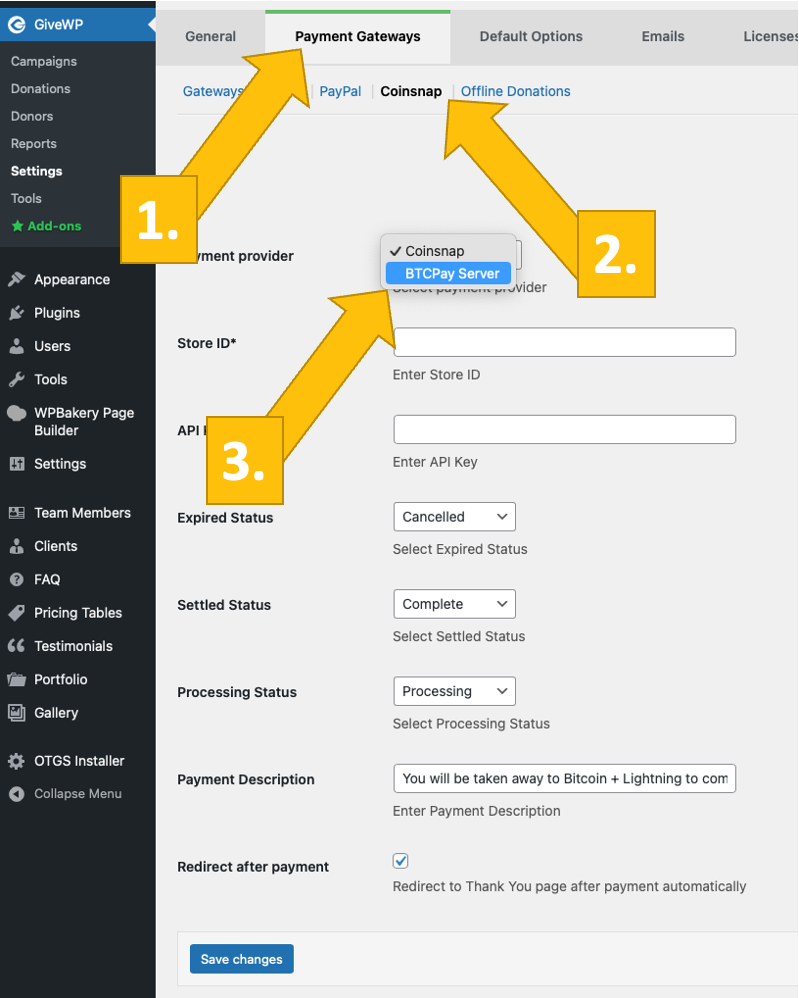
After installing and activating the Coinsnap for GetPaid plugin, you need to configure the Coinsnap settings. Go to GetPaid, Settings in the black sidebar on the left, open the Payment Gateways tab [1], click on Coinsnap [2], and select the payment provider BTCPay Server [3]. Then click Save changes at the bottom.
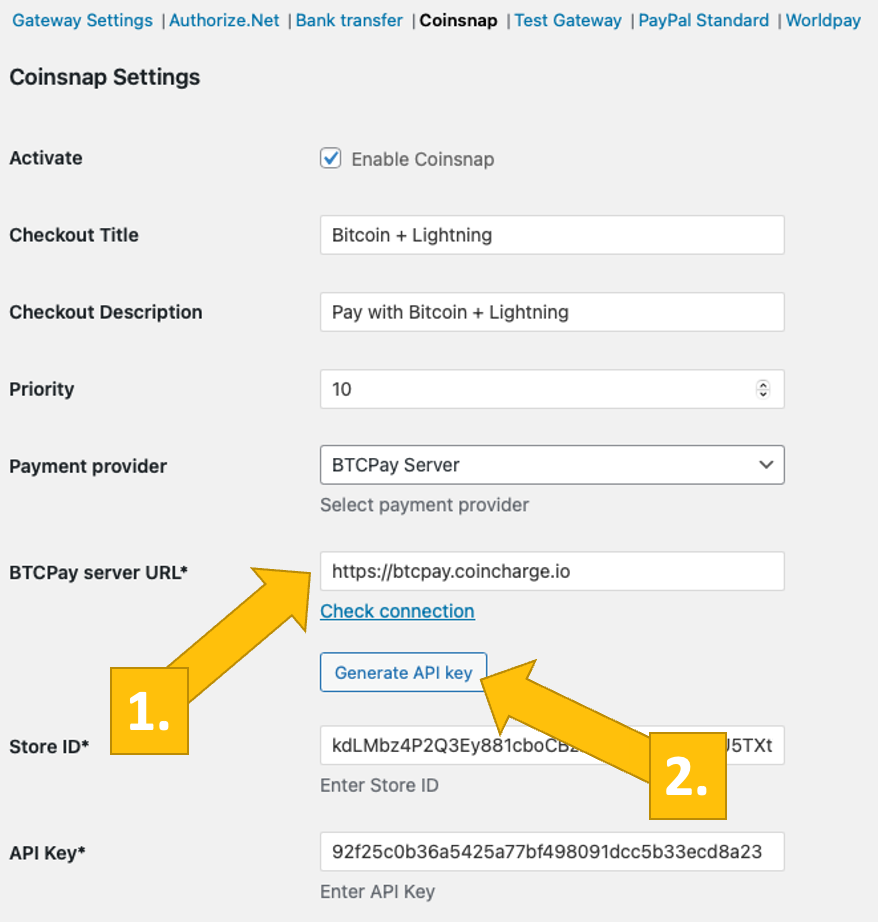
Now log in to your BTCPay server. Once you have done this, enter the URL of your BTCPay server in the corresponding field [1].
Next, you need to click on the Generate API Key button [2].
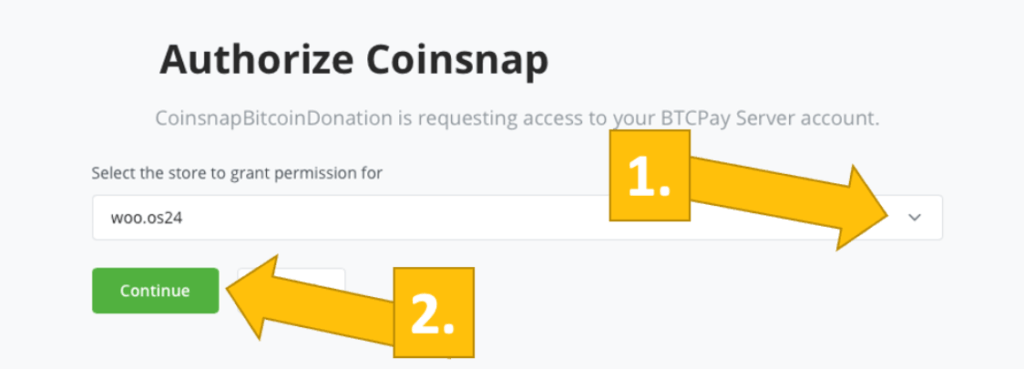
You will then be redirected to your BTCPay server.
Select your shop [1] and then click Continue [2].
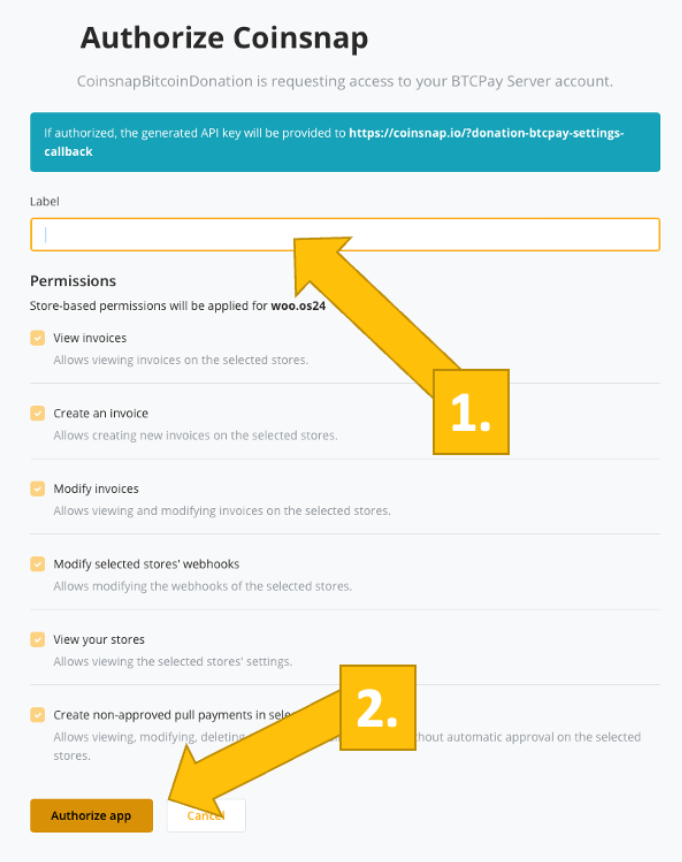
You will then be taken to this screen. Enter the name of your shop at the top [1] and then click on Authorise app [2].
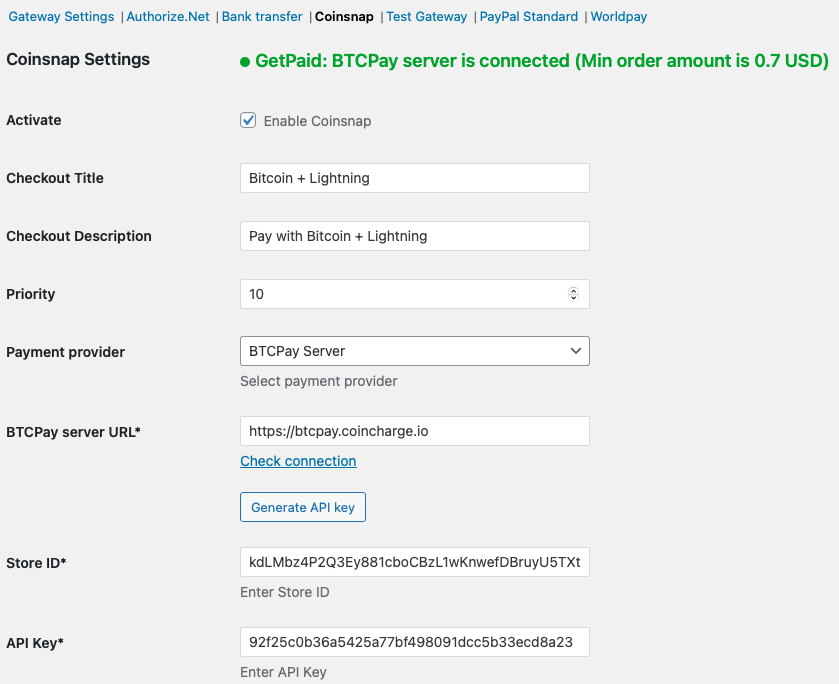
Your BTCPay Server is now successfully connected to GetPaid via the Coinsnap for GetPaid plugin!
(You will now see the green success message).
Step 5
Once you have configured everything, you should perform a test transaction.
Simply click on a payment button (from GetPaid) on your website, and you will see a pop-up like this:
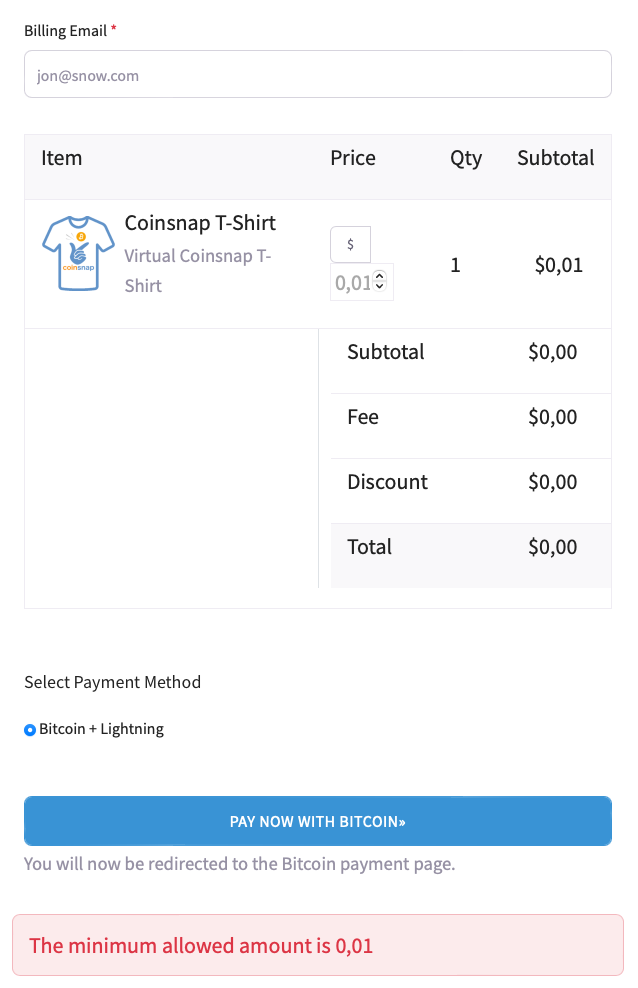
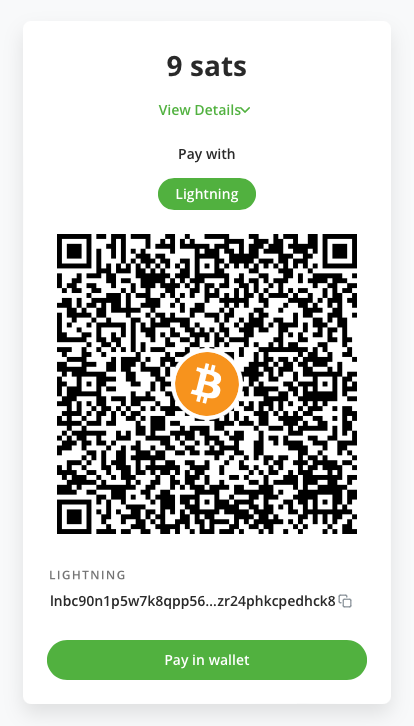
Once you have selected your price and clicked on Pay now with Bitcoin, you will see a QR code like this:
Scan it with your Lightning Wallet and authorise the payment!
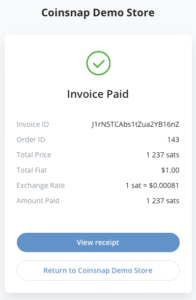
Once the payment has been made, you will see this payment confirmation!
Frequently Asked Questions
What Users Ask About This plugin
Can I accept partial payments with Coinsnap in GetPaid?
Not currently — invoices must be paid in full.
Does GetPaid show confirmation after payment?
Yes — invoices update automatically after Coinsnap confirms payment.
