
Coinsnap for Gambio Installation Guide
This simple guide shows how to integrate the Coinsnap payment module in your Gambio store, connect your Lightning wallet and live accept Bitcoin payments fast.
Add Bitcoin & Lightning payments to your Gambio e-shop easily.



Step 1
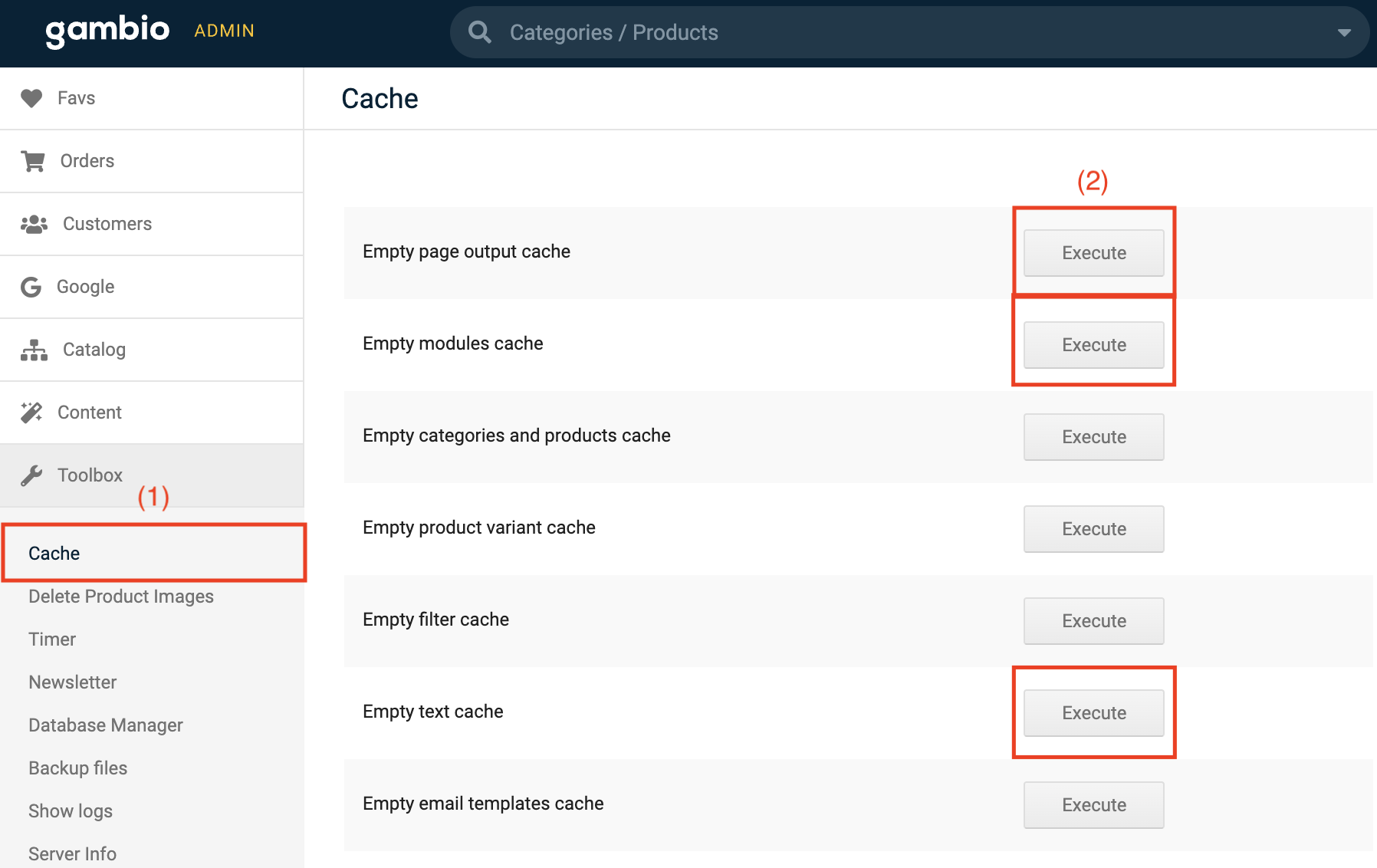
(1) Search the cache area
Navigate to the toolbox and select the first section “Cache”.
(2) Empty cache
Execute the module, output and text cache by clicking on the corresponding buttons.
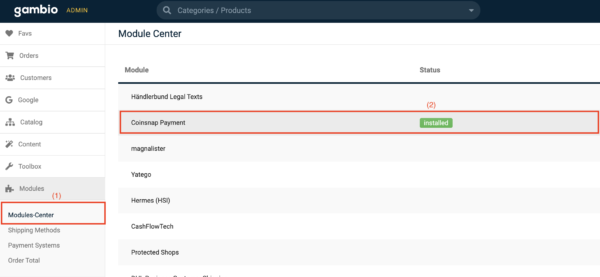
(1) Access to the Modules Centre
Navigate to the “Modules” section and search for “Modules Centre” at the top.
Click on it.
(2) Install module
Select “Coinsnap Payment” and proceed to install the module.
(3) Delete cache
After successful installation, return to the cache area and delete the module, output and text cache again.
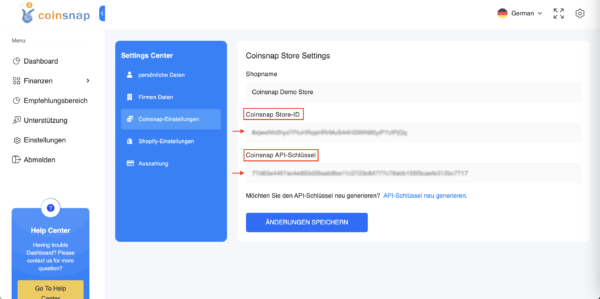
Now log in to your Coinsnap app with your login details and navigate to the settings.
Look for the “Store settings” section in the settings, where you will find your store ID and API key.
Copy these login details for further use.
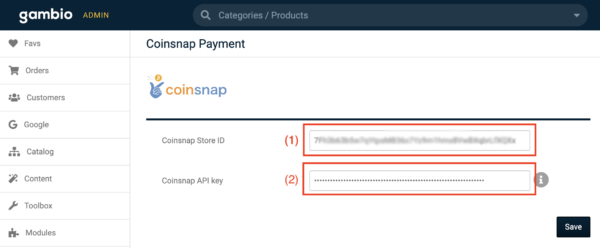
Navigate to “Modules” -> “Module Centre” -> “Coinsnap Payment” and click on “Edit” again.
(1) Store-ID
Paste the previously copied store ID into the first field.
(2) API-Key
Paste the previously copied API key into the second field.
After you have saved the data, your Gambio shop is successfully connected to the Coinsnap app.
Let’s now proceed to enable Bitcoin+Lightning payments by following the next instructions:
(1) Find the payment settings
Navigate to the “Modules” section -> “Payment systems”.
(2) Open the “Miscellaneous” tab
Click on the “Miscellaneous” tab at the top right-hand side.
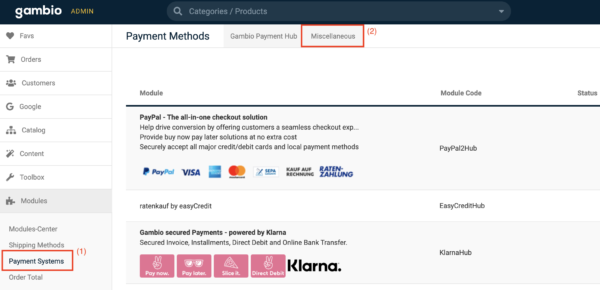
Scroll to the bottom of the page where you will find the “Added modules” section.
Click on “Bitcoin + Lightning” to start the installation of the “Bitcoin + Lightning” payment method.

After you have installed the “Bitcoin+Lightning” payment method, continue by clicking on “Edit”.
(1) Enter “Coinsnap”
Enter “Coinsnap” in the “Alias for order overview” field and activate the payment method.
Click on “Update” and the module is ready for use once this step has been completed.
Step 2
(1) Access to the Modules Centre
Navigate to the “Modules” section and search for “Modules Centre” at the top.
Click on it.
(2) Install module
Select “Coinsnap Payment” and proceed to install the module.
(3) Delete cache
After successful installation, return to the cache area and delete the module, output and text cache again.
Now log in to your Coinsnap app with your login details and navigate to the settings.
Look for the “Store settings” section in the settings, where you will find your store ID and API key.
Copy these login details for further use.
Navigate to “Modules” -> “Module Centre” -> “Coinsnap Payment” and click on “Edit” again.
Step 3
Navigate to “Modules” -> “Module Centre” -> “Coinsnap Payment” and click on “Edit” again.
(1) Store-ID
Paste the previously copied store ID into the first field.
(2) API-Key
Paste the previously copied API key into the second field.
After you have saved the data, your Gambio shop is successfully connected to the Coinsnap app.
Let’s now proceed to enable Bitcoin+Lightning payments by following the next instructions:
(1) Find the payment settings
Navigate to the “Modules” section -> “Payment systems”.
(2) Open the “Miscellaneous” tab
Click on the “Miscellaneous” tab at the top right-hand side.
Scroll to the bottom of the page where you will find the “Added modules” section.
Click on “Bitcoin + Lightning” to start the installation of the “Bitcoin + Lightning” payment method.
After you have installed the “Bitcoin+Lightning” payment method, continue by clicking on “Edit”.
(1) Enter “Coinsnap”
Enter “Coinsnap” in the “Alias for order overview” field and activate the payment method.
Click on “Update” and the module is ready for use once this step has been completed.
Frequently Asked Questions
What Users Ask About This plugin
What currencies are supported?
Bitcoin and Lightning; you can still charge in your store currency and settle in Bitcoin.
Is there a setup fee?
No setup fee for the module; standard transaction fees apply.
