
Bitcoin Paywall Plugin Installation Guide
This guide shows how to use the Coinsnap Bitcoin Paywall Plugin to restrict pages, posts, downloads, or videos until a Bitcoin or Lightning payment is made.
Lock premium content behind Bitcoin & Lightning payments.


Step 1
How to install your Coinsnap Bitcoin Paywall plugin directly in WordPress:
Go to the plugin area and click on “add new plugin”. Then enter “Coinsnap Paywall” in the search field and you will see our plugin in the selection.
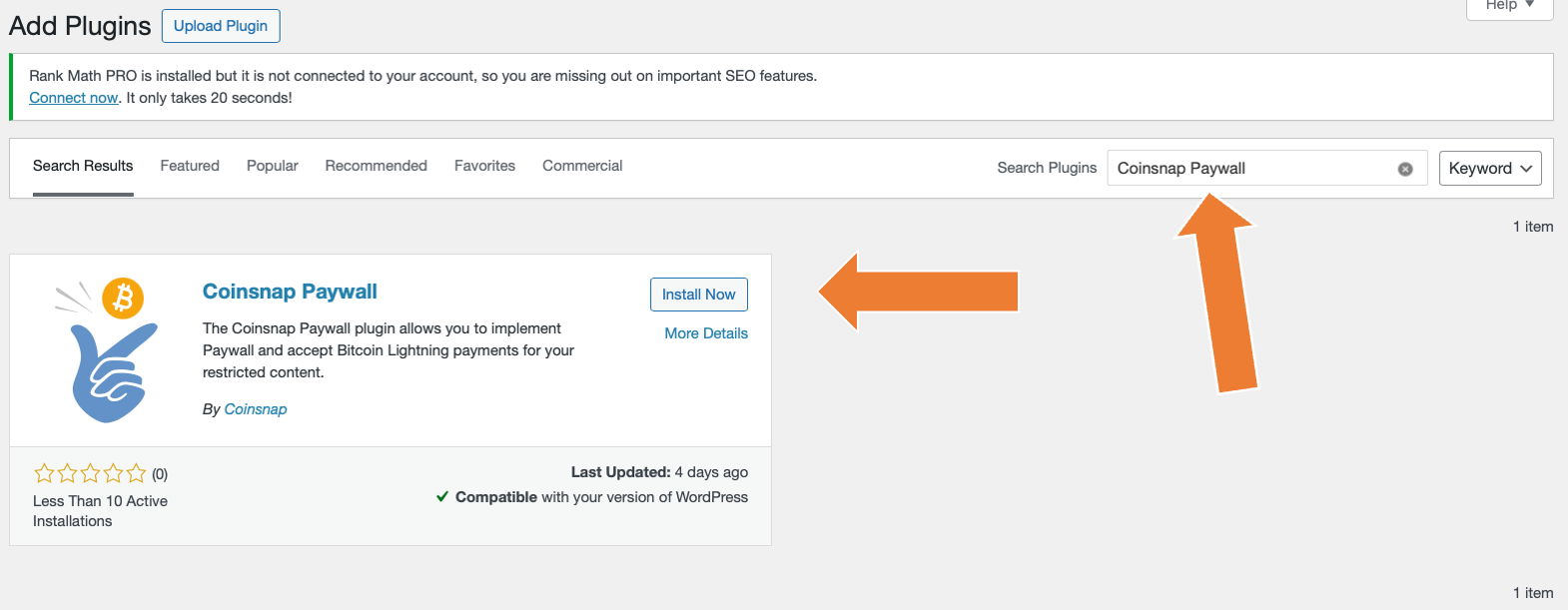
Now click on “Install now”, and when the installation is complete, click on “activate”.
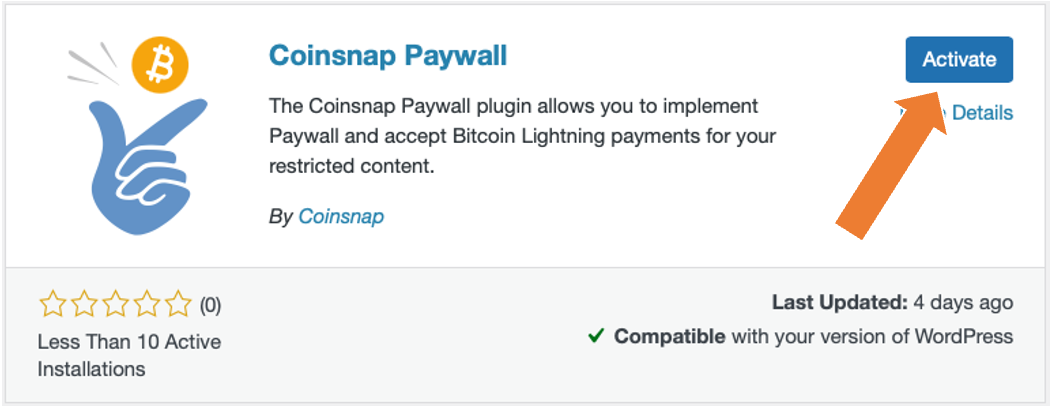
And your Coinsnap Paywall plugin is already installed and activated!
Now all you have to do is configure the plugin settings and you can make content available for Bitcoin on your website!
You can see how to configure the plugin here.
Step 2
If you want to install the Coinsnap Bitcoin Paywall, you must first download it from the Coinsnap Github page here.
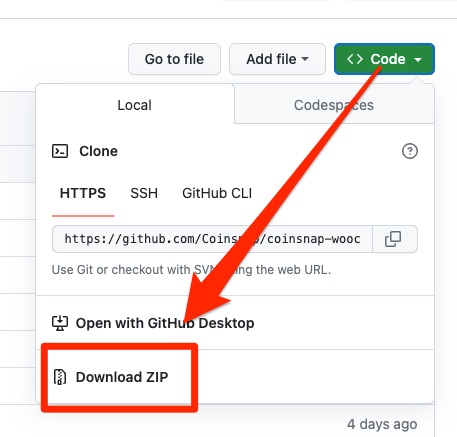
Then look for the green button labeled “Code”. When you click on it, the menu opens and Download ZIP appears.
Here you can download the latest version of the Coinsnap Bitcoin Paywall to your computer.
Step 3
As soon as you are registered with Coinsnap, log in to your modified store and go to the backend.
Coinsnap Bitcoin paywall settings
After you have installed and activated the Coinsnap Bitcoin Paywall, you must make the Coinsnap settings. You can find these in the sidebar on the left under “Coinsnap Bitcoin Paywall”.
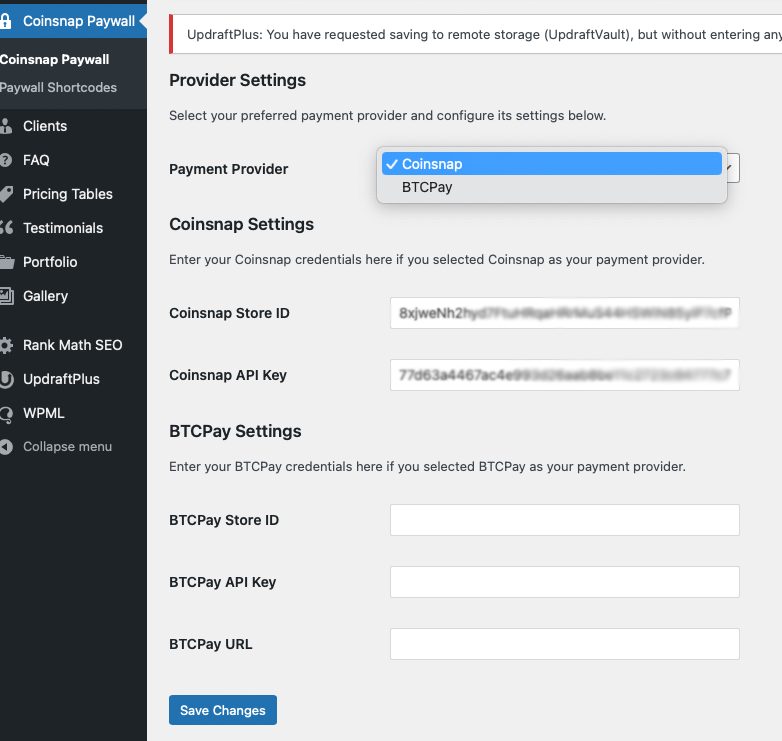
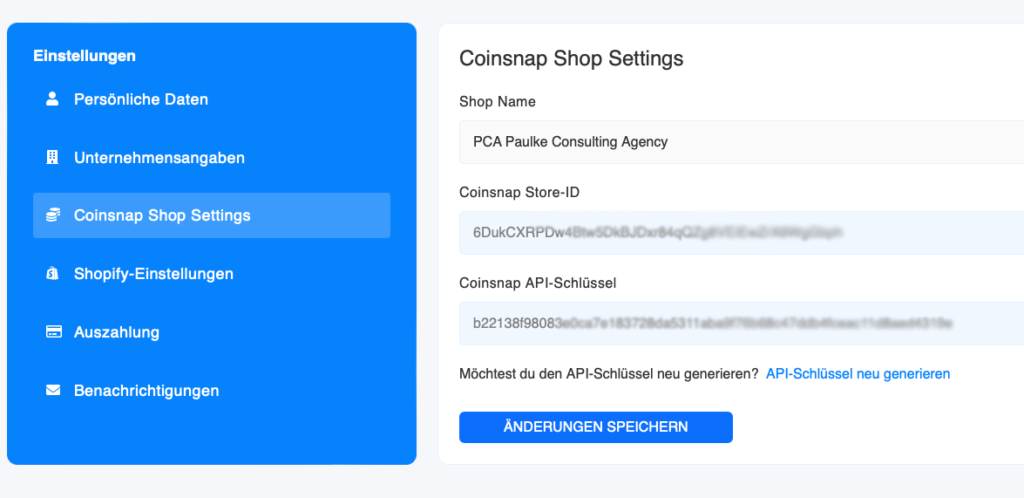
Simply enter your Coinsnap Store ID and your API key there; you can find these in your Coinsnap account under “Settings”, “Coinsnap Shop Settings”.
Step 4
Bitcoin Paywall BTCPay Server Settings
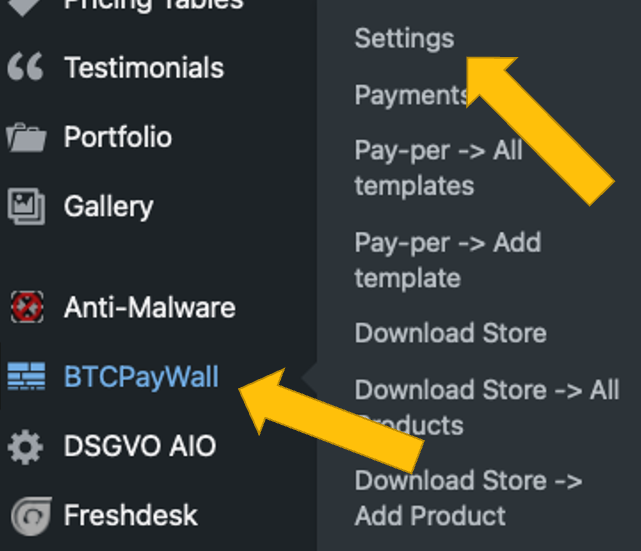
After you have installed and activated the Coinsnap Bitcoin Donation plugin, you need to configure the Coinsnap settings. Go to BTC Paywall -> Settings [1] in the black sidebar on the left.
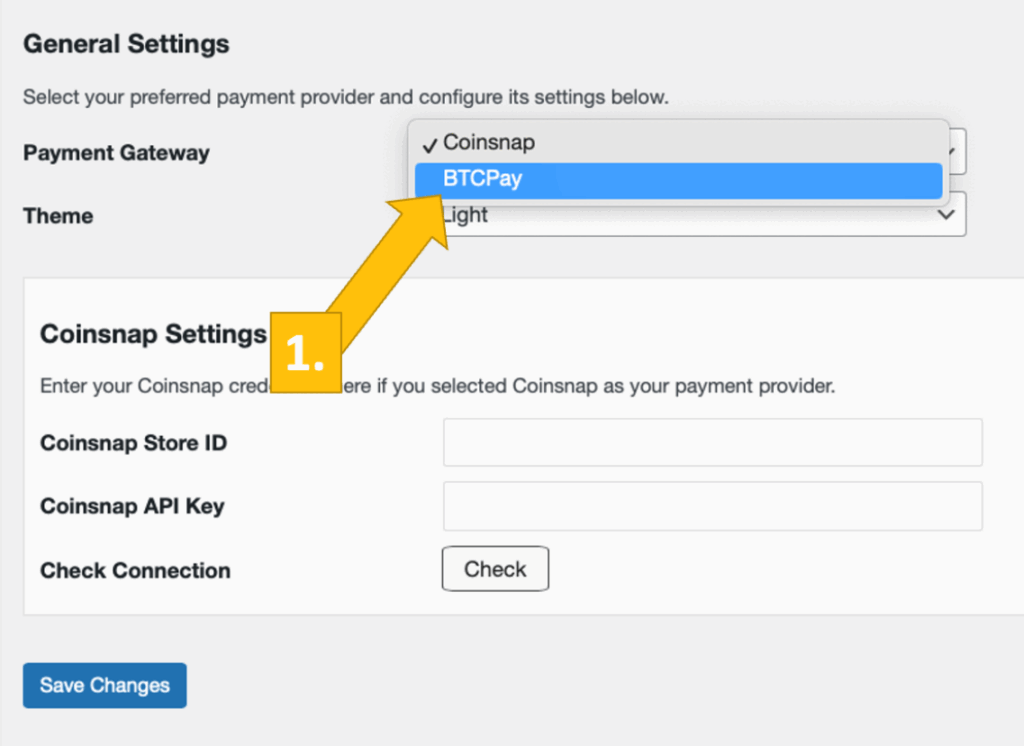
Now choose your payment gateway BTCPay [1] and click save.
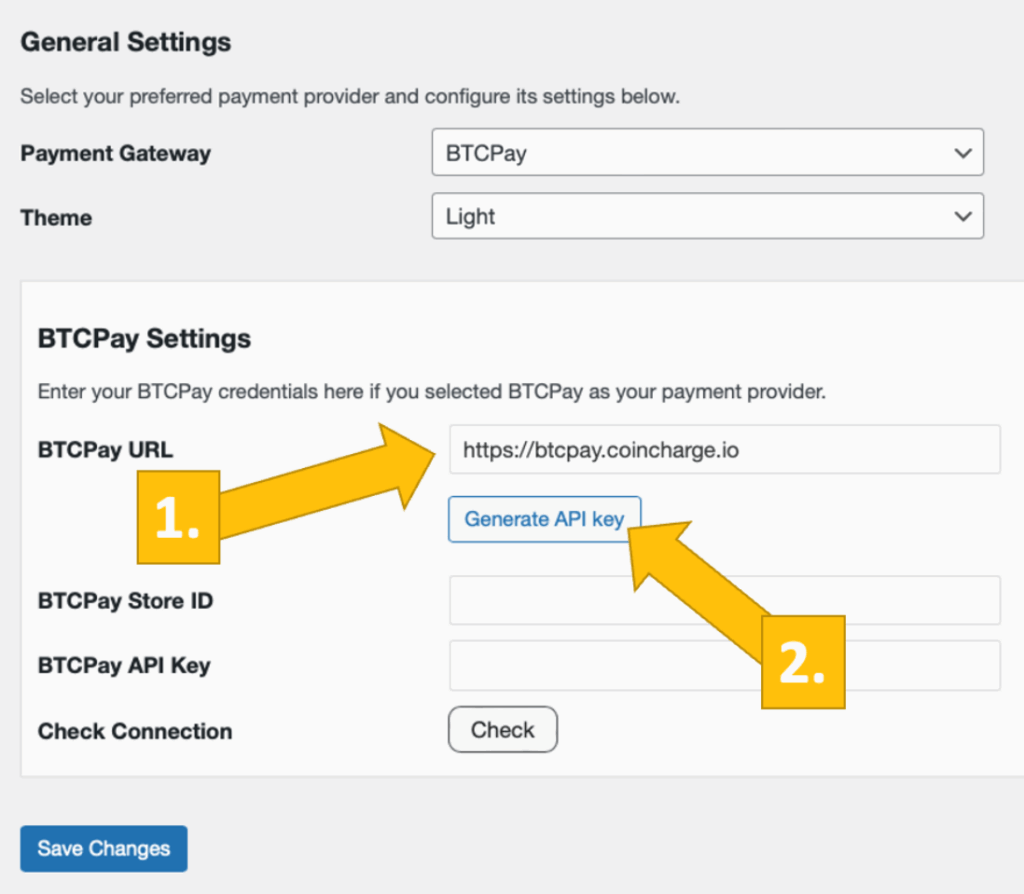
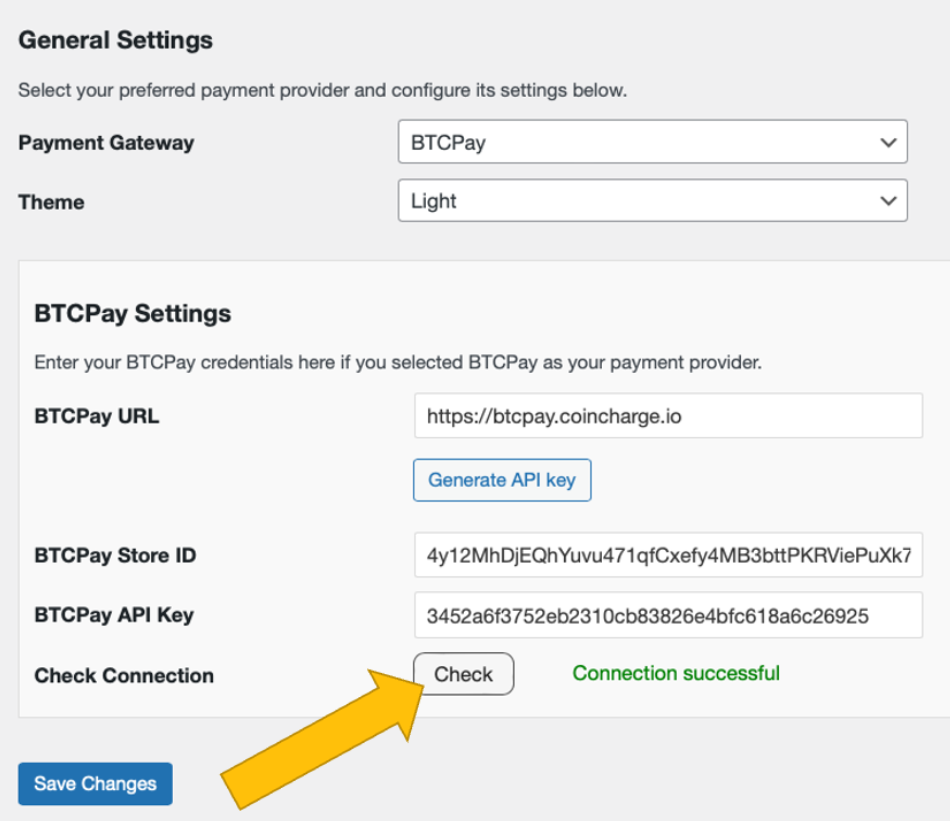
Now, log into your BTCPay Server. If you’ve done that, enter your BTCPay Server URL into the matching field in the Donation Settings tab [1].
Next, you’ll have to click on the Generate API Key button [2].
You’ll then be forwarded to your BTCPay Server.
Choose your Shop [1], then click on continue [2].

You’ll then be forwarded to this screen. Enter your store’s name on the top [1], and then click on authorize app [2].
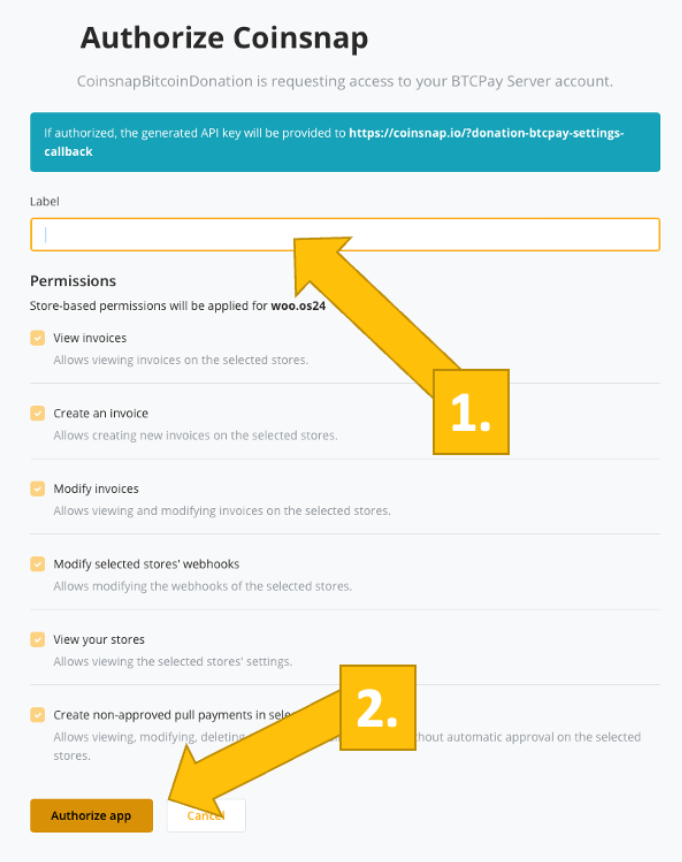
Your BTCPay Server is now successfully connected to your blog or website, via the Coinsnap Bitcoin Paywall plugin!
(If you click on check you will get the success notice (in green)).
Step 5
Create a paywall shortcode
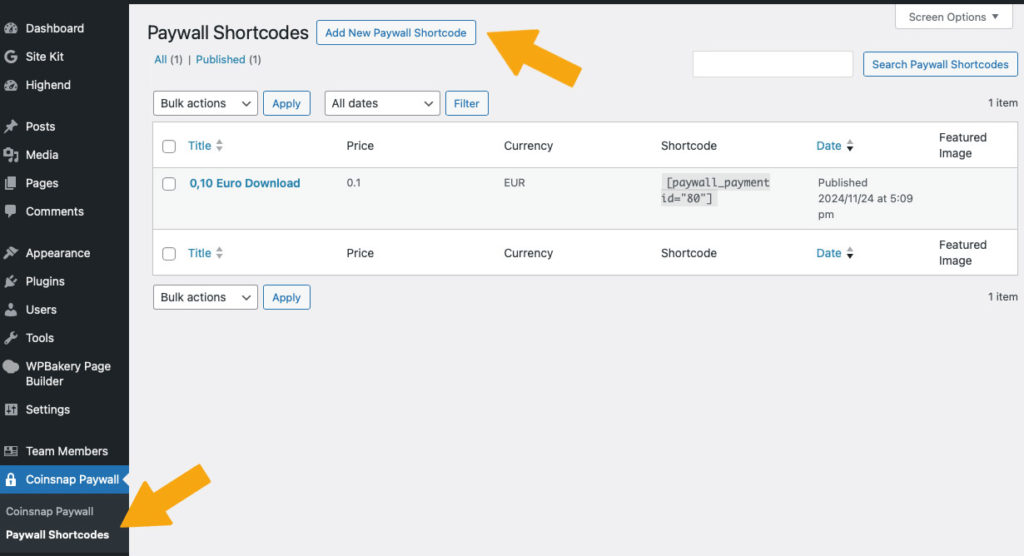
Go to Coinsnap Bitcoin Paywall in the sideboard on the left in your WordPress and click on Paywall Shortcodes.
Then click on “Add New Paywall Shortcode” at the top.
Configure your paywall shortcode
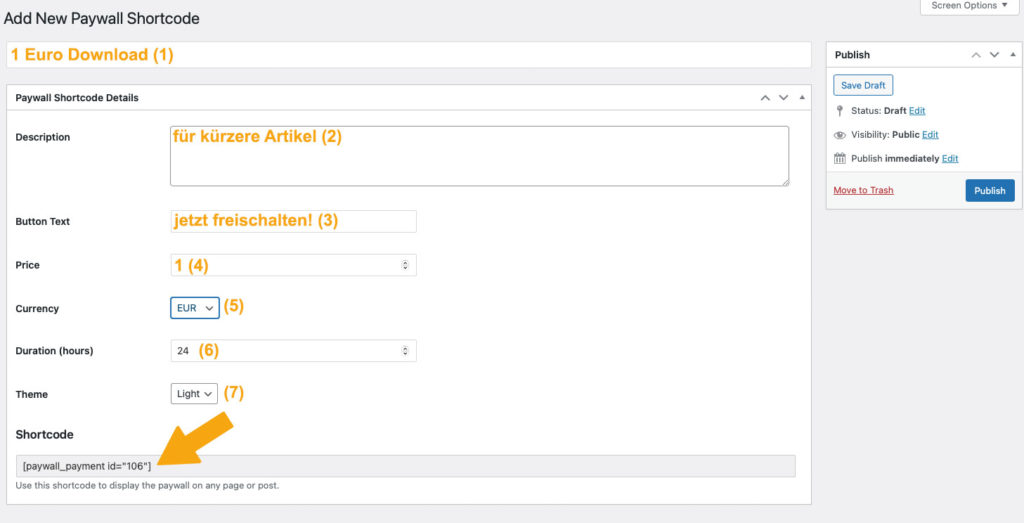
In the window that now appears, make the following settings (see orange entries):
- First you assign a name so that you know later what the short code is intended for.
- Then you can enter a short description as background information for yourself or your editors.
- Then set the text of the payment button.
- Set your price!
- Select the currency in which the price is to be displayed
- Set the duration of the activation and
- select the color scheme of the paywall.
Now you can copy the shortcode at the bottom and use it in your content (see below).
Step 6
Create content
Now create content as usual in your WordPress, for example a text as in this example.
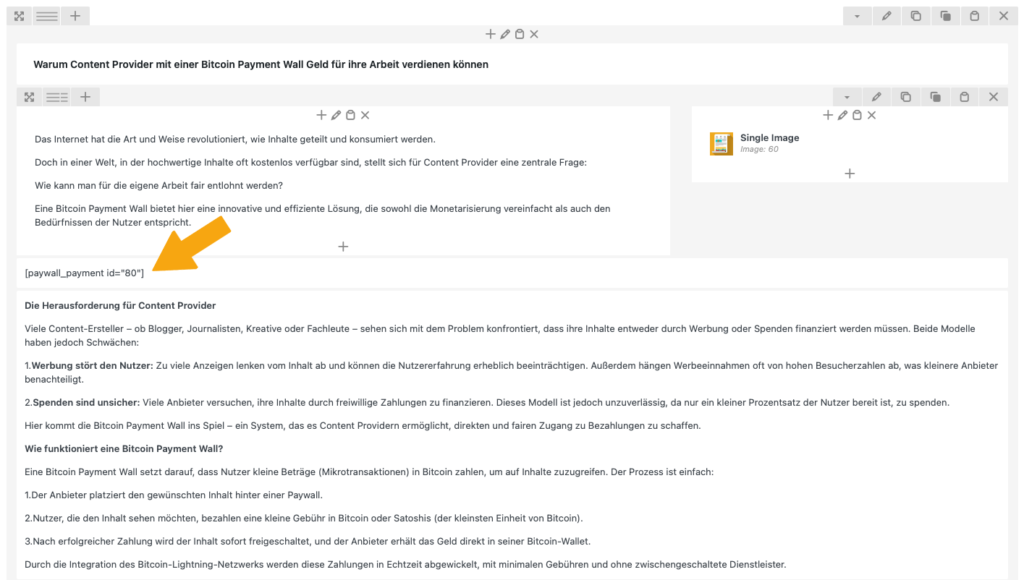
As soon as you have finished the article, you must place the shortcode you have just produced at the point where you expect payment from your reader. You usually do this after the introductory paragraph, see right:
Frequently Asked Questions
What Users Ask About This plugin
Can I use partial paywalls (unlock only some content)?
Yes — you can wrap content with [coinsnap_paywall] shortcode.
Does the paywall work with membership plugins?
Yes — you can combine Coinsnap Paywall with membership or LMS plugins.
